
How to Create a Landlord Statement.
Creating a landlord statement is a smooth, controlled process — designed to ensure clarity and accuracy at each stage. Here’s how it works:
Step 1: Draft the Statement
Go to the landlord’s page and click Statement & Payout.
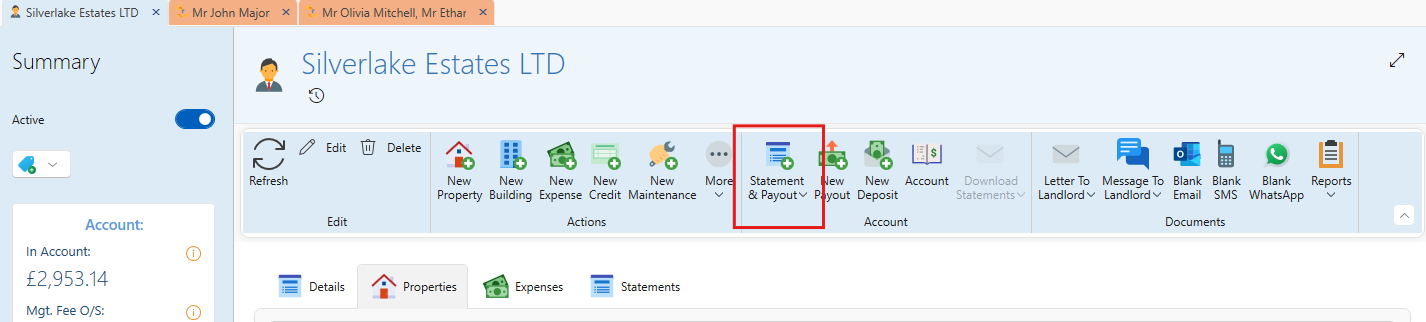
This opens the statement window.
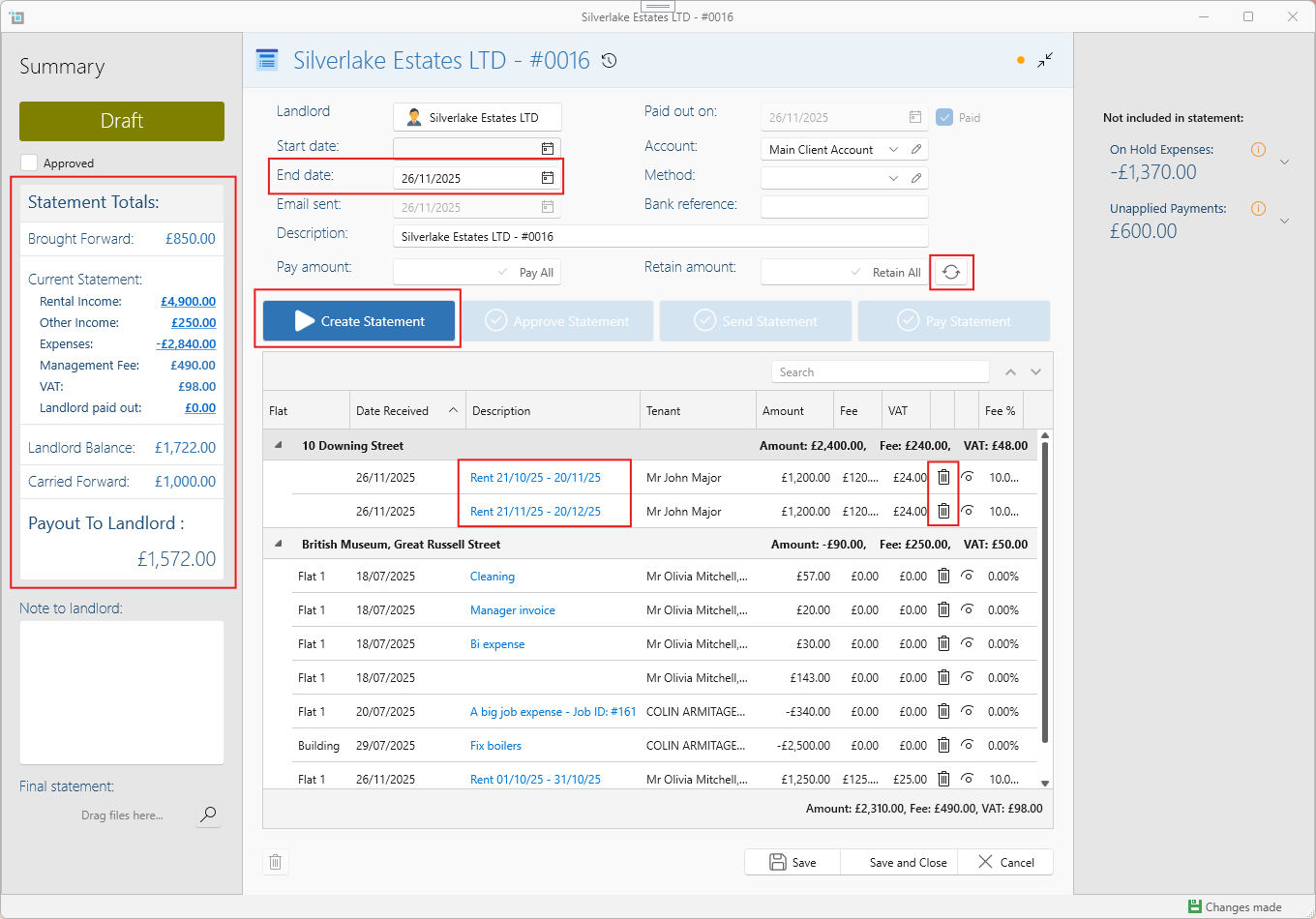
The Statement End Date will default to the next due date based on the recurrence set up for this landlord.
If no recurrence is set, it defaults to one month after the previous statement date.
You can manually change the statement end date, and the transactions will reload based on your new end date.
You'll see all the landlord’s transactions up to the statement date — anything not yet included in a previous statement will be listed.
Start Date cannot be filled in manually — it's set automatically to one day after the previous statement’s date. If it’s the landlord’s first statement, the system will ask you to select a start date when saving.
Now the statement is in draft, and it’s time to review.
You can:
Remove any transaction you don’t want to include by clicking the delete icon — it will roll over to the next statement.
Open any transaction to view details or make corrections.
Filter by transaction type (e.g. Rental Income, Expenses) from the panel on the left.
See totals grouped by income and expense.
If you make any changes to a transaction, click the refresh button to reload the window and update the list.
Once you’re happy with the draft, click Create Statement. This saves the statement and locks in the transactions.
Once the statement is created it will now show in the landlord page under the Statements tab, and under the View Landlords window, as the most recent statement of this landlord.
Step 2: Approve the Statement
This step only appears if your system is set to require approval in the Control Panel.
If your settings do not require statement approval, it will move immediately to the nest step (Awaiting Sending)
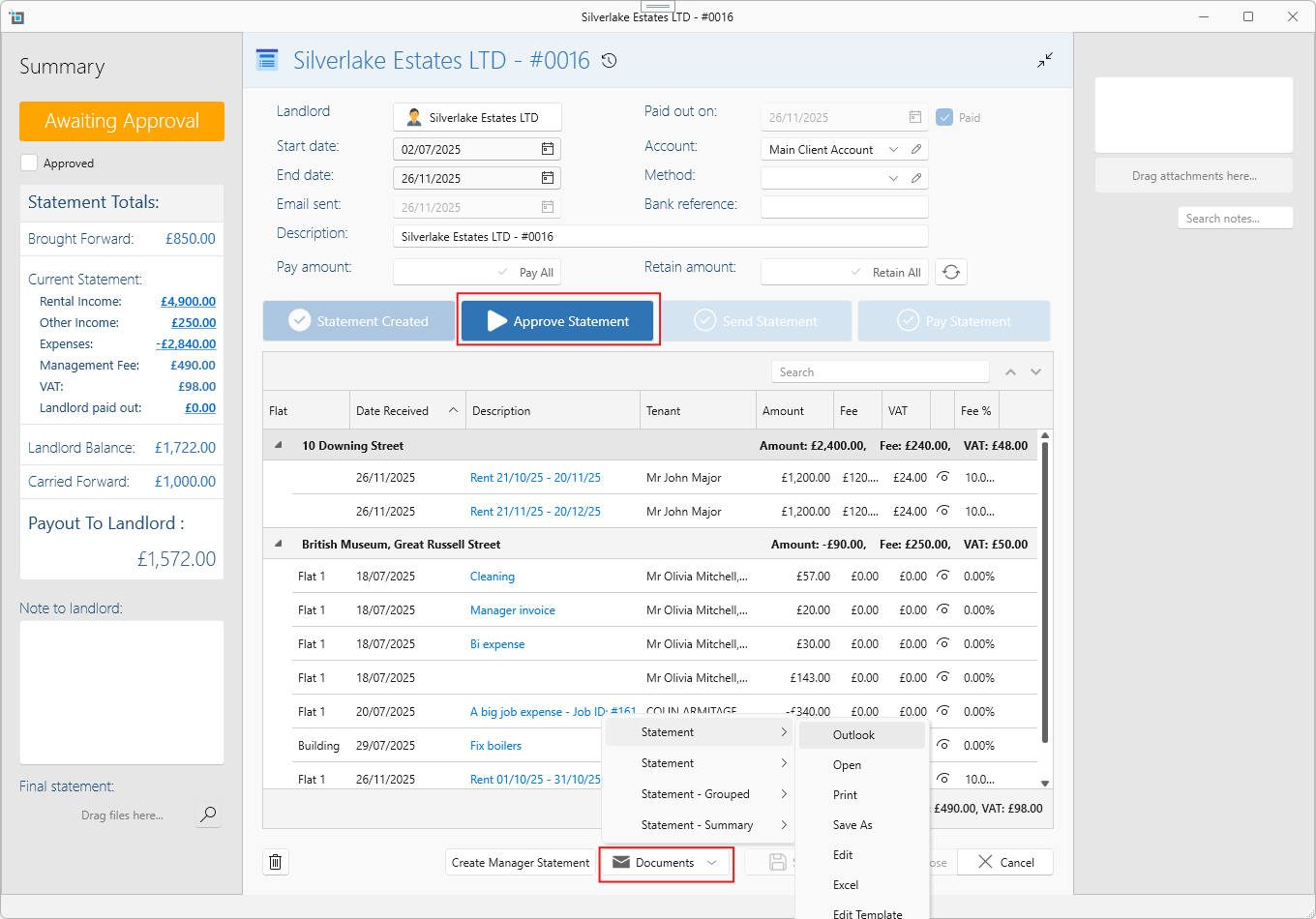
Now that the statement is created, the approver (a user with permission to approve) can:
Generate the PDF or email to review what’s about to be sent.
If something needs fixing, click Refresh — this will warn you that the current statement will be deleted and recreated.
Once satisfied, click Approve. The Date Approved will be filled in.
Step 3: Send Statement
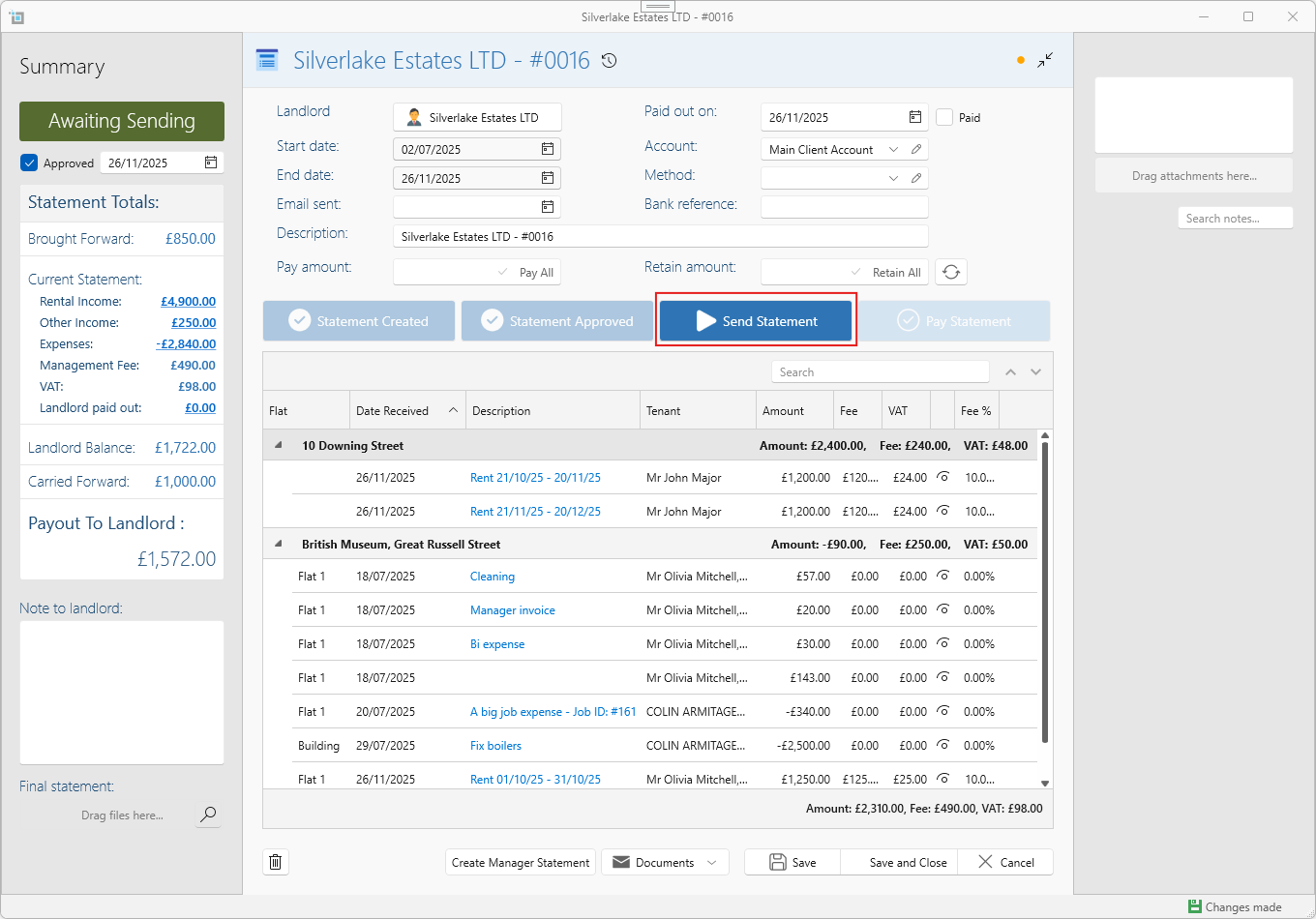
Click Send Statement to email the landlord.
The system will use the default template set on the landlord page.
If none is set, it will use the global default template from the Control Panel.
Depending on your Control Panel settings:
If "Send Immediately" is enabled, the email will be sent behind the scenes without opening Outlook.
If not, Outlook will open with the pre-filled email so you can review and send it manually.
After sending, SleekTech will ask you to confirm — once confirmed, the Date Sent field will be filled in, and the statement will move to the next stage: Awaiting Payment.
Alternatively, if you have already sent the statement, you can just fill in the Email Sent date and the statement will move on to the next step.
Note: If your Control Panel setting is to automatically mark statements as sent, this step will be skipped entirely and the statement will move directly to Awaiting Payment.
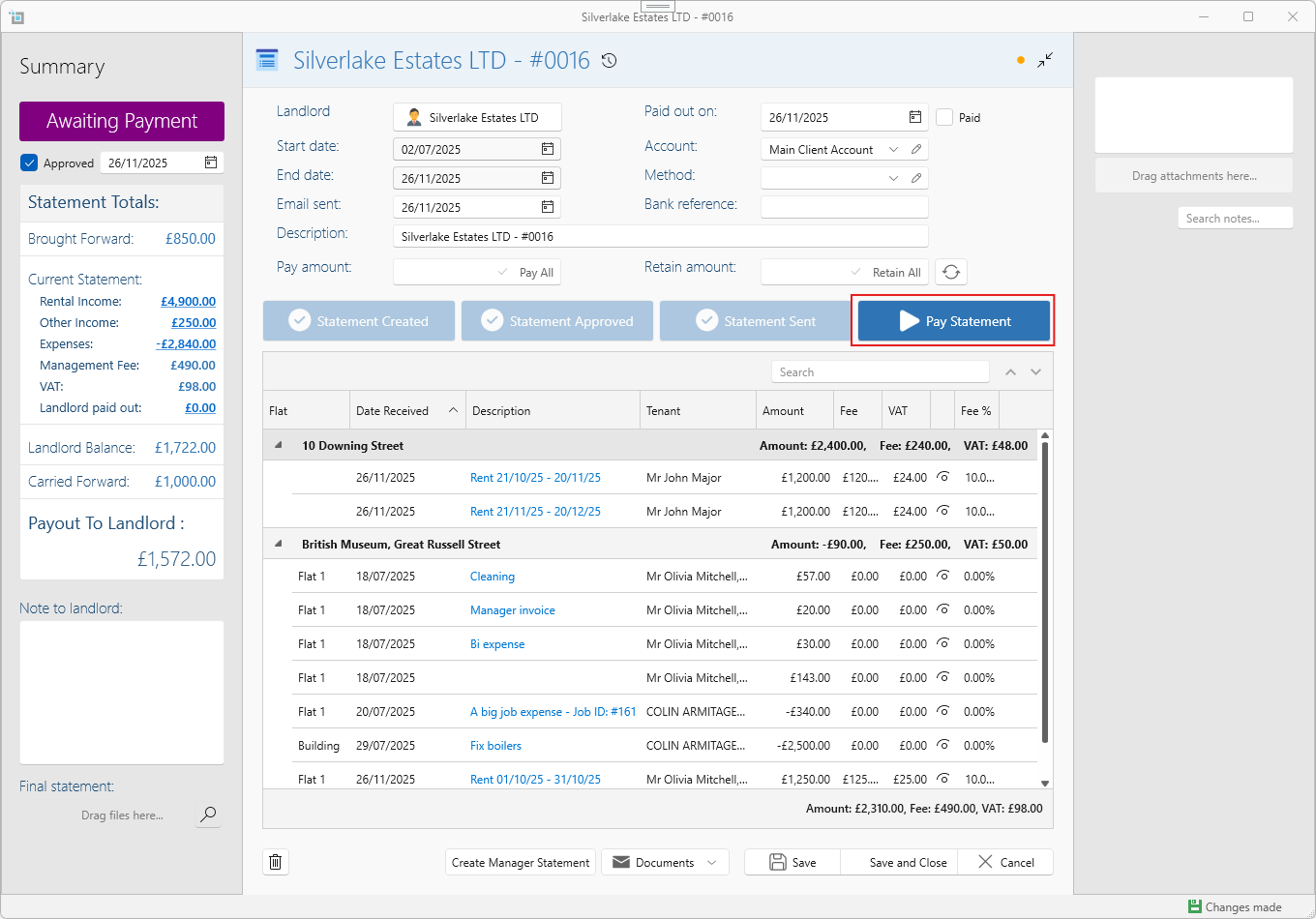
Step 4: Pay Statement
Click Pay Statement to confirm that payment has been made.
This fills in the Paid Date and checks the IsPaid box.
The payment will now appear under the Banking > Reconciliation section for matching.
The statement is now marked as Complete.
Note: If your Control Panel setting is to automatically mark statements as paid, this step will be skipped and the statement will be marked complete as soon as it is sent
A few important notes:
You can only edit or delete the most recent statement.
You can never edit or delete transactions already included in a statement — to ensure reporting accuracy to landlords.
Print or email statements
- Once you save a statement you can email or print them as following:
- From the owner window, under the statements tab, find your statement (recent ones showing on the top).
- Under the last column, click on Statement, then select Open, Email etc.
- Alternatively, you can also click on the icon after the statement number to open the statement window.
- At the bottom of the window, click Documents, select statement and choose one of the dropdown options to print, export or email.
What transactions will appear on the statement
- Incoming payments from tenants (credit).
- Calculated management fee based on the incoming tenant payments.
- Outgoing refunds to tenants (debit).
- Supplier invoices (debit). (this can be changed to only show up once supplier incoice has been paid see the following article: Owner Statement - Only paid Supplier Invoices show up.)
- Supplier credit notes (credit).
The following will not appear on statements.
- Tenant invoices that haven't been paid yet.
- Tenant payments not yet applied to any invoice.
- Tenant credit notes.
- Payments or refunds to suppliers.
Want to know more?
Check some of the following articles:
How to change statement descriptions and numbers
How to carry forward amount to the next statement
How to push off an expense or payment to next statement
How to create a statement for a specific timeframe
How to send funds to an owner without a statement
How to include all invoices as attachments to statement