How to get help.
You can easily create help requests and follow them up directly from the software.
From the Help menu at the top right corner of the software select New Support Ticket.
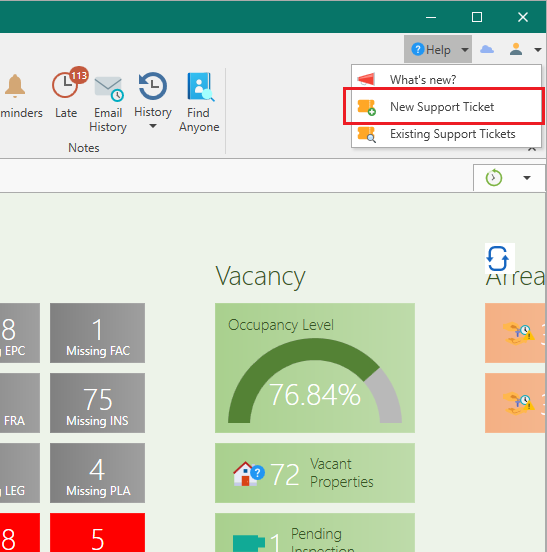
This will bring you to our support website.
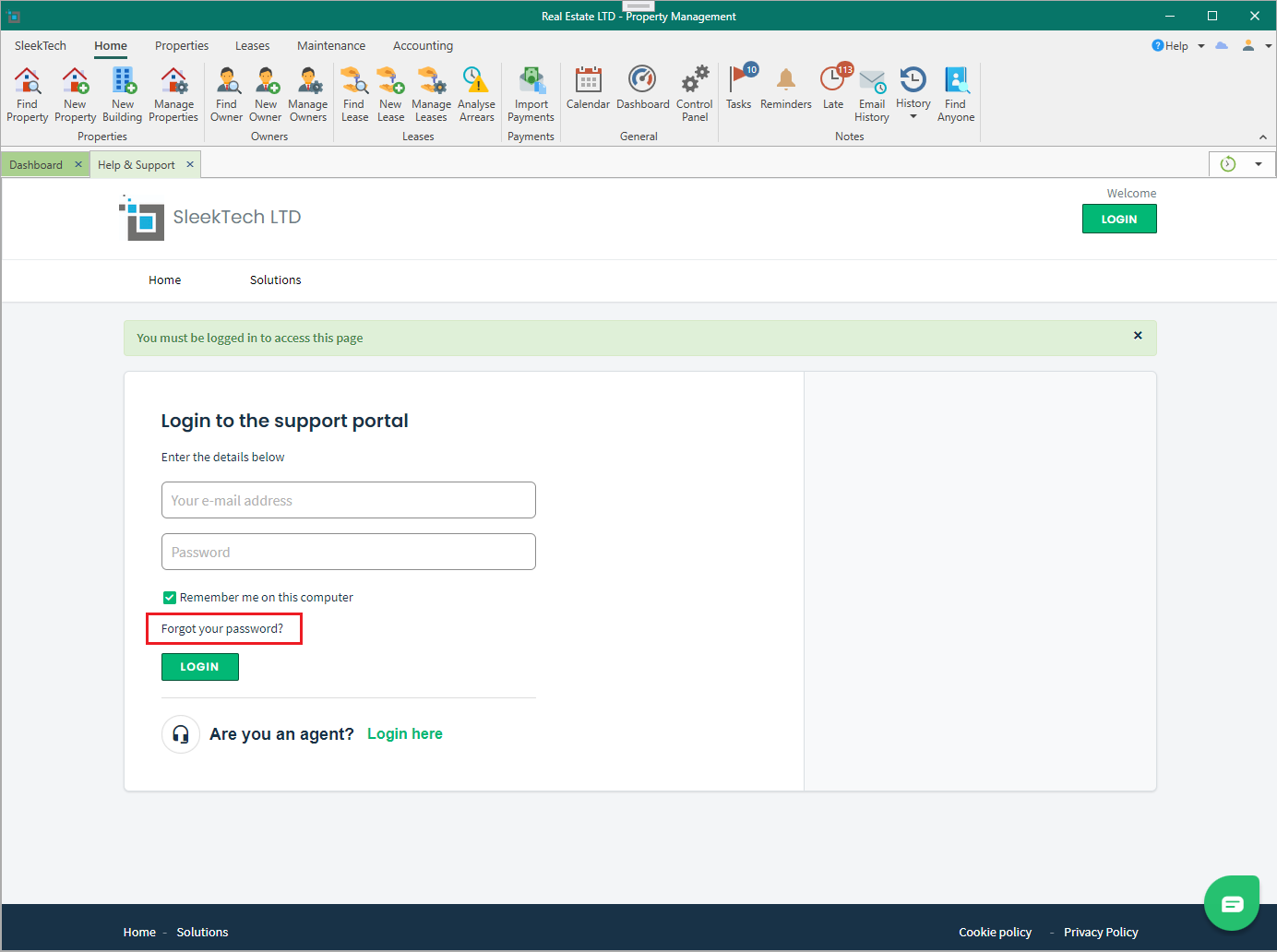
If you are not logged in yet, you will see the following page.
Click Forgot Password.
Insert the same email address you use to log into SleekTech and click Reset My Password
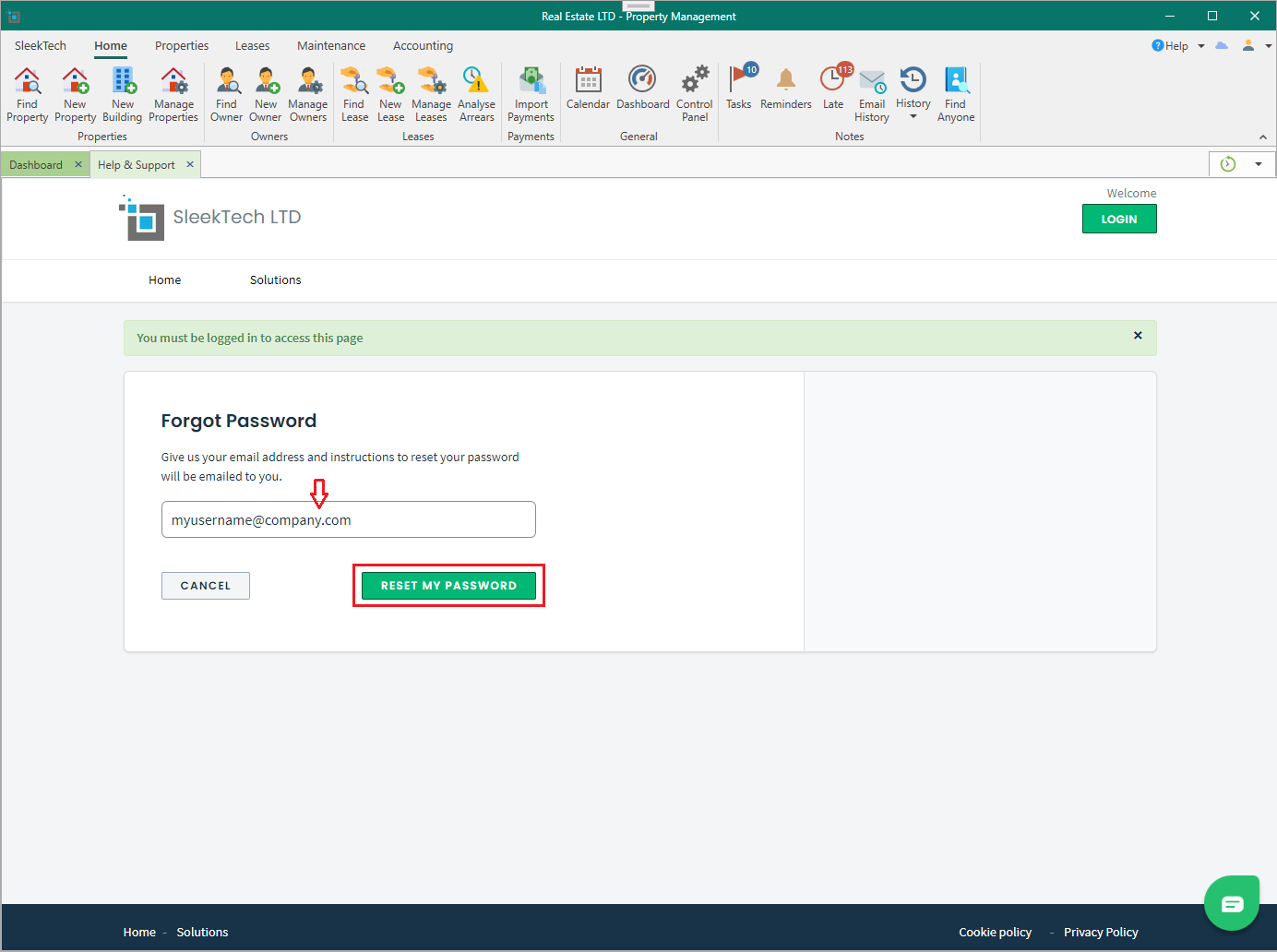
You will receive an email with a link to reset your password.
Check your email and reset your password to something you can easily remember.
Once done, you can login with your new password, and make sure the Remember me on this computer is checked, so you don't have to log on every time.
How to create a new support ticket?
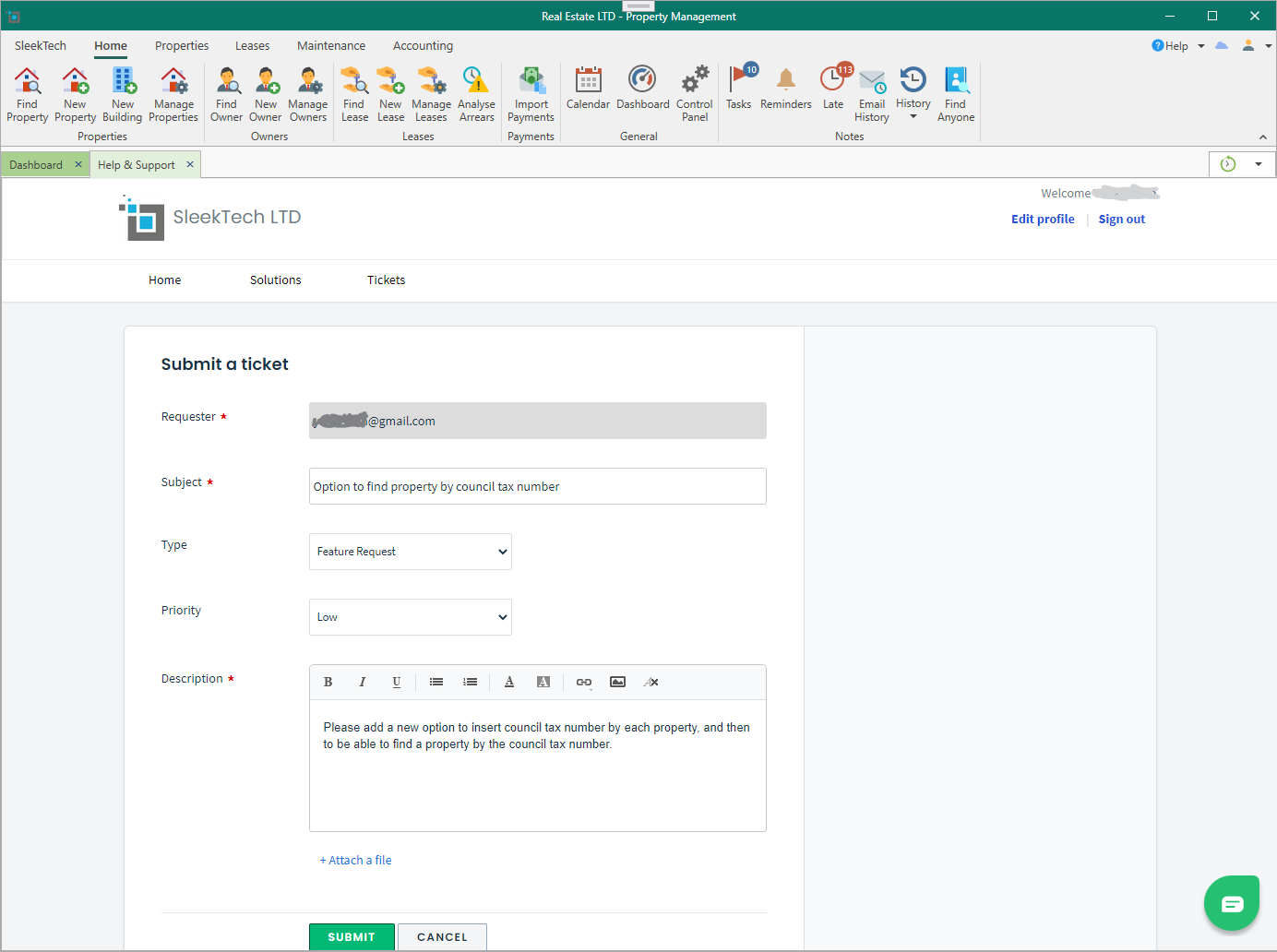
Your email address will be prefilled.
Type the subject of the request.
You can also fill in the ticket type, i.e. Question, Problem, Feature Request etc. and the priority level.
Type some more details of your request in the description box, and additionally, you can add any attachments or pictures to illustrate your request by clicking Attach a file underneath the description box.
When finished, just click Submit.
You will be navigated to the list of submitted tickets.
Whenever we will respond to the request, you will receive an email with the response, and you can also check the full conversation under existing tickets as shown in the next paragraph.
Check the status of existing tickets.
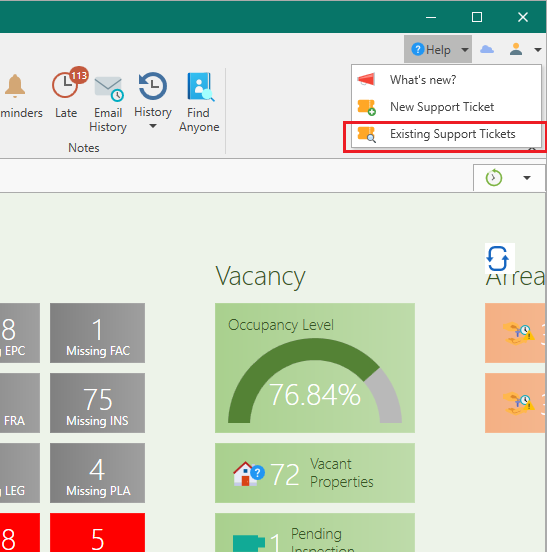
From the Help menu at the top right corner of the software select Existing Support Tickets.
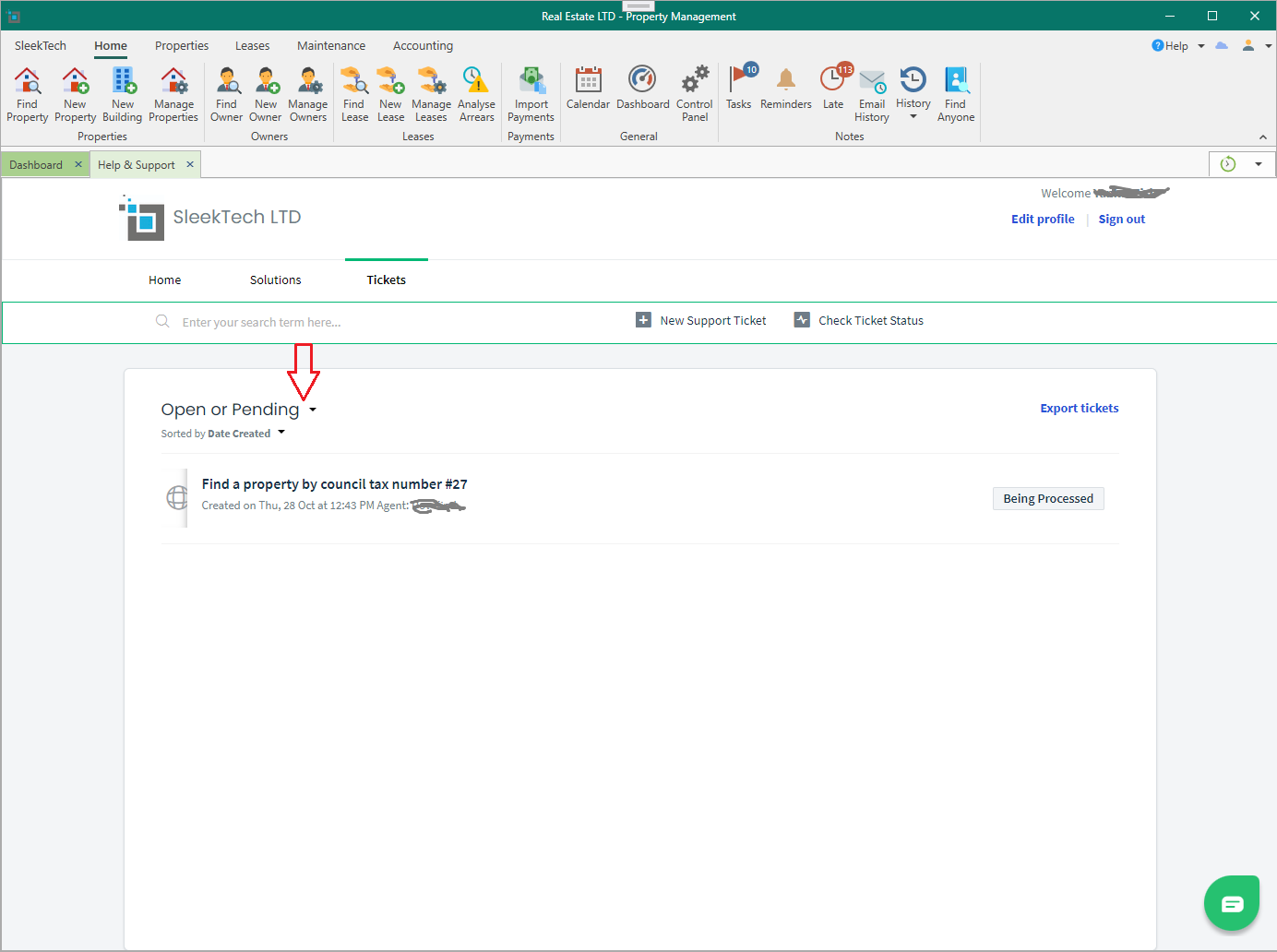
You will see a list of your existing tickets and their status.
By default you will only see Open tickets, but you can view all tickets by clicking on the filter as below.
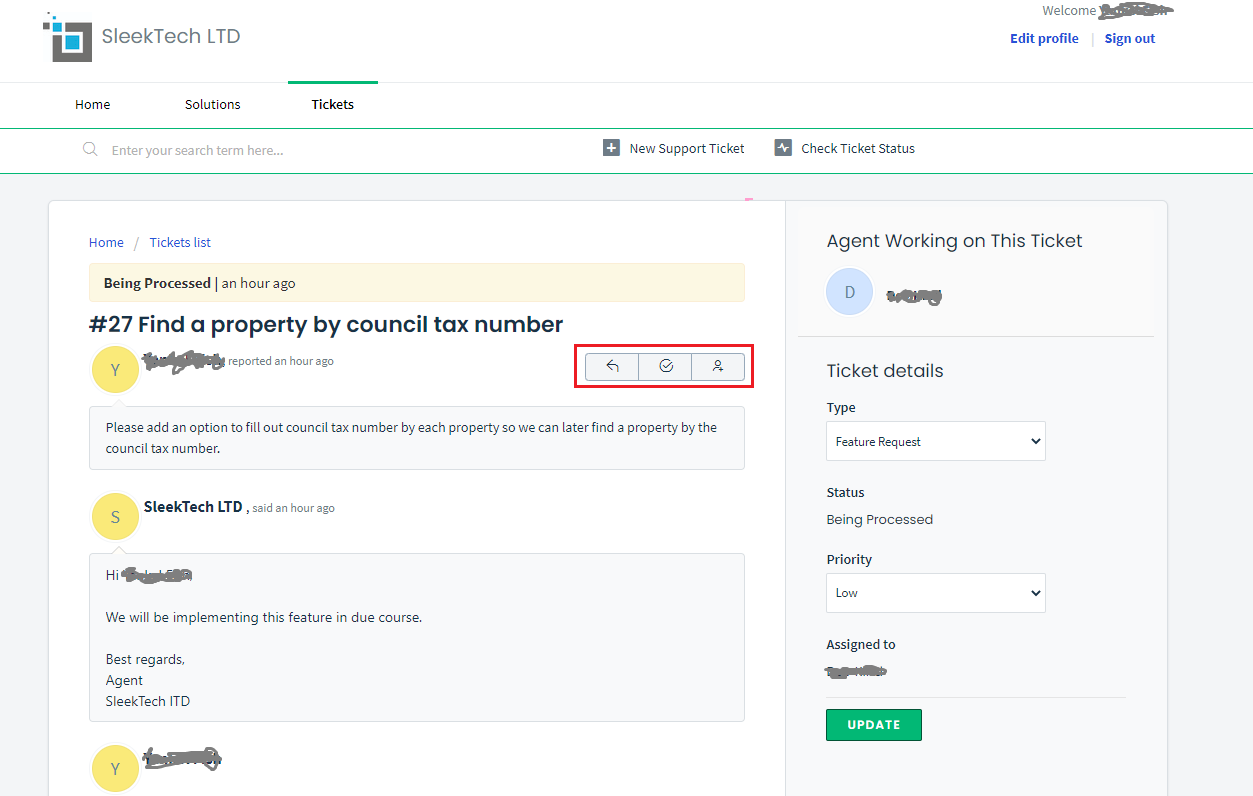
You can click into each ticket to see the full progress of that request.
You can also add more replies or close the ticket if its not relevant anymore.
If you want to loop in another colleague into the conversation, you can add them by clicking the Add people to the conversation button.