
New window to manage tenant's deposits.
To create new deposit invoices or to view tenant deposit history click Manage Deposits on the tenancy page.
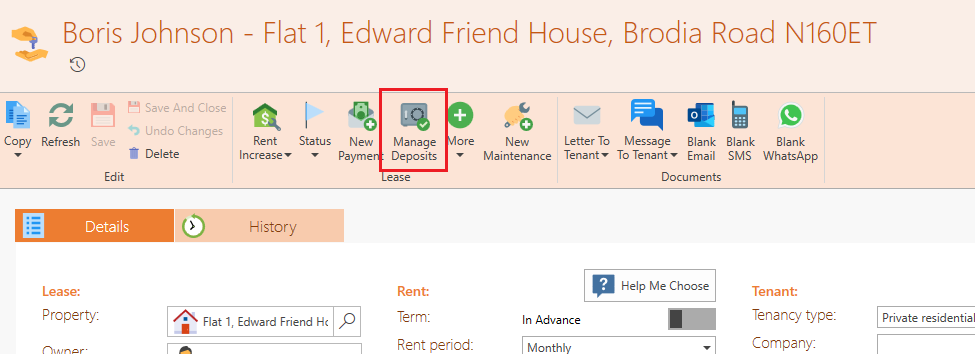
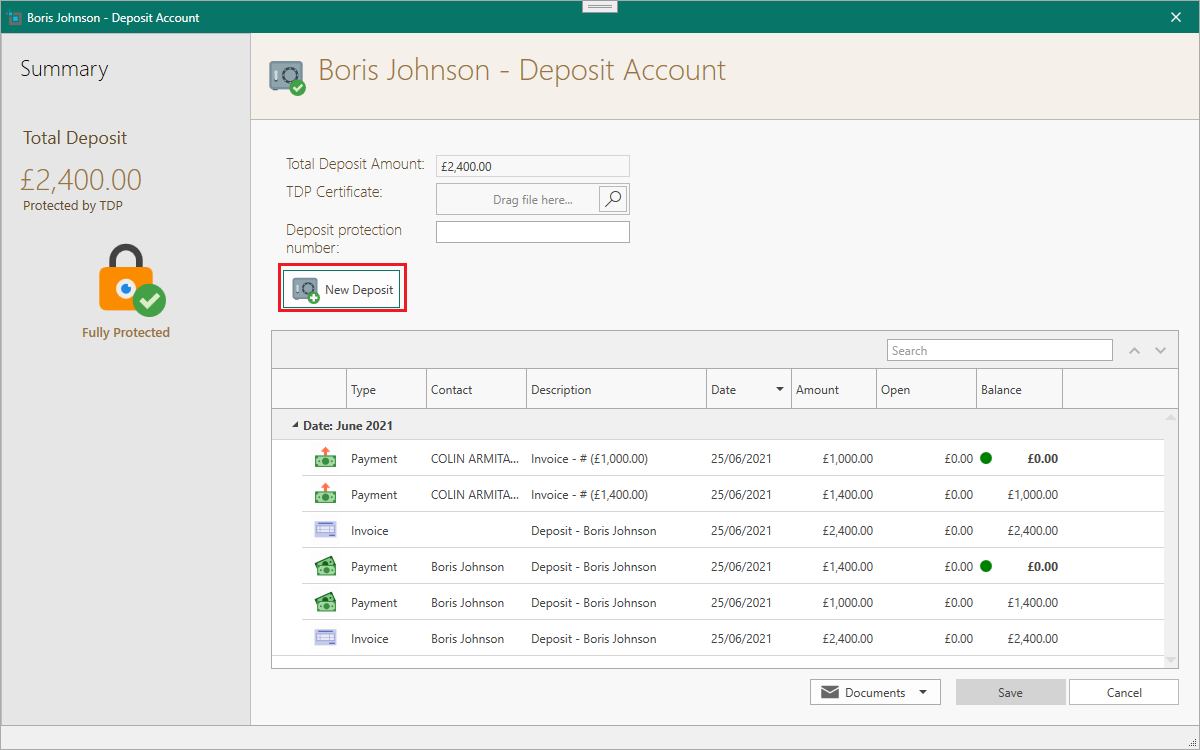
The deposit management window will show.
To create a new deposit invoice, click New Deposit.
The New Deposit window will show.
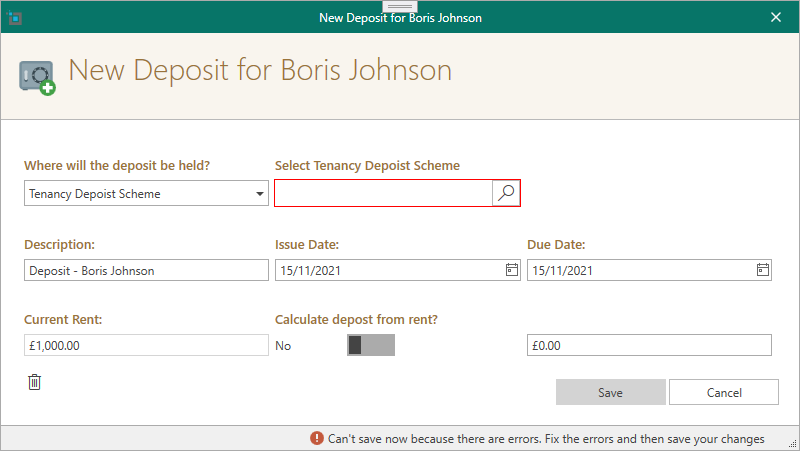
If you plan to hold the deposit with a TDP then select it from the supplier list.
This will create an outgoing invoice to that TDP. When you send over the deposit, you can allocate the outgoing payment to this invoice.
You can calculate the deposit from the rent i.e. rent is £1200, check Calculate deposit from rent, insert 1.5 in the textbox.
This will give you a deposit amount of 1.5 * the rent which is £1800.
When done, click Save.
Make sure to attach the TDP certificate to this window, so the system can keep track if you have any unsecured deposits.
Improved postpone arrears settings.
There is a new menu to select when the tenant usually pays.
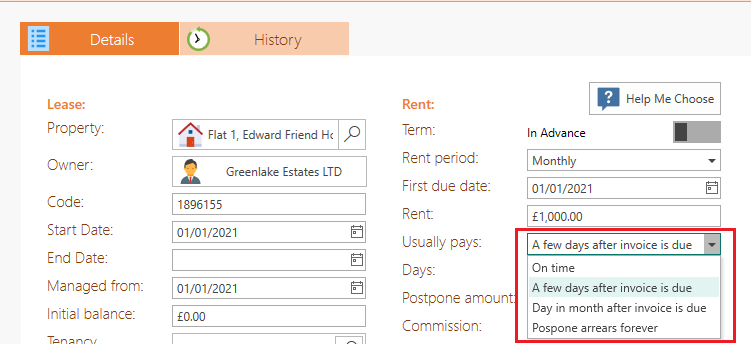
Whenever an invoice is created for a tenant, this selection will be taken in account and the expected date for the payment of that invoice will be calculated on that.
For instance, if a rental invoice is created with a due date of 05/11/20201 the expected payment date will be as following:
- If selection was: A few days after invoice is due, and the amount of days is set to 5, the expected payment date will be 10/11/2021.
- If selection was: Day in month after invoice is due, and the day is set to the 15'th, the expected payment date will be 15/11/2021.
- If selection was: On time, the expected payment date will be the same as the due date.
You can view the expected payment date for each invoice when opening the invoice window.
The postponed date can also be be changed manually from here for any individual invoice.
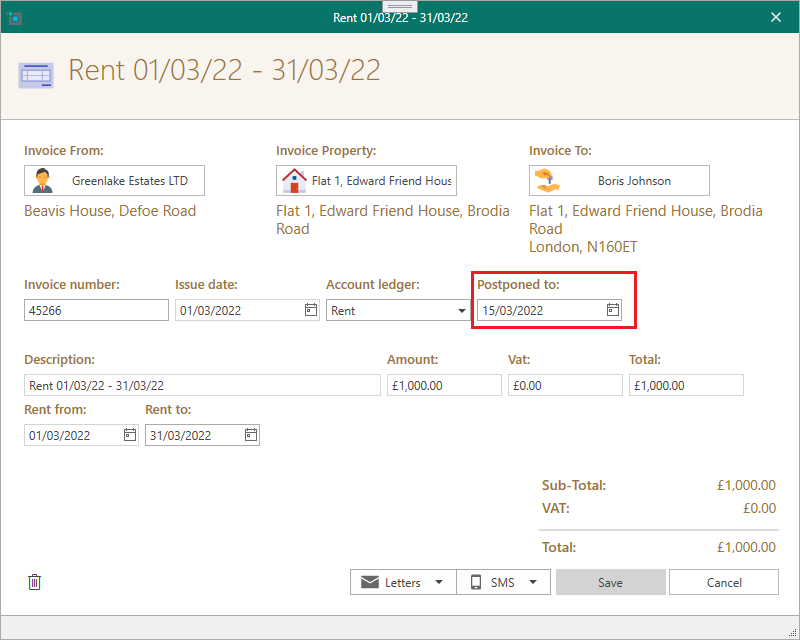
If an invoice is already past the due date, but payment isn't expected until a later time, it will be indicated in the history window like below.
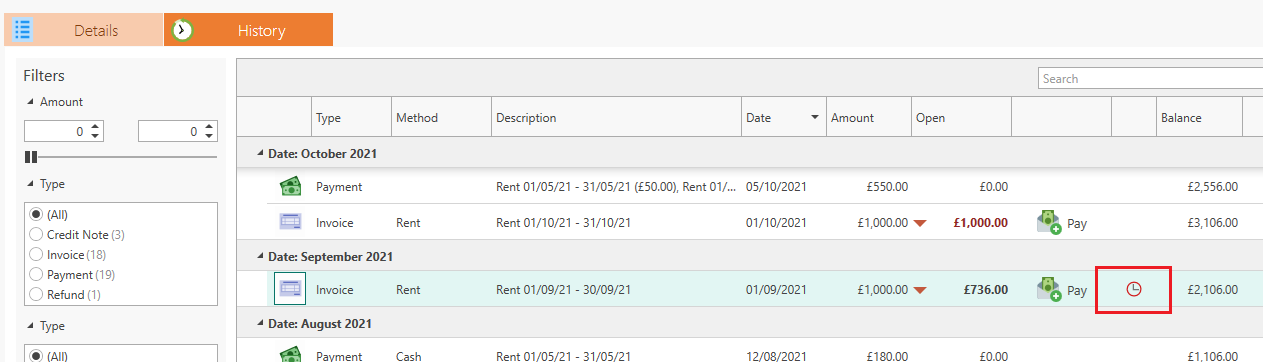
Because payments are not expected until the postponed date, tenants will not show as Outstanding until the expected date.
However, the current balance will show everything outstanding that's already due even before the postponed date.
Please note!
The postponed amount will no longer have any effect.
You can postpone any invoice individually by changing the postponed date to a later date in the future.
New Expected Rent window.

This will show you all expected rent from this week.
Expected dates will be calculated as explained in the previous section.
You can change to any date range from the menu below.
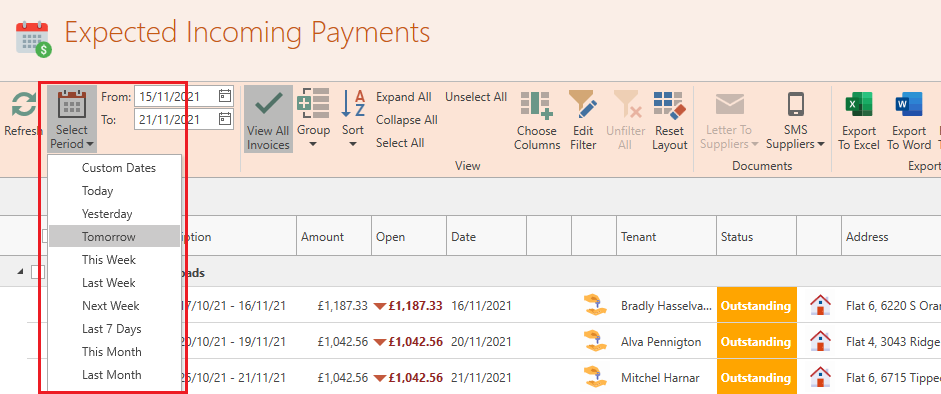
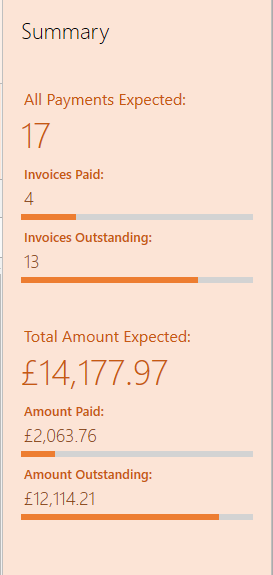
This window will give you a clear overview on how much rent you are expecting for any given period, with a breakdown of how much is already collected and how much is still outstanding.
This will be shown on the right hand side panel.
Please note!
Generally, the Expected Rent window should be used on a daily basis to check what incoming payments you expect etc., and the Analyse Arrears window can be used to check aging arrears, with a clear overview of aging arrears over the last 12 months.