
Overview
Certificate types define the different kinds of compliance documents your properties can have — for example, Gas Safety Records, EPCs, or Electrical Installation Condition Reports. Each type carries its own settings that control how certificates of that type behave across the system: how long they are valid for, when they trigger warnings, which property types require them by default, and more.
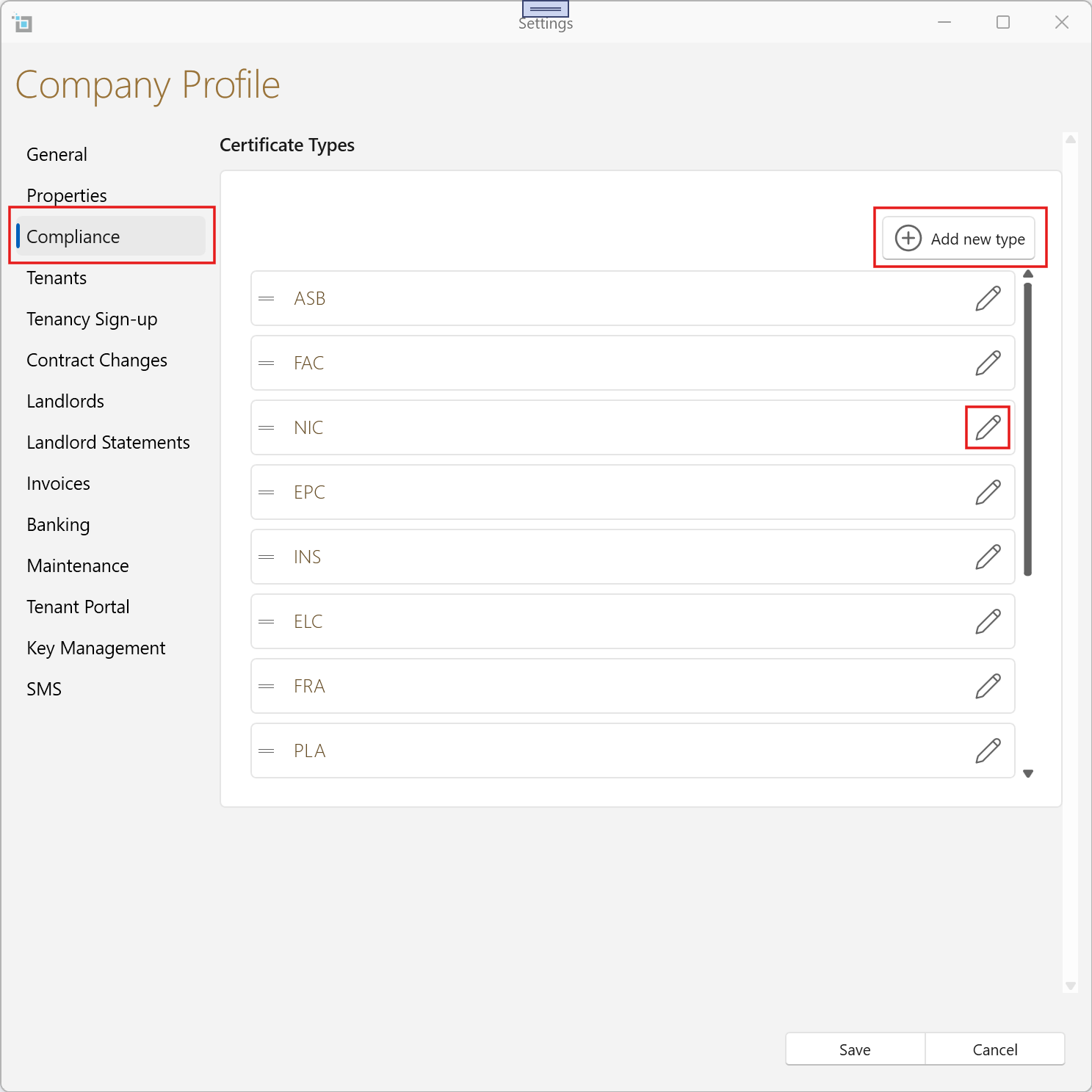
Certificate types are managed from Settings > Compliance. Click the edit icon on any existing type to open it, or click Add New Type to create one.
Title
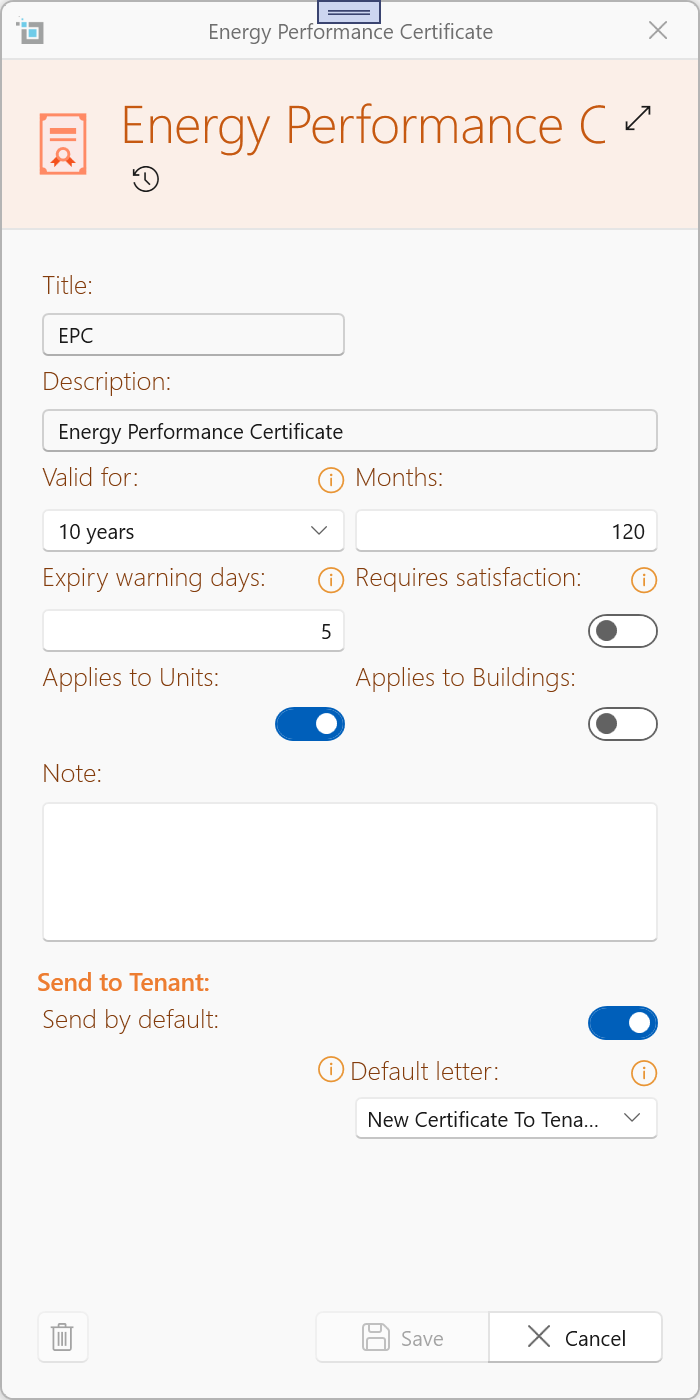
A short display name for this certificate type. This is the name shown throughout the system — on the property record, dashboards, and reports.
System certificate types (built into PM) have a read-only Title and cannot be renamed.
Code
An short code for this certificate type. System certificate types have a read-only Code field.
Valid For
These two fields work together to define how long this certificate type remains valid after it is issued.
- Valid For — a period selector (e.g. 1 Year, 5 Years). Choosing a period will automatically set the Months field to the corresponding value.
- Months — the exact number of months the certificate is valid for. You can set this directly if the period does not match a preset option.
When a new certificate of this type is created and an issue date is entered, the expiry date is calculated automatically based on the Months value.
Example: an EPC is valid for 10 years. Set Months to 120. If you enter an issue date of 11/02/2022, the expiry date will be pre-filled as 10/02/2032.
You can always change the expiry date manually after it has been calculated.
Expiry Warning Days
The number of days before the expiry date when the certificate status changes from Compliant to Expiring.
Once inside the warning window the certificate turns orange and appears under the Expiring group on the dashboard, giving you advance notice to arrange a renewal before the certificate lapses.
Requires Satisfaction
Some certificate types are not considered compliant simply by existing on file — they must be explicitly reviewed and marked as satisfied.
Enable this toggle for those types.
When Requires Satisfaction is on, a certificate of this type will show a status of Unsatisfied until a user marks it as satisfied.
Only once it is marked satisfied does it count as compliant.
Example: a fire risk assessment may need to be reviewed against specific criteria before it is accepted — simply uploading the document is not enough.
Applies to Units and Applies to Buildings
These two checkboxes control which new properties automatically receive a certificate of this type when they are first created.
- Applies to Units — tick this to add this certificate automatically to every new unit. A unit is a standalone property that does not contain other sub-properties (for example, a house or a flat that is not part of a managed block).
- Applies to Buildings — tick this to add this certificate automatically to every new building. A building is a property that contains other sub-properties (for example, a block of flats).
Important: these defaults only apply to properties created after the setting is saved. Existing properties are not affected. To add or remove certificates on existing properties, see the article: How to Add or Remove Certificates from an Existing Property.
Send to Tenant
The Send to Tenant section lets you configure a default behaviour for automatically emailing a copy of this certificate to the tenant whenever a new certificate is created or its document is changed.
This is particularly relevant for certificate types that carry a legal obligation to be provided to the tenant — such as Gas Safety Records.
Full details of how this feature works, including which fields appear in the certificate window and when, are covered in the article: Sending Certificates to Tenants.
Ordering Certificate Types
You can control the order in which certificate types appear across the system — including dashboards and property views.
- Go to Settings > Compliance
- Drag and reorder certificate types directly in the list
The order you set here is used consistently throughout the system.
Step-by-Step: Editing a Certificate Type
- In SleekTech, go to Settings and navigate to the Compliance tab.
- Locate the certificate type you want to configure.
- Click the edit icon (pencil) on the tile to open the Certificate Type window.
- Set the Valid For period or enter a value directly in the Months field.
- Enter the number of Expiry Warning Days appropriate for this certificate type.
- If this certificate type requires explicit review before it is compliant, switch on Requires Satisfaction.
- Tick Applies to Units and / or Applies to Buildings depending on which new properties should receive this certificate automatically.
- Configure the Send to Tenant defaults if required (see the Sending Certificates to Tenants article).
- Click Save.
Updating Existing Properties (Find Missing Certificates)
If you update rules (for example, enabling Applies to Units or Buildings) and want to apply these changes to existing properties:
- Use the Find Missing Certificates tool
This allows you to quickly add any required certificates to properties based on your current rules.
For full instructions, see: Find Missing Certificates
Frequently Asked Questions
Will changing these settings update existing properties?
No. The Applies to Units and Applies to Buildings defaults only affect properties created after you save the change. To update certificates on existing properties, use the How to Add or Remove Certificates from an Existing Property guide.
Why are some fields greyed out and read-only?
System certificate types that are built into PM have read-only Title and Description fields to protect the integrity of core compliance records. Other settings such as Valid For, Expiry Warning Days, and Applies to Units / Buildings can still be edited on system types.
Why can't I delete a certificate type?
A certificate type cannot be deleted if it is already in use on one or more properties. Additionally, system certificate types cannot be deleted at all. If you no longer want a type to appear, you can make it inactive instead.
What is the difference between Expiring and Unsatisfied?
Expiring means the certificate exists and is valid but the expiry date is within the warning window you configured. Unsatisfied means the certificate exists but has not yet been explicitly marked as meeting the required criteria — this only applies to types where Requires Satisfaction is switched on.
Related Articles
- How to Add or Remove Certificates from an Existing Property
- Sending Certificates to Tenants
- Find Missing Certificates