How to open the letter editor.
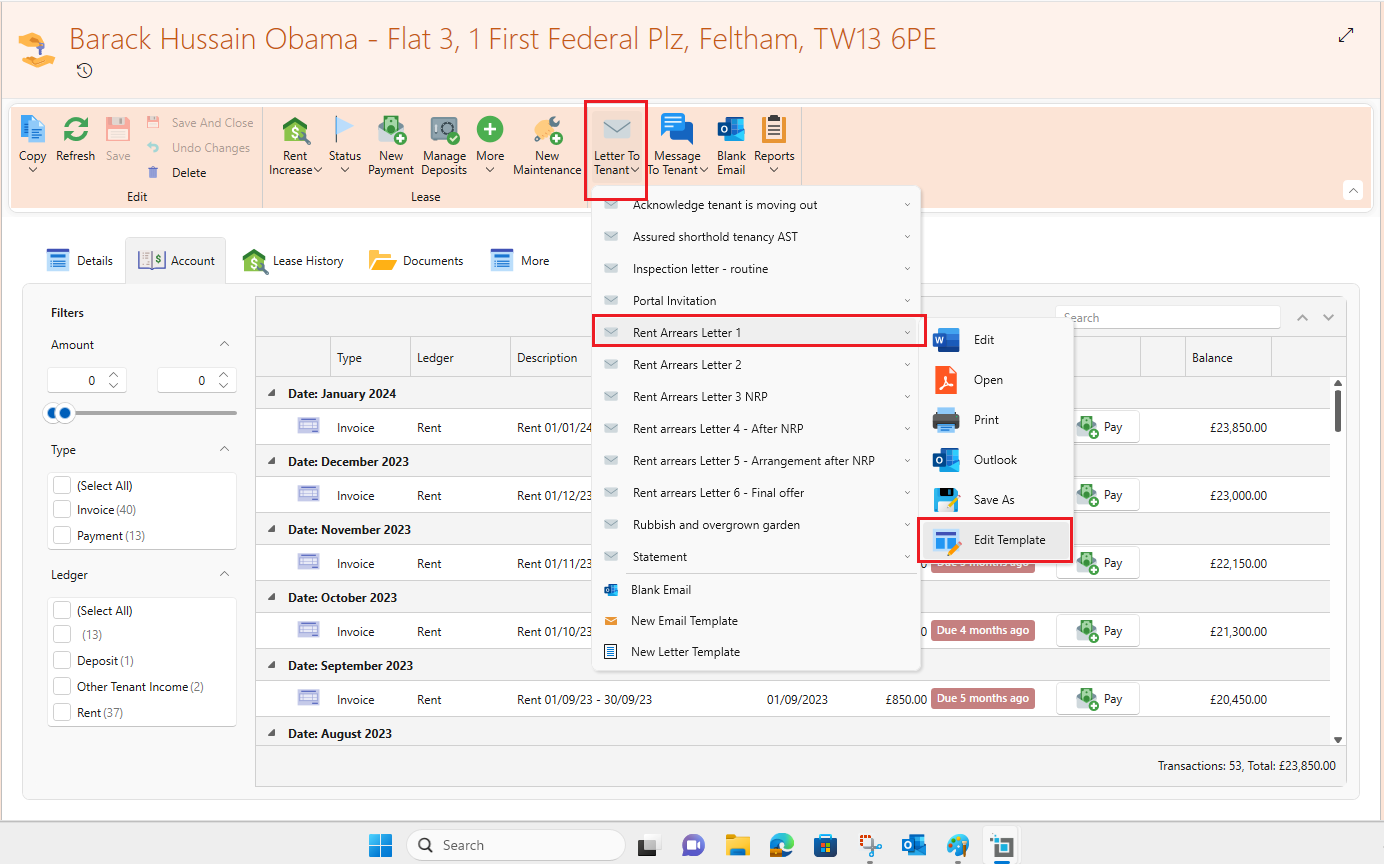
- You can open the letter editor from any letter menu as shown below:
- You can also open the letter editor from the main ribbon; go to Control Panel > click on Letter Management > under the relevant letter group find your letter and click on the pencil icon to edit.
- The letter editor for the selected letter will open.
- Find the section you want to edit and expand it.
- You can type in static text in the text box.
Sections you can edit.
You can edit multiple components for each letter which we call sections.
- First, Letter Name which is just the name given to the specific letter.
- Email subject, is the subject part of the email when sending out this letter from SleekTech in an email.
- Email Body, is the actual body of the email.
If you are editing a letter and not just an email, this means that in addition to the email body, there will also be an attached document and you will see two more sections in the letter editor.
- Attached Document, the content of the document attached to the email.
- Attachment Name, is how we will set the file name of the attachment.
How to insert merge fields.
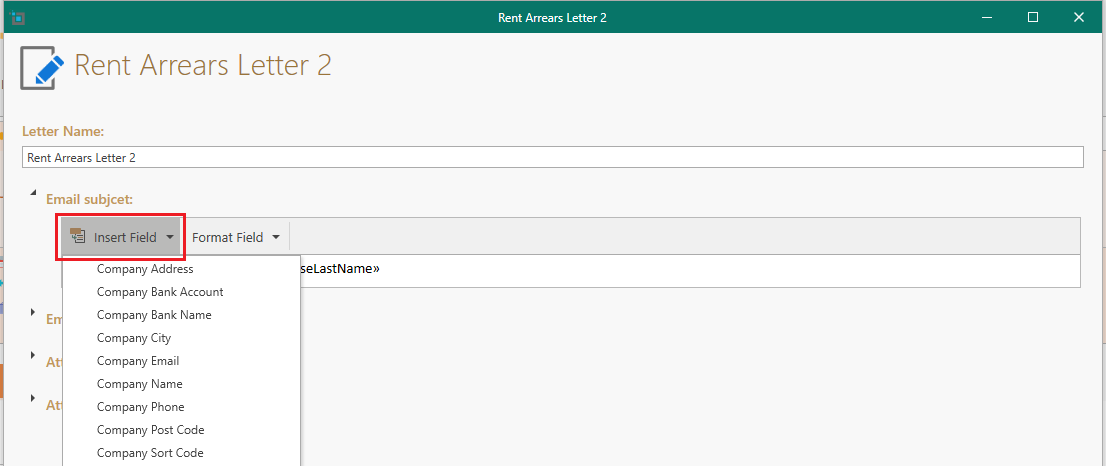
- You can also add merge fields and combine them with static text.
How to format merge fields.
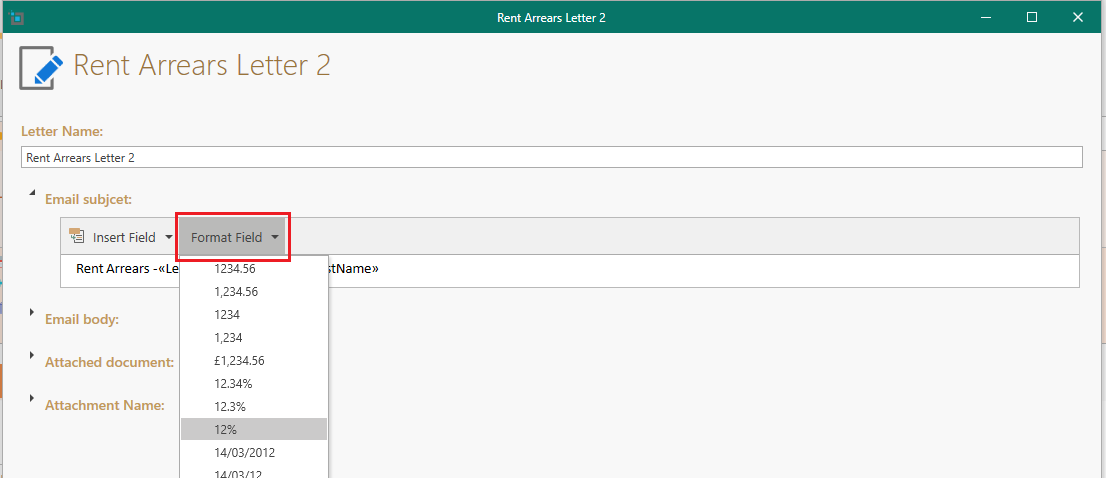
- You can set the format for number and date merge fields, e.g. percentage or currency for numbers.
- Insert the cursor anywhere in the date field or number field you want to change the format for.
- Click the Format Field dropdown as shown in picture below.
- Select any of the number or date formats.
- You can also select Clear Formatting to revert back to the defaults.
How to insert current date and page numbers.
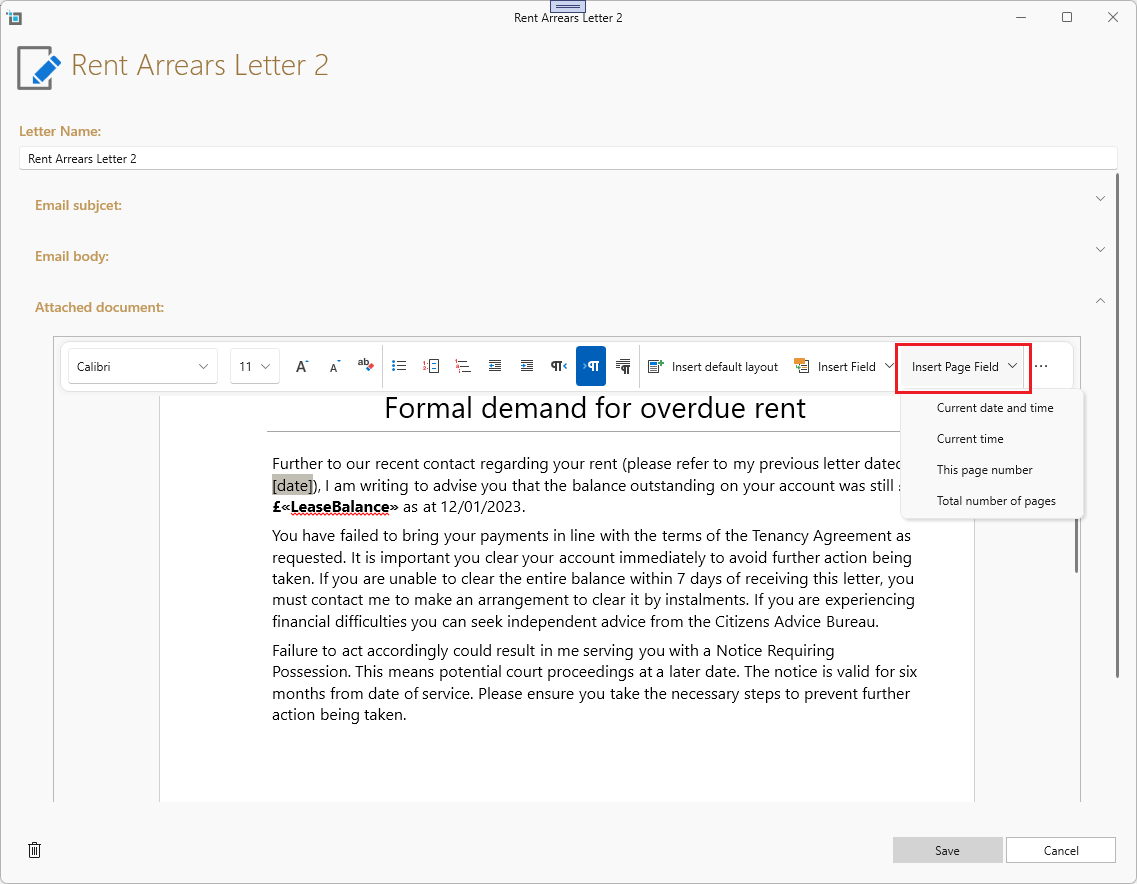
- You can insert current date and time as well as page number in letters.
- Find the Insert Page Field button in the ribbon (You might have to click on the ... button or expand the window to find it).
- Select one of the options
Edit in word
In order to access more complex formatting options, e.g. to change your document to landscape you can edit your document template in word
- Open the Letters attached document.
- The last option on the edit menu ribbon will be Edit in Word.
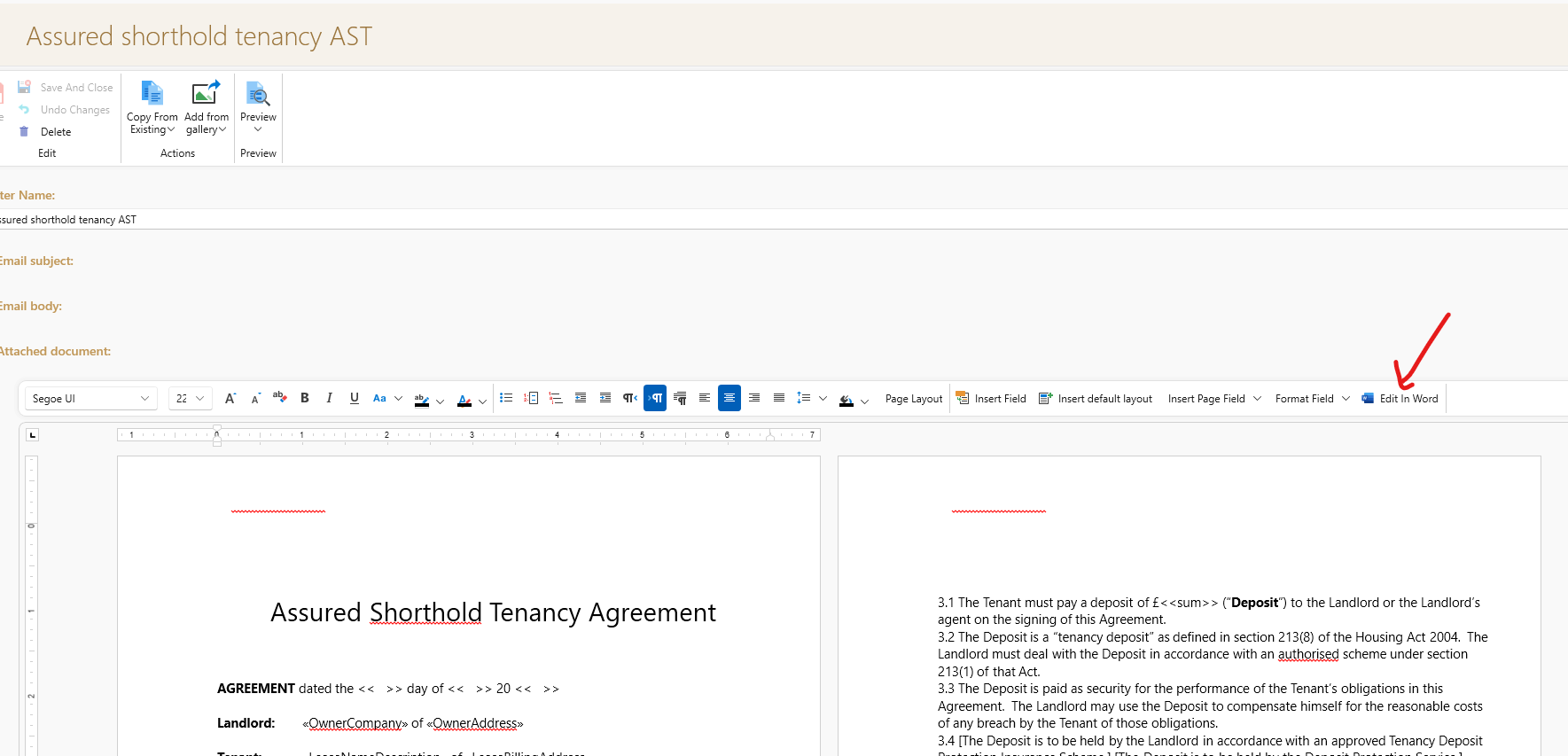
- Clicking Edit in Word will open the document in word on your Pc
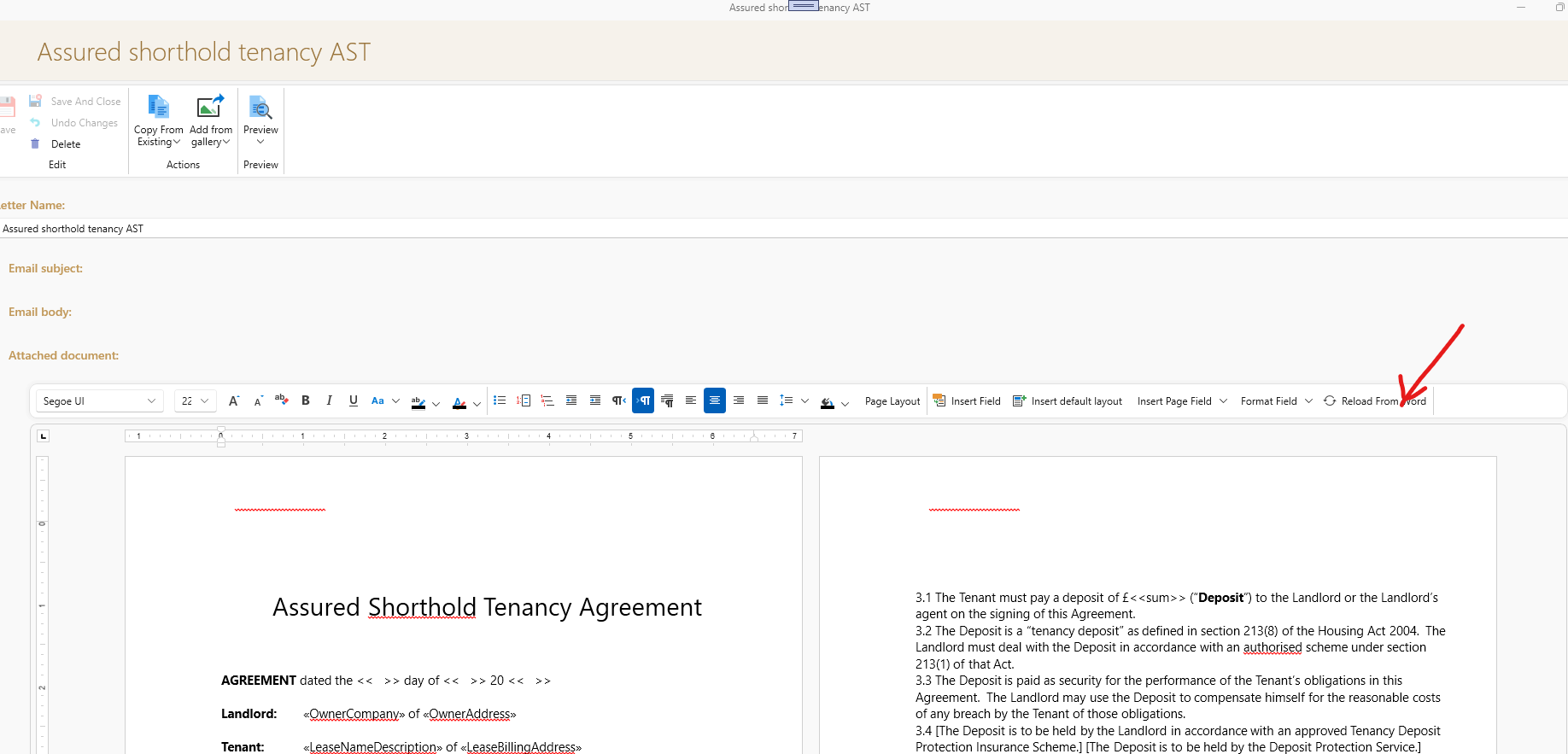
- Once you have completed your required edits in word Save and close the word window
- Now go back to your SleekTech screen and click - Reload from Word
Add static documents to letter templates
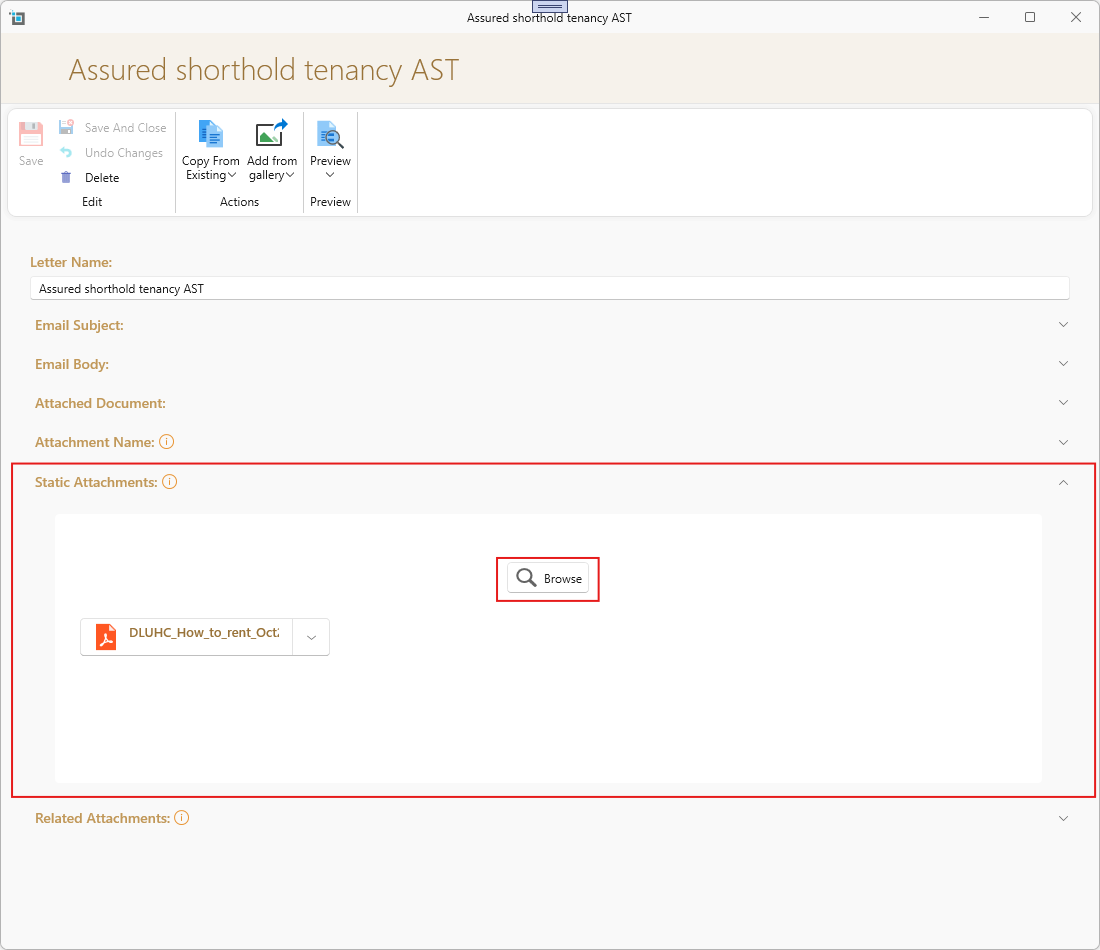
Want to send the “How to Rent” guide together with your AST? You can now attach one or more static documents to any letter template.
Static documents are files that will always be included whenever that letter is sent — no need to remember to add them manually each time.
How it works
Attach one or more static documents to a letter template
Choose the order they should appear in
Whenever the letter is generated, those documents are automatically included
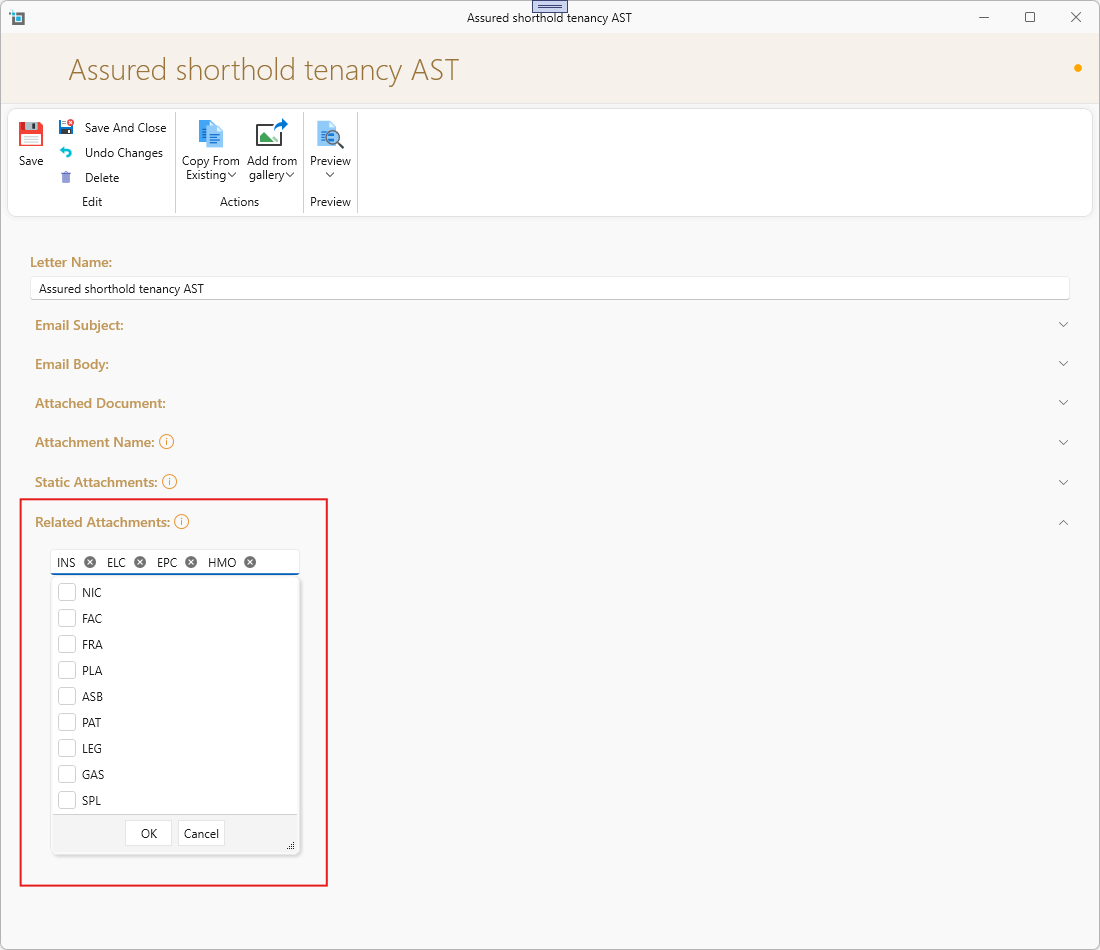
Use dynamic related attachments
Select context-based attachments such as the property’s EPC or safety certificate to be included automatically when sending a letter.
When configuring dynamic related attachments, make sure the documents are selected in the correct order.
The order you set here is the order in which the documents will be attached and presented when the letter is generated.
Preview your changes.
At any time whilst editing you can preview your changes.
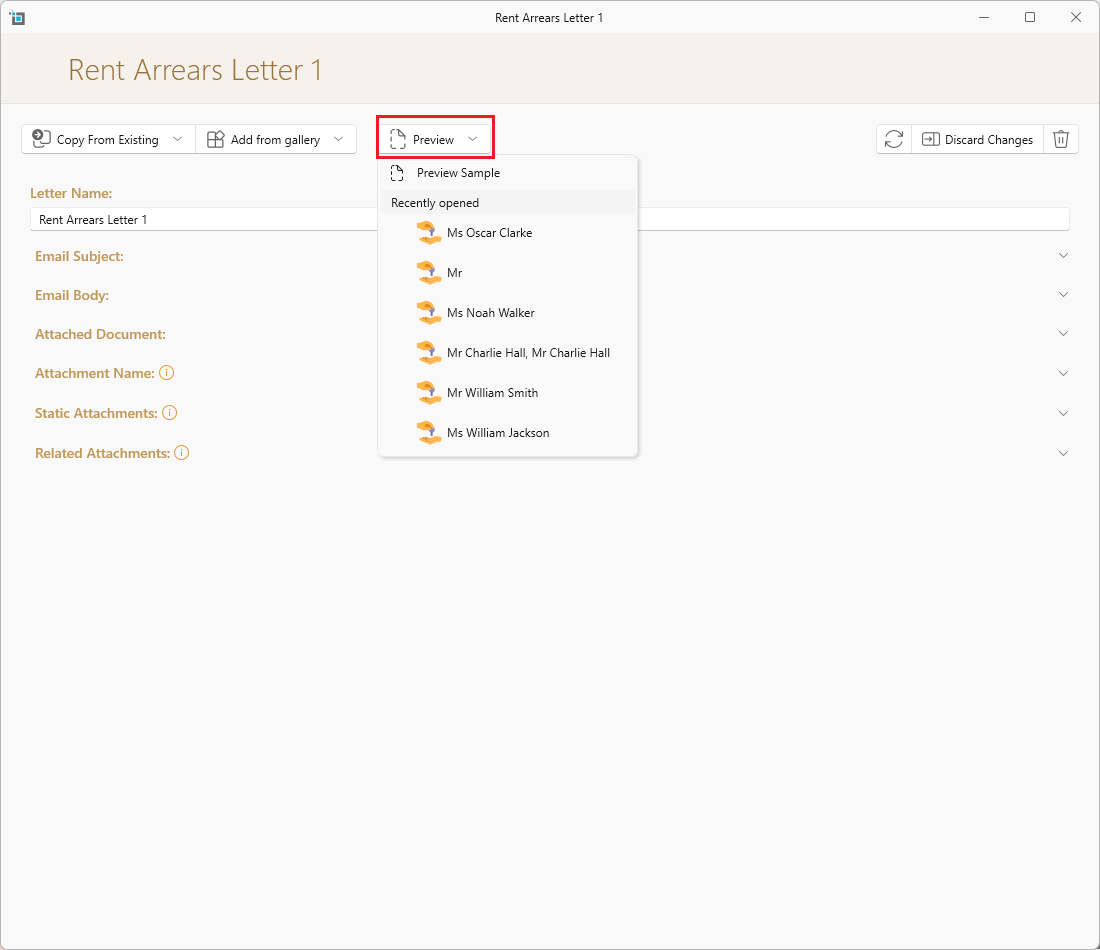
- Click on Preview from the top menu.
- To preview a real tenant, click on one of the tnenat names. It will always show you a list of recently opened tenants.
- If you have no recently opened, you can click on Preview sample. This will give you a sample of how the letter will look.