
This is how to record tenant arrears when entering a new lease
When putting in a new lease into the system, you will have the option of putting in any arrears
- Click on New lease from the Home page ribbon.
- Fill in the property address from the top and change any dates if needed.
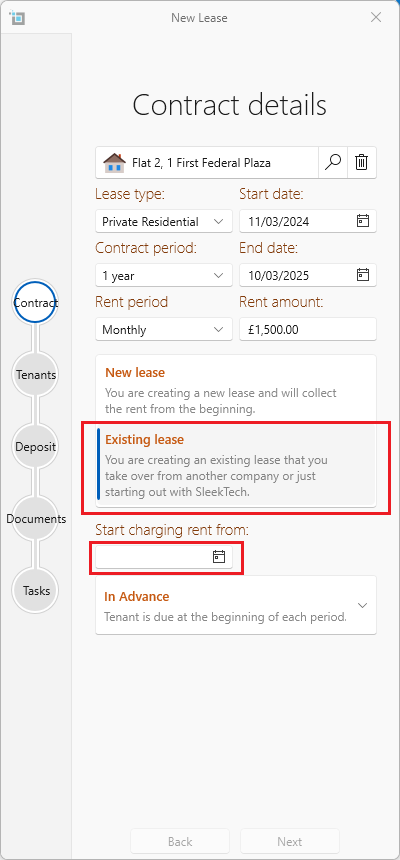
- Click on Existing lease. The Start changing rent from box will by default become empty for you to fill in the correct date you want to start charging rent from on your system.
- At the bottom of the page, click on No balance and then select In Debit (or In credit if the lease is in credit)
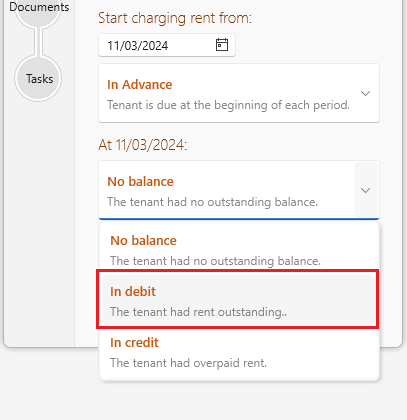
- You will then be able to enter the amount in arrears.
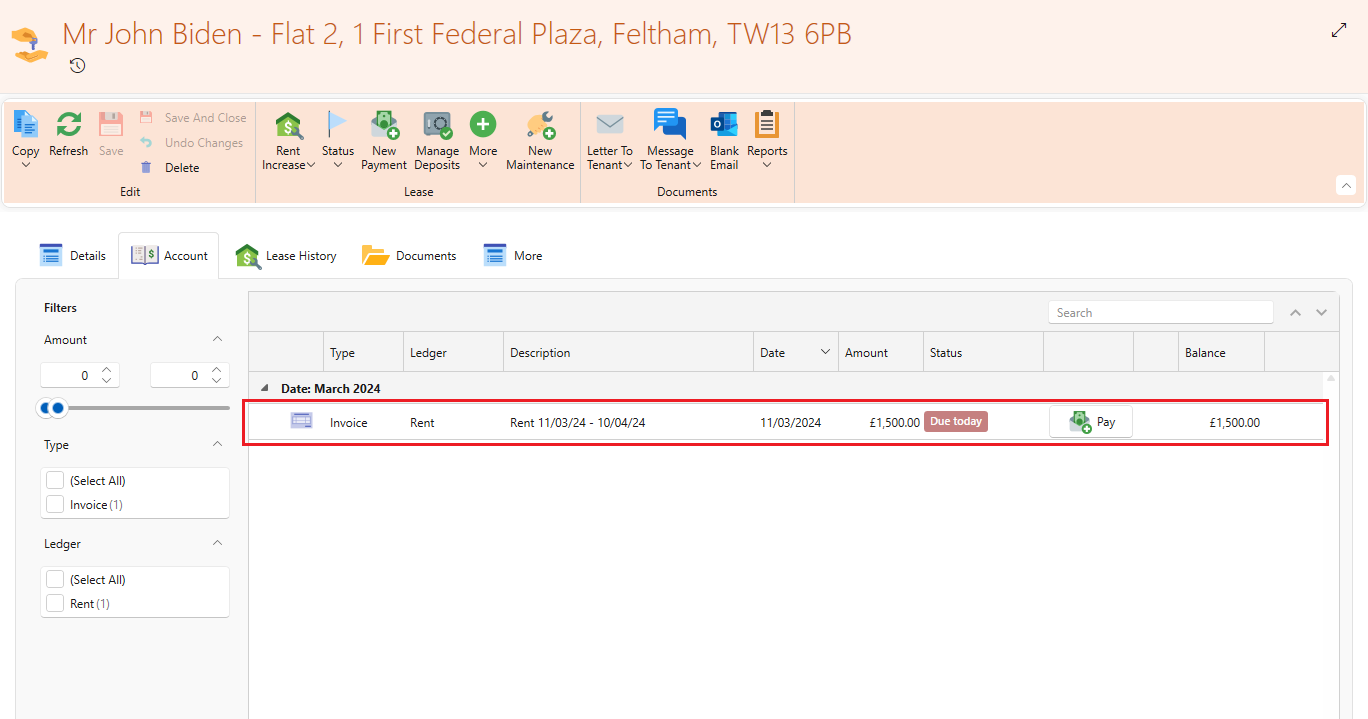
- An invoice will be created on the new lease with this amount. You can settle this with incoming payment as usual.
If the lease with arrears is already in the system, click here: