
This is how to view, and edit your list of account ledgers.
You can easily add new bank accounts, and ledger accounts.
Go to Control Panel > Chart Of Accounts.
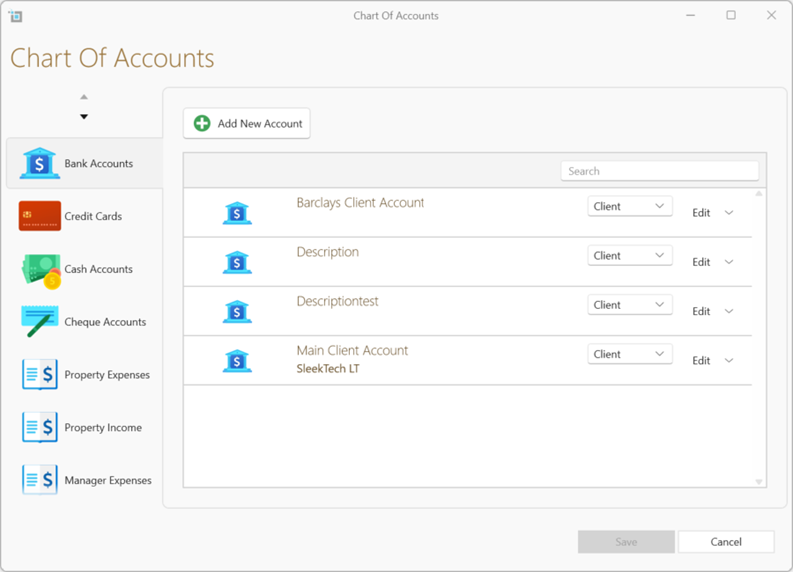
The following types of accounts can be edited to your specification:
- Bank Accounts - your bank or cash accounts that you will be syncing to the software in order to allocate all your transactions. You can add additional bank accounts by selecting Add New Account.
- Select Property Expenses from the side panel to edit Ledgers for expenses you have on behalf of landlords and properties, like Repairs & Maintenance or Safety Certificates. You will select one of these accounts when creating property expenses.
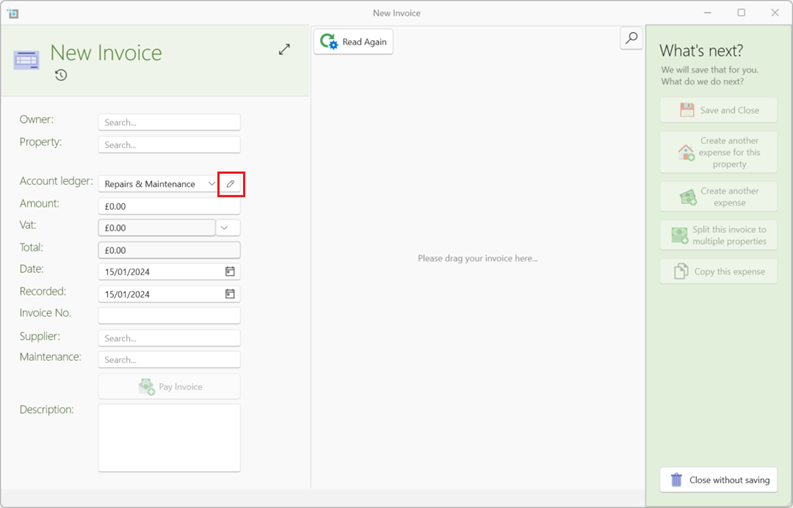
The default account for Property expenses will be Repairs & Maintenance.
When creating an expense you can also add a new account ledger there by clicking on the little edit button next to the account dropdown.
- Select Property Income from the side panel to edit accounts used to create tenant invoices. The account used by the system to create rental invoices will always be Rent. You can create more income accounts like late fees etc.
- Select Manager Expenses to edit Accounts used to record manager expenses like Phone bills or Office rent. You will select one of those when creating a manager expense.
You can Edit the name of an account, inactivate an account or completely delete it by using the Edit button to the right of each account.
You will only be able to delete an account that hasn't been used in the system for any transaction. In this case you can just inactivate it. This will not affect existing transactions but will remove it from the list when creating new transactions.
Inactive accounts can also be reactivated by clicking on the edit button.
To edit your Property or manager expense account ledgers direct from banking click on the following article for further instructions:
New manger or property expense ledger from the banking window