
Tenancy task lists.
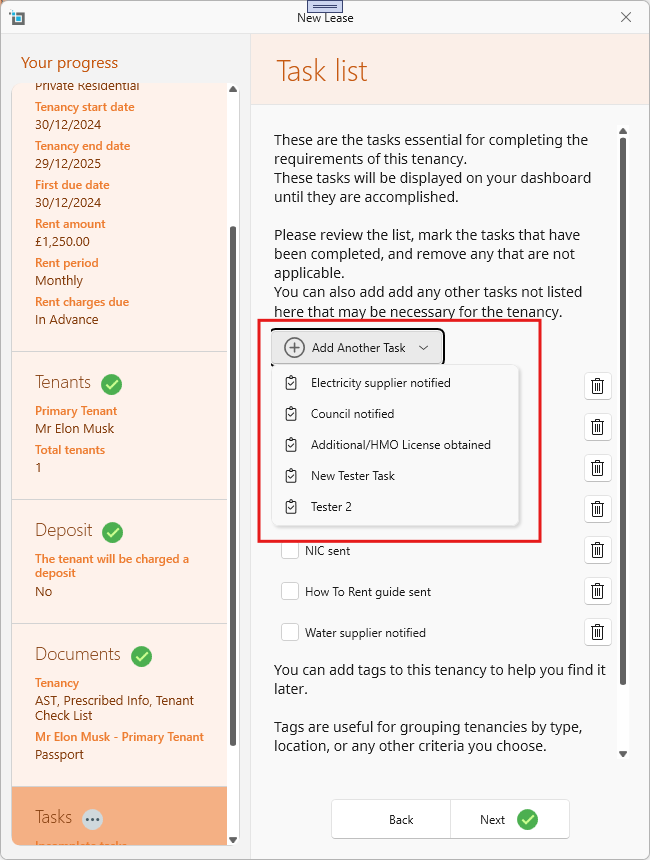
When putting a new lease on the system, as part of the tenancy signup, there will be a Task list for you to see all tasks still to be taken care of. You can delete any tasks not needed, add more and check the ones completed.
What’s Included on the Task List?
We have a list of common tasks that an be added to your task list but you can also add your own such as sending a tenant welcome packet or providing keys and access .
Here are the common tasks that can be added to your Task List:
- Contract sent
- Contract signed
- Prescribed information provided
- EPC sent
- NIC sent
- Gas safety certificate sent (only added if a gas certificate exists for the property)
- How to rent guide sent
- Water supplier notified
- Gas supplier notified (only added if a gas certificate exists for the property)
- Electricity supplier notified
- Council notified
- HMO license obtained (only added if the tenancy type is set to Sharers)
For details on how to customize which tasks should automatically appear on each new tenancy, please refer to the article: Switching on tenancy task lists.
Customizing and Managing Tasks for Individual Tenancies
To add or remove tasks for specific tenancies, follow these steps:
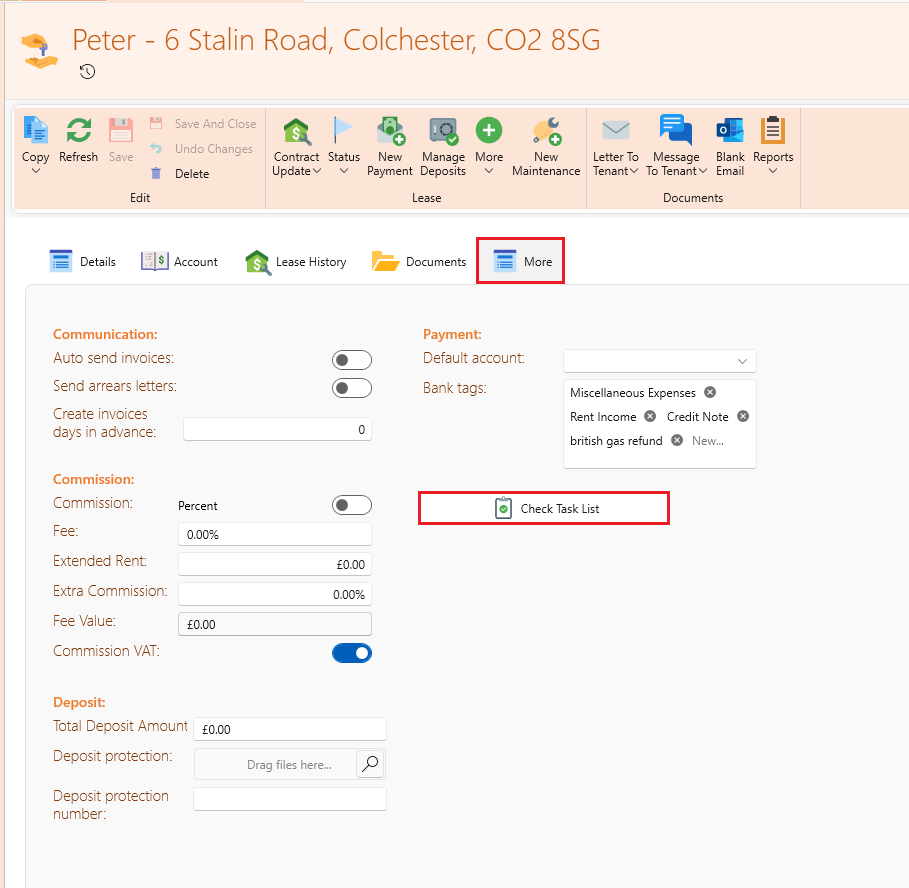
- Open the lease page for the tenancy.
- Click on the More tab.
- Select Check Task List at the bottom of the page.
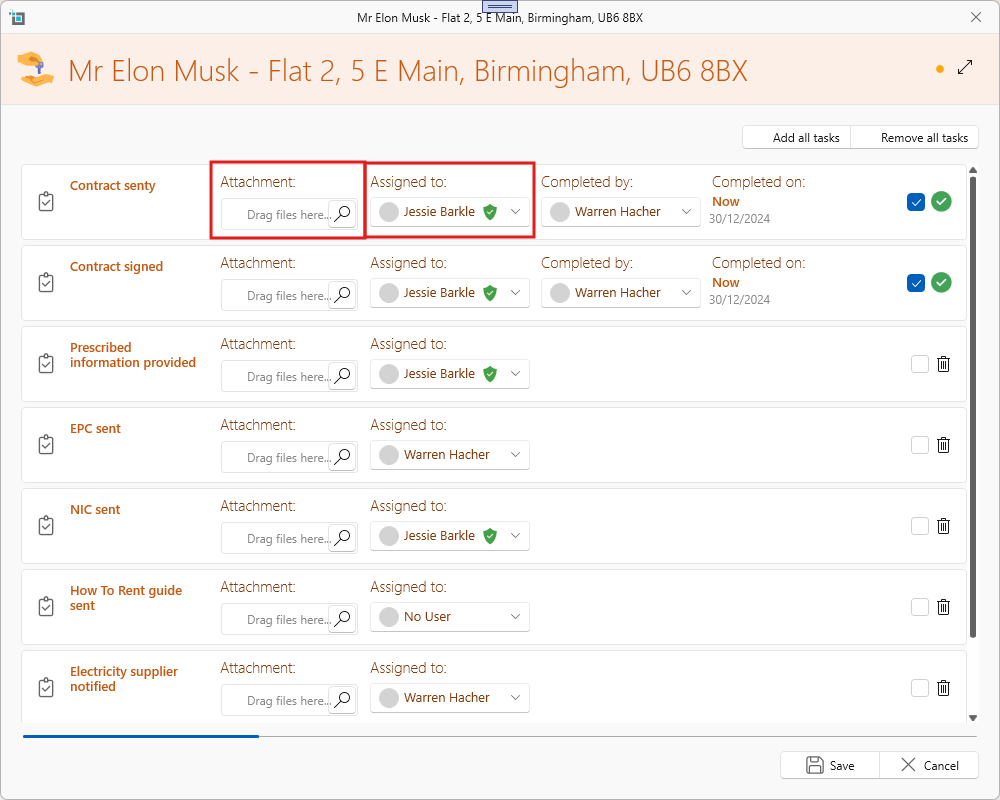
The Task List window for the selected tenancy will open. Here, you can manage tasks in the following ways:
- Click the checkbox next to each task to mark it as completed or undone. The completion date will auto-fill, but you can adjust it using the date picker.
- Click the dropdown next to each task to add notes.
- By default, the task is marked as complete by the current user, but you can select a different user from the dropdown menu.
- If a task is not required, click the delete button to remove it from the list.
- The left panel shows the progress of the Task List, indicating completed tasks with a green check.
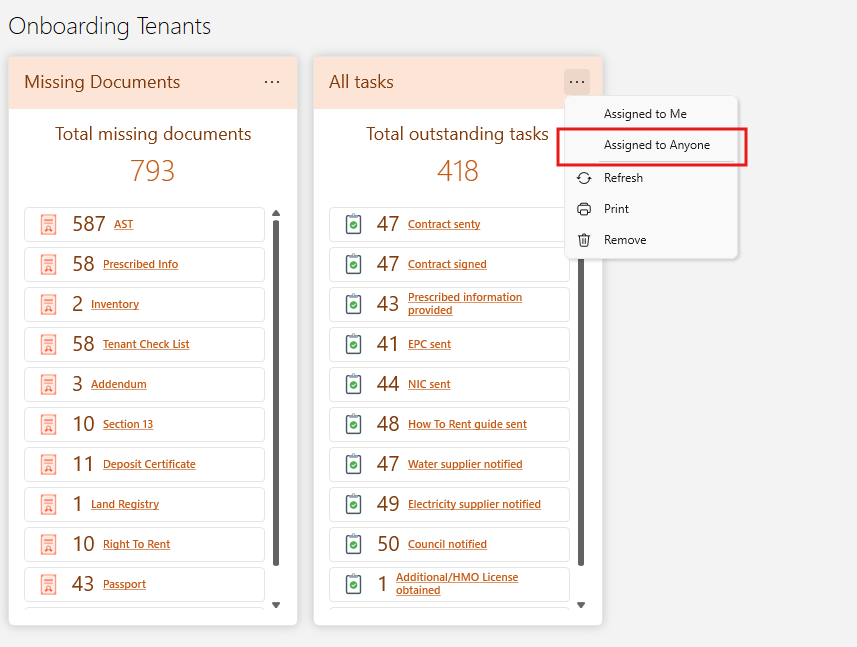
Outstanding onboarding tasks can also be viewed on the dashboard, with an option to filter and view only the tasks assigned to you.
Additional Features
- Bulk actions: You can add or remove all tasks at once by using the relevant buttons.
- Save your changes: Make sure to save your changes before closing the window to ensure your updates are kept.
By following these steps, you can efficiently manage and update the task list for each tenancy.