
Adding and Managing Documents on Pages
SleekTech allows you to store and organise documents directly against key records such as Properties, Leases, and Landlords.
This feature is designed for general documents that don’t already have a dedicated area in the system.
For example, certificates and contracts have their own structured sections, but this Documents area is ideal for items such as:
- Floor plans
- Council letters
- General correspondence
- Supporting documents
Adding Documents
- Open the relevant Property, Lease, or Landlord page
- Navigate to the Documents tab
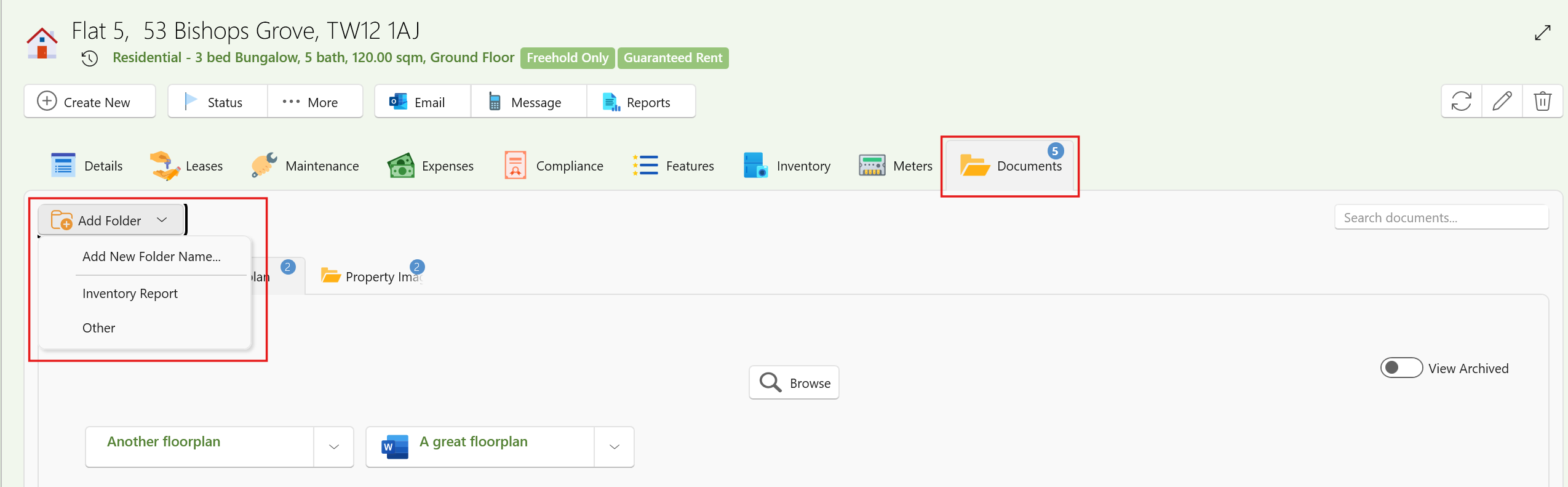
- In the top-left corner, click Add Folder
You will see:
- A list of existing folders already created for this type (e.g. across other property pages)
- An option to Add New Folder Name
If creating a new folder:
- Enter a clear name (this will be available across other records of the same type)
- Once the folder is created:
- Drag and drop files into the folder or
- Click Browse to upload files
- Click Save
Managing Files
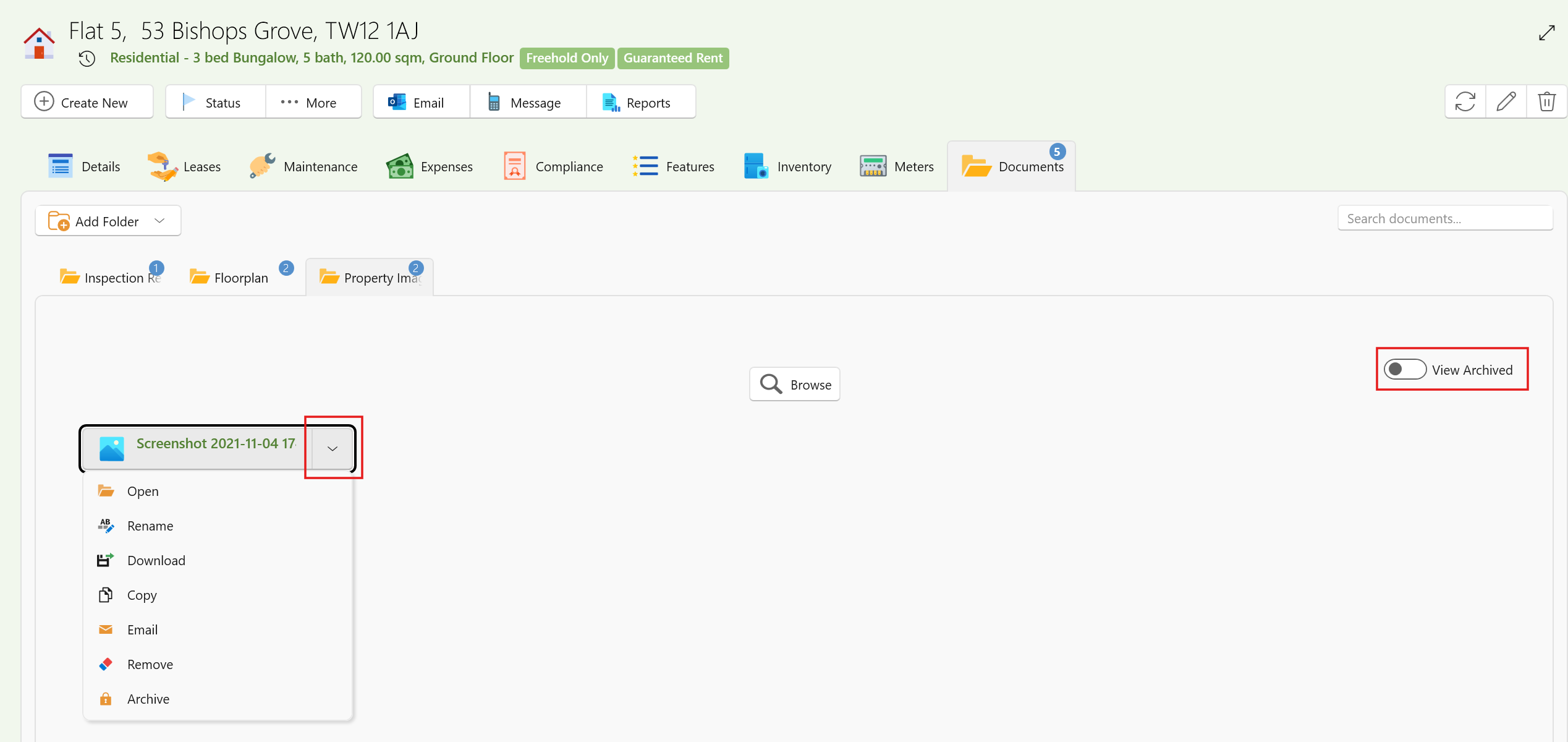
Once files are added, click the dropdown menu on a file to access options such as:
- Open
- Rename
- Download
- Copy to clipboard
- Delete
- Archive
Archived Files
- Archived files are hidden by default
- To view them, toggle “View Archived” from the top-right corner
Organising Folders
To keep documents well organised:
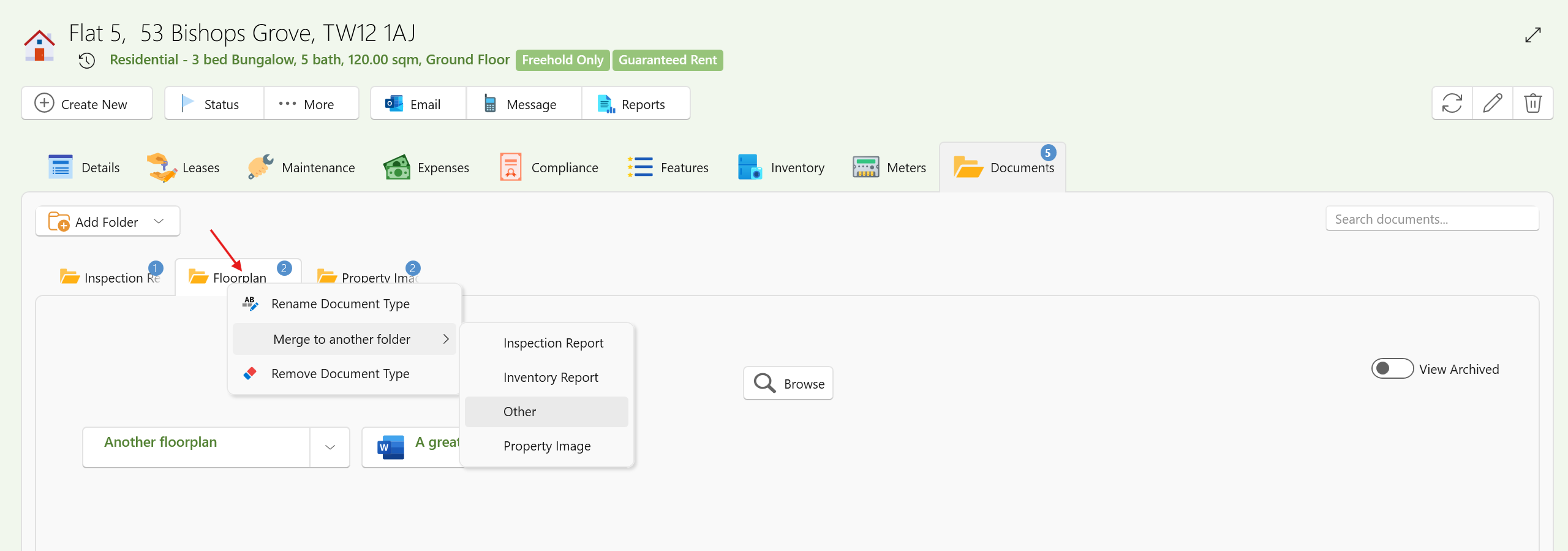
- Reorder folders by dragging the folder tabs horizontally
- Right-click a folder tab to:
- Rename the folder
- Delete the folder
- Merge with another folder
Example:
If you accidentally create both “Floor Plans” and “Floorplans”, you can merge them into one clean folder.
Searching for Documents
Within a Page
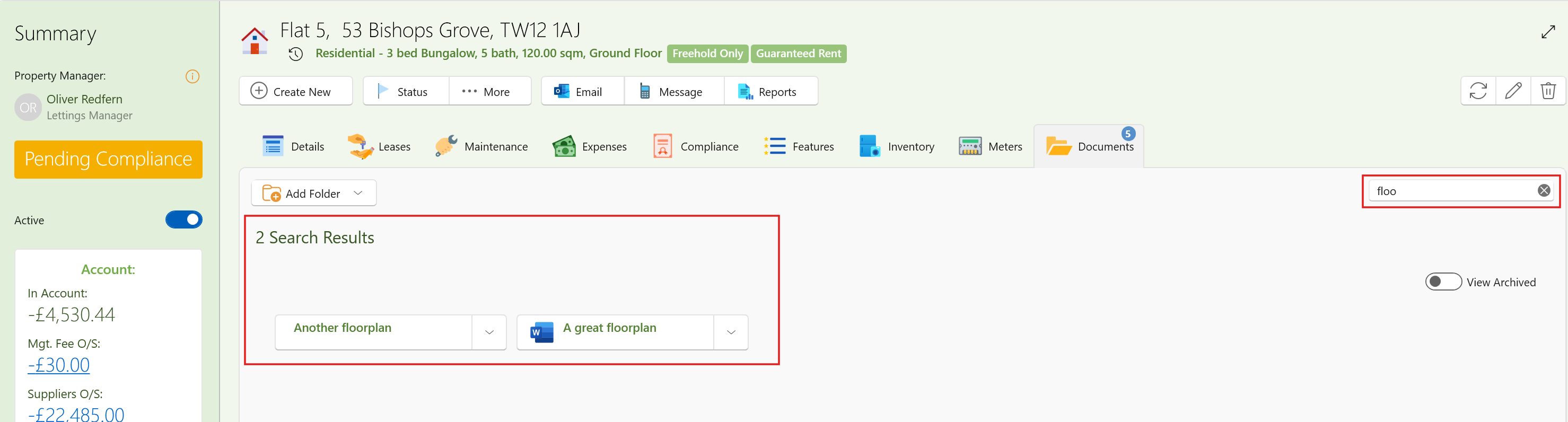
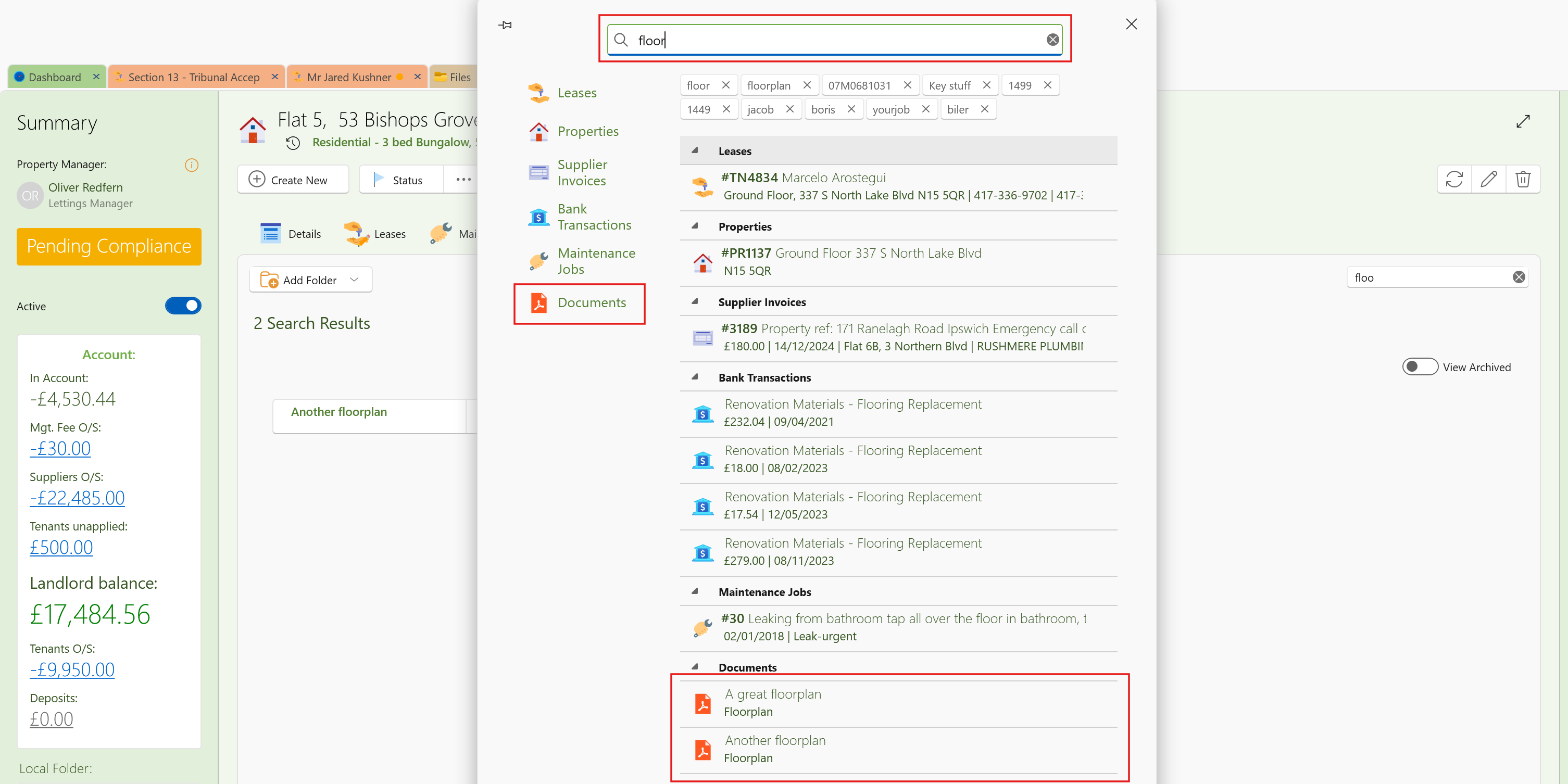
- Use the search bar (top-right) to search across all folders on that page
Across the Entire System
- Use the main search bar in SleekTech
- Type the file name, and the system will locate it
- Clicking the result will open the relevant Property, Lease, or Landlord
Best practice:
Always give files clear, meaningful names so they’re easy to find later.
Managing All Files in One Place
There is also a central view for managing all documents:
- Go to the left-hand menu → Files → View Files
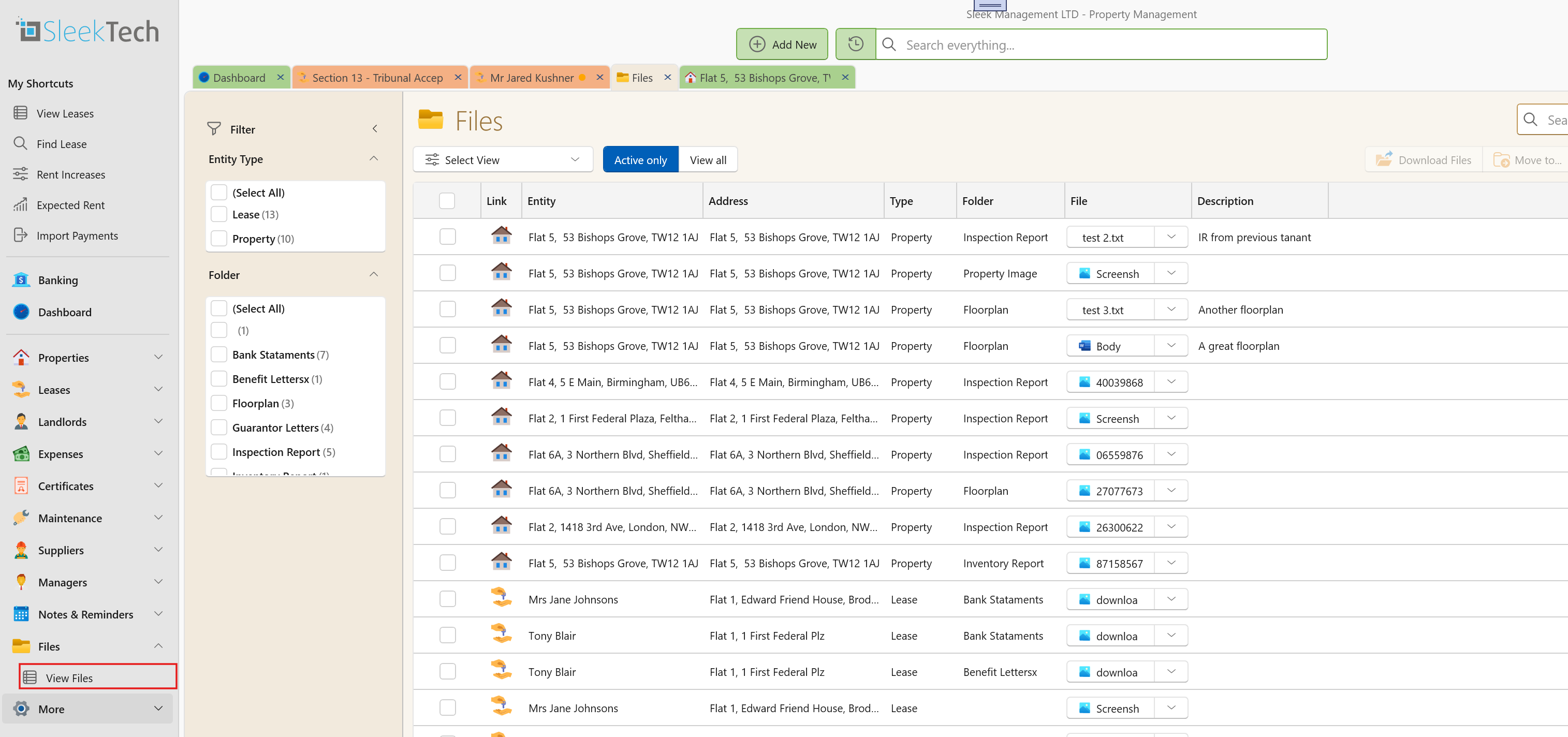
Here you can:
- View all files across the system
- Search, filter, and group data
- Export results
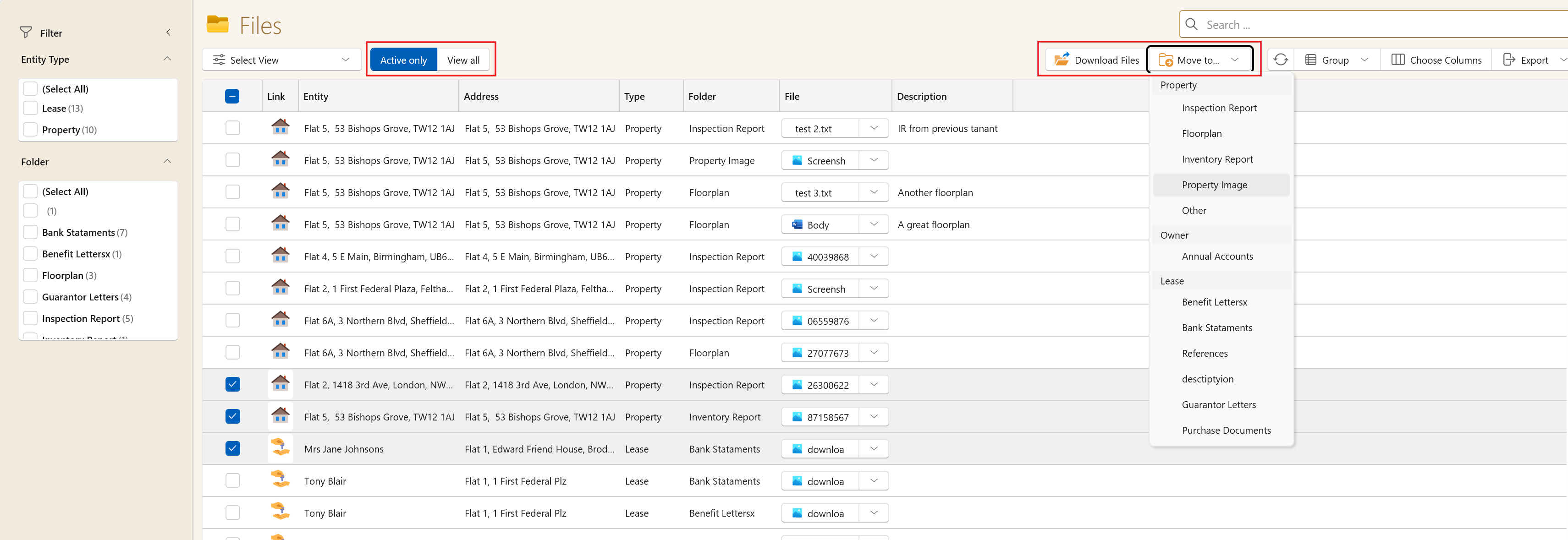
- Select multiple files to:
- Download in bulk
- Move to another folder
You can also toggle:
- Active only
- All (including archived)
Summary
The Documents feature gives you a flexible way to store and organise general files across your system, while keeping everything:
- Structured
- Searchable
- Easy to manage
Used correctly, it ensures your team always has quick access to the right documents, exactly where they’re needed.