
Email a Statement with Invoices Attached
When mailing a statement, you have the option to automatically bring in the invoices for all included expenses as attachments.
This is how to do it:
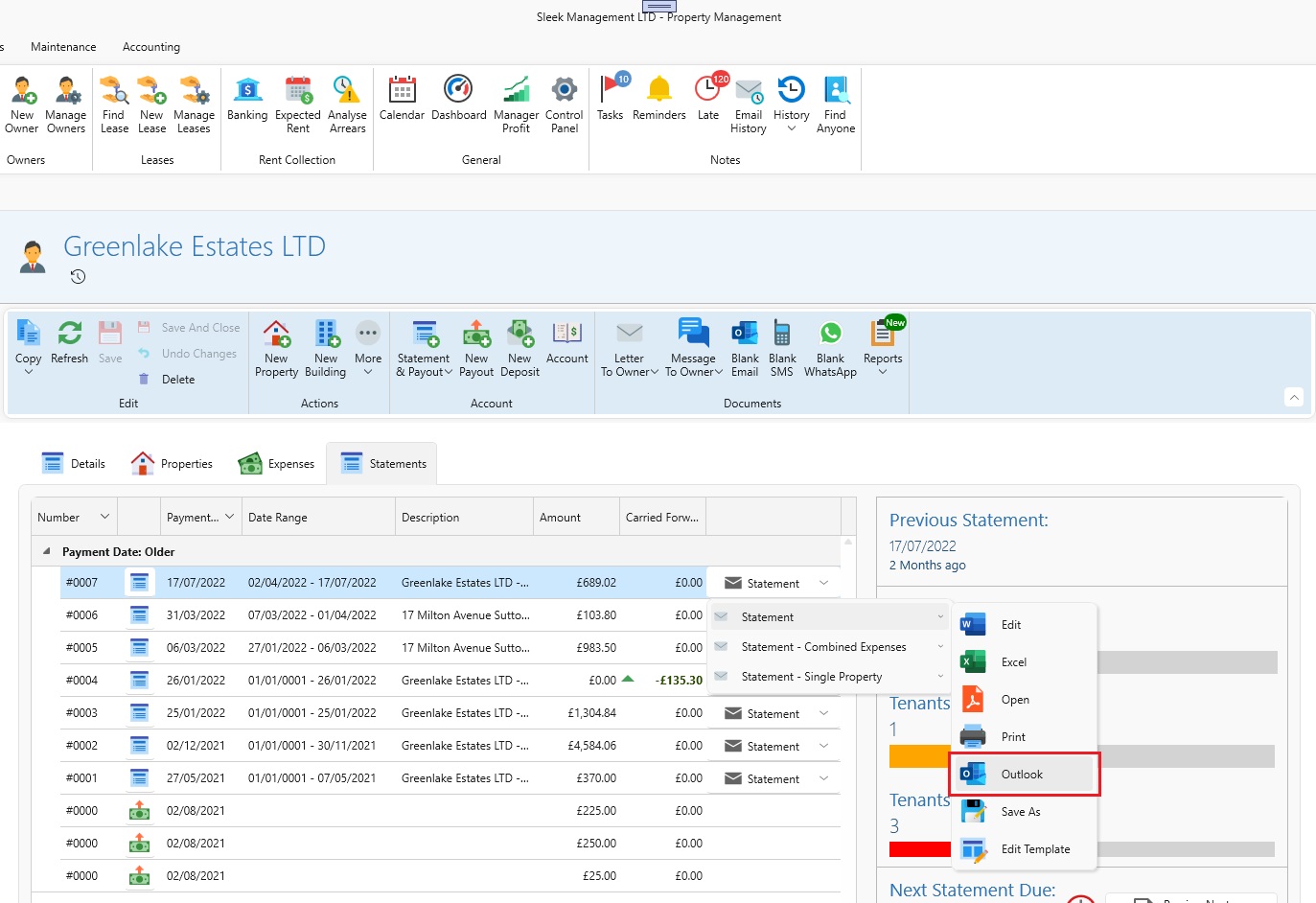
- Open the Owner page.
- Select the Statements tab.
- Find the desired statement and and click the Statement dropdown.
- Click Outlook.
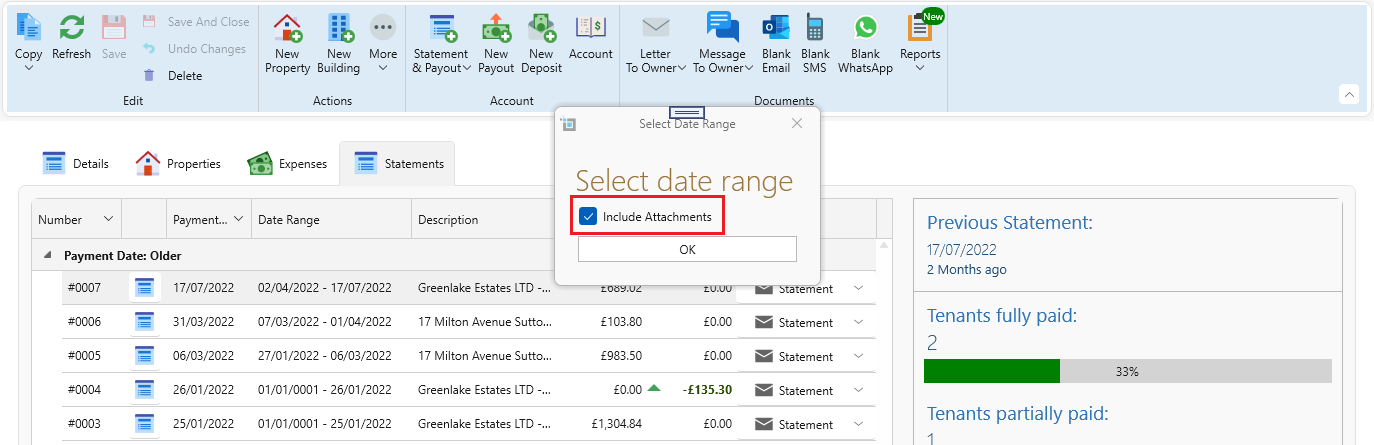
- Make sure the Include Attachments checkbox is selected.
- Click Ok.
- Outlook will open an email with the statement and all invoices as attachments.
Set the Default Setting to Include Invoice Attachments
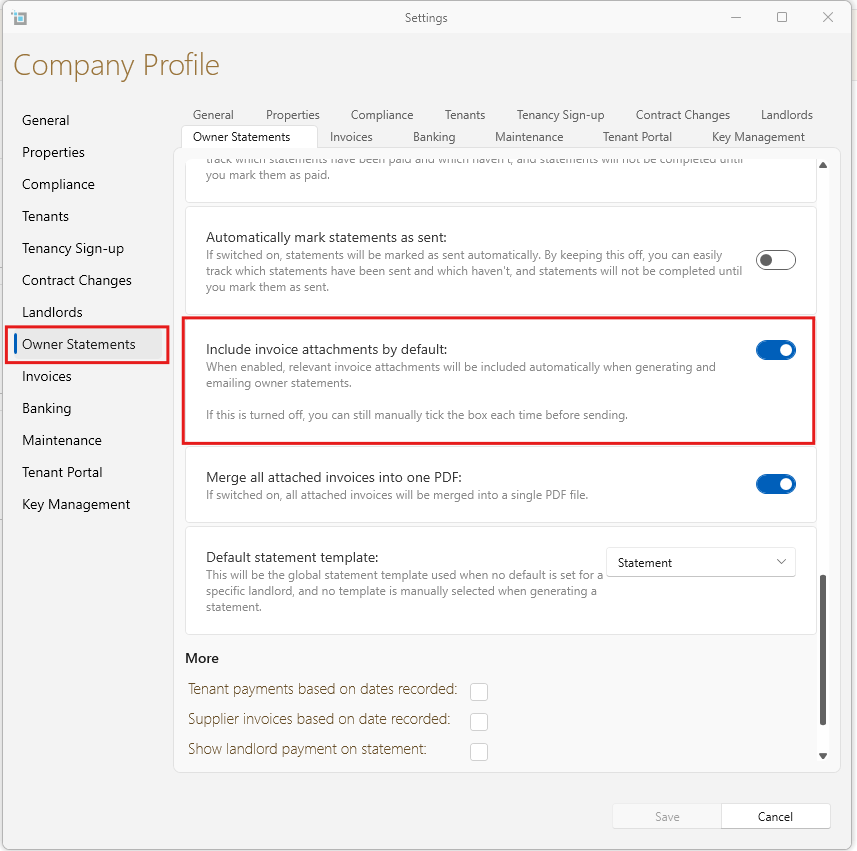
Go to Control Panel from the main ribbon.
Click Settings.
Open the Owner Statements tab.
Locate the setting: Include invoice attachments by default.
Check or uncheck it as needed.
Grouping of Maintenance Job Invoices
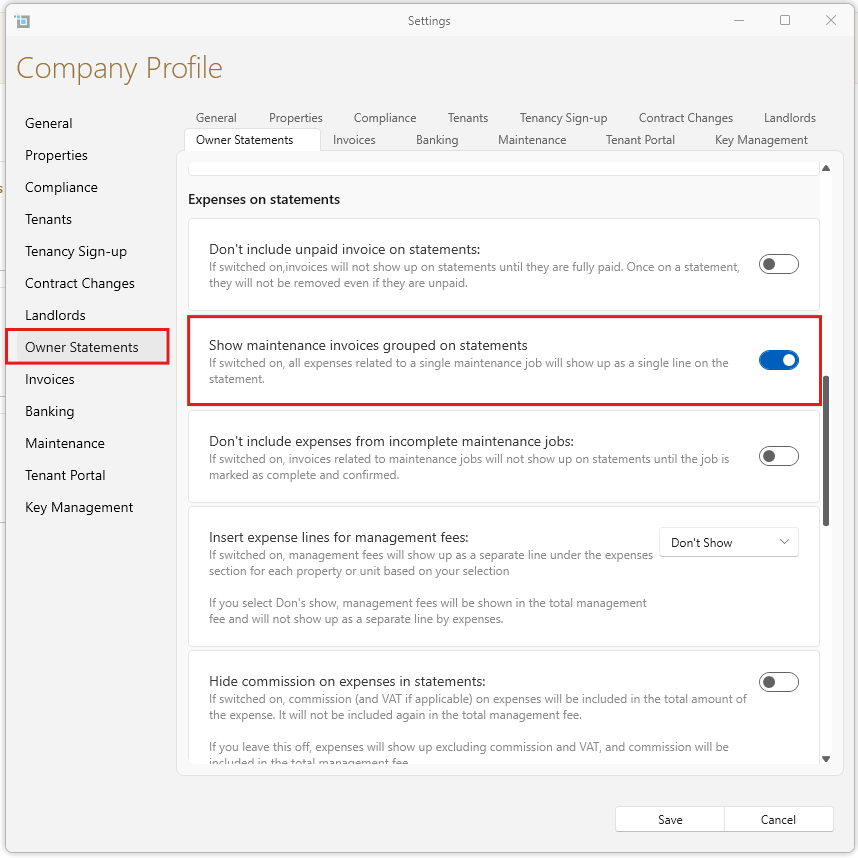
If you have the Group maintenance job expenses setting turned on, the invoices for those jobs will be grouped together into one total on the statement, and the individual invoices won’t be attached to the email.
This setting is to group all expenses belonging to one maintenance job, and have the job only appearing once, instead of multiple times.
If you want each invoice to show up as a separate PDF attachment in the email, you’ll need to turn this setting off.
To check or change this setting:
Go to Control Panel from the main ribbon.
Click Settings.
Select the Owner statements tab.
Look for the setting called Group maintenance job expenses and make sure it’s not ticked.
Click Save.
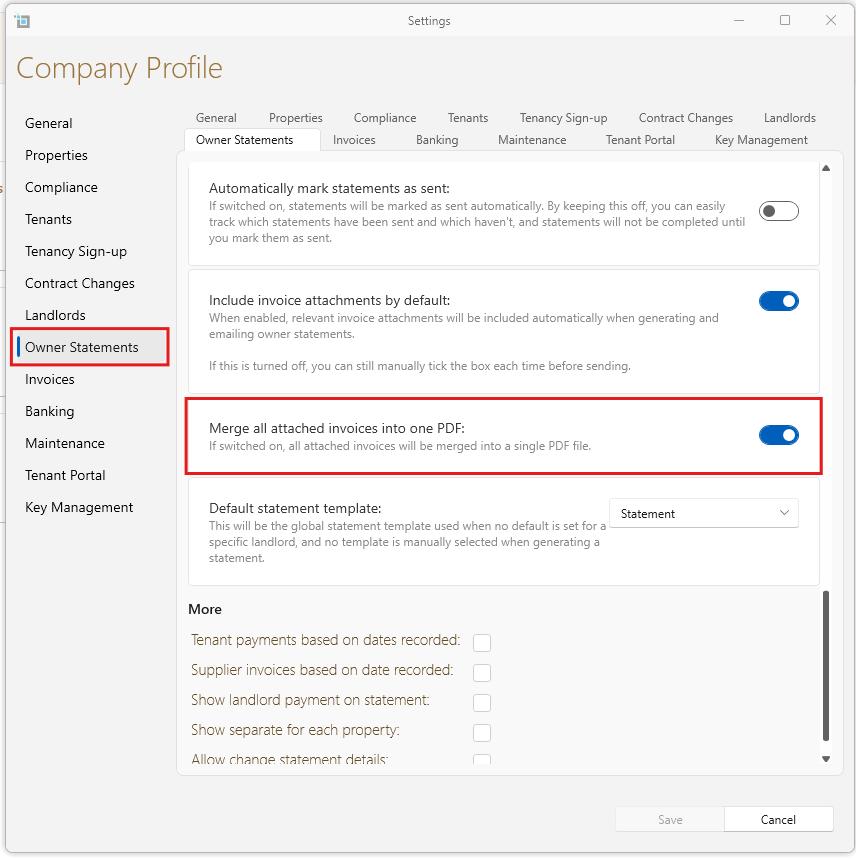
Merge Invoices into One PDF
If you want all invoice to be merged into one big PDF document on the statement, you can change this as following:
- From the main ribbon click Control Panel.
- Click Settings.
- avigate to the Owner statements tab.
- Check the Merge all attached invoices into one PDF box.
- Click Save
Please note:
Invoices will always be attached to statements in order of Property Address first, followed by Date.
Large volumes (e.g., 700+ invoices) will be split automatically into files of 100 invoices each:
Example:
Statement.pdf,Statement (1).pdf,Statement (2).pdf, etc.
Outlook may not support large file sizes. This is due to Outlook’s limitations, not SleekTech’s.
Alternative Solutions:
Use Save As to export and send files via:
Zip folders,
File-sharing tools (e.g., WeTransfer, TransferWise),
Or your preferred internal method.