
How to Create Landlord Statements in Bulk
Before using bulk statements, we strongly recommend starting with individual statements first — especially when you only have a handful to produce.
Creating a few statements individually helps you:
Understand the full statement flow
See how dates, transactions, and actions behave
Get familiar with the details before processing large batches
Once you are comfortable with the individual process, the bulk statement feature becomes significantly more efficient — particularly when you have many landlords to process at once.
If you’re new to landlord statements, start here first:
How to Create an Individual Landlord Statement
Starting the Bulk Process
You can begin bulk statement creation in two ways:
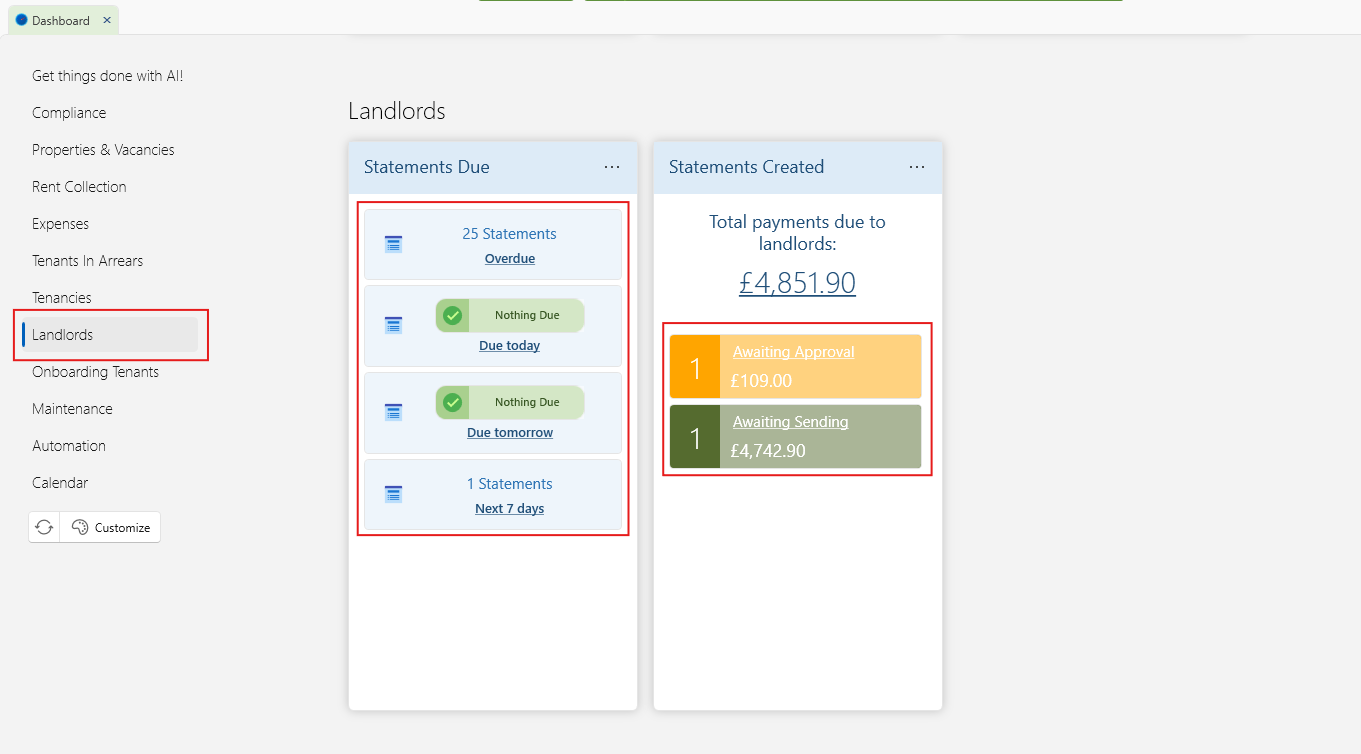
Option 1: From the Dashboard
Go to the Landlords section on the Dashboard.
Click any of the statement tiles, such as:
Statements Due
Awaiting Sending
Awaiting Payment
Awaiting Approval (if enabled)
This will open the View Landlords window, automatically filtered to the relevant landlords.
Option 2: From the View Landlords Window
Open View Landlords.
Use the Status filter to select:
Statement Due
Awaiting Sending
Awaiting Approval
Awaiting Payment
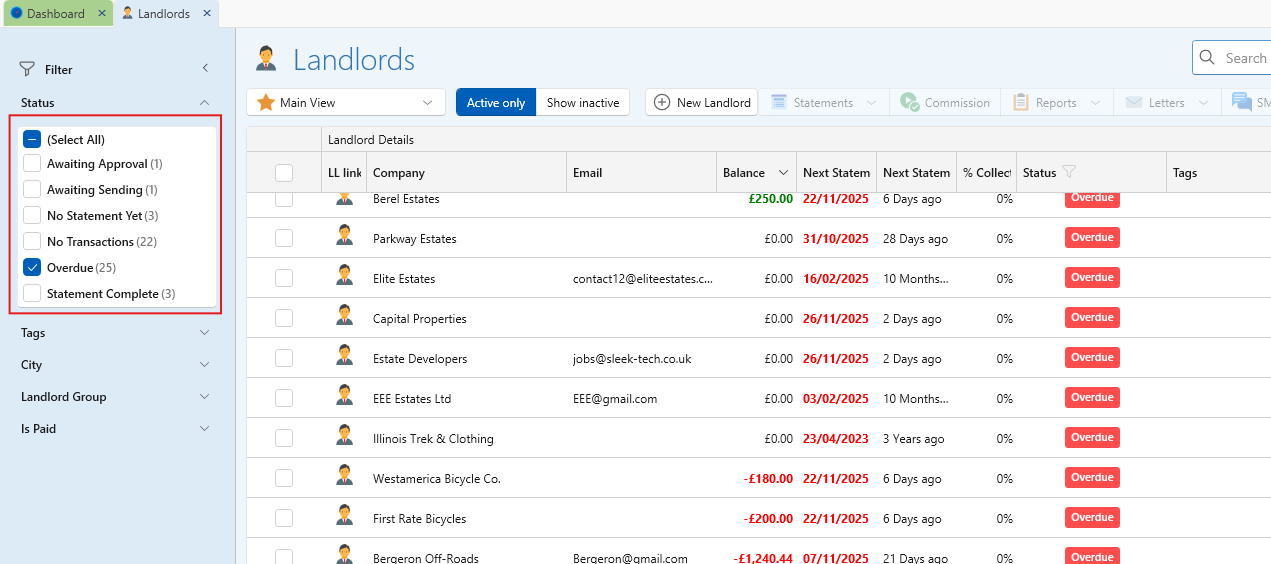
Both methods leave you with a filtered list of landlords ready for the next action.
Opening the Bulk Statement Window
Once the landlords are filtered:
Click the checkbox to select them all.
Click the Statement dropdown at the top.
Choose the next required action:
Create Statement
Send Statement
Approve Statement (if approval is enabled)
Pay Statement
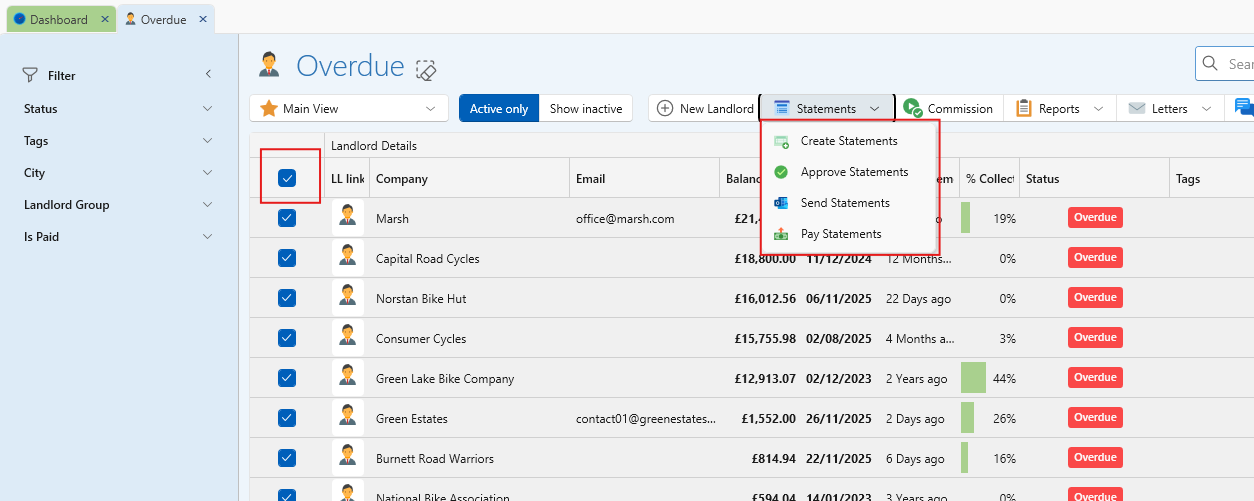
This opens the Bulk Statement window, showing all statements relevant to the action you selected.
Inside the Bulk Statement Window
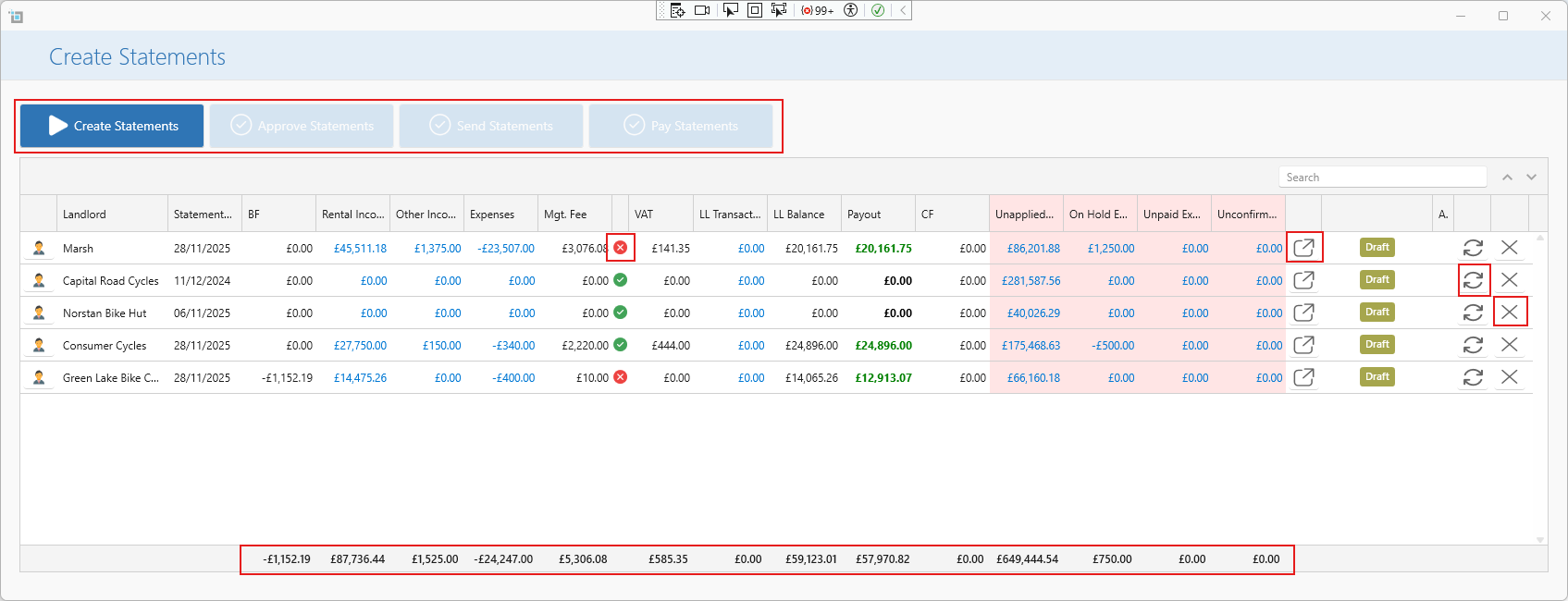
The bulk statement window gives you a clear overview of all selected statements. Here you will see:
Each landlord included in the batch
Their statement status
Totals for income, expenses, and net amount
Statement dates
Any warnings for commission mismatches
Buttons to open or refresh individual statements
Button to remove unwanted statement.
This layout allows you to review everything at a glance before processing.
You can:
Open any statement to view the full individual statement window
Make amendments
Return to the bulk window
Click Refresh in the bulk window to reload all totals and changes instantly
You remain in full control throughout the process.
Step 1: Create Statements
If the selected landlords are at Statement Due, the bulk window will display all draftable statements.
For each landlord, the system will:
Automatically calculate the Start Date (one day after their previous statement)
Suggest the End Date based on their recurrence settings (you can manually move the end date by opening individual statements)
Load all transactions not yet included in a previous statement
Display totals grouped by income and expense
You may open any statement individually to:
Remove transactions
Edit transaction details
Add missing information
Refresh the list
Once satisfied:
Click Create Statements in the bulk window.
SleekTech will create and lock each statement.
All statements will move to the next stage:
Awaiting Approval (if required), or
Awaiting Sending
Step 2: Approve Statements
This step appears only if your system requires statement approval.
In the bulk approval window, the approver can:
Review totals for all statements at once
Open individual PDFs or email previews
Open any statement for correction
Click Refresh after making amendments
(Due to the statements are already created at this stage, if making amendments and refreshing, the system will prompt that the statement will be deleted and recreated)
Once everything is correct:
Click Approve Statements.
The Date Approved for each statement will be filled in.
Statements move to Awaiting Sending.
If approval is not enabled in your Control Panel, SleekTech will automatically skip this step.
Step 3: Send Statements
In the bulk sending window, you can send all selected statements in one go.
For each landlord, SleekTech uses:
Their default statement email template if set
Otherwise, the global default template from the Control Panel
Based on your system settings:
If Send Immediately is enabled, emails are sent behind the scenes.
If not, Outlook will open all statements in separate Outlook windows with pre-filled emails ready for sending.
After emails are sent:
You will be prompted to confirm (This will only appear, if your Send Immediately is not enabled)
The Date Sent field will be populated
Each statement moves to Awaiting Payment
If you have already sent the statements manually, you can simply enter the Email Sent Date and the system will advance them.
If your Control Panel is set to Automatically Mark as Sent, this step is skipped entirely.
Step 4: Pay Statements
The final step is marking statements as paid.
In the bulk payment window you can:
Review totals for each statement
Export a BACS file containing all payments, ready for upload to your bank
Once you click Pay Statements:
The Paid Date is filled in
Each statement is marked as Paid
Transactions appear in Banking for matching
All statements are marked Complete
If the Control Panel setting is enabled to automatically mark statements as paid, the statements will be marked complete immediately after sending.
Summary
Bulk statement processing allows you to:
Move dozens (or hundreds) of landlords through the statement cycle efficiently
Retain full visibility at each stage
Open and adjust individual statements as needed
Refresh and reload all totals without leaving the bulk view
Create, approve, send, and pay — all in one streamlined workflow
It’s the fastest way to manage high volumes while still keeping control over every detail.