
Reconcile bounced payment without a new payment
When a tenants rental payment bounces you will need to follow the steps below in order for your banking to reconcile correctly.
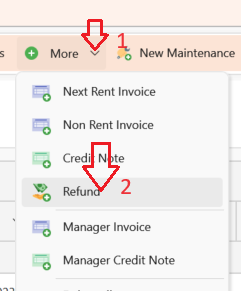
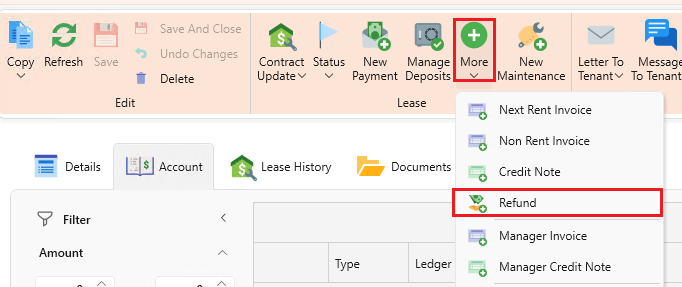
- Create a Refund for the bounced amount (as pictured below).
- You can add a note on the refund indicating it’s for a bounced payment to keep a clear record.
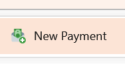
- Now select New Payment and create a payment for the bounced amount.
- Apply the payment to the refund.
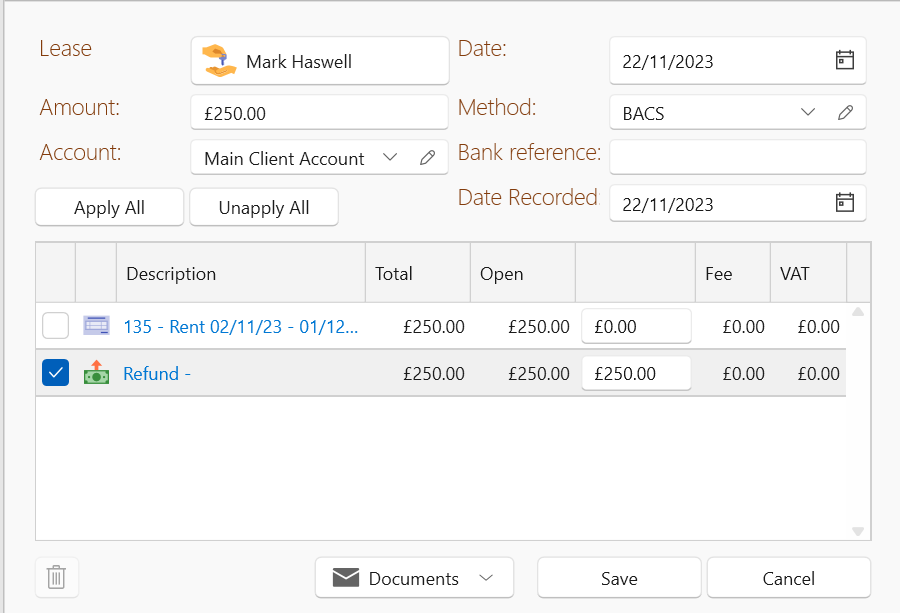
By completing the above process the refund transaction will then show up in banking to be reconciled to the bounced payment in the bank.
If you have already created an Owner statement and the bounced payment was applied to the rent - the payment will be locked for editing so you will need to do the following instead:
- Create a Refund for the bounced amount as above.
- When the actual payment comes through you will need to apply it to the Refund to ensure that it doesn't mistakenly go towards the next open rent invoice.
Reconcile bounced payment now that a new payment has cleared
To maintain a clear trail of the payment process when handling bounced payments, follow these updated steps
- Open the refund for the bounced amount.
- You can add a note on the refund indicating it’s for a bounced payment to keep a clear record.
- Navigate to the original payment made by the tenant.
- Un-apply the payment from the rent invoice (this effectively removes the payment from being matched to the original invoice).
- Now, apply the payment to the refund you just created. This ensures that the payment is properly linked to the refund.
- The original rent invoice will now show as outstanding, which maintains a clear record of the payment process.
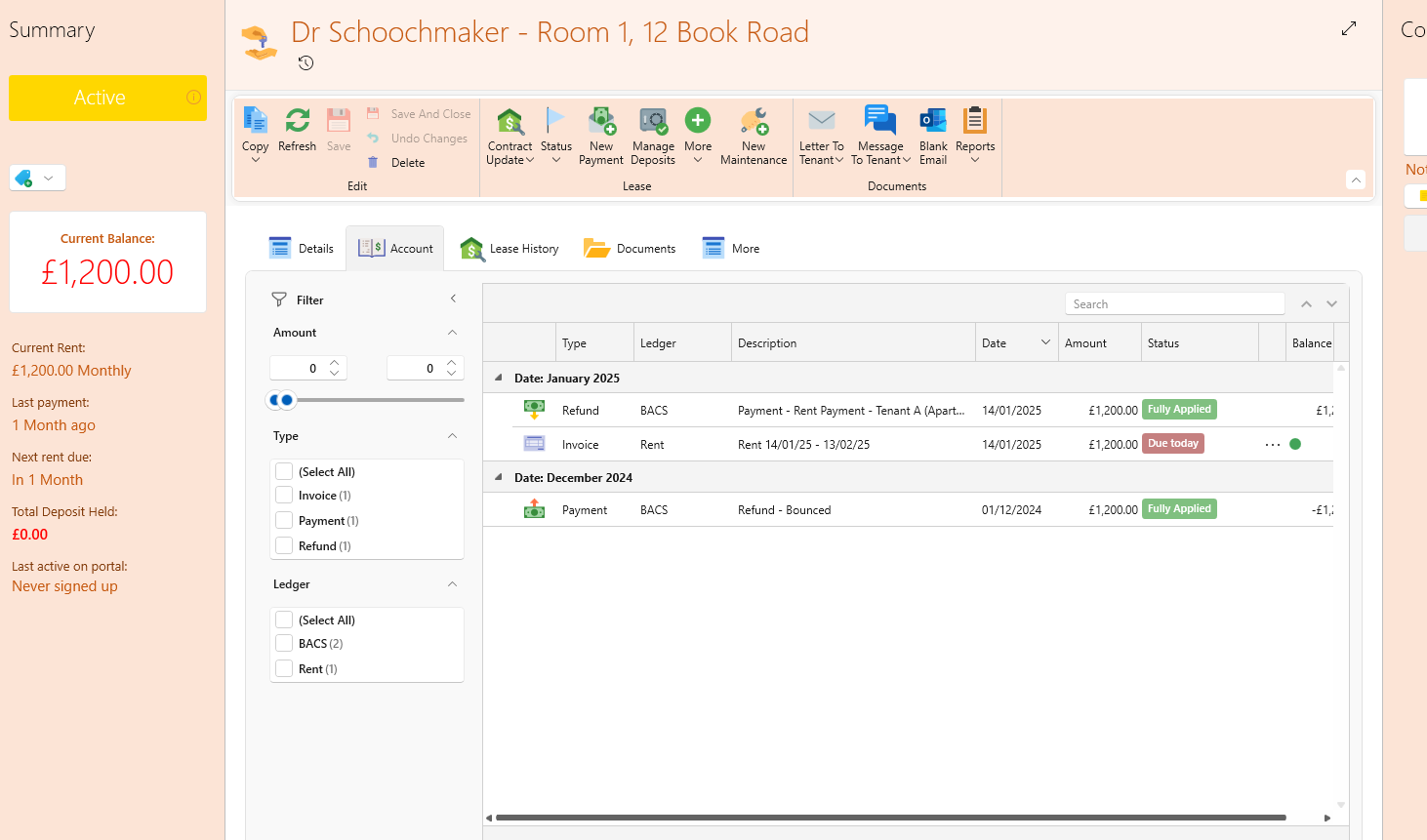
This process ensures that the history of the payment—invoice, payment received, payment bounced, reinvoice, repayment—is tracked, providing a transparent trail for all transactions related to the bounced payment.
---------------------------------------------------------------------------------------------------
Without a New Payment
- Create a Refund for the bounced amount by clicking on More then Refund
- Create a New Payment for the bounced amount by clicking on New Payment

- Apply the Payment to the refund by opening the payment and selecting the refund and clicking Apply.
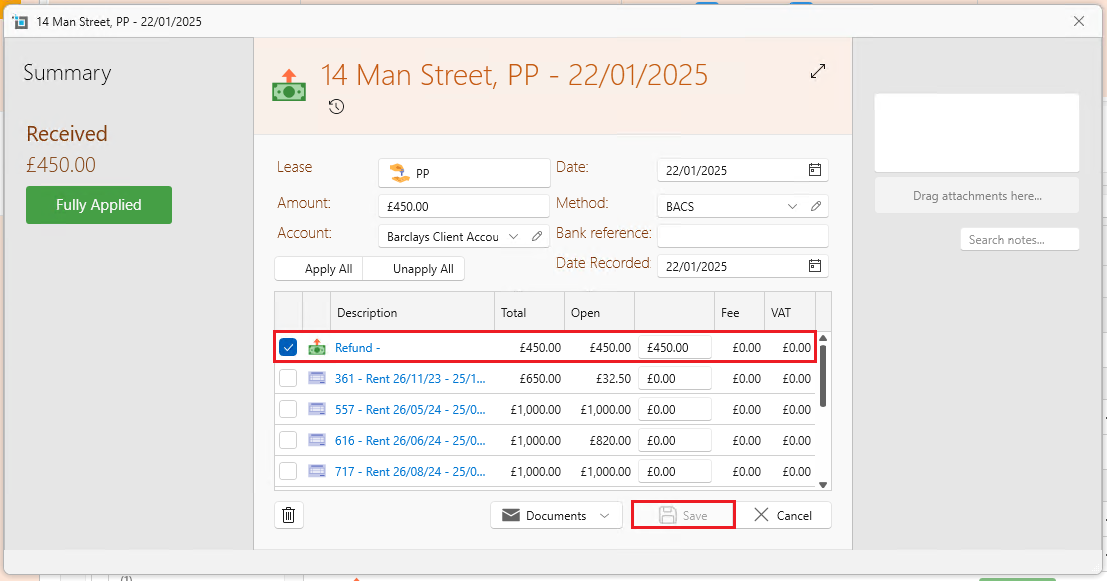
This will link the payment and refund, allowing proper reconciliation.
- Open your banking section, find the incoming payment (the tenant's payment that cleared) and reconcile this payment with the new payment you created earlier.

Locate the outgoing bounced payment (the refund transaction) and link the refund to the bounced transaction to ensure proper reconciliation.

---
If the Owner Statement is Already Created
- Create a Refund for the bounced amount.
- When the payment clears, apply it to the refund, not to the next rent invoice.
---
After a New Payment Clears
- Open the Refund for the bounced payment.
- Add a note to the refund that it’s for the bounced payment.
- Un-apply the payment from the original rent invoice.
- Apply the Cleared Payment to the refund.
This ensures the invoice remains outstanding, keeping the payment history clear.