
This is how to set up a rule to automatically send rent invoices to tenants whenever they are created.
Please note: Only invoices that have these ledgers, can be automated: Rent, Ground rent and Service charge.
Creating the rule.
First, let's create a rule to send the invoices automatically.
- From the main ribbon go to Control Panel
- Click on Auto Reminders.
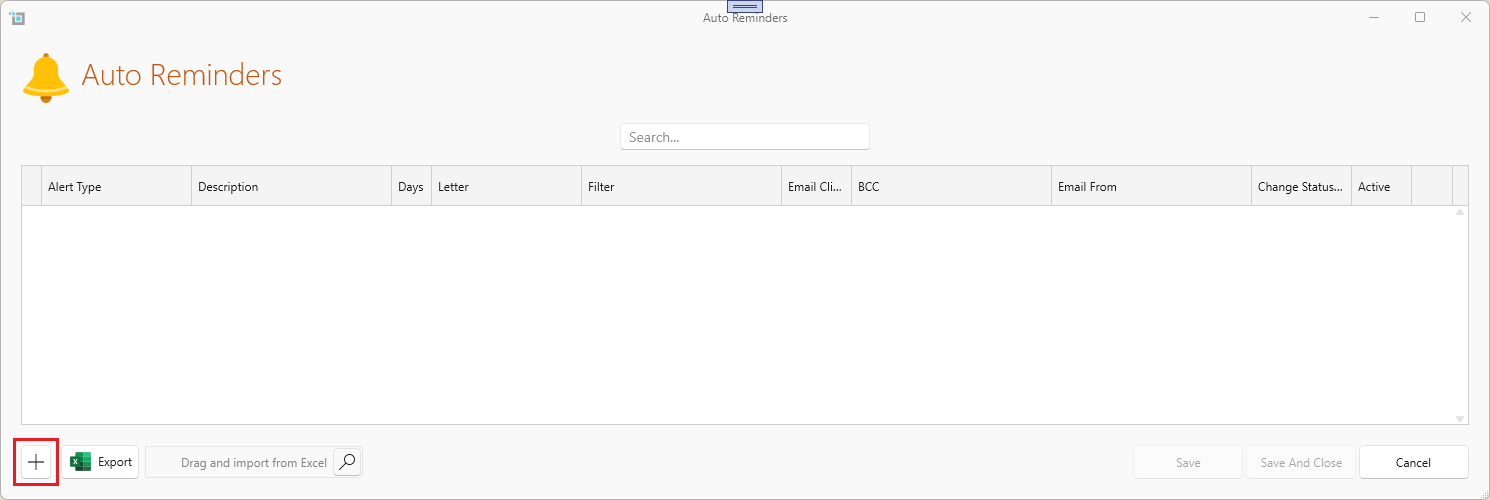
- Click on the plus button to create a new rule.
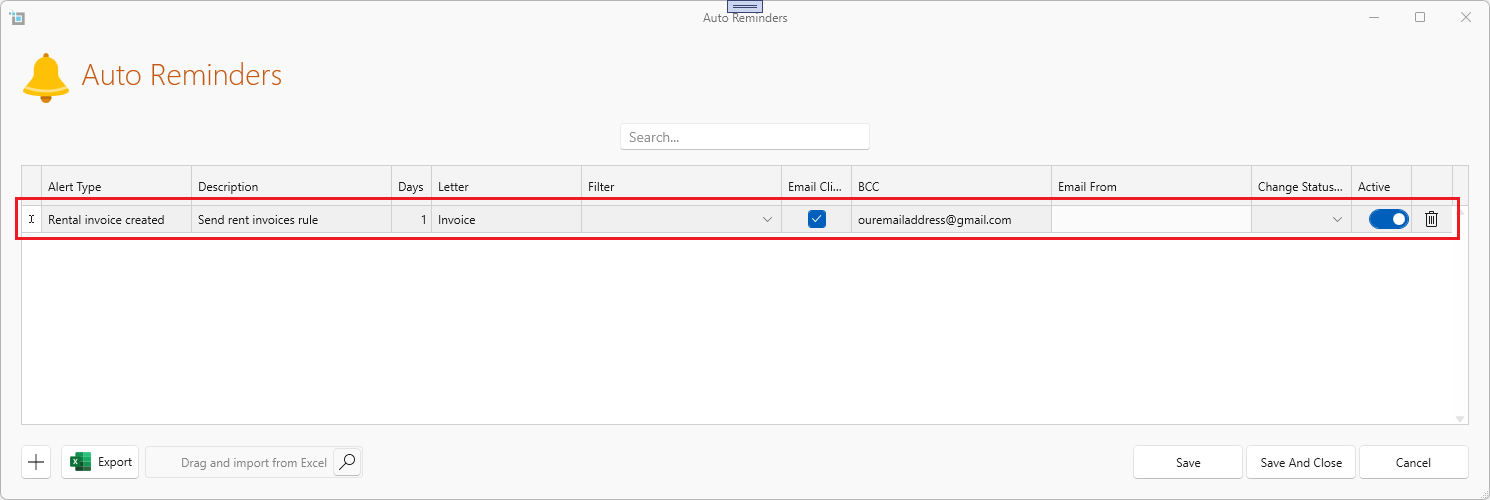
- Under Alert Type select Rent invoice created.
- Under description insert some text to describe your rule.
- Under Days insert how many days after the rent invoice is created you would like it to be sent out.
- Under Letter select Invoice from the dropdown.
- Check the Email Client checkbox to ensure emails are sent to tenants.
- Under BCC fill in one of your own email addresses so you get copied in.
- Make sure the Active is switched on.
- Click Save and Close.
Rule details
Following are some details of how the rule works.
- Emails will only be sent for invoices with one of the following ledgers: Rent, Service Charge or Ground Rent. Invoices of all other ledgers won't be sent.
- Emails will be sent to the main email address on the lease page. If you filled in the CC field on the main lease page, those email addresses will be cc'd in the email as well.
- If you set up rent invoices to be created in advance generally on the system, the emails will also be sent in advance. However, emails will never be sent earlier than 10 days prior to the invoice due date. -
Selecting how many days an invoice is created before becoming due can be done in bulk or on an individual level for each tenancy.
Switching on the Auto Send option for tenants.
Even once the rule is set up, invoice will only be sent to tenants who have the Email invoices option switched on.
This is how to check if its switched on for a lease;
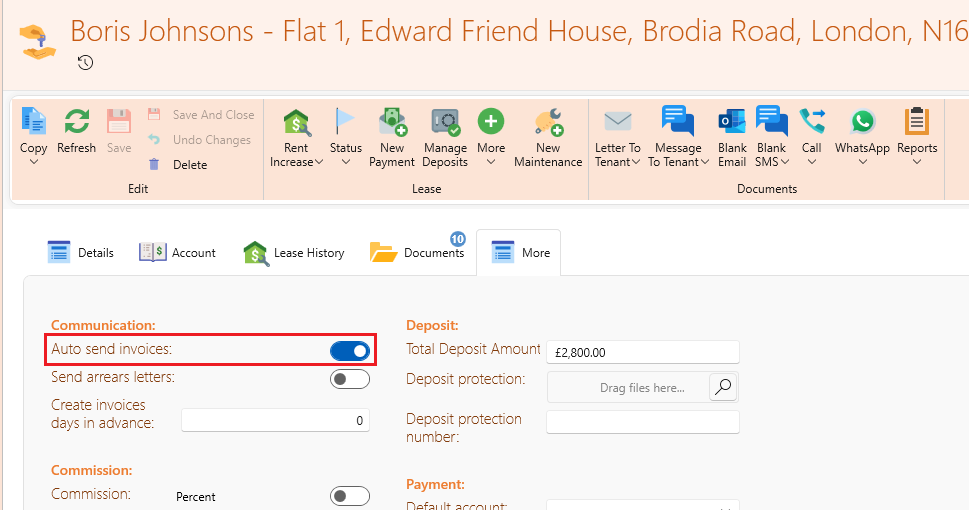
- Open the lease page.
- Go to the More tab.
- Switch on Auto send invoices.
- Click Save and Close.
Switching on auto send invoices in bulk.
You can switch on the Auto send invoices option in bulk for multiple tenants, e.g. all commercial tenants.
This is how to get it done:
- On the main ribbon click Manage Leases.
- Filter all the relevant leases.
- Click Select All on the page ribbon.
- You can check or uncheck any row as desired from the checkboxes at the left of each row.
- On the page ribbon click Bulk Action.
- Select auto send invoices .
- You can also switch it off in bulk by selecting the Turn off option.
You can check all automatic emails sent as following:
- From the main ribbon click Email History.
- Under the Letter column you can filter to Invoice.
Want know more?
Check some of the following articles: