
This is how to customise the information and required documents that will show up when creating a new lease.
Setting up default settings for leases
Go to Control Panel and select Settings:
You will now see a list down the left side of the window to choose from.
For onboarding new tenants you have the option to edit what will show up by default when creating a new lease.
Anything that you edit will show up in all future new leases created.
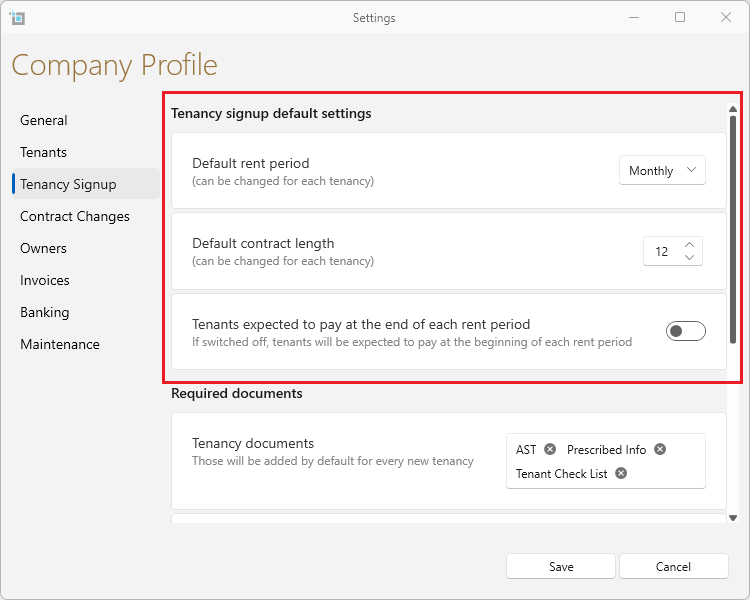
You have the option to edit the following:
- Default Rent Period
- Default Contract Length
- Tenant expected to pay in advance or at the end of each rent period
Setting up default required documents.
You can edit the list of documents that will show up for each specific category in a tenancy E.g. a commercial tenancy or a non UK resident.
(To add to the documents showing up on this list see the next section of this article)
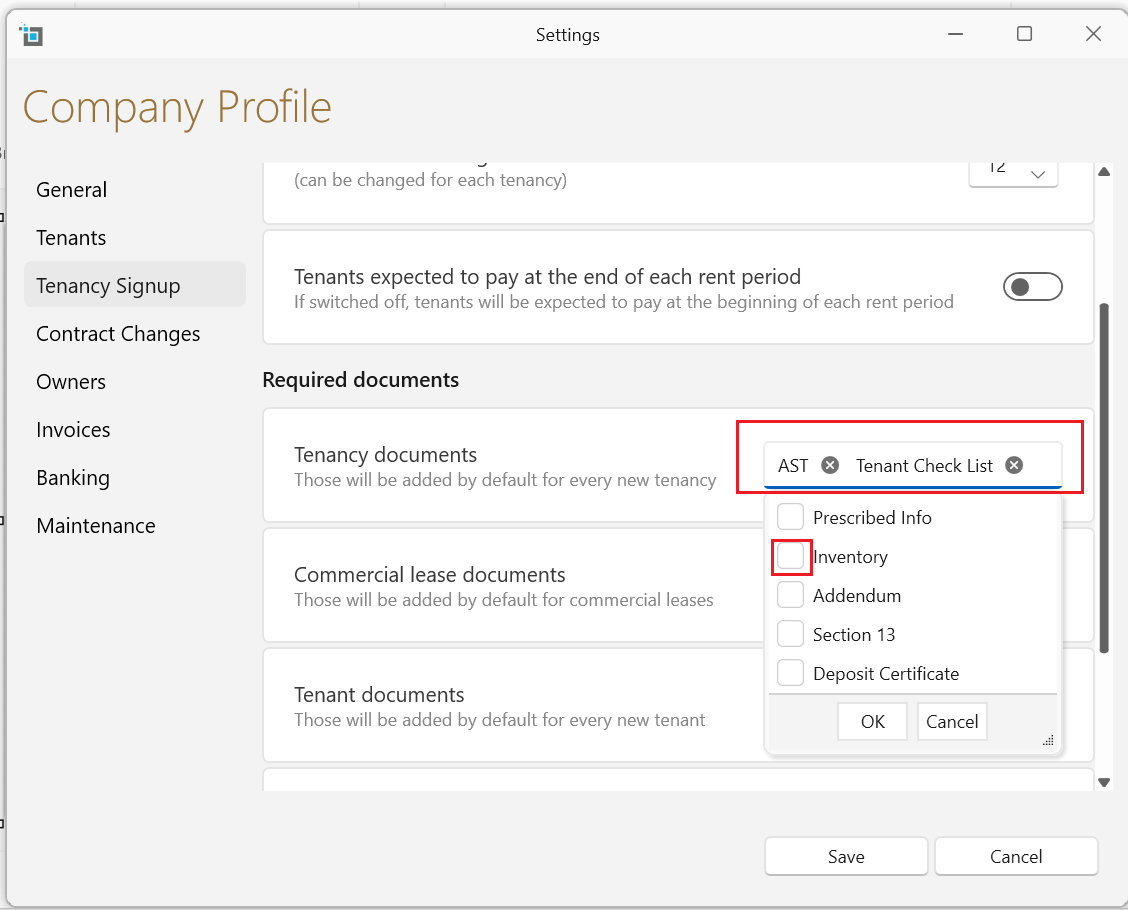
This can be done by clicking into the box next to the given option as outlined in the large rectangle above. A pop up list will then show and you can check or uncheck document options as per your requirements.
Add Document Options to the Pop Up List:
You have a further option to add to the document types that will show in the pop up list above. This option should be used if you often require a particular document when creating a new tenancy that is not currently showing on the default list. This can be done as follows:
Select Control Panel:
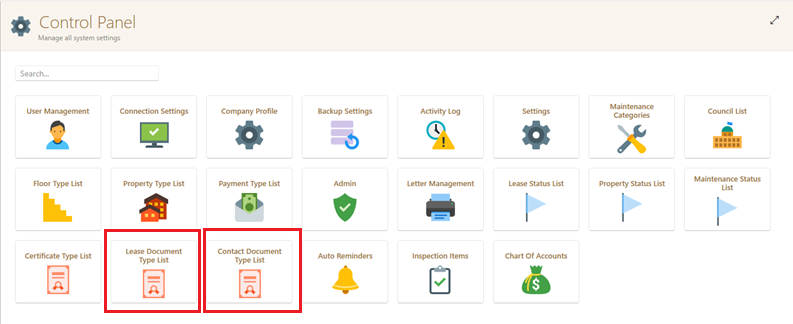
You now have two options you can add document types to the Lease Document List e.g. fire safety document, Insurance certificate etc
Or you can add documents to the tenant Contact Document List eg Photo of tenant.
In order to add an additional document type, click on the plus sign in the lower left corner, a new line will appear for you to click into and add the document of your choice and save.
You can also adjust the order of the list to your specification by clicking on and dragging document types up or down.
You can not edit any of the existing options.
Note: You can not edit any of the existing documents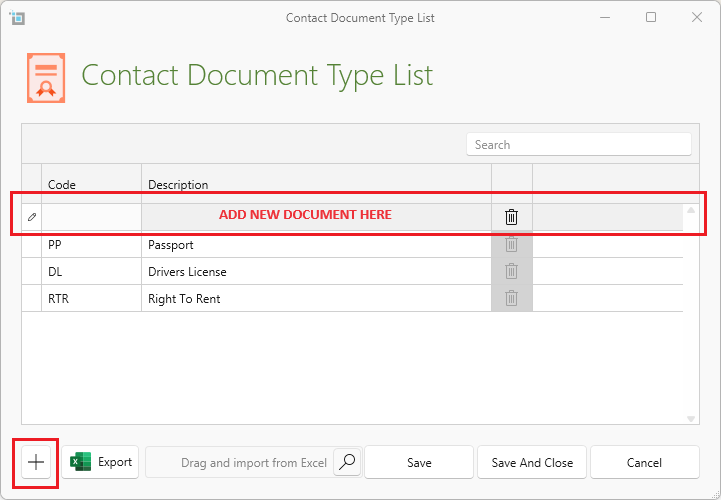
To find the tenants documents at a later stage:
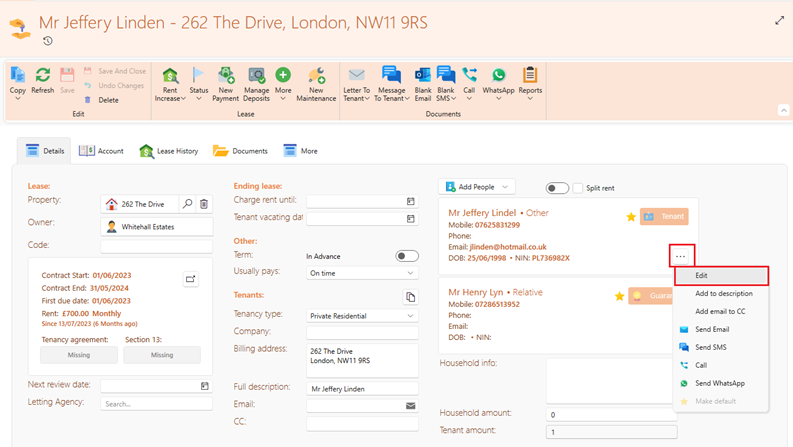
- Click onto the lease.
- Select the three dots by the tenants name.
- Select edit
- A pop up will now show with all that tenants info and documents.
In order to access the lease documents at a later stage you can click onto the lease history tab and select the tenancy sign up.