
You may want to assign and edit maintenance jobs for many properties.
How to assign one supplier for many jobs
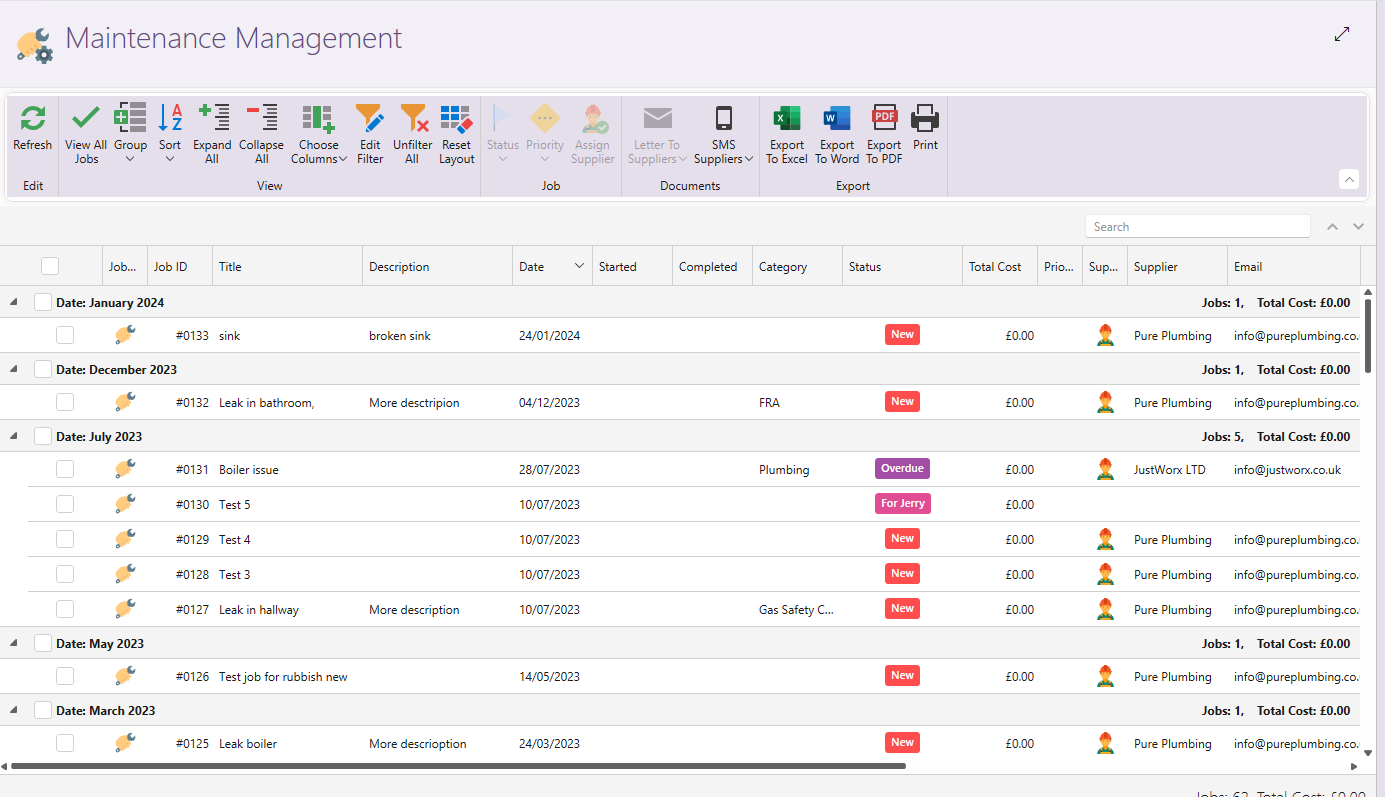
- Under the Maintenance tab click on Manage tasks. A new window will appear showing all active jobs.
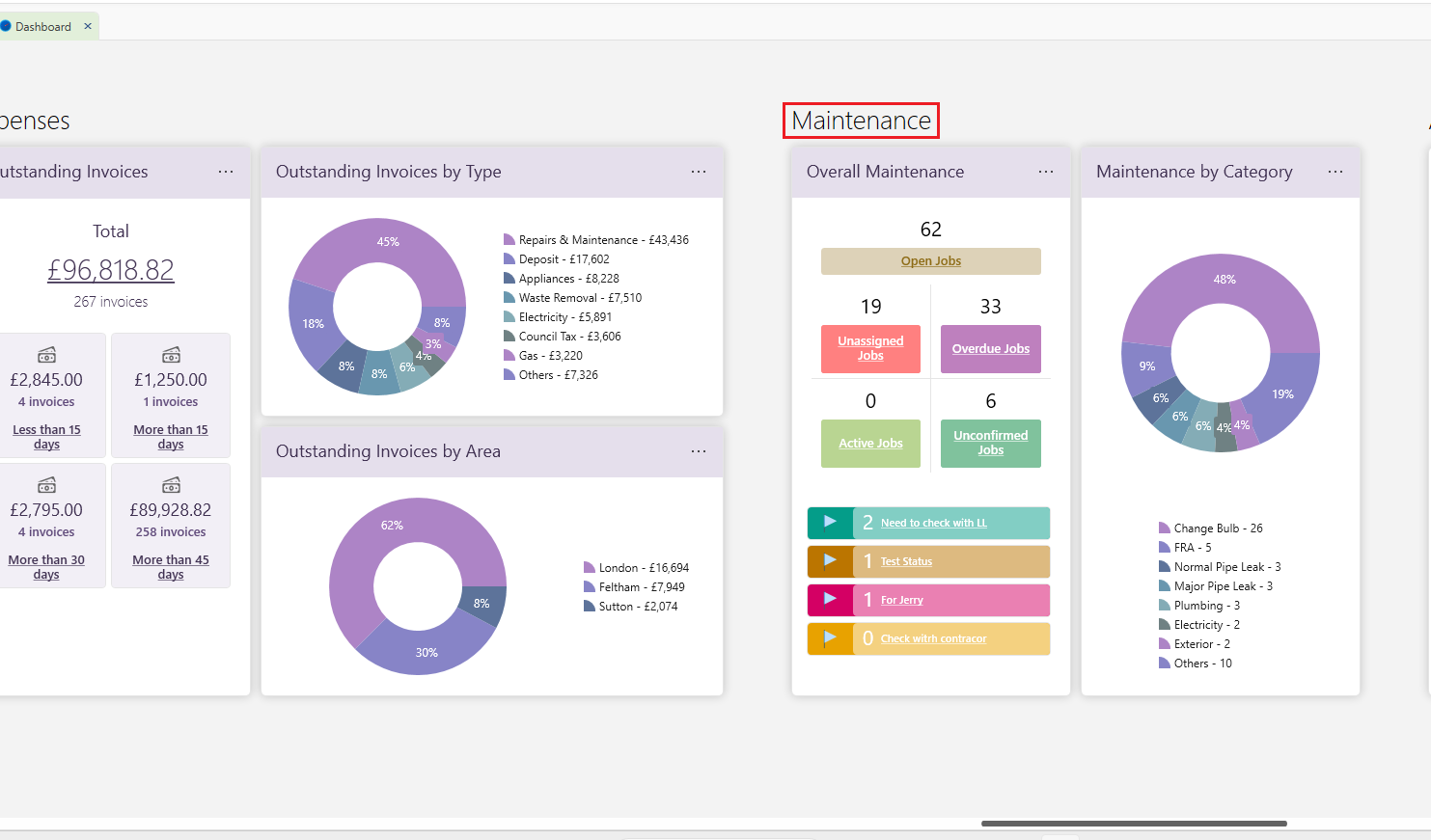
- Alternatively, you can also click on the dashboard under Maintenance.
- You can now filter by property/status/date etc.
- For more on how to filter and adjust this window, see here: How to navigate the Management windows
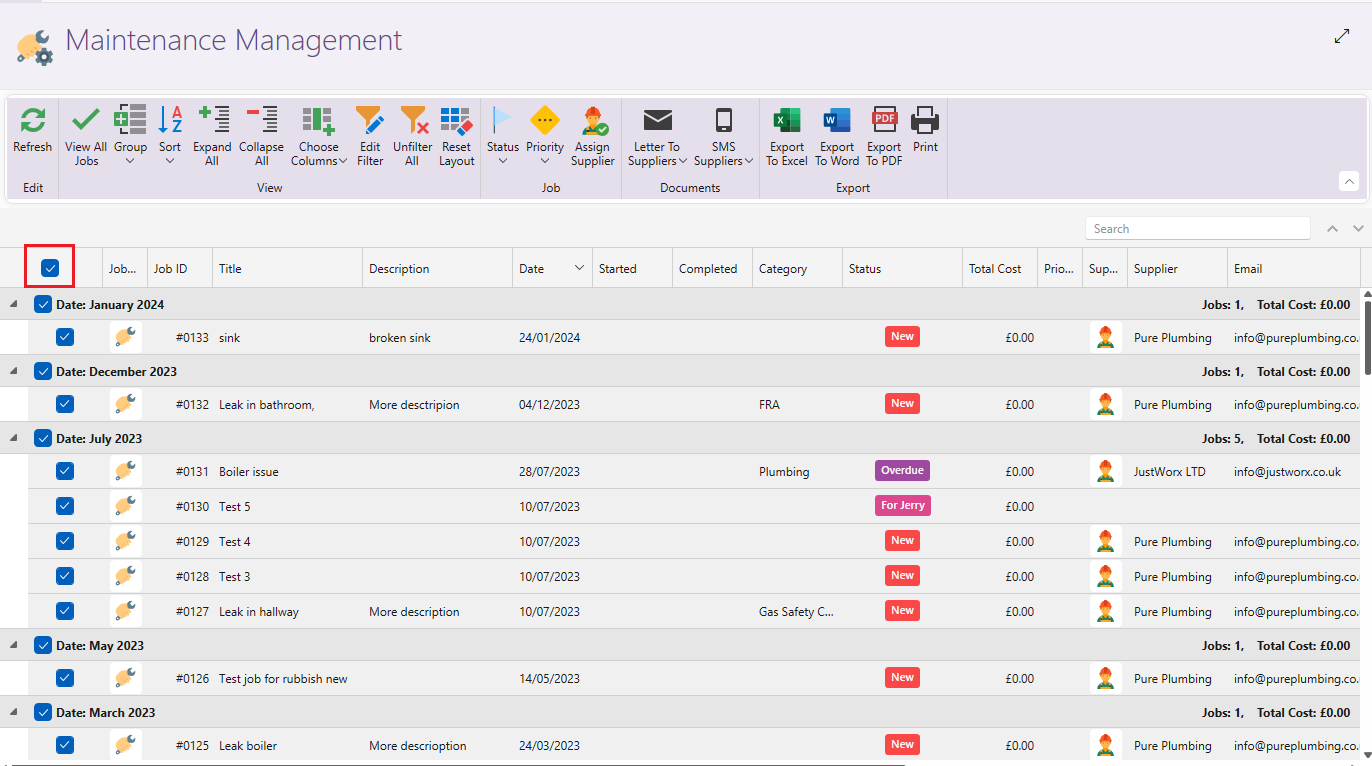
- Check the box in the top left corner to select all jobs that you filtered.
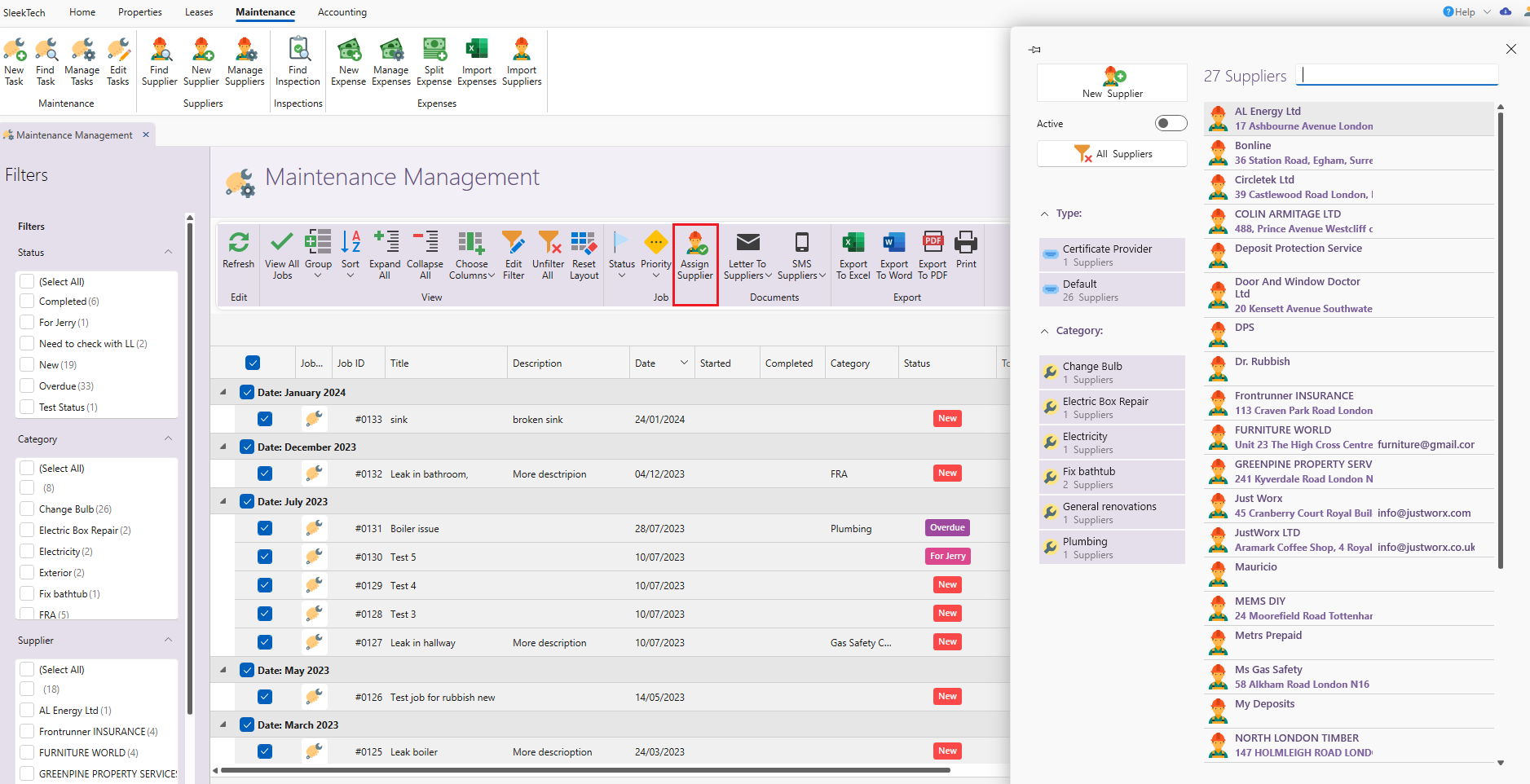
- You can now assign a supplier to all these jobs by clicking on Assign supplier from the page ribbon and then selecting the supplier.
How to change the priority or the status of a job
- Filter out the desired suppliers as shown above.
- Click on Priority, to change the priority of these jobs.
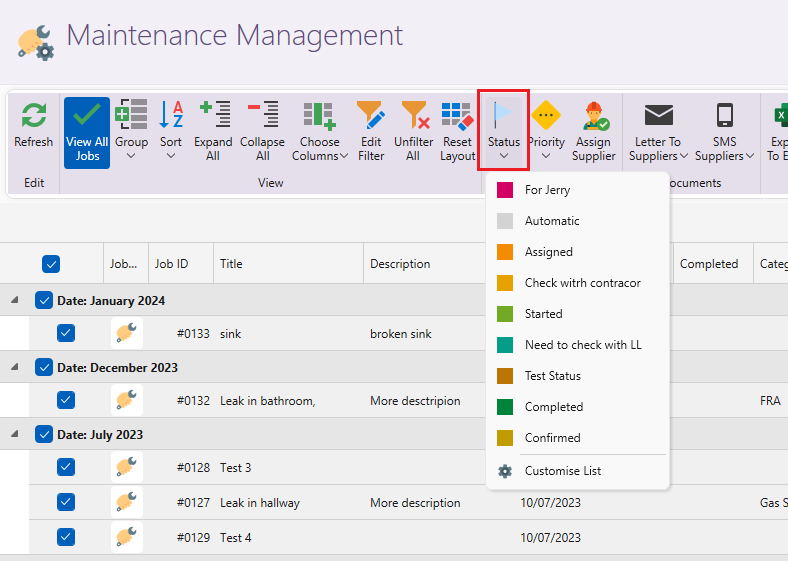
- You can also mark many jobs as completed or change to a different status by clicking on Status and then selecting the correct one.
- For more on understanding different status, or to create a custom status click here: Manage maintenance status and create custom status
How to send an email, letter or SMS to many suppliers
- Filter out the desired suppliers as shown above
- To send an email to the suppliers with a list of all jobs, click on Letters to Suppliers from the page ribbon, then on Work order and then on Outlook.
- To send a letter to the suppliers with a list of all jobs, click on Letters to Suppliers from the page ribbon, then on Work order and then on Open or Print.
- To send an SMS to the suppliers, click on SMS Suppliers.
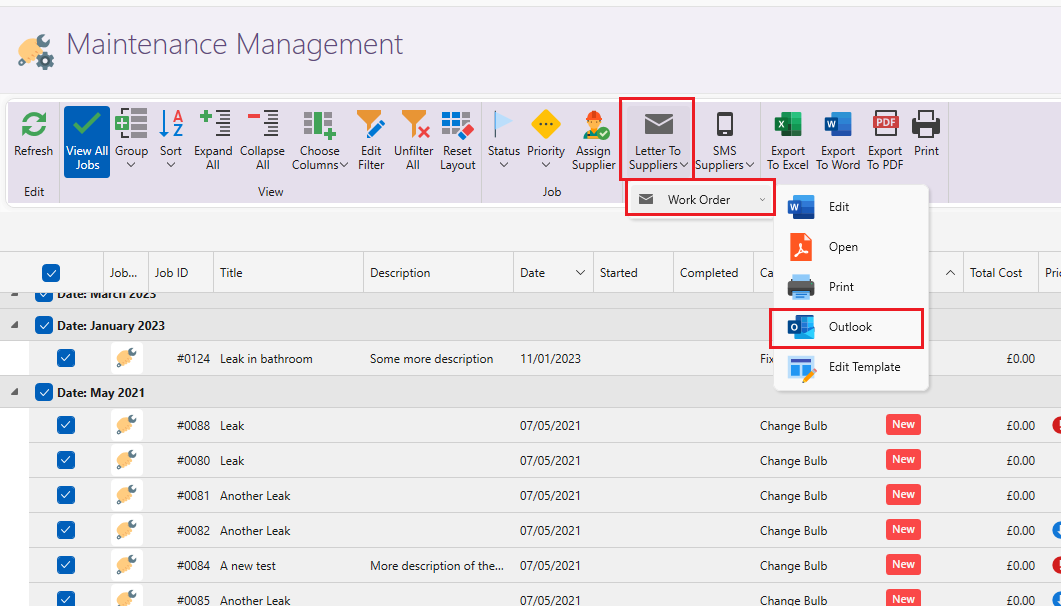
- You can also export all jobs by clicking on one of the Export options on the page ribbon.
For more on Maintenance click here:
How to enter a maintenance job