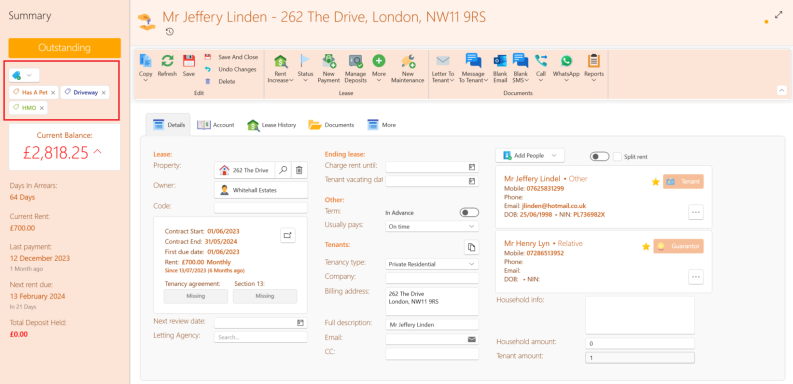
How to add and edit tags for leases:
Tags provide you with a flexible way to classify and search for specific groups of leases. You can customize and manage tags directly from the lease window or from the settings window.
Tags can be found on the left panel of the lease window you can select the dropdown to add tags from an existing list or choose Add new tag to create a tag of your choice.
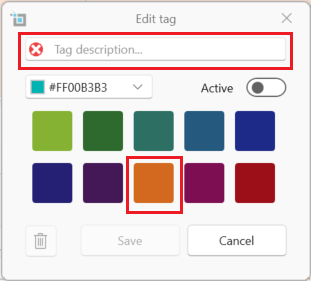
Creating a new tag:
- Select the tag dropdown.
- Click Add new tag.
- In the pop-up type the tag description e.g. has pet.
- Select a colour to be assigned to this tag
- Click save
The newly created tag will now appear in the tag list.
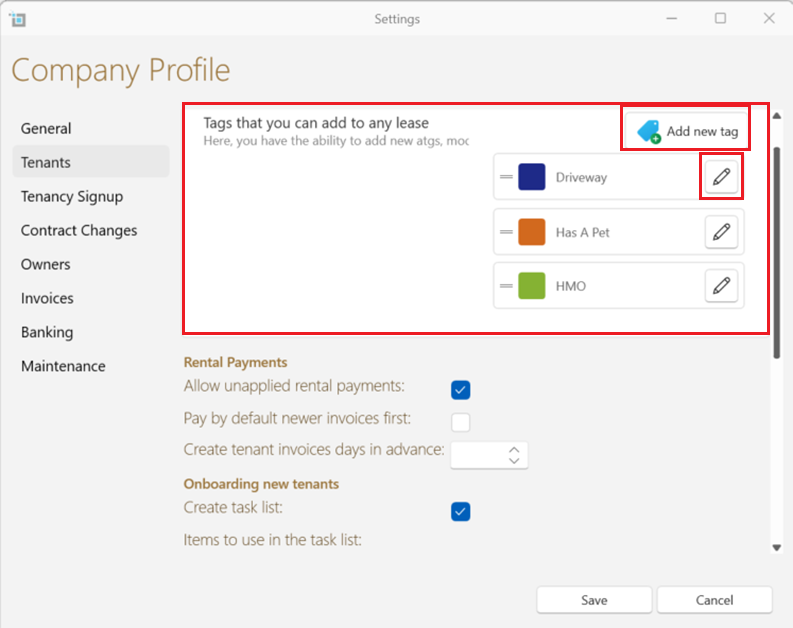
Editing and Managing Tags:
When on the lease page click on the tag dropdown and select manage all tags to access the following options:
- Change the order of the tag list by clicking on and dragging a tag up or down.
- Edit the name or colour of a tag by clicking on the edit button by the name of the tag - the edit tag box as above will show up and you can make the necessary changes.
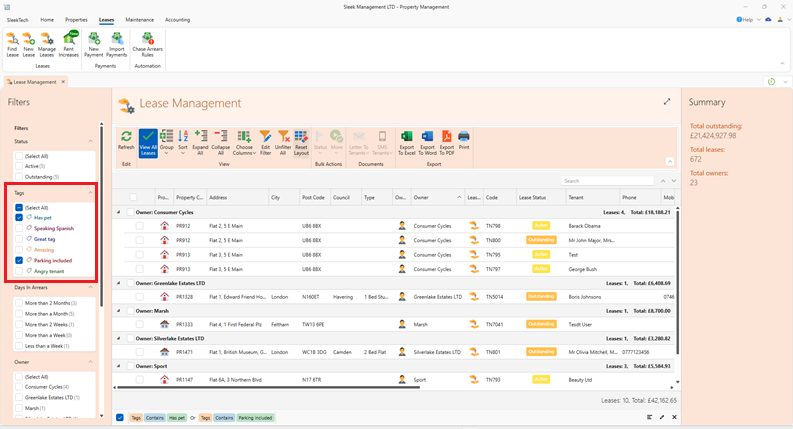
Filter lease by tags:
Effortlessly filter and organize your leases with the tag-based filtering option in the lease management window.
This functionality allows you to view and manage leases based on customized tags, providing a more tailored and efficient approach to lease organization.
Check or uncheck the tag options in the panel to the left of the lease window for the required leases to show up