
Once you have created a job, you can add an invoice and/or an expense. This will then show up on the job and also on the property and supplier. You can also assign a job to an existing expense.
How to add an expense and/or an invoice through the job
You can either create an invoice from within the maintenance job, or you can connect an invoice to a maintenance job.
Add an expense through the maintenance job:
- Locate the job you wish to add an expense to, by clicking on Find Maintenance from the side panel.
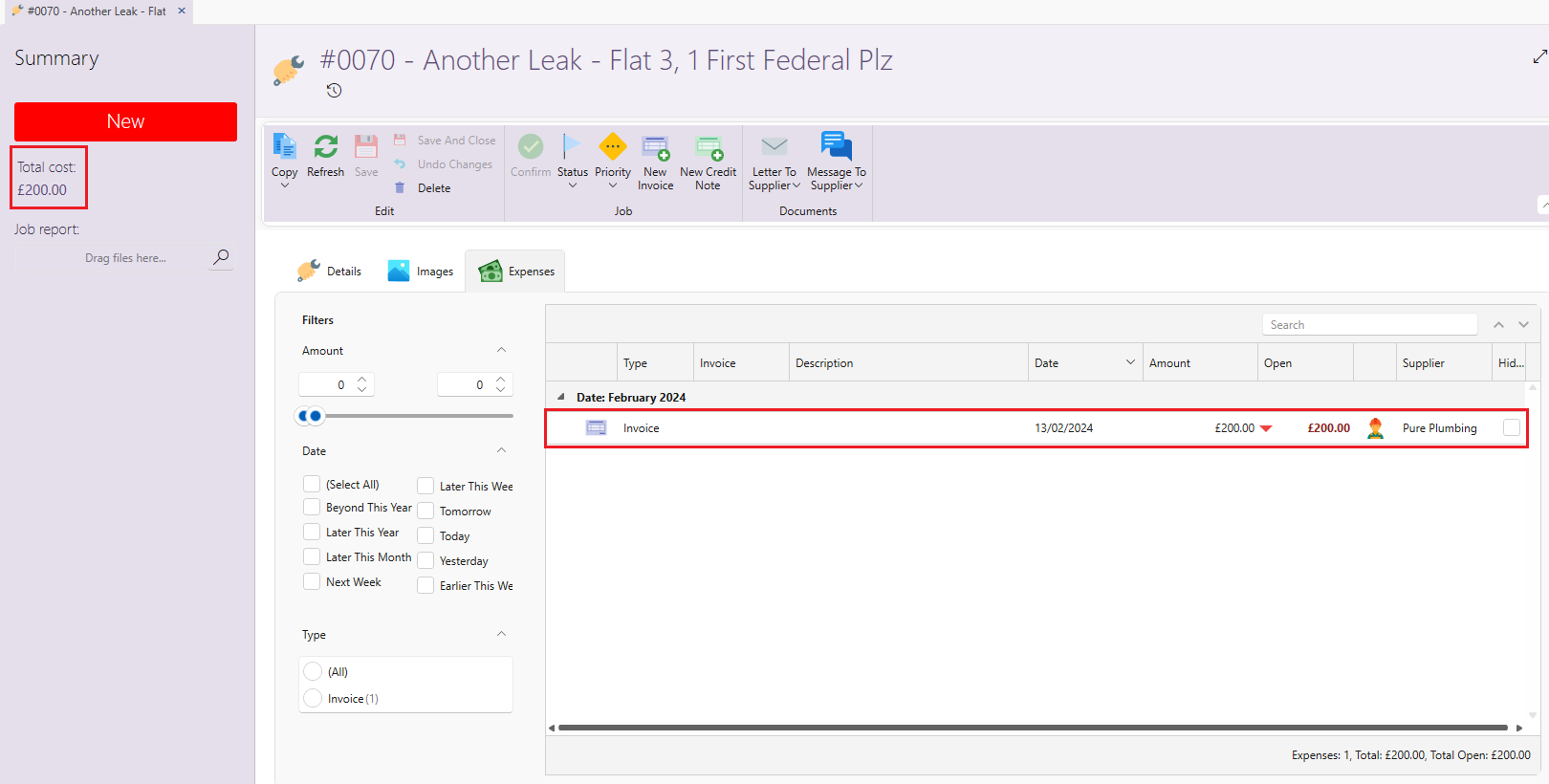
- The maintenance job will open. Click on New invoice from the page ribbon
- You can now drag/upload an invoice or choose to enter the details yourself. Make sure to put in the Account ledger and the amount.
- Click on Save and close.
- When you click on Refresh, the job will now show with the amount at the side under the Status. On the Expenses tab you will see the invoice. You can also find the invoice on the property or under the Supplier.
Connect a maintenance job through the invoice:
- From the side panel, click on Expenses and then on New expense
- Drag/upload an invoice or fill in the details yourself- owner, property date, ledger and amount.
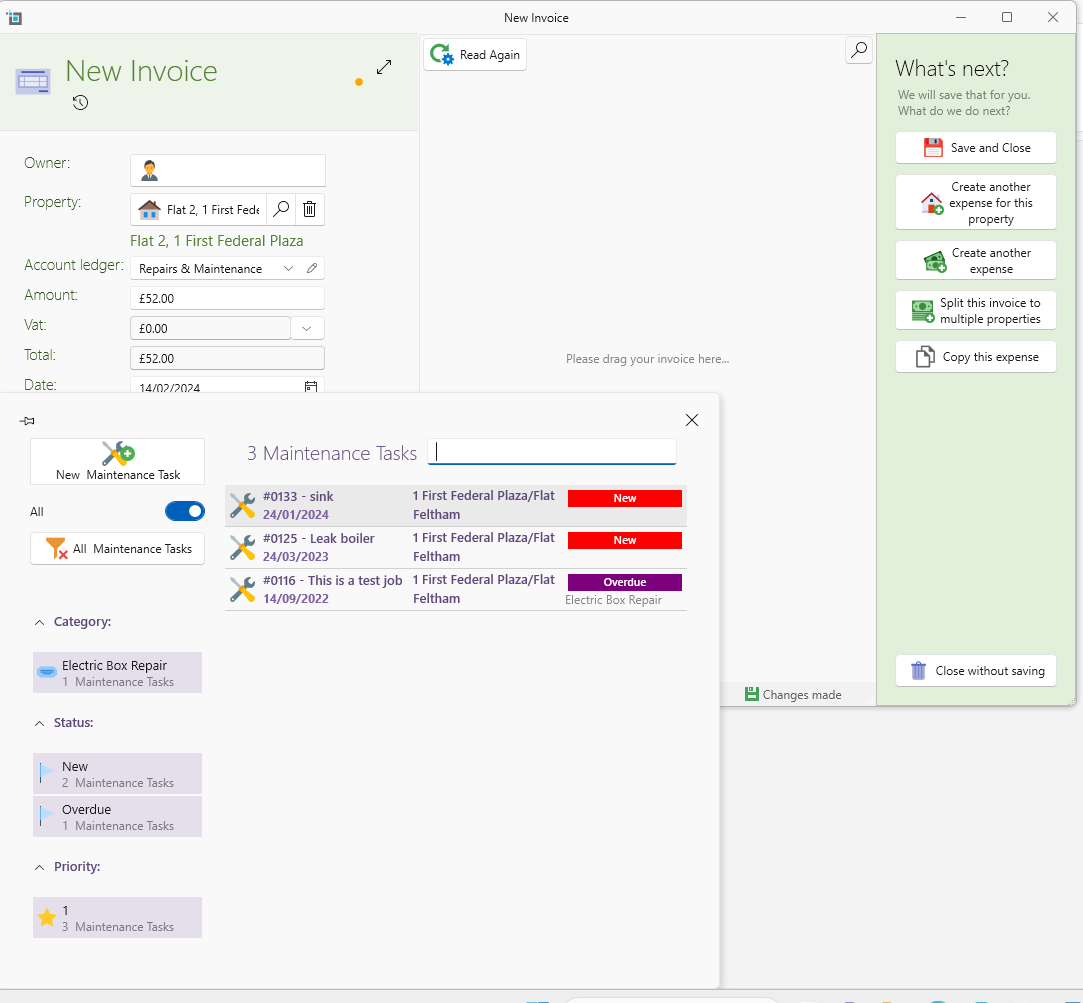
- Click on Maintenance. This will bring up any open jobs for this property. Please note: it will not bring in any jobs for a different property, so make sure that the property is filled in before you click this so that you can see the maintenance of this property.
- You can also assign a supplier by clicking on Supplier.
- Click on Save and close.
Assign an existing expense to an open job:
- You can find the existing expense through the property or through Manage expenses
- Once you have clicked on the expense, the invoice window will open.
- Click on the Maintenance box. This will now open up any open jobs for this property.
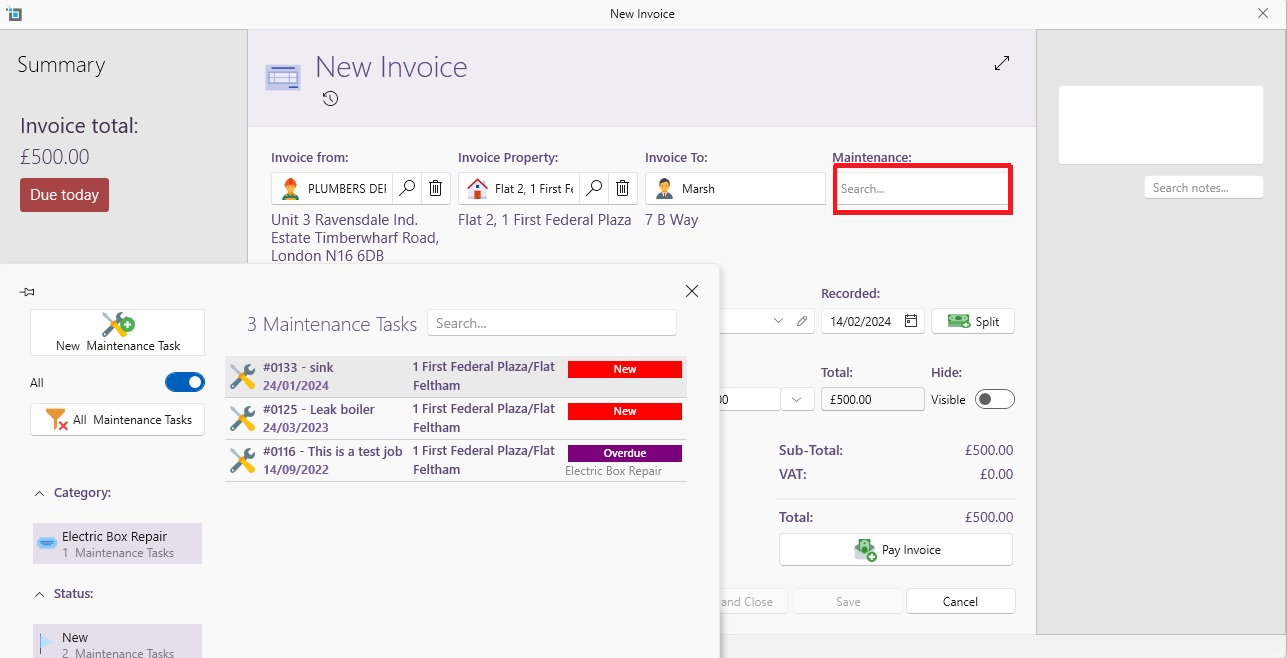
- Assign the correct job and click on Save and close
If you would like to send the supplier or the landlord a list of all expenses incurred for this job, you would use the job report. See here for more on this: Job report
Settings
There are a few settings which you may want to adjust when dealing with invoices.
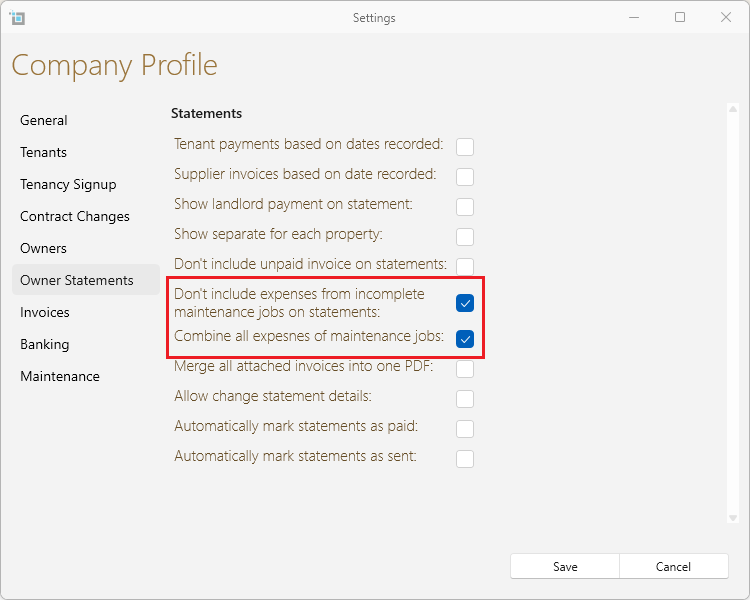
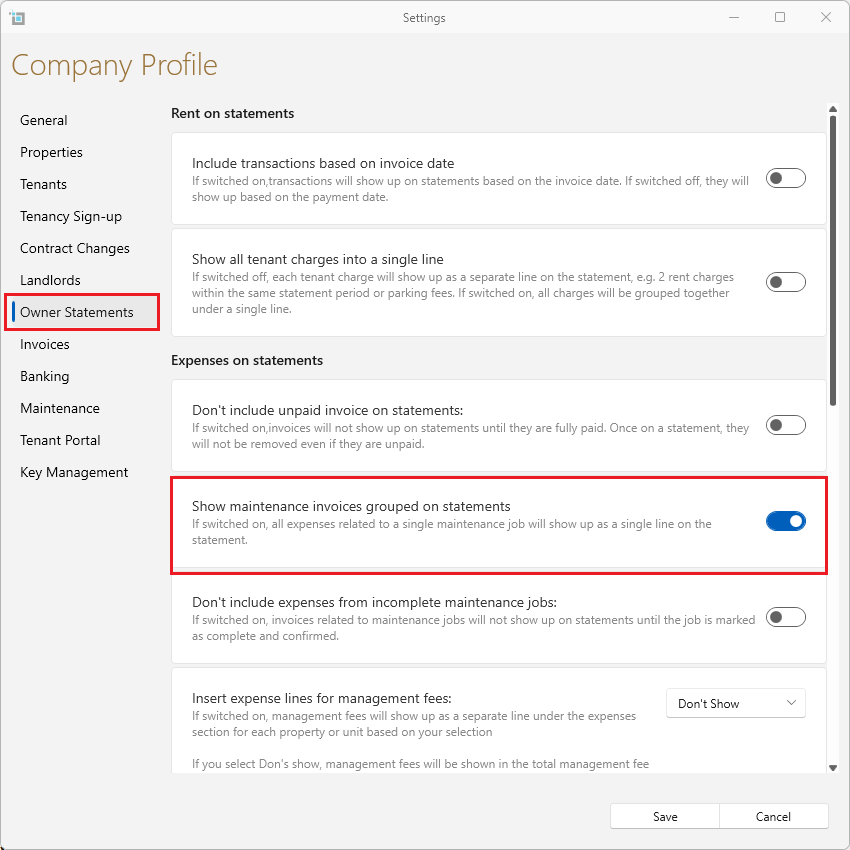
If you have expenses assigned to a job which is not yet finished, you can change the setting that this should not be included in the owners statement.
You can also change the setting of combining all expenses of the same job into one big expenses on the statement.
To change these settings go to Control panel, then to Settings and then Owner statements and check the settings as shown below.
Additionally, there is another setting that affects how invoices appear on emailed statements.
If you have the Group maintenance job expenses setting turned on, the invoices for those jobs will be grouped together into one total on the statement, and the individual invoices won’t be attached to the email.
This setting is to group all expenses belonging to one maintenance job, and have the job only appearing once, instead of multiple times.
If you want each invoice to show up as a separate PDF attachment in the email, you’ll need to turn this setting off.
To check or change this setting:
Go to Control Panel from the main ribbon.
Click Settings.
Select the Owner statements tab.
Look for the setting called Group maintenance job expenses and make sure it’s not ticked.
Click Save.
For more on Maintenance, click here:
How to manage maintenance jobs in bulk