
Opening and customizing letters in SleekTech is straightforward and allows for detailed personalization to suit your needs.
How to open the letter editor
Opening the Letter Editor:
- From any letter menu, navigate to the letter you wish to edit and click Edit Template.
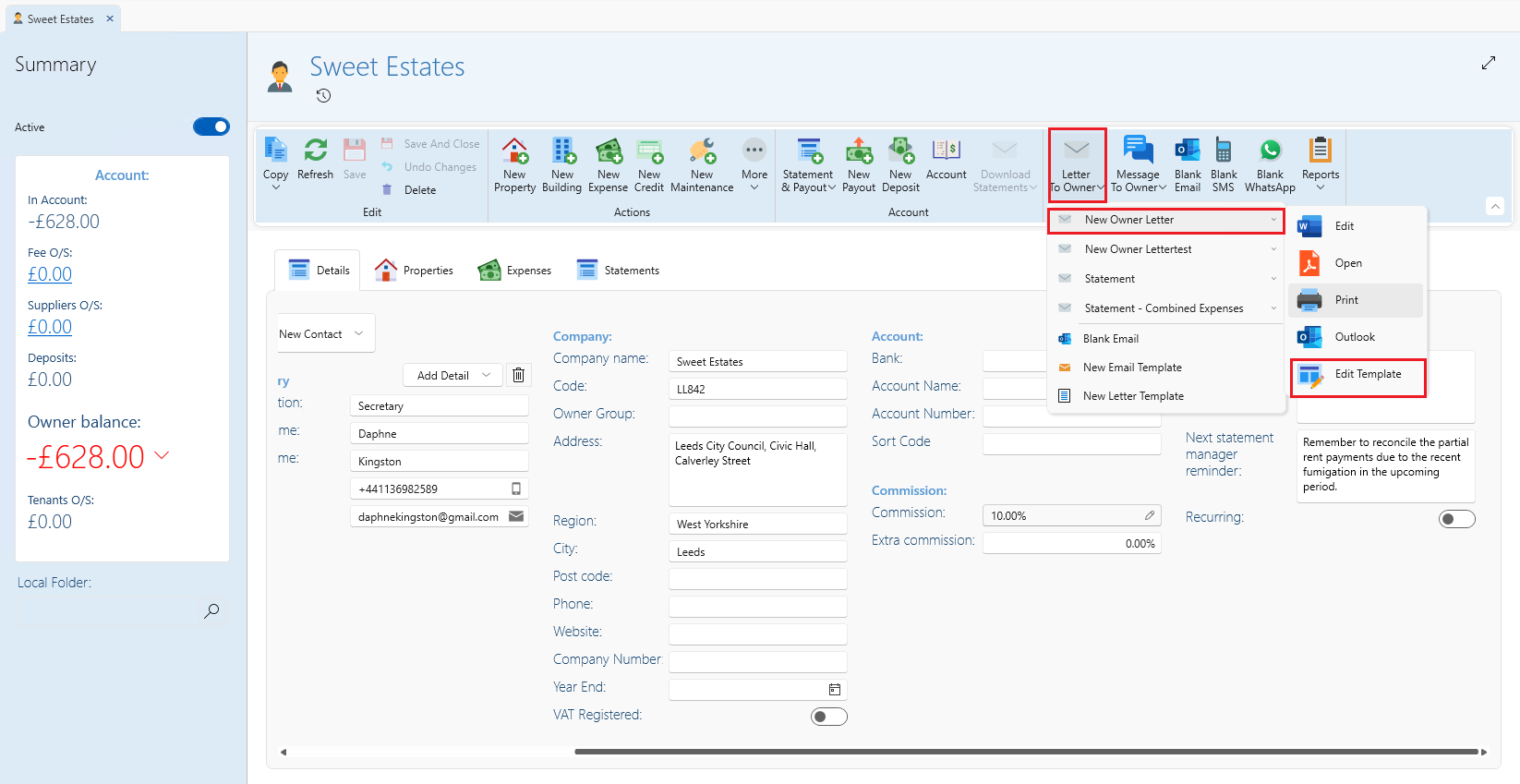
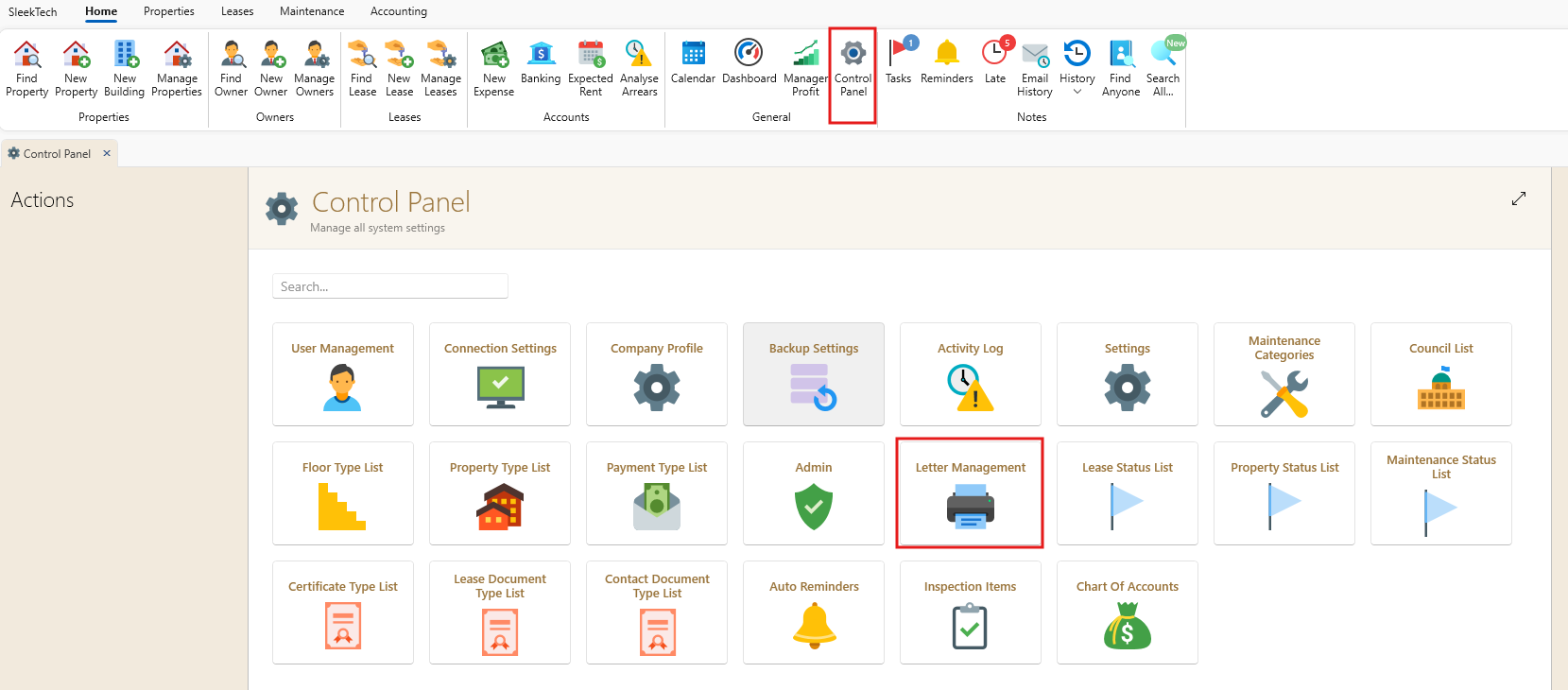
- Alternatively, access the letter editor through the main ribbon:
- Go to Control Panel.
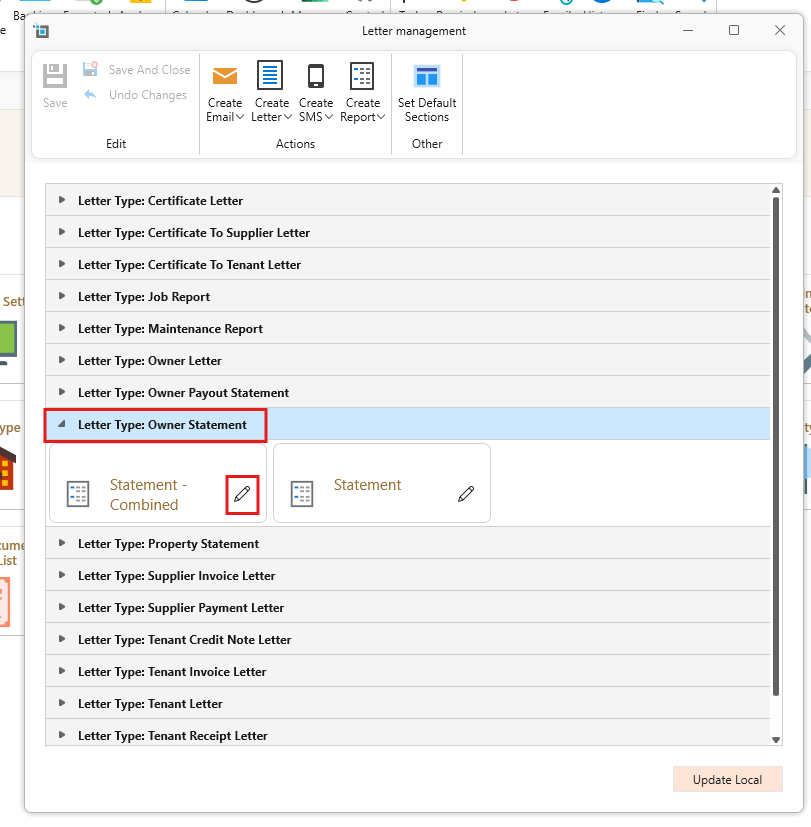
- Click on Letter Management.
- Locate your desired letter under the relevant letter group and click on the pencil icon to edit.
- This will open the letter editor specifically for the selected letter.
Editing Sections
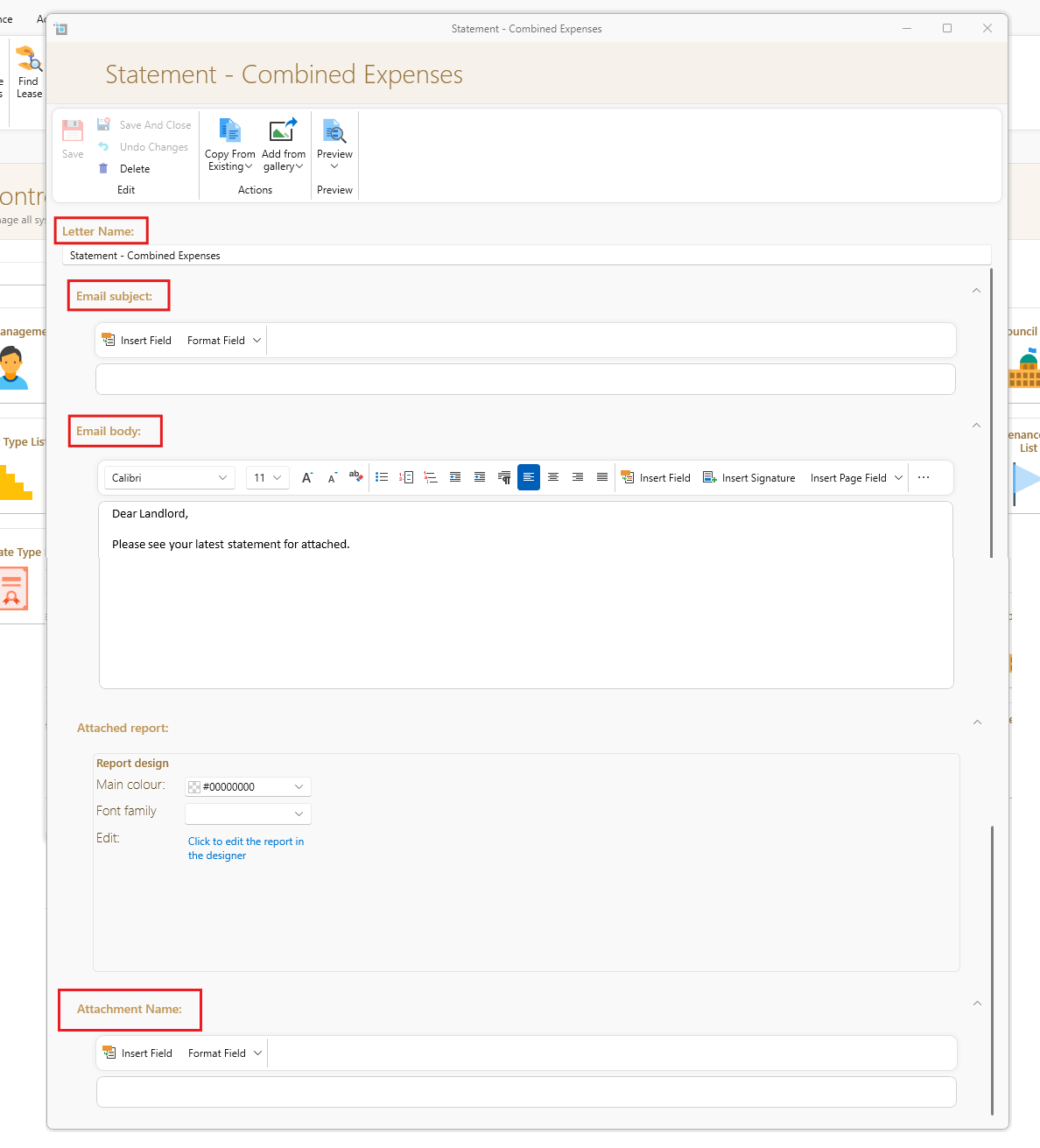
- Once in the letter editor, you can navigate to the section you want to edit and expand it. Static text can be typed directly into the text box for each section.
- Various components can be edited within each letter, referred to as sections:
- Letter Name: Name of the specific letter.
- Email Subject: Subject line of the email when sending the letter via SleekTech.
- Email Body: Main content of the email.
- If editing a letter (not just an email), additional sections include:
- Attached Document: Content of the document attached to the email.
- Attachment Name: File name of the attachment.
Inserting Merge Fields
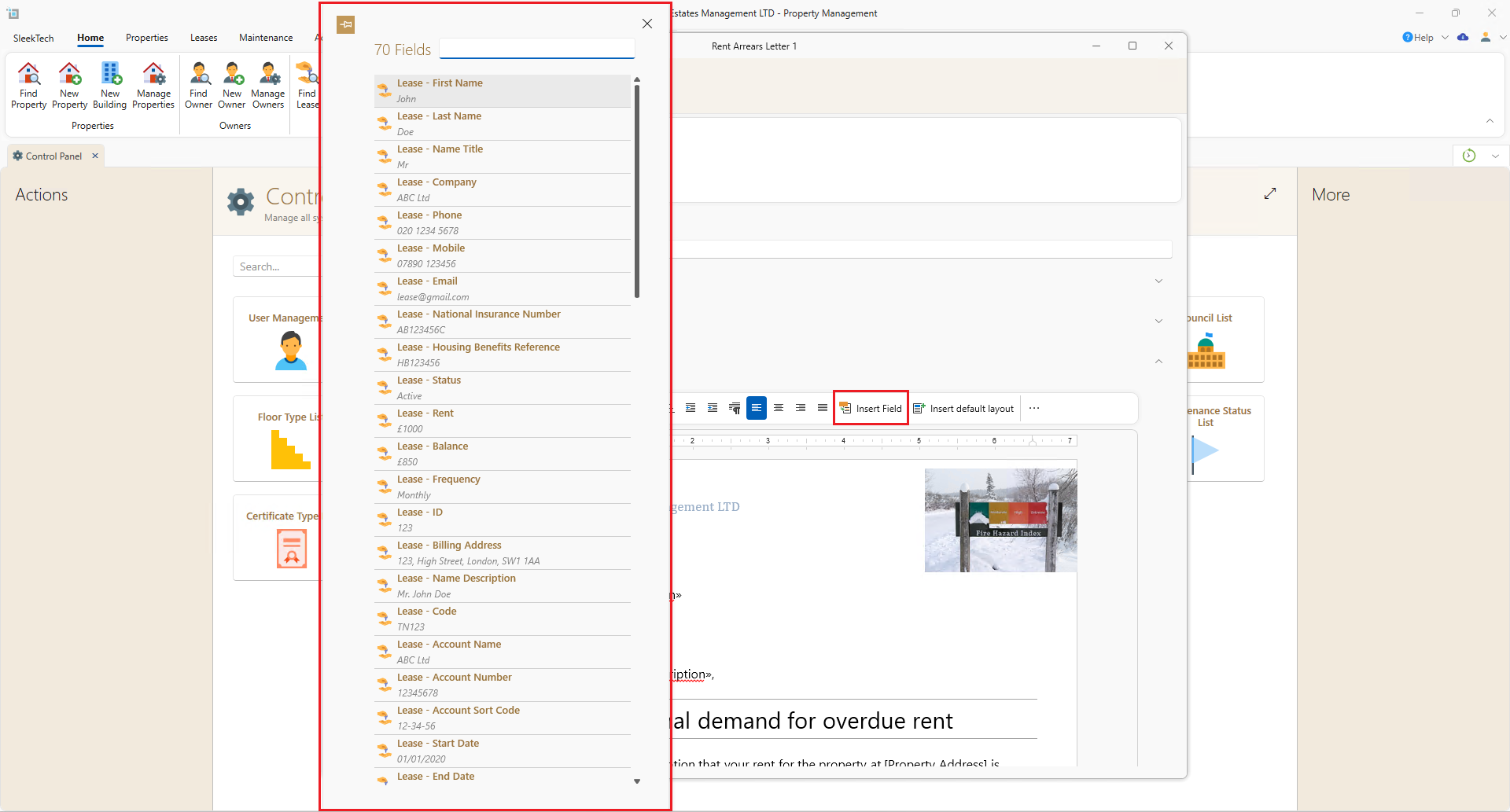
- Merge fields can be added to combine dynamic data with static text.
- To insert merge fields, navigate to the desired location and add them as needed.
Formatting Merge Fields
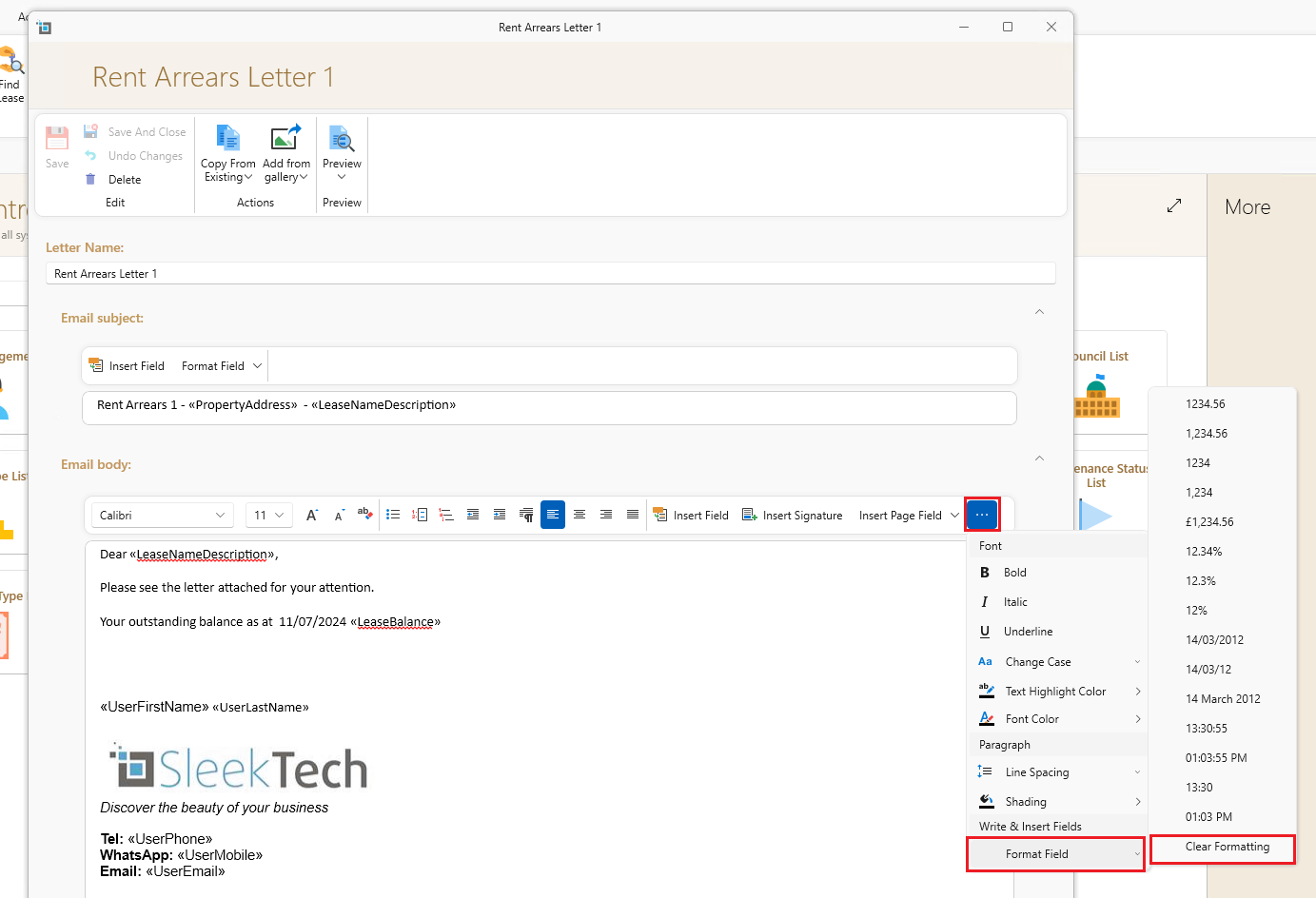
- Customize the format of number and date merge fields:
- Insert the cursor within the merge field.
- Click on the Format Field dropdown and select the desired format (e.g., percentage, currency).
- Use Clear Formatting to revert to default settings if needed.
Inserting Current Date and Page Numbers
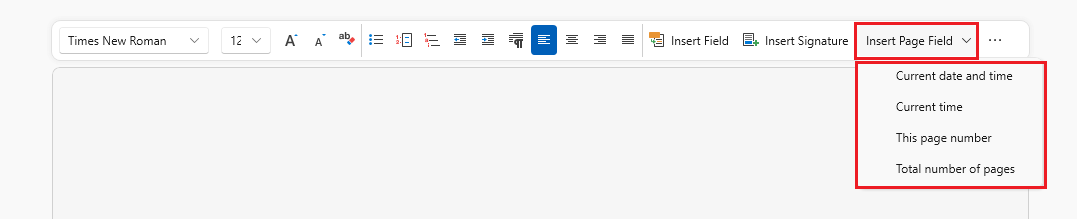
- Easily include the current date/time and page numbers in your letters:
- Locate the Insert Page Field button in the ribbon.
- Select the appropriate option from the dropdown menu.
Adding a Letter from Gallery or Copying Existing Letters
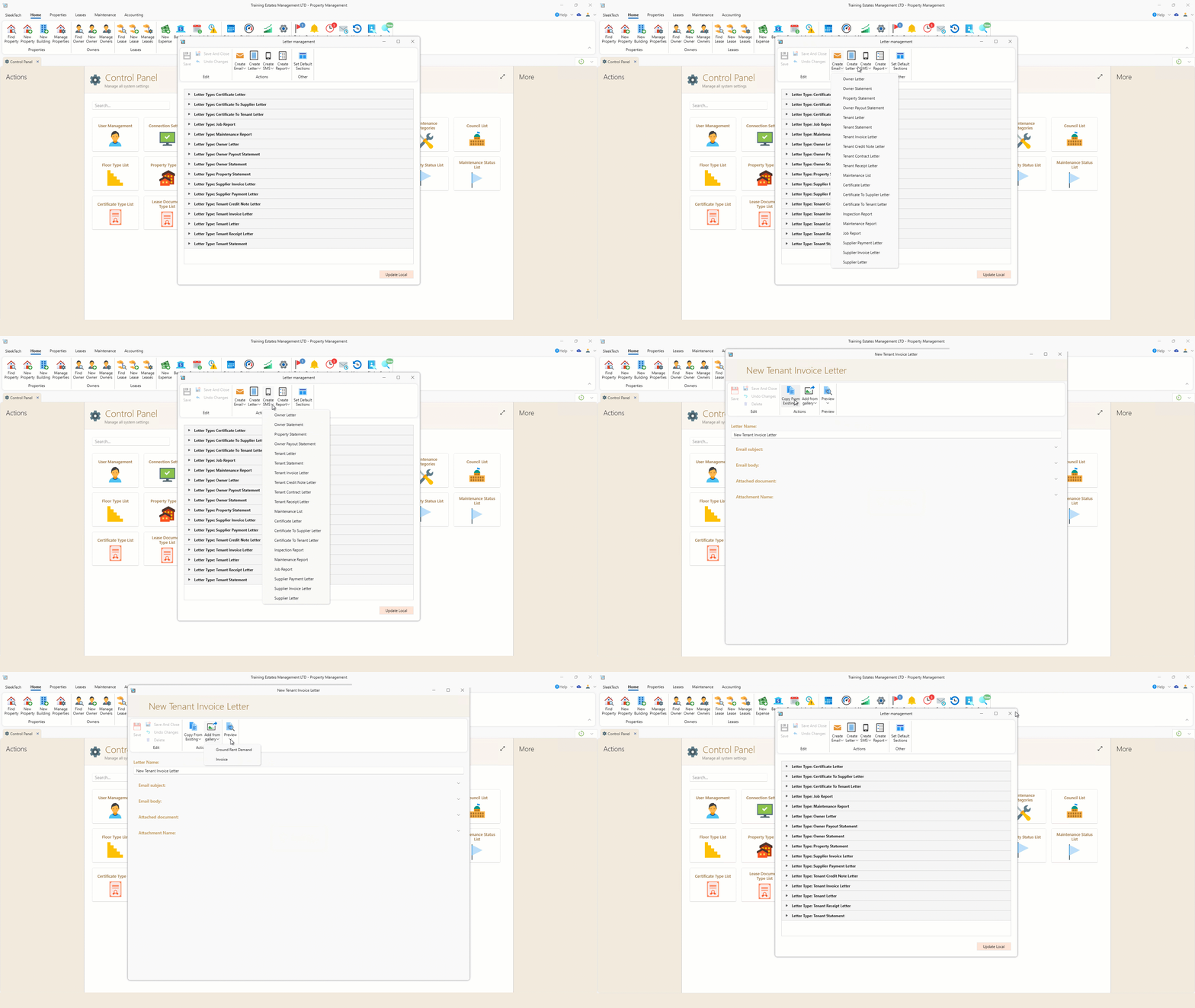
In addition, from this window, you can create new emails, letters, SMS messages, and reports. When creating new templates, you have the option to Add from the gallery or Copy from existing templates to meet your specific needs. Once done you can Save then Preview your template.
By following these steps, you can efficiently manage and personalize your letters within SleekTech, ensuring clarity and professionalism in all your communications.
For further assistance or detailed guidance, feel free to contact our support team.