
Setting up the Tenant Portal is a great way to streamline communication and management with your tenants.
It allows tenants to easily access their rent history, report and monitor maintenance issues, and view important documents, such as the Assured Shorthold Tenancy (AST) agreement and the Energy Performance Certificate (EPC) among others, all in one place. The tenant portal enhances communication and management, making the rental experience smoother and more organized for everyone involved.
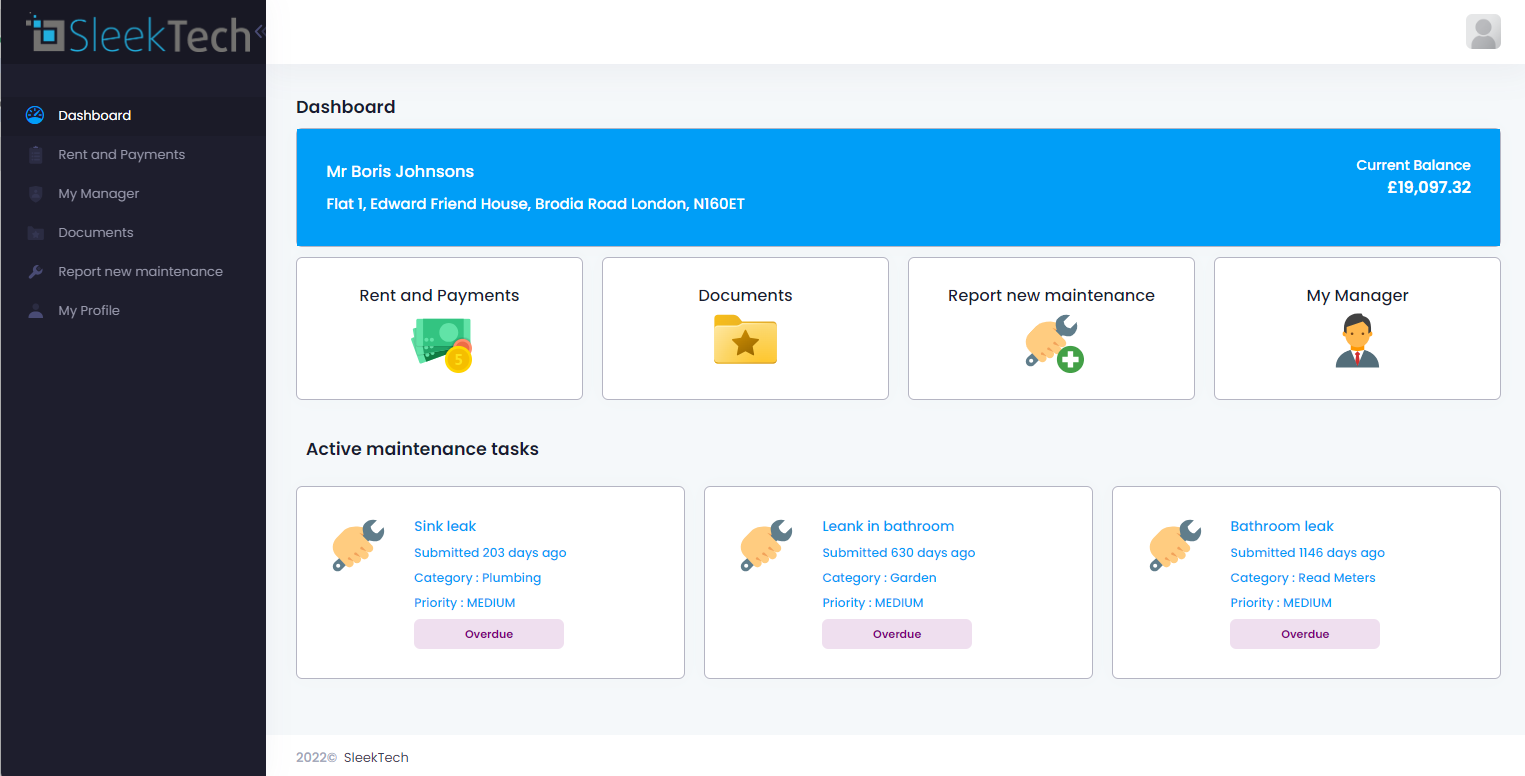
Here’s a step-by-step guide to help you configure the portal effectively.
Requesting Portal Access
- The Tenant Portal is not available by default. It must be requested by your company first.
- Contact SleekTech Support to enable the Tenant Portal.
- Once approved on your end, tenants will be able to access the portal. Note that while the portal is currently free for testing at the moment, we might adjust the pricing based on your plan in future.
Understanding Portal Access
- Once approved, the tenant portal will be linked to the primary tenant of the property.
- Only one email address can be associated with each property, regardless of the number of tenants residing there.
- To notify the tenants, you need to send out a portal invitation.
- For more information on granting access and managing the settings, please see the following article: Managing Tenant Portal Settings
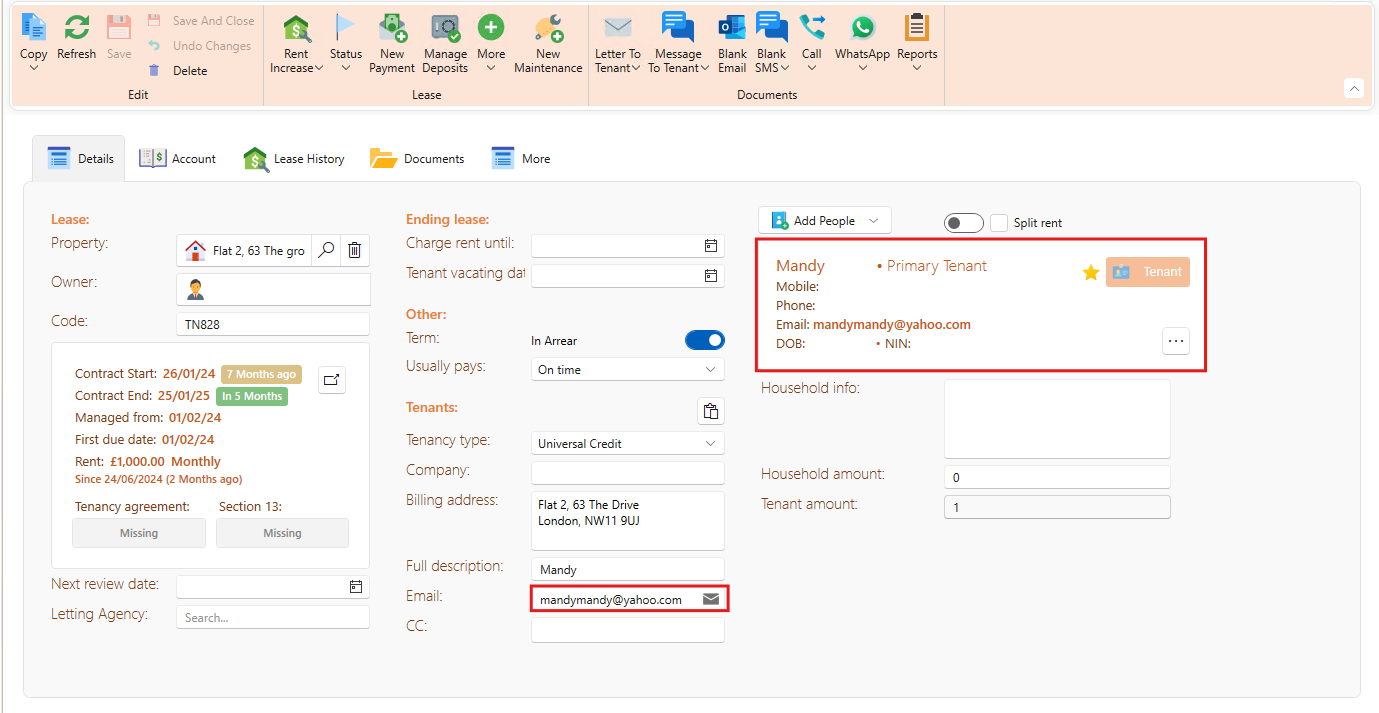
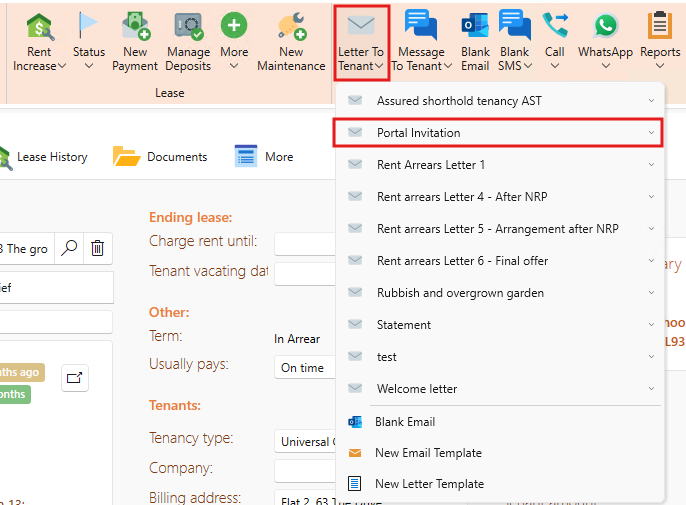
Sending Portal Invitations
- Go to the Lease Page.
- Click on Letter to Tenant.
- Select Portal Invitation from the list of available letters.
- You can customise the portal invitation letter to include only the necessary information for your tenants. If you need more information on how to customise then refer to the following article: How to design customised templates for email and letters (updated)
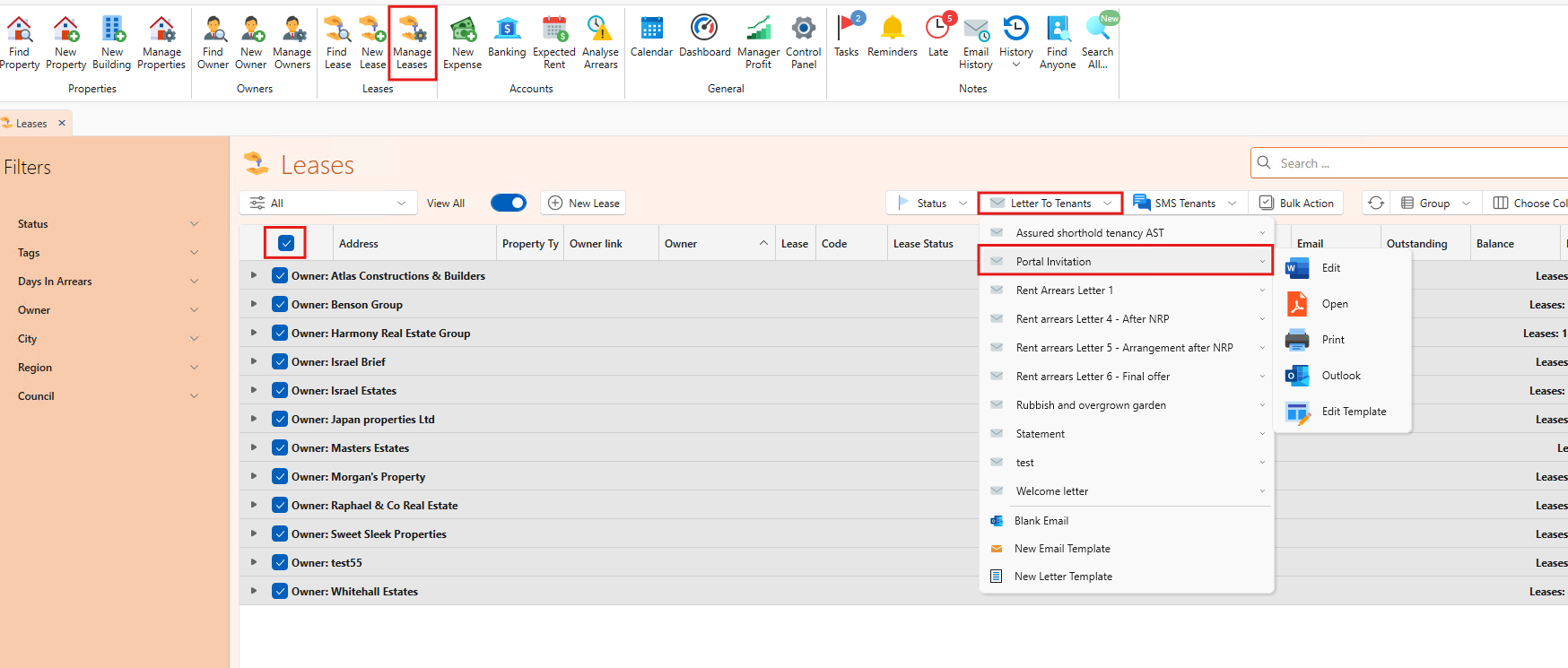
Sending Bulk Invitations
- From the main ribbon, click on Manage Leases.
- Select all relevant leases.
- Click on Letters to Tenants and choose Portal Invitation Letter.
For New Tenants
NB: Be sure to send out portal invitation letters to every new tenant.
Tenant Activities
Once the setup is complete on both your end and the tenants' end, you will be able to view tenant activities through the tenant portal. To do this, follow these steps:
- Navigate to the tenancy window.
- Click on the history button next to the recent activity.
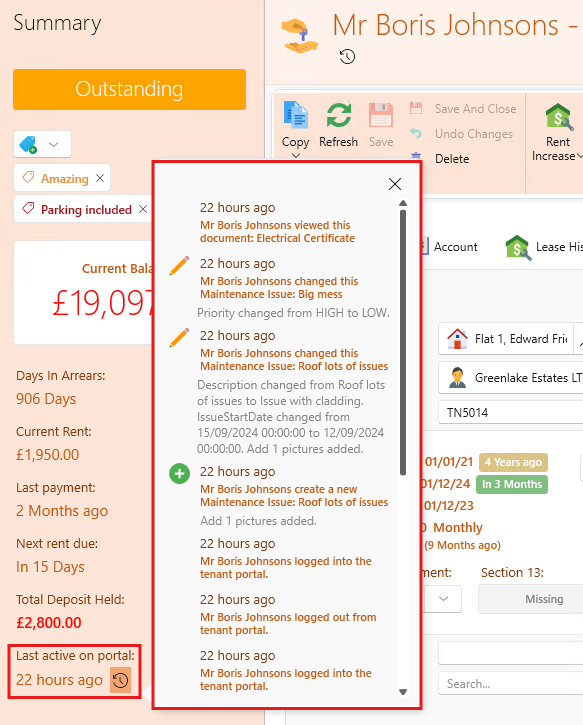
If the tenant has never logged in before, their activity will appear as follows:
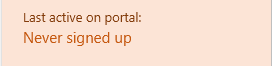
Once the tenant logs in for the first time, their activities will be updated accordingly in the tenant portal.
Summary
Setting up the Tenant Portal involves a few key steps:
- Request portal access and activate it once approved.
- Understand that the portal is linked to the primary tenant with only one email per property.
- Use the lease page to send portal invitations and manage bulk sending through the lease management window.
- View the tenants activities from the tenancy window.
By following these steps, you'll ensure that your tenants have access to the Tenant Portal