
Overview
The Features tab in the property window allows you to customise and manage the features associated with each property.
Setting Up Features for a Property
- Navigate to the property you wish to edit.
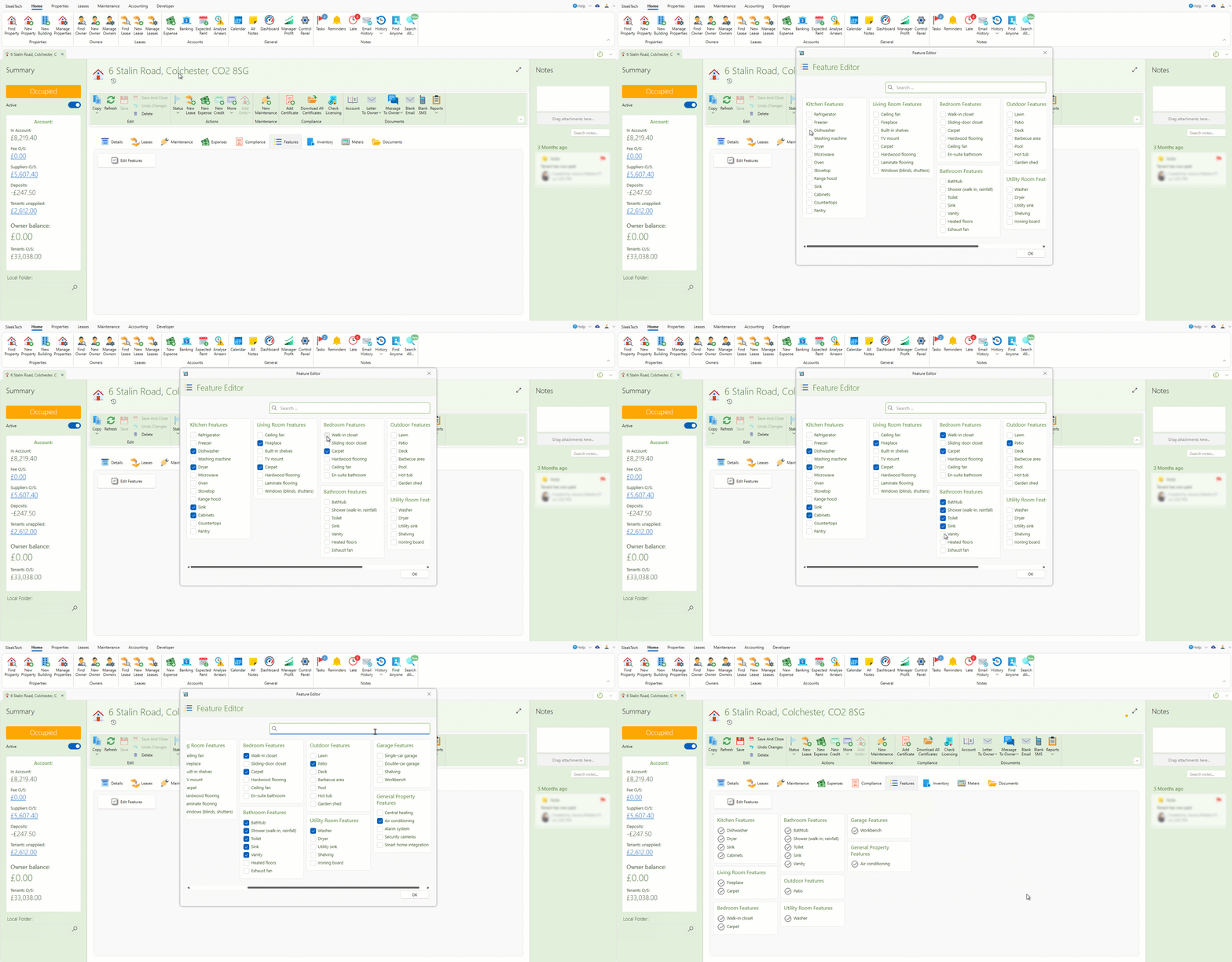
- Click on the Edit Features button within the property window.
- In the Feature Editor, you will see a list of available features.
- You can also search through the available features using the search bar.
- Tick the checkboxes next to the features you want to apply to the property.
- Once you have selected the desired features, click OK.
- The selected features will now be displayed in the property window.
Adding Features
- Go to the Control Panel from the main ribbon.
- Click on Settings.
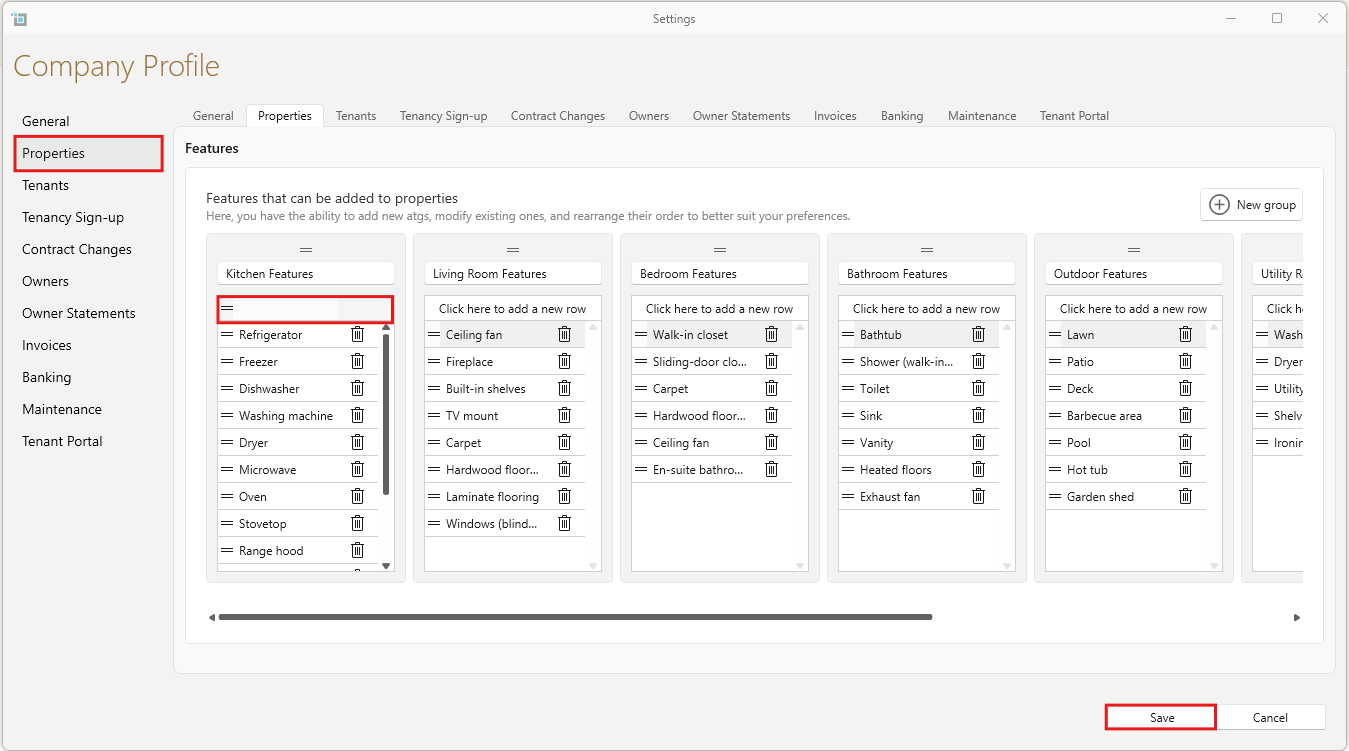
- Click on Properties.
- To add new features, click on Click here to add new row.
- To add a new group of features click on New group.
- Click Save to apply your changes.
- Return to the property page to see the newly created or modified features available for selection.
Managing Features
- Go to the Control Panel from the main ribbon.
- Click on Settings.
- Click on Properties.
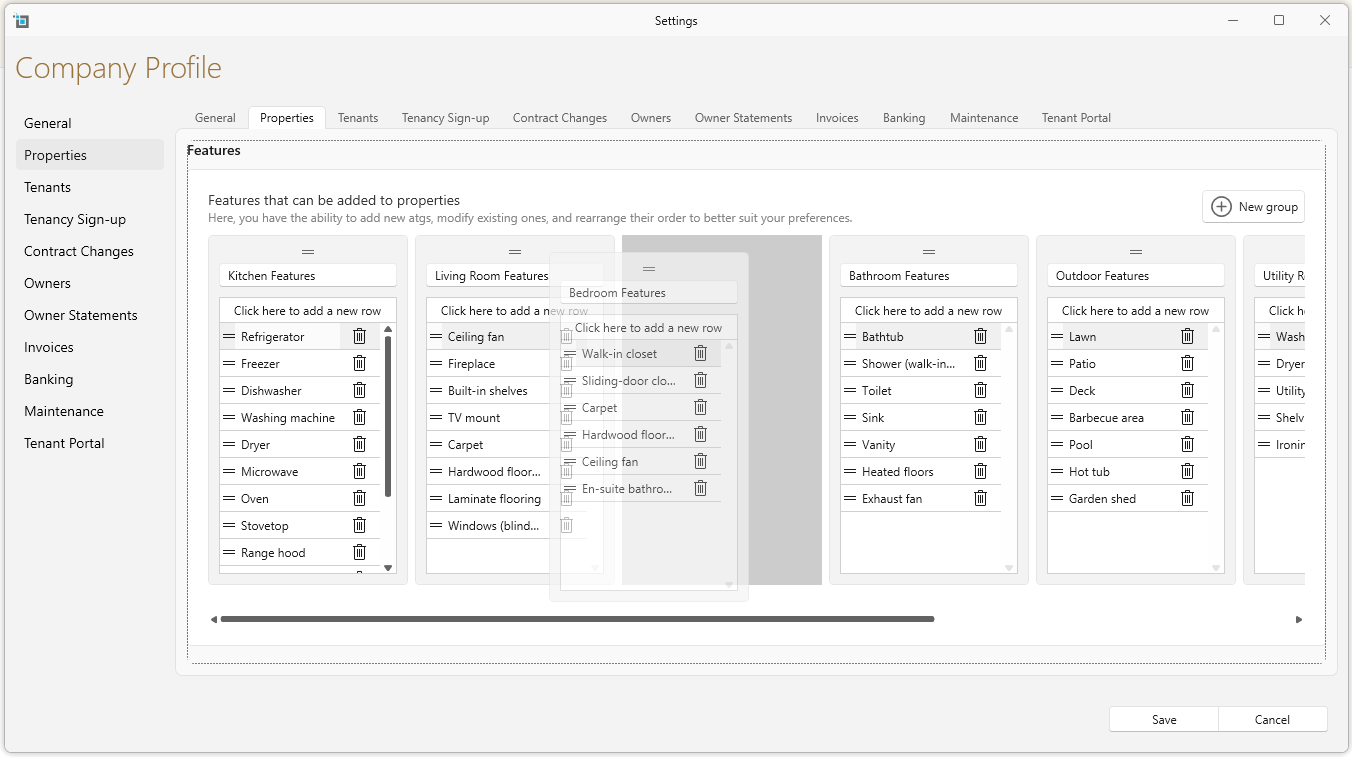
- To modify existing features, double click on the feature and edit as needed.
- To rearrange features, drag and drop to reorder features according to your preferences.
- To rearrange existing groups, drag and drop the group.
- Click Save to apply your changes.
- Return to the property page to see the newly created or modified features available for selection.
Bulk Update Property Features
To bulk update property features, please follow these steps:
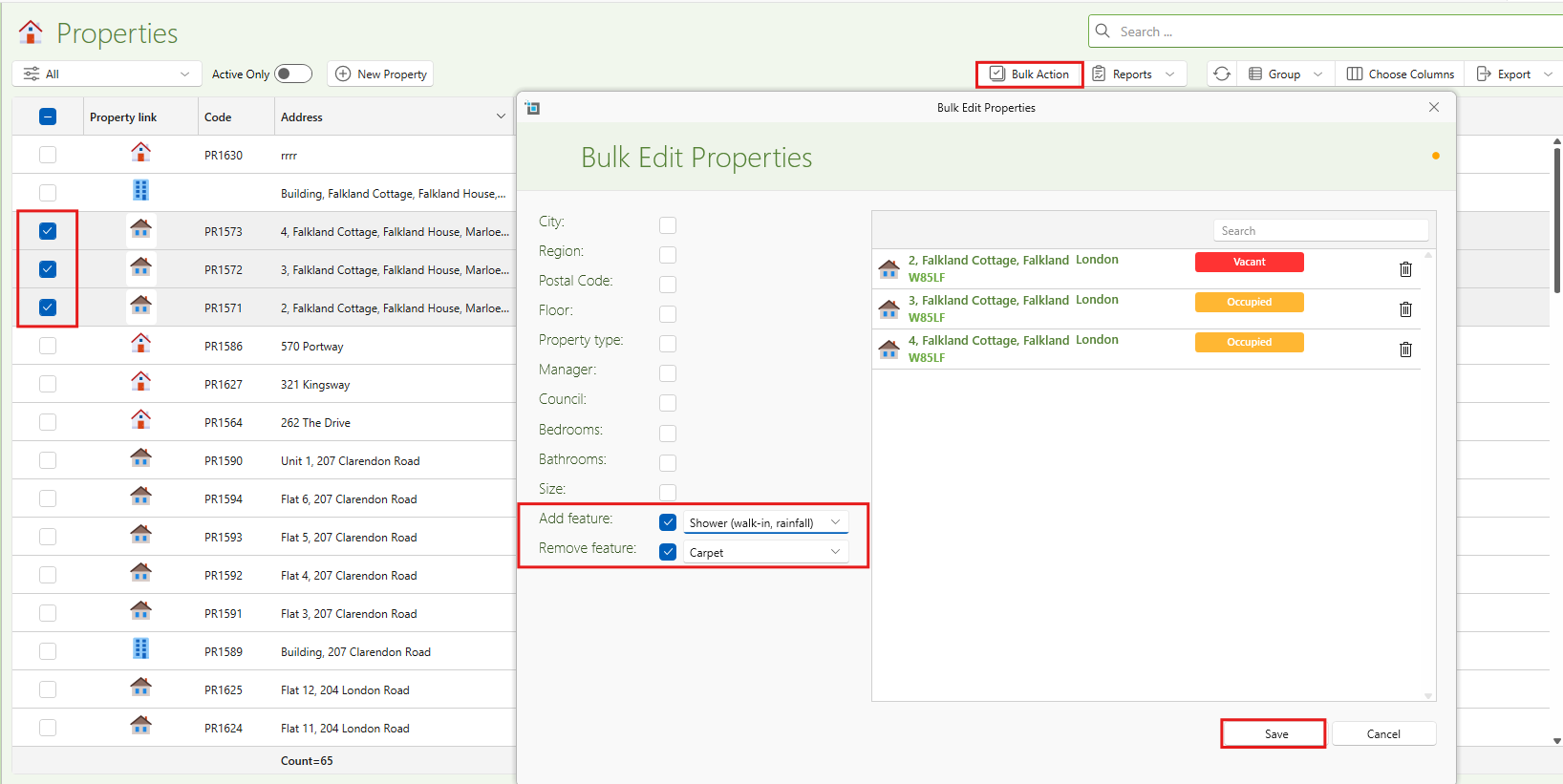
- From the main ribbon, go to Manage Properties.
Select the properties you need to update.
Navigate to Bulk Action.
- To bulk add features, click on Add Feature. This will allow you to add selected features to the chosen properties.
- To bulk remove features, check the Remove Feature box and select the feature from the dropdown list.
Once you’ve made your selections, click Save.
- The updated features will now appear in the Property Features tab.
Quick Tips
- Ensure that features are relevant and accurately describe the property.
- Regularly review and update the list of features to keep it aligned with your property inventory.
Need more information?
For further assistance, please contact our support team.