
Important Note
Admin Access Required: Only admin users can set up and perform backups.
Backup Destination Requirement
SleekTech requires you to set a backup destination to enable backups. Ensure the file path is correctly configured on your computer.
Always choose an empty folder, used for nothing but your SleekTech backups. The backup keeps that folder as an exact mirror of your data: it copies your files in, and it deletes anything in there that is not part of the backup. If you point it at a folder that already holds other documents, photos or work, those files will be removed.
The safest choice is a brand new, empty folder – for example D:\SleekTech Backup or a folder on an external drive kept only for this. Never choose your Documents folder, your Desktop, or the top level of a drive that holds anything else.
Backup Schedule
- Manual Backup: Create a backup anytime via the Control Panel.
- Automatic Backup: Set to occur when closing the software (if configured).
How Long Will a Backup Take?
The first backup takes a long time. It has to copy every single one of your files – every document, certificate, letter and photo you have ever saved into SleekTech. On a large account that can run for a few hours. Start it at a time you can leave the computer on, and let it finish.
Every backup after that is much quicker. SleekTech compares your files against the ones already in the backup folder and only copies the differences:
- New files you have added since the last backup.
- Files that have changed since the last backup.
- Files you have deleted are removed from the backup folder, so it stays an exact match of your data.
Everything that has not changed is skipped, so a routine backup usually finishes in a few minutes rather than a few hours.
Note: this means the backup folder is a mirror of your current data, not a growing collection of dated copies. If you want to keep a snapshot from a particular date, copy the backup folder somewhere else yourself before the next backup runs.
Setting Up Regular Backups
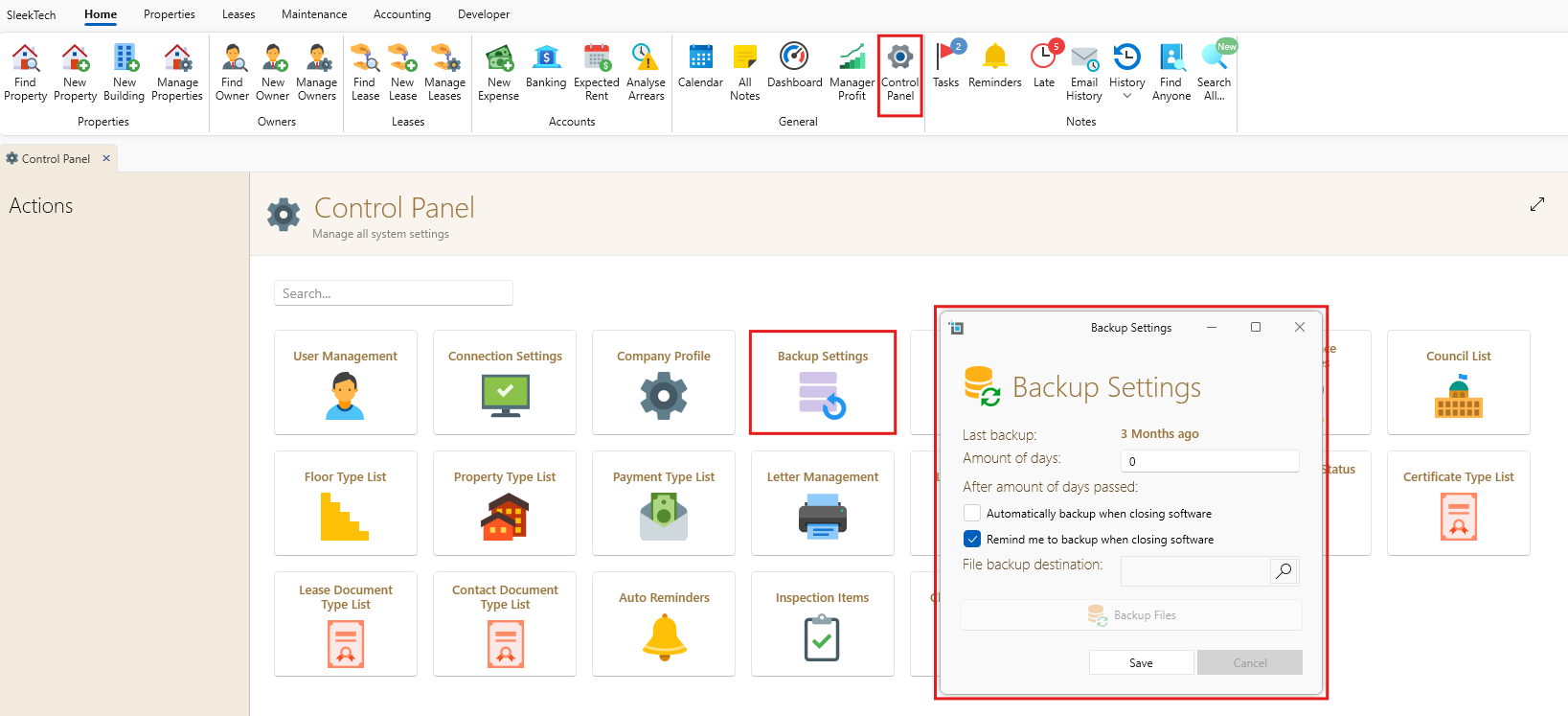
- Go to Control Panel > Backup Settings.
- View the date of the last backup at the top.
- Choose the folder for backups. Ensure it is on the same computer.
- Specify the number of days for backup reminders.
- Choose Backup Option:
- Back up automatically when the software is closed.
- Receive a prompt to back up or cancel on closing.
- Save Settings: Click Save to apply your preferences.
Note: If the software is not closed, backups will not occur automatically, even if the reminder interval has passed.
Performing a Single Backup
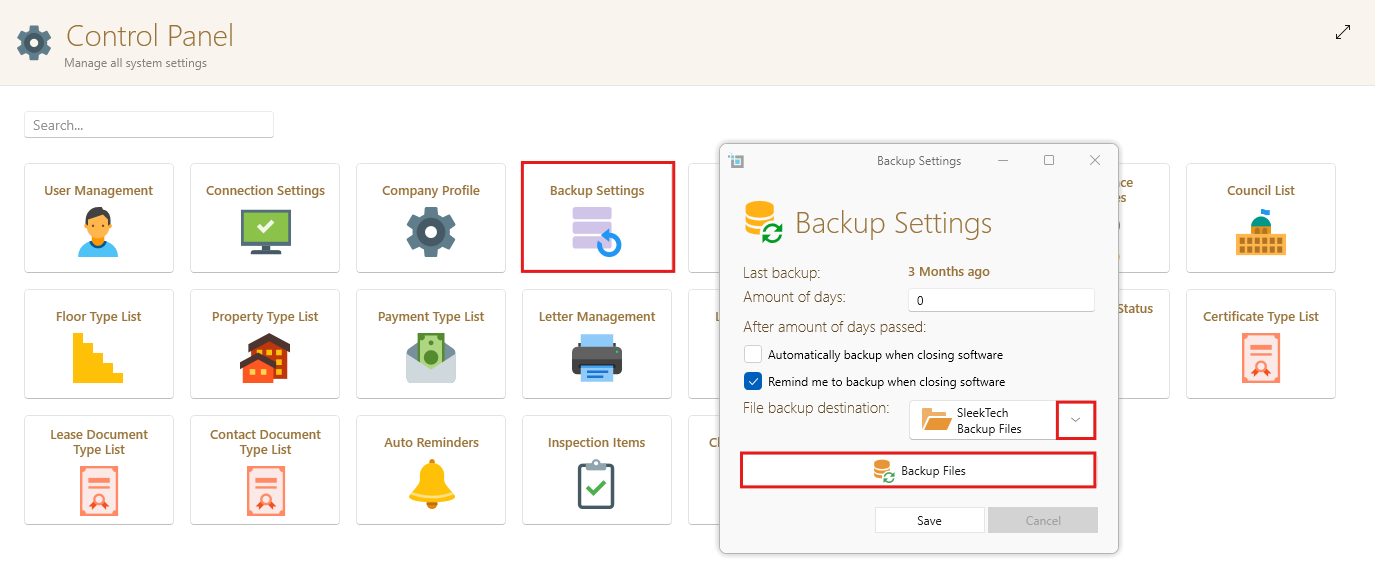
- Go to Control Panel > Backup Settings.
- Choose the destination for the backup using the dropdown and Change option. Ensure it is properly set.
- Click Backup files to perform a single backup.
Viewing Existing Backups
1. Go to Control Panel > Backup Settings.
2. View the date at the top.
3. Click on the folder under File backup destination to view existing backups.
Still need support?
Feel free to contact our support team!