Welcome to our guide on how to understand your statement template and other information that will appear in your statement when using SleekTech, our all-in-one software solution designed to simplify, streamline, and empower property managers.
Here’s a breakdown of how your statement window will appear in SleekTech, along with what each section means.
The following image is a how your statement window will appear on SleekTech.
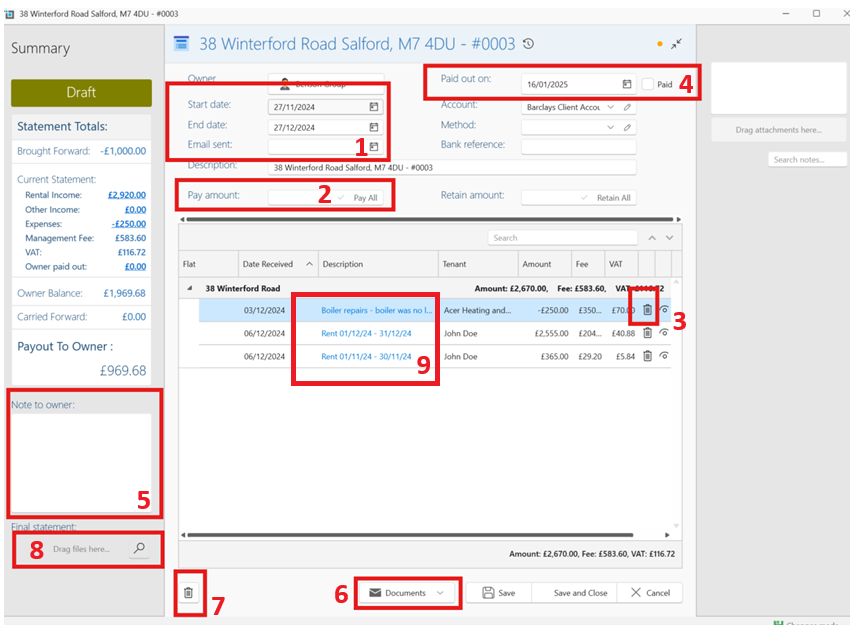
1. This refers to the date range of the statement:
- The first time you save a statement for each owner, you will be asked to put in a statement start date and number.
- From then on, the system will automatically lock the start date to be the day after the previous statement’s end date.
- The statement will include all transactions that haven’t yet appeared in a previous statement, up to the end date you choose.
2. Pay out amount:
This function is used when the amount you will be paying to the landlord is not the same as the balance total due to the landlord.
You may want to retain some of the balance or overpay the landlord.
- Enter the amount you wish to pay in the Pay Amount field.
- Click the Tick icon.
- The “Payout to Owner” figure will update accordingly.
If you have chosen to overpay the landlord, the next statement will start with a carried forward minus balance.
If you have chosen to underpay the landlord the remaining balance will be carried over to the next statement.
3. Discard Option
Clicking the bin icon next to a transaction will remove it from the current statement. These transactions will then appear on the next statement instead.
4. Paid out date
The Paid Out Date will automatically be set to the day you create the statement.
When you reconcile it in the bank and the actual payment date is different, you’ll get a warning, and the date will update to match the real payment.
The Paid checkbox next to the payout amount is optional. You can tick it for your own records, but it's not required.
Important: As soon as you create the statement and click Save, it will be generated and considered as paid. It will immediately appear in the bank for reconciliation, and the landlord’s balance will be updated accordingly.
5. Statement Note
Any notes entered here will appear on the PDF version of the statement and will be visible to the landlord.
6. Sending the statement/ PDF option
The screen you're currently viewing is called the Draft.
If you'd like to view a PDF of the statement or send it to the landlord, click on Documents, select the statement template you want, and then choose Outlook, Save, or Open.
This same option is also available once you exit the draft. On the Statements page under the relevant landlord, you'll be able to access and send any saved statements in the same way.
If you would like any edits made to your statement template please ask a support agent to assist you.
7. Deleting a Statement
To delete a statement, click the bin icon next to it.
Note: You can only delete the most recently created statement.
8. Saving another copy of the PDF
This option can be used to save a PDF copy of the statement directly to your PC. However, it’s not essential, as you can always generate a PDF version by following the steps outlined in point 6 above.
9. Invoice Descriptions
This section shows the details of the invoices included in your statement.
- You can click on a description to open the related transaction.
- For rent invoices, the description will only show if the invoice date falls within the start and end dates of the statement.
- Rent invoices dated before the start of the statement will still be counted in the totals, but the description won’t appear.
- Invoices dated after the statement’s end date won’t show up in this draft at all.
When creating an expense for the landlord you have the option to place the expense
on hold from the statement.
On the invoice select the box On hold from the statement.
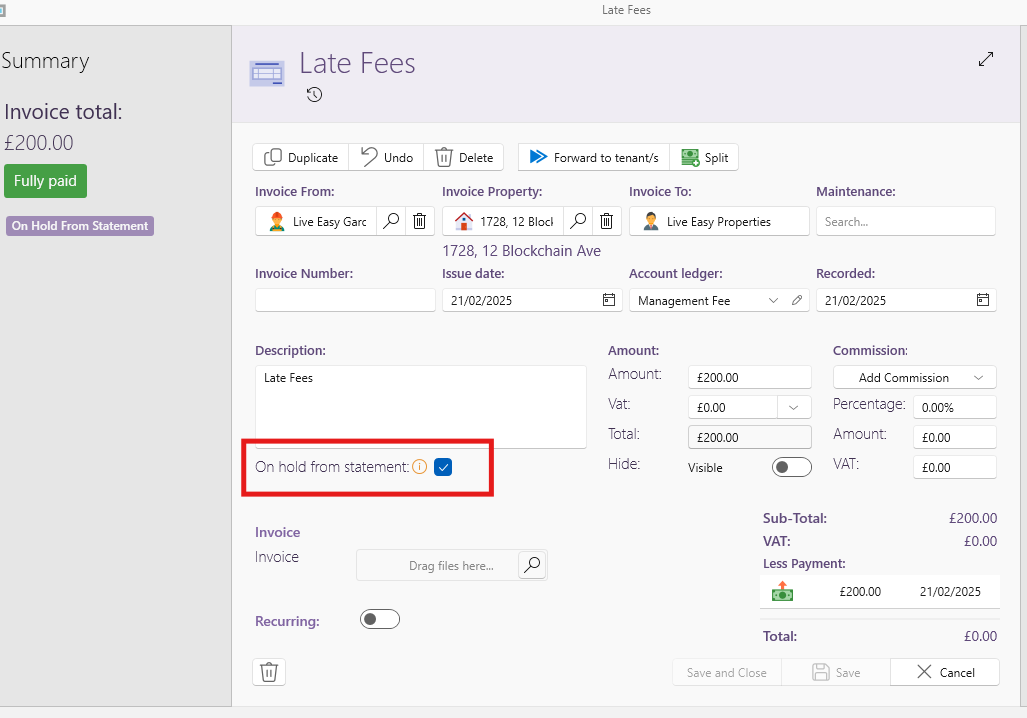
Following this action, when you create a statement, a panel will show on the right side showing the amount withheld from the statement.
This panel will also show if there are any unapplied rental payments.
This means that money has been paid in by the tenant, but has not been applied to any of the tenants open invoices.
To remove the hold, simply untick the box and save—the expense will be included in the next statement.
10. Statement Status
To track your statement's progress, SleekTech uses clear statuses visible on the View Landlords page.
You can update these statuses in bulk by selecting landlords on the View Landlords page.
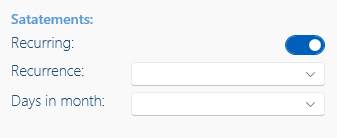
You can also set a recurring date each month when the system will prompt you to create a statement—this can be done from the Landlord Detail page.
- No Income – No income has been collected for this landlord.
- Statement Waiting – The statement has been initiated but not saved.
- Draft – The statement is saved as a draft.
- Statement Sent – A date has been entered for when the statement was emailed.
- Statement Paid – A payout date has been entered and marked as paid.
- Statement Complete – The statement has been created, sent, and paid.
You can update these statuses in bulk by selecting landlords on the View Landlords page. You can also set a recurring date each month when the system will prompt you to create a statement—this can be done from the Landlord Detail page.