
If you are encountering difficulties when attempting to send emails from SleekTech via Outlook, please follow the troubleshooting steps outlined below.
Basic Troubleshooting
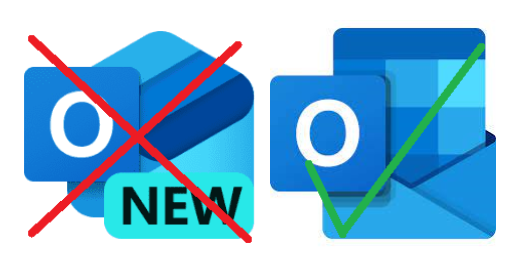
Ensure you are using the classic Outlook version: Ensure that you are using the correct version of Outlook. The new Outlook version is currently not compatible with SleekTech. Please note: We are in regular contact with Microsoft about the New Outlook connection. However, this is fully dependent on Microsoft, as they need to enable the same third-party access that existed with the Old Outlook.
Right now, no external companies — not just SleekTech — can connect to the New Outlook because of Microsoft’s current restrictions. We’re keeping a close eye on updates and will let our clients know as soon as this becomes available.
Ensure you are using the classic version with the icon shown below.
Ensure Outlook is open: Before attempting to send an email from SleekTech, confirm that Outlook is open and running on your system.
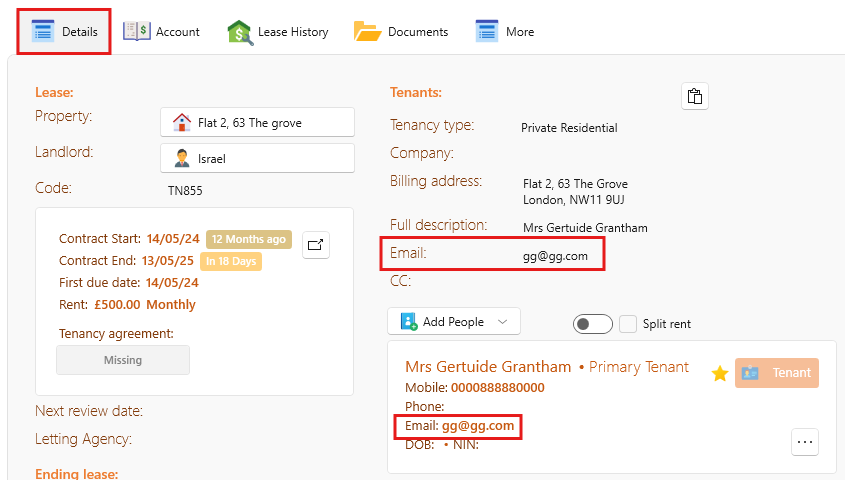
- Ensure email address is filled in correctly: Ensure that the relevant tenant, landlord, or supplier email address has been correctly entered in the Email Address field on the Details tab within SleekTech.
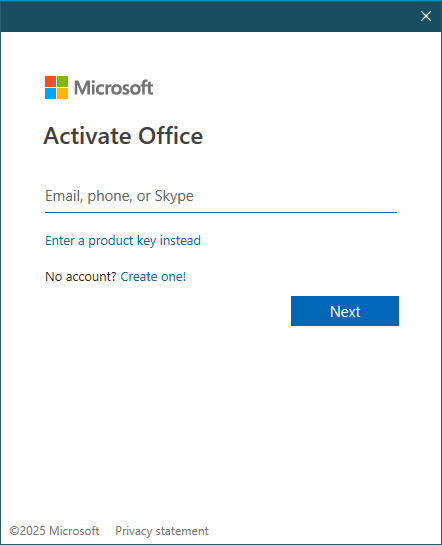
- Ensure Outlook opens with no pop ups: Please ensure that you are logged in and connected to the correct account on Outlook. If you are not properly signed in, you may see a pop-up prompting you to enter login details for one of the connected Exchange accounts, as shown in the image below. If you're not signed in correctly, SleekTech will be unable to open Outlook. In some cases, you may need to remove the account from your Outlook settings and then sign in again to restore functionality.
- Restart your PC: If the above steps do not resolve the issue, try restarting your PC and attempt to send the email to Outlook via SleekTech again.
Advanced Troubleshooting
If the issue persists, please use the following tool to test the connection:
Click here to download the Outlook Tester
Paste the link above into your browser and hit Enter.
Open the tool from your Downloads folder and install it just like you would with SleekTech.
Click Install to begin the installation.
When the Microsoft warning appears, select More info then Run anyway.
A new window will appear.
Once the tool opens, click Send Outlook Email to test the connection process.
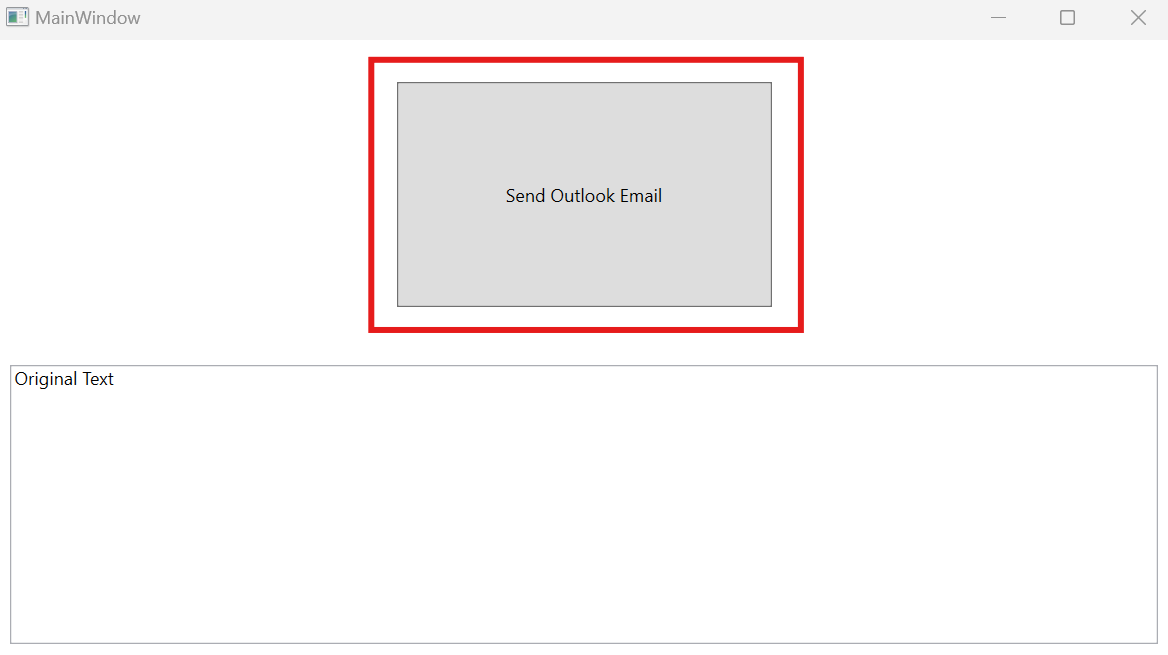
A successful test should result in Outlook opening with a test email.
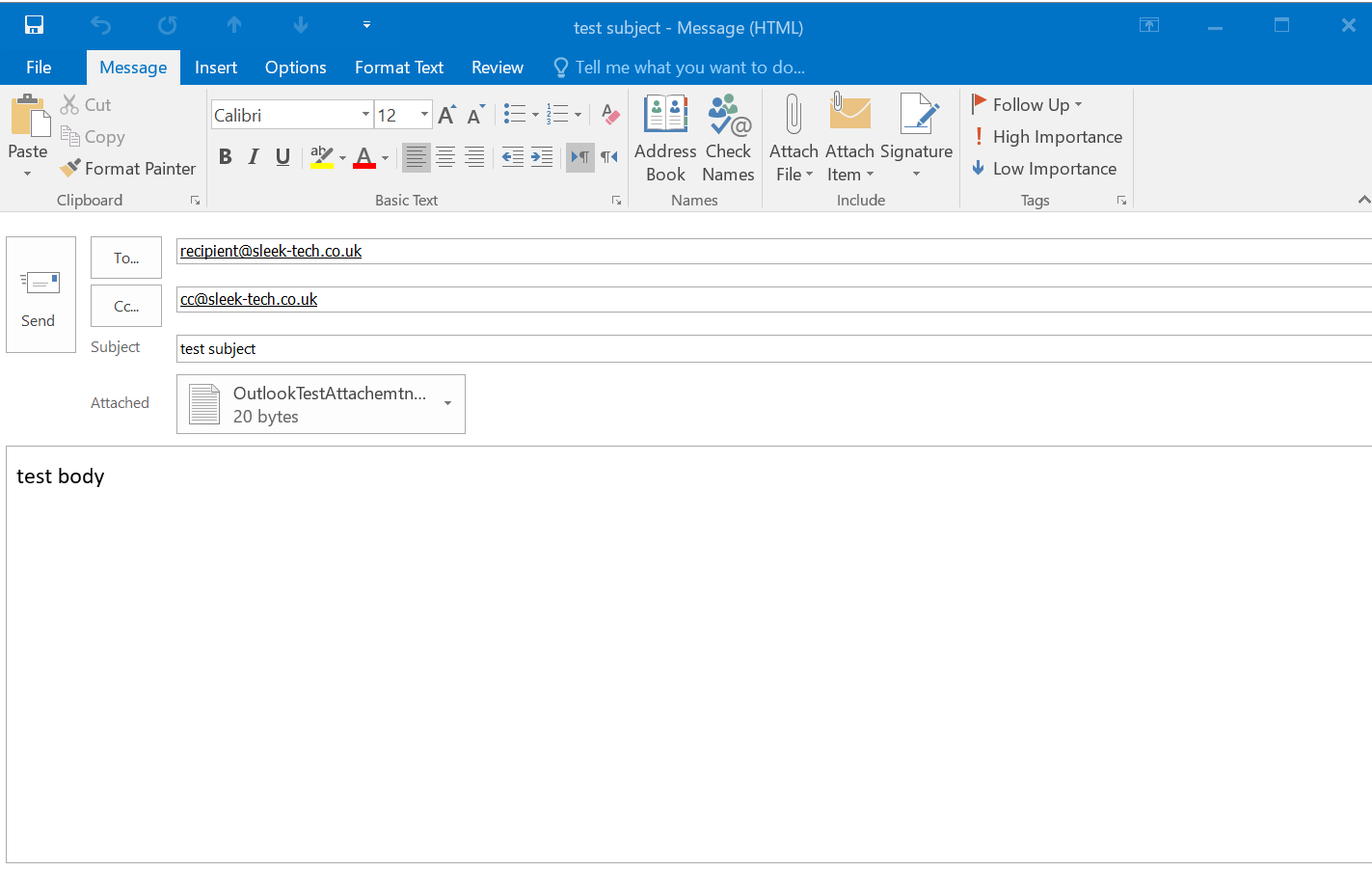
If the tool fails to establish a connection, it may indicate an issue with corrupt PC registry settings. In this case, please contact your IT department to reinstall Microsoft Office.
Alternatively, you can reach out to RightClick, who are experienced in resolving such issues.
RightClick Contact Information:
- Email: info@rightclicktech.co.uk
- Phone: 020 3432 1216
Please note: SleekTech is not affiliated with RightClick, and they may charge for the services they provide.