
Welcome to our guide on how to check your SleekTech version number. This article will walk you through the steps to check your version number using SleekTech, our all-in-one software solution designed to simplify, streamline, and empower property managers.
Follow these steps to check if you have the latest version of SleekTech.
- Click on SleekTech in the top left corner above the navigation panel.
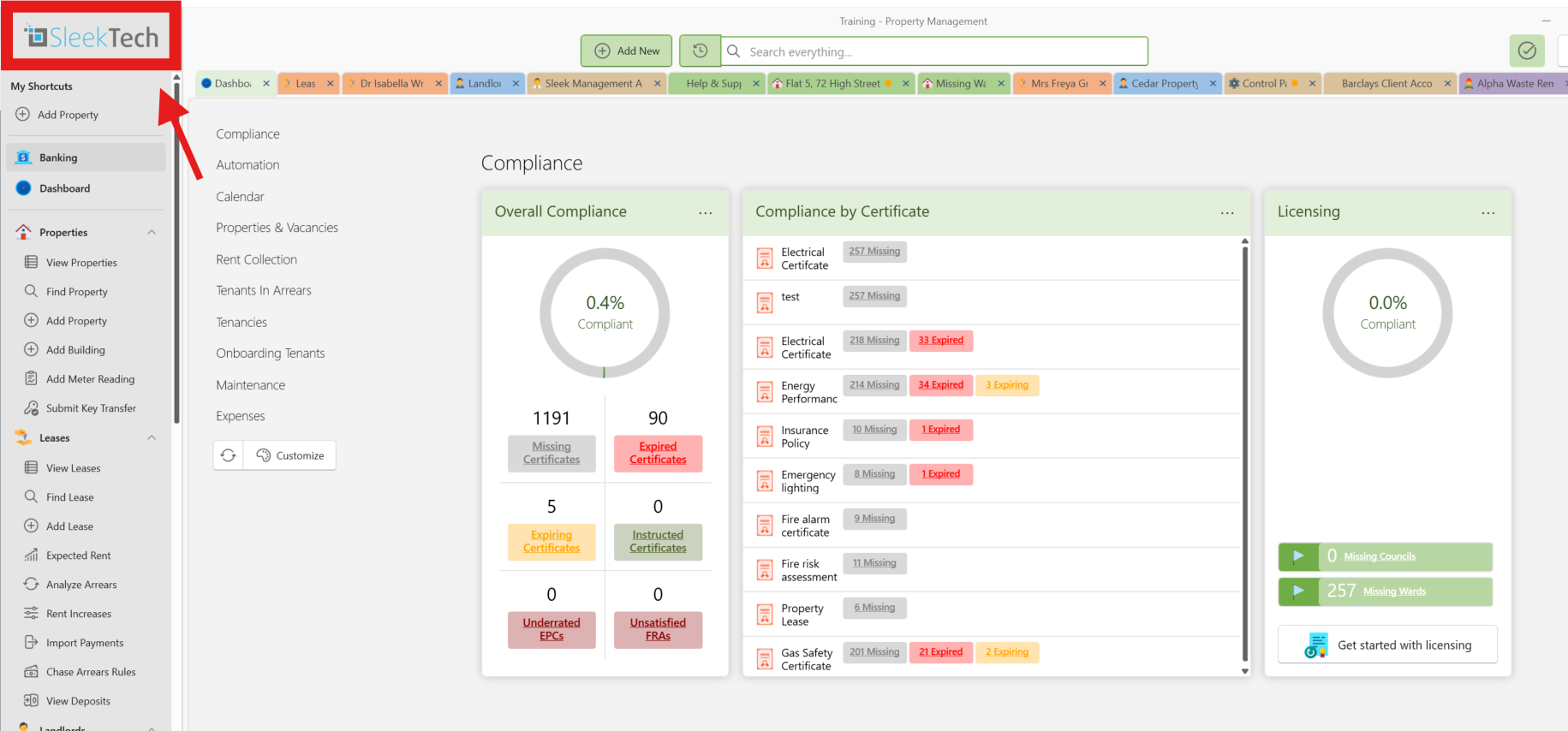
The software version should show up as a series of numbers e.g. 1.0.0.509 in the location of the red square as shown in the image below
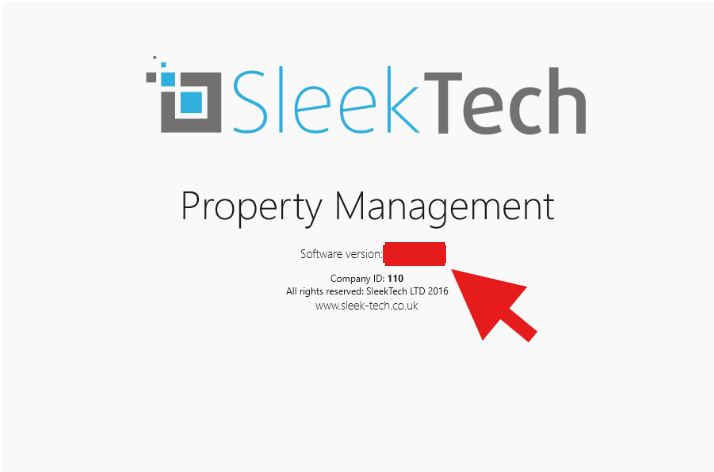
Please check the version number with a support agent to ensure that it is the most updated version.
If the version number is not the correct one as provided with the support agent, or the version number is replaced with the words NOT DEPLOYED, you do not have the correct link. See below for details on how to open up the software through the correct link.
How to open up the software from the correct link.
- Close off your system.
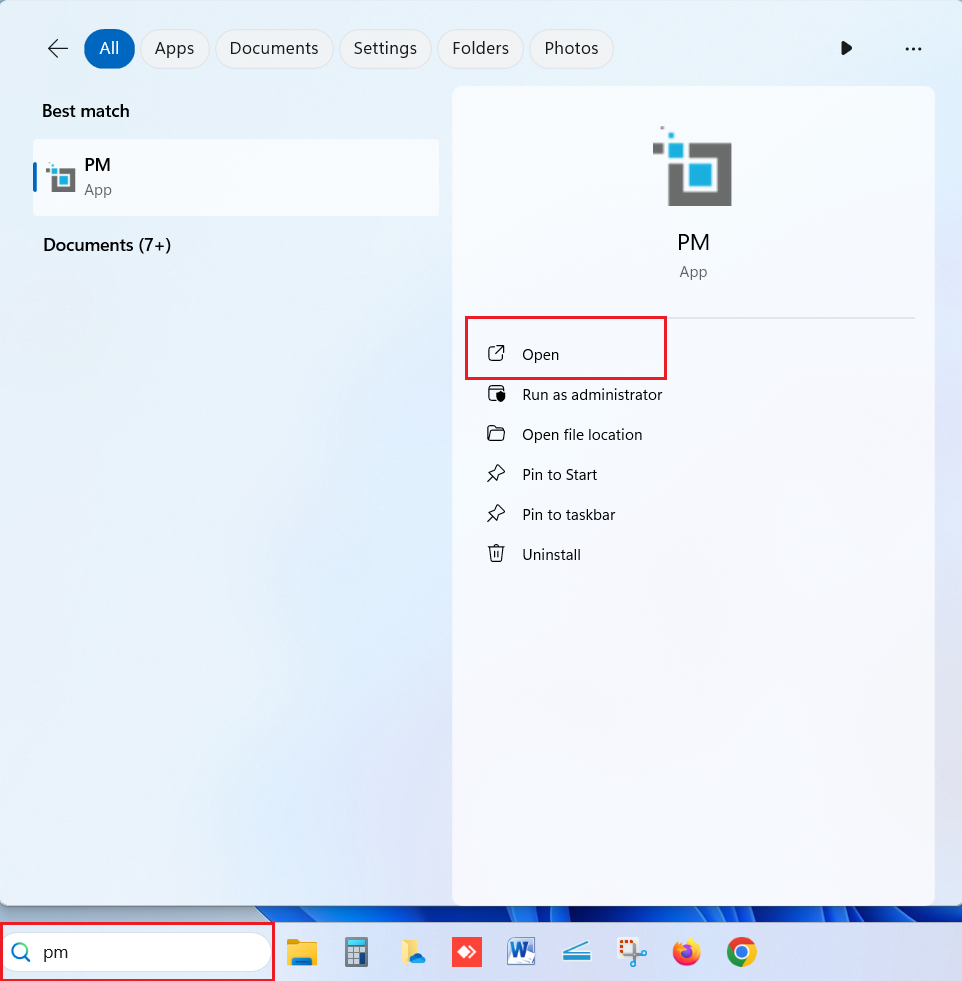
- Find the search button in the Taskbar at the bottom.
- Type in the word PM
- The software will come up on the list with the name PM and the SleekTech logo. Click on Open.
- If it gives you a prompt that there is a new update available, click on Install. This is important as otherwise you will be running an old version possibly with bugs.
- Your version of SleekTech should now show correctly. Contact our customer support if it does not.
Conclusion
By following these steps, you can ensure that you are on the latest version of SleekTech
Still having trouble?
If you encounter any issues while checking if you have the correct version of SleekTech, please contact our support team.