
This guide walks you through connecting the SleekTech Connector to ChatGPT using a custom MCP plugin.
Requirements:
A ChatGPT plan that supports Developer mode (Plus, Pro, Business, Enterprise, or Education), and your SleekTech API key.
Step 1: Enable Developer Mode
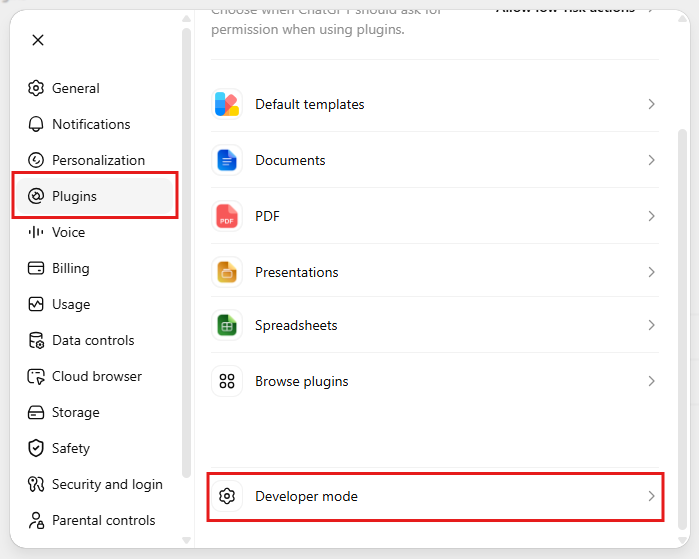
- Open Settings in ChatGPT.
- Click the Plugins tab.
- Click Developer mode at the bottom of the list.
- Toggle Developer mode on. You'll see it flagged as "Elevated risk" — this is expected, since it allows unverified custom connectors.
Step 2: Create the Custom Plugin
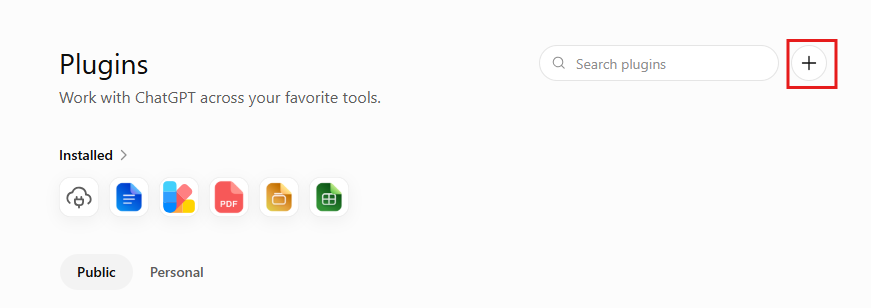
- Go back to the Plugins tab.
- Click Browse plugins, then find the option to create a new custom plugin (e.g. a "+" or "Create your own" option).
- Fill in the New Pluginform:
- Description: e.g. "Access data on property management software"
- Connection type: Server URL
- Server URL:
https://connect.sleek-tech.co.uk/mcp - Authentication: OAuth
- Check "I understand and want to continue" to acknowledge the custom MCP server risk notice.
- Click Create.
Step 3: Authorize the Connection
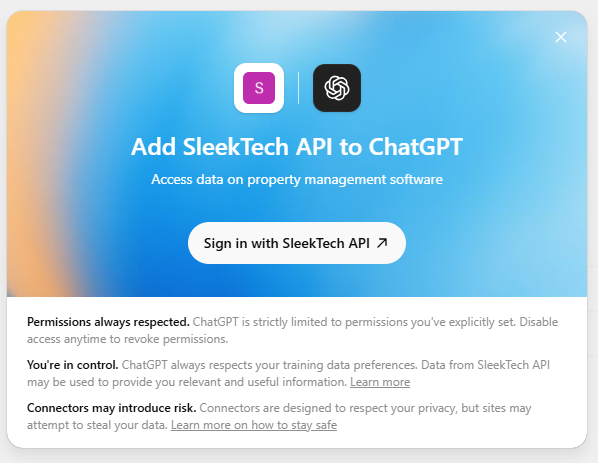
- On the plugin's detail page, you'll see a status of Disconnected.
- Click Connect.
- A SleekTech sign-in page will appear — paste your API key and select Authorise.
- The status should update to Connected.
Step 4: Start Using It
- Start a new chat in ChatGPT.
- Make sure the SleekTech plugin is toggled on for that conversation.
- Ask your questions — ChatGPT will now be able to use the SleekTech Connector's tools.
Troubleshooting
- No "Developer mode" option visible: Your ChatGPT plan may not support custom MCP connectors (Free plan does not).
- Connector stays "Disconnected": Re-click Connect and make sure you complete the SleekTech sign-in page fully, including pasting a valid API key.
- "Server not found" / connection errors: Double-check the URL is exactly
https://connect.sleek-tech.co.uk/mcpwith no trailing characters.