
Kamma is a property-compliance and licensing partner. It tracks the selective, additional and HMO licensing rules that apply council-by-council across the UK, flags where your properties need a licence, and helps you stay on the right side of ever-changing local regulations.
You can read more about what they do on the Kamma platform website.
You can also read here more about how Kamma integrates with SleekTech: https://www.kammadata.com/integrations/sleektech/
Connecting SleekTech to Kamma sends your property, tenancy and compliance-certificate changes to Kamma automatically, so your licensing data stays up to date without re-keying anything. This guide is for account Admins and takes a few minutes.
Your Exclusive SleekTech Offer
Kamma have put together preferential pricing for SleekTech customers: 40p per property +VAT per month — a 33% saving — a £80 +VAT minimum monthly fee instead of £120, and your first month free. It applies to the Kamma Plus and Pro plans.
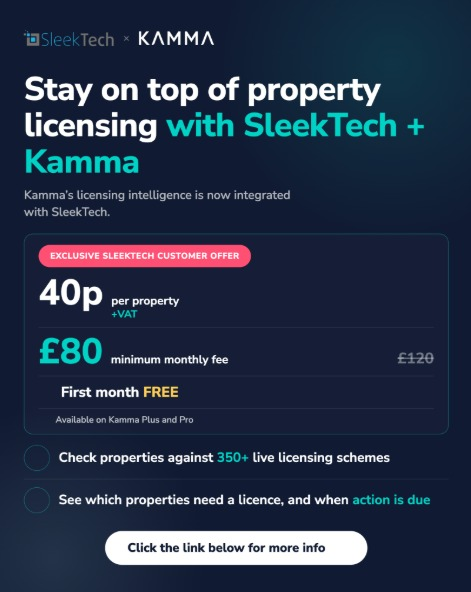
Claim your SleekTech offer with Kamma — the page has a short form and lets you book a call with the Kamma team.
Before You Start
- You need to be an Admin in SleekTech — the integration settings are admin-only.
- You need a Kamma account and a contact at Kamma you can send your connection credentials to.
- Kamma receives your Properties, Tenancies and property Compliance Certificates only — no other tenant personal data.
Open the Integrations Settings
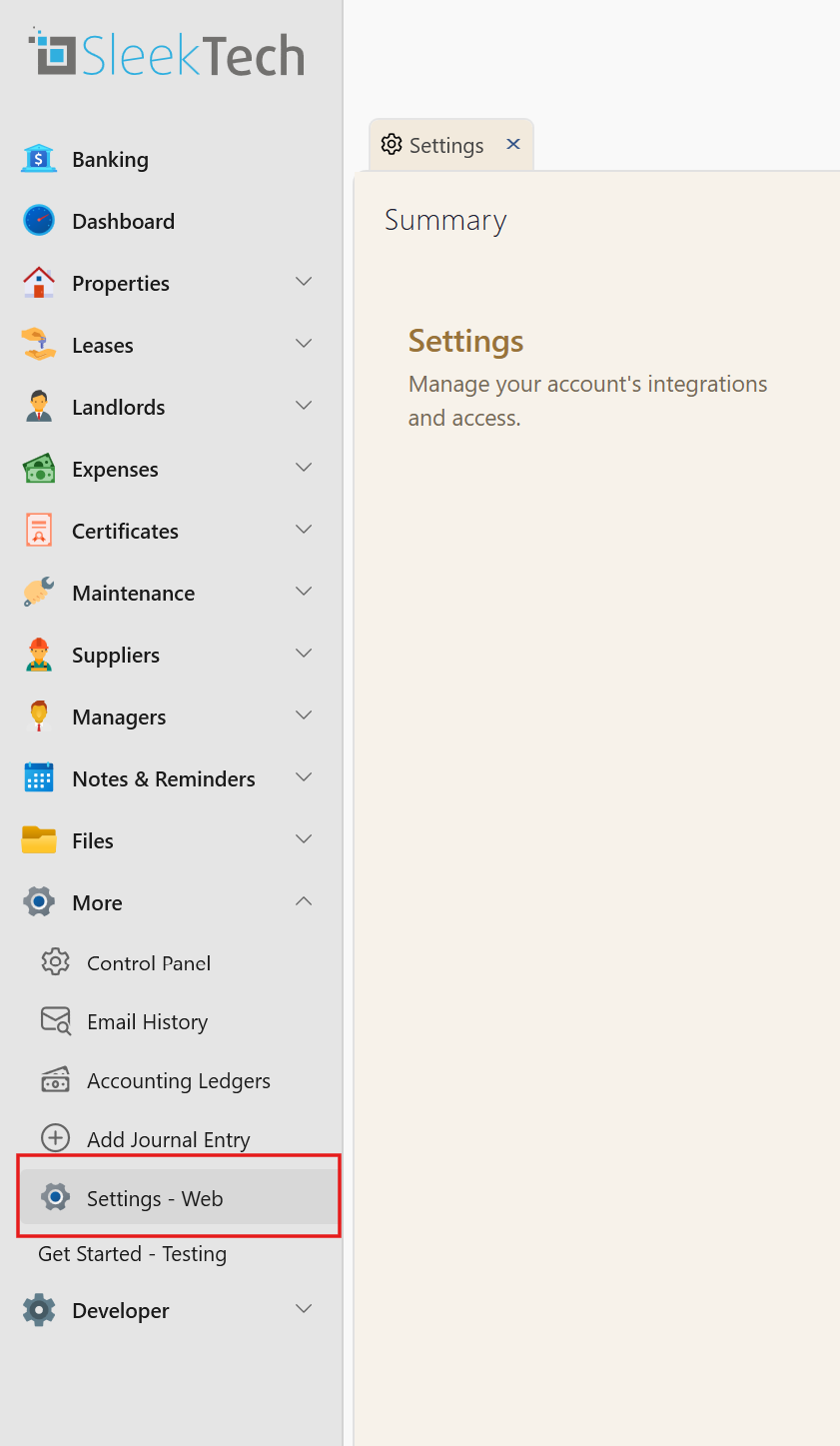
- Go to Settings - Web under the More group in the main navigation panel, then open the Integrations tab.
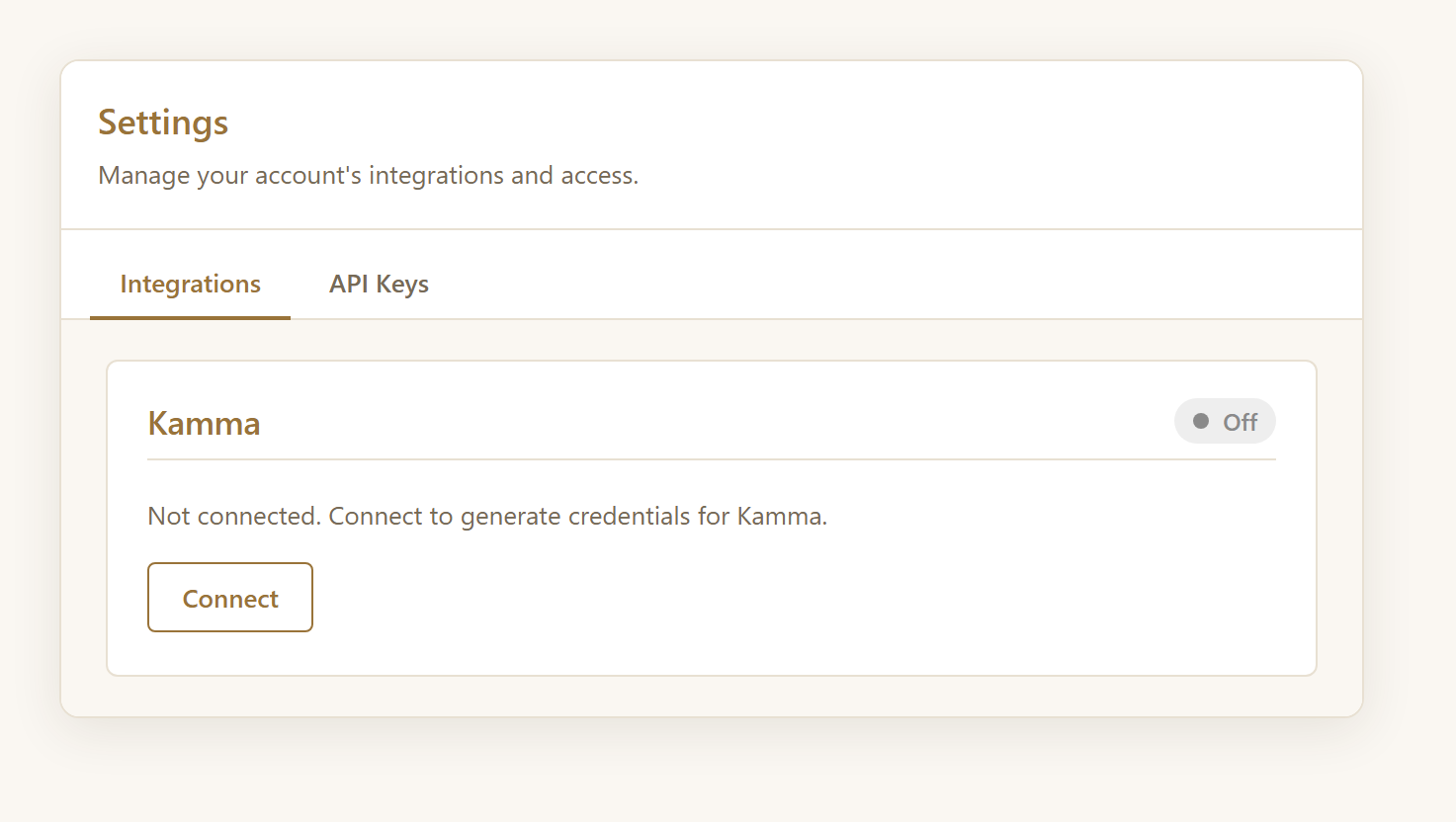
- Find the Kamma card. It shows Not connected.
Connect and Generate Your Credentials
- On the Kamma card, click Connect.
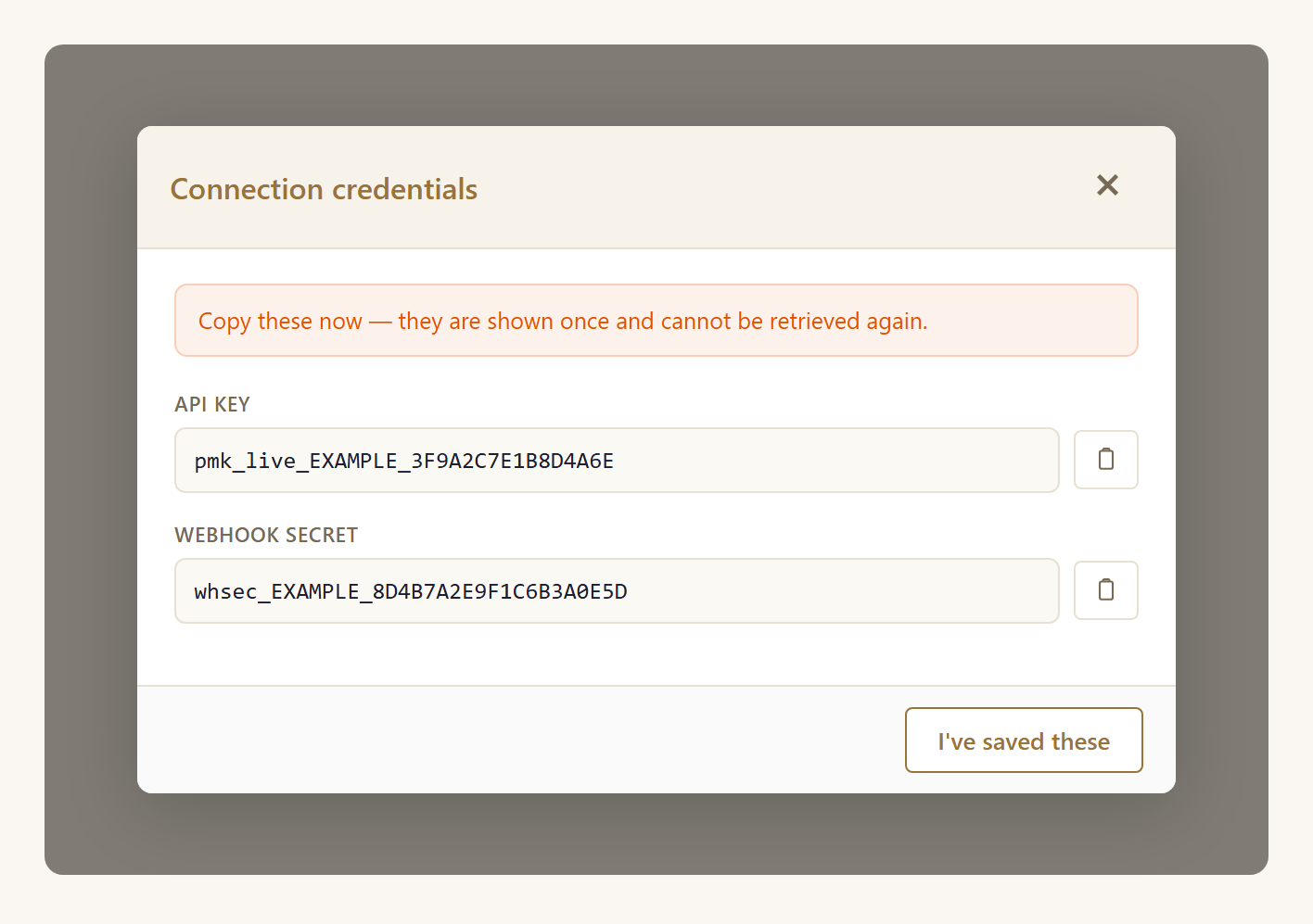
- A Connection credentials window opens with two values: an API key and a Webhook secret. Use the copy button next to each.
- Important: the Webhook secret is shown only once and can never be retrieved again. Copy both values somewhere safe before you close the window. If you lose the secret, just click Connect again to generate a fresh pair.
What each credential is for:
- API key — lets Kamma read your existing properties and certificates so it can catch up (the initial backfill).
- Webhook secret — how Kamma confirms each update genuinely came from you. SleekTech includes it on every update it sends.
Give the Credentials to Kamma
- Send both the API key and the Webhook secret to your Kamma contact. Treat them like a password and send them securely.
- Kamma uses the API key to load your current properties and certificates. Wait for Kamma to confirm this backfill is complete before the next step.
- On the Kamma card, the status now reads Credentials issued. Give them to Kamma, then enable live sync once its backfill is done.
Turn On Live Sync
- Once Kamma confirms the backfill is done, click Enable live sync on the Kamma card and confirm when asked.
- From then on, every property and tenancy change is sent to Kamma automatically, usually within a minute.
- Only changes made from now on are sent — your existing records are covered by Kamma’s backfill, not by live sync.
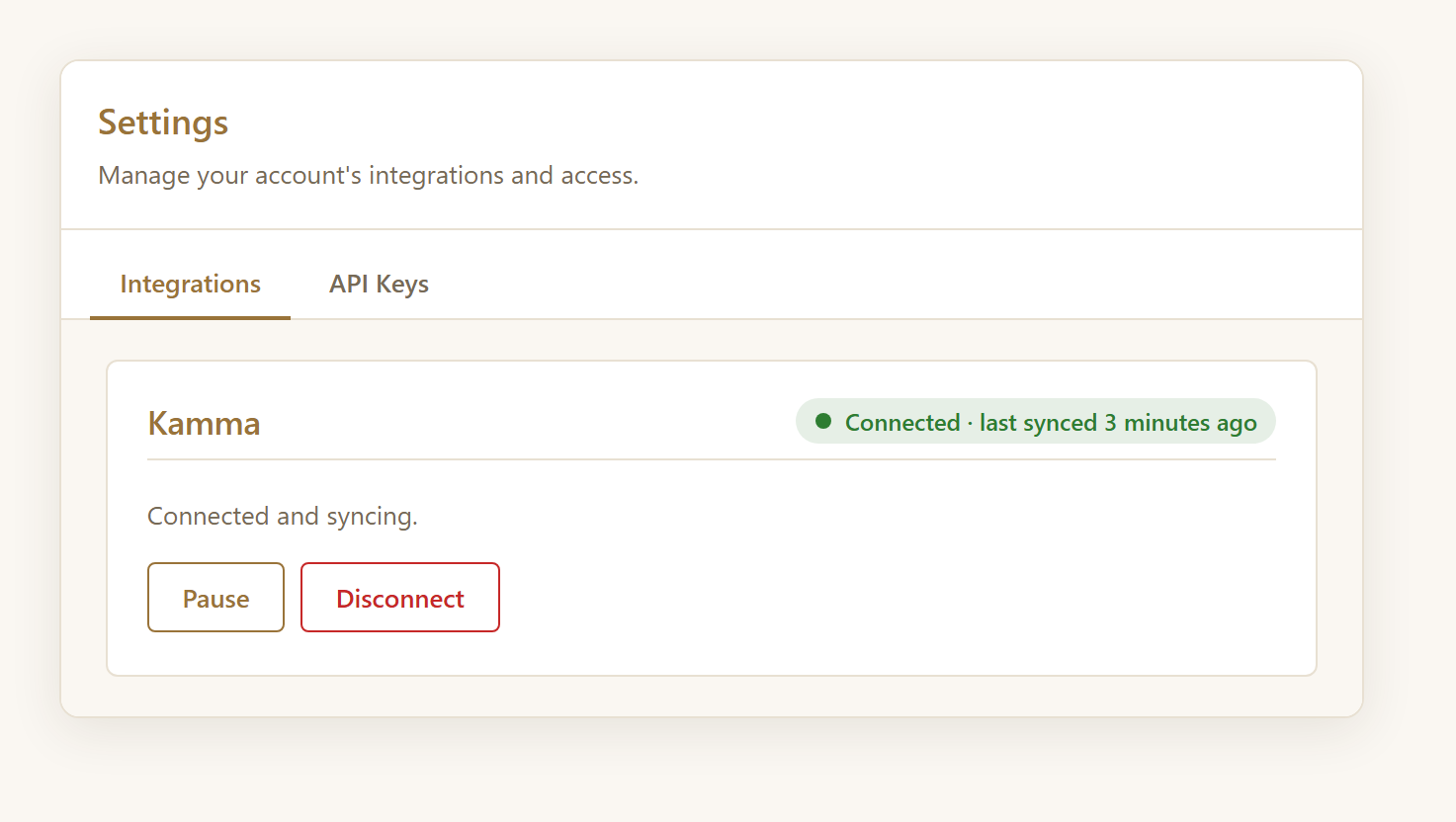
- The card shows Live sync on — waiting for the first change to sync, then Connected and syncing with the time of the last sync once changes start flowing.
What Gets Sent to Kamma
- Properties — when added, changed or removed.
- Tenancies — when added, changed or removed.
- Compliance certificates that belong to a property — for example Gas Safety, Electrical (EICR) and EPC.
- Certificates that are not tied to a property (tenant documents such as Right to Rent or a passport) are never sent to Kamma.
Managing the Connection
- Pause — stops sending changes temporarily. Your credentials stay valid; click Enable live sync to resume.
- Disconnect — fully stops the integration, revokes Kamma’s API key and stops all sync. To restore it you’d click Connect again and issue new credentials.
- Replace credentials — click Connect again at any time to generate a fresh API key and Webhook secret, then give the new pair to Kamma.
Troubleshooting
- Waiting — live sync is on but nothing has changed yet. The first edit you make will sync.
- Attention — deliveries are failing — SleekTech can’t reach Kamma. Check with Kamma that their receiver is available; sync resumes automatically once it’s back.
- You can’t see the Integrations tab — it’s admin-only. Ask an account admin to set up the connection.