
The SleekTech Manager App is the app for property managers who are out of the office - standing outside a front door, sitting in the car between viewings, or halfway up a stairwell.
It is built for one thumb and a phone screen, and it shows you the handful of things you actually need on site.
This article covers signing in, installing it, and finding your way around.
Two companion articles cover the screens themselves: properties and tenancies, and jobs, keys and meter readings.
What It Is, and What It Is Not
The Manager App is a companion to the main SleekTech system, not a replacement for it.
The office system is where you reconcile, invoice, report and configure.
The Manager App is where you do the five things that only happen while you are standing somewhere:
- Find - a property, a tenancy or a job, from one search box.
- Contact - tap to call, text or email whoever is attached to that record.
- Check - is the rent paid, is the gas certificate in date, whose key is out, what does the meter say.
- Act - hand a key over, take it back, raise a job, log a reading.
- Record - attach photos and leave a note against the record.
Everything you do in the app is the same data as the office system, live.
A job you raise on a doorstep is in the office system before you get back to the car.
Coming From the Old Manager Portal
The address has not changed: manager.sleek-tech.co.uk now opens the new Manager App for everyone.
You will be asked to sign in once on each phone or computer, with the same details as before.
Bookmarks you saved in the old portal still work - a saved dashboard, property or job opens the matching screen in the new app.
If you ever need the previous version, it stays available for a short while at classic.sleek-tech.co.uk.
Signing In
Go to manager.sleek-tech.co.uk in your phone's browser and sign in with the same email and password you use for the office system.
There is no separate account to set up.
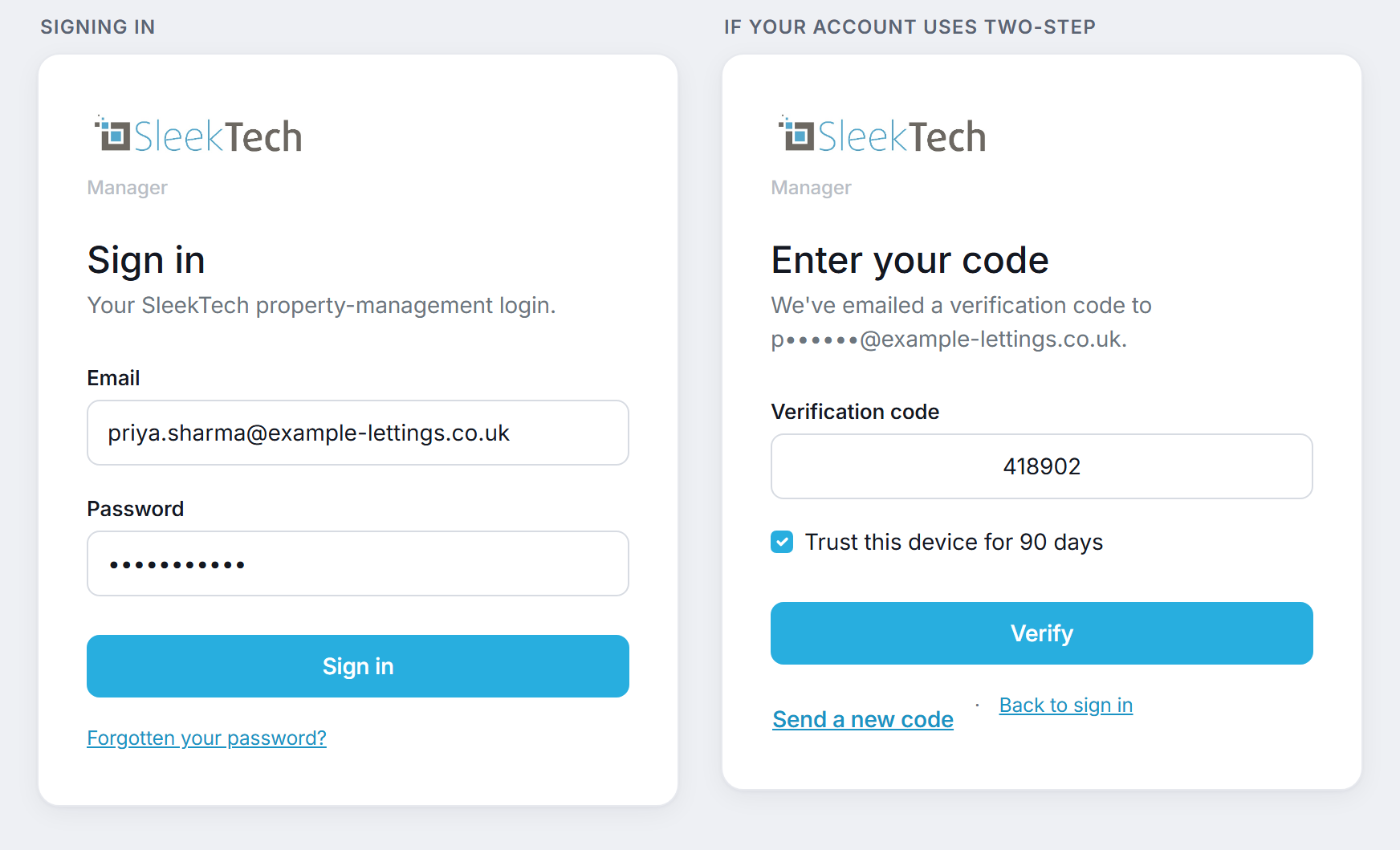
A few things worth knowing:
- If your account has two-step sign-in switched on, you will be emailed a six-digit code the first time you sign in on a device.
Leave Trust This Device For 90 Days ticked and you will not be asked again on that phone for three months.
Most accounts do not have two-step switched on and will never see this screen. - Once you are in, you stay signed in.
The app is designed for a phone in your pocket, not a shared office desktop, so it does not sign you out between visits. - If your email address is set up at more than one company, you can move between them from the Me tab - see Switch Customer.
You will be asked for your password again for the company you are switching to. - Forgotten your password?
Use Forgotten Your Password? on the sign-in screen.
It resets the same password you use in the office.
Install It On Your Phone
The Manager App works in the browser, but it is much better installed - it opens full screen with its own icon, exactly like an app from the App Store, without going near one.
- iPhone / iPad: open manager.sleek-tech.co.uk in Safari, tap the Share button, then Add To Home Screen.
- Android: open it in Chrome, tap the menu (three dots), then Install App or Add To Home Screen.
- You will also find a prompt on the Me tab whenever you are running in a browser rather than the installed app.
The app needs a signal.
It deliberately does not work offline: a cached property card could show you rent that has since been paid or a key that has since moved, and being confidently wrong on a doorstep is worse than knowing you have no signal.
If you lose connection you will see a plain No Signal page rather than stale information.
Finding Your Way Around
There are five tabs along the bottom of the screen, and they never change:
- Home - your Today screen.
What needs you, right now. - Find - one search box across properties, tenancies and jobs.
What a property or tenancy shows you. - Jobs - every open maintenance job, with a breakdown at the top.
How to work a job. - Inspect - room-by-room inspections.
Being built; the tab explains itself for now. - Me - who you are signed in as, which company, the install prompt and Sign Out.
The Today Screen
Home opens on Today - a launcher plus the two things most likely to need you.
The four big buttons are the jobs you start most often, and below them sit Your Jobs (the open jobs assigned to you) and Keys (any key that is out, with the overdue ones flagged).
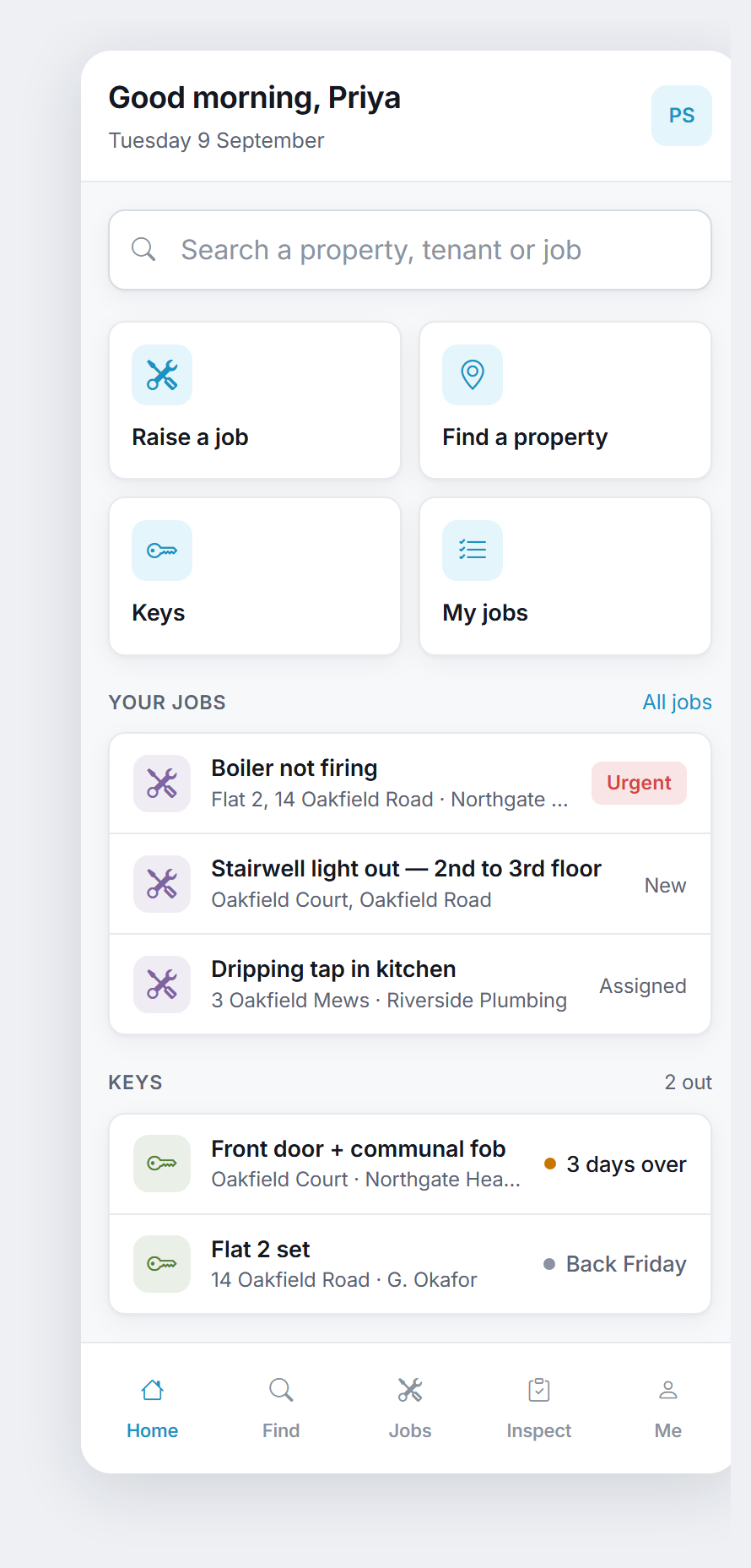
Notice the small coloured tile at the left of each row.
That colour tells you what kind of record it is before you have read a word - purple for a job, green for a property or a key, orange for a tenancy or a tenant, blue for a landlord.
It is the same colour scheme the office system uses, so the two read the same way.
Searching With Find
Tap the search box on Home, or the Find tab, and start typing.
One box searches across:
- Properties - by address, postcode or reference.
- Tenancies - by tenant name or reference.
- Jobs - by title or reference.
Before you type anything, Find shows your Recently Opened records.
It is the same list as Recently Opened in the desktop system, so something you had open at your desk this morning is one tap away on site.
Results are grouped by kind and you only ever see records you have permission to open - the app uses exactly the same permissions as the office system.
On A Tablet
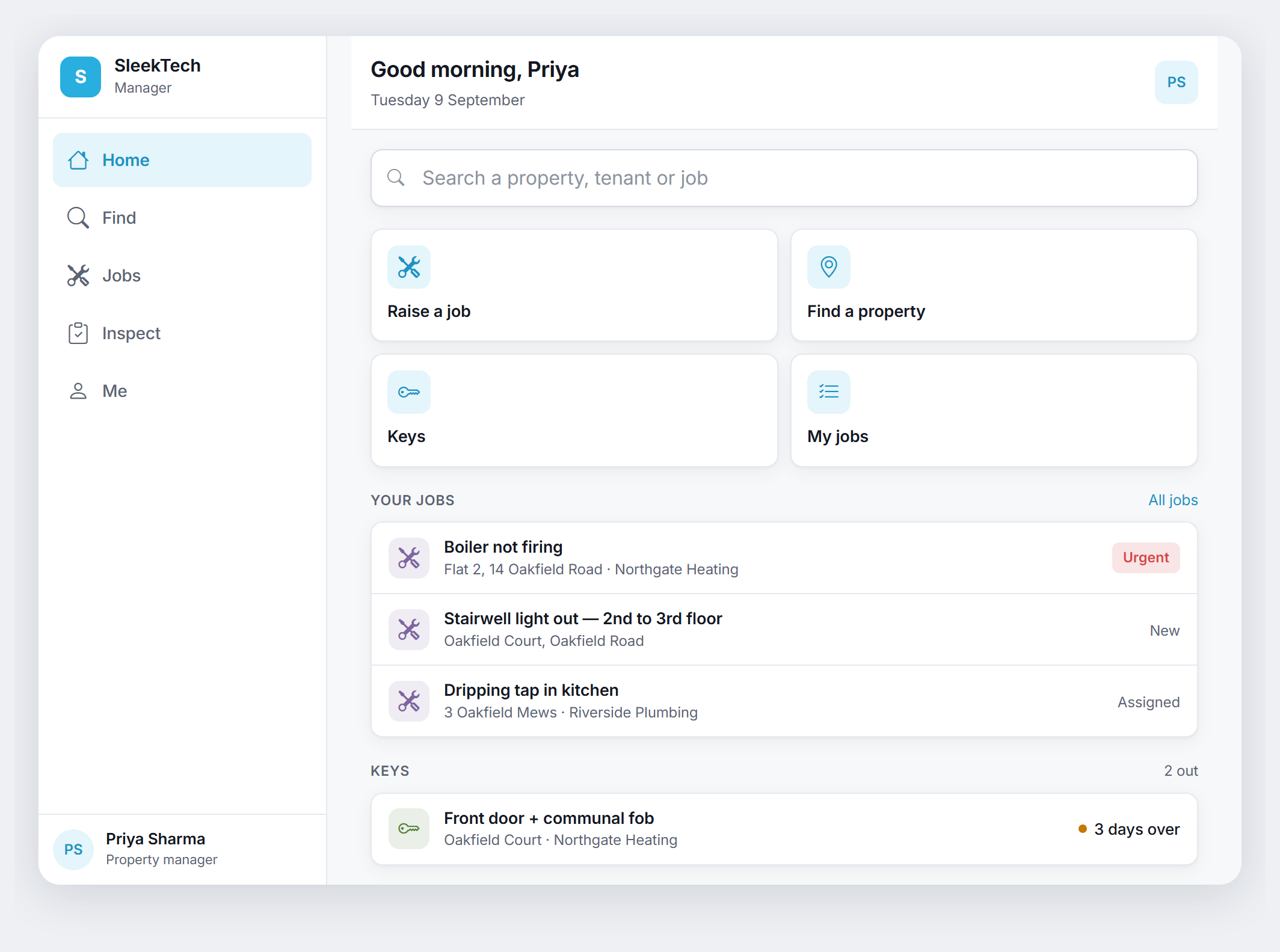
Open the app on an iPad or any tablet and the bottom tab bar moves to a navigation rail down the left-hand side, with your name at the bottom.
Everything else is identical - the same screens, the same buttons, the same order - so nothing has to be learned twice.
What You Can See And Do
Your permissions are the same in the app as in the office system.
If you are not allowed to see something, that section simply is not there.
If you are not allowed to change something, the button is still shown - tap it and the app tells you which permission you would need, rather than leaving you wondering whether the app is broken.