
This article covers the two screens you will open most in the SleekTech Manager App: the Property Card and the Tenancy screen.
If you have not signed in yet, start with The Manager App: Getting Started.
The Property Card
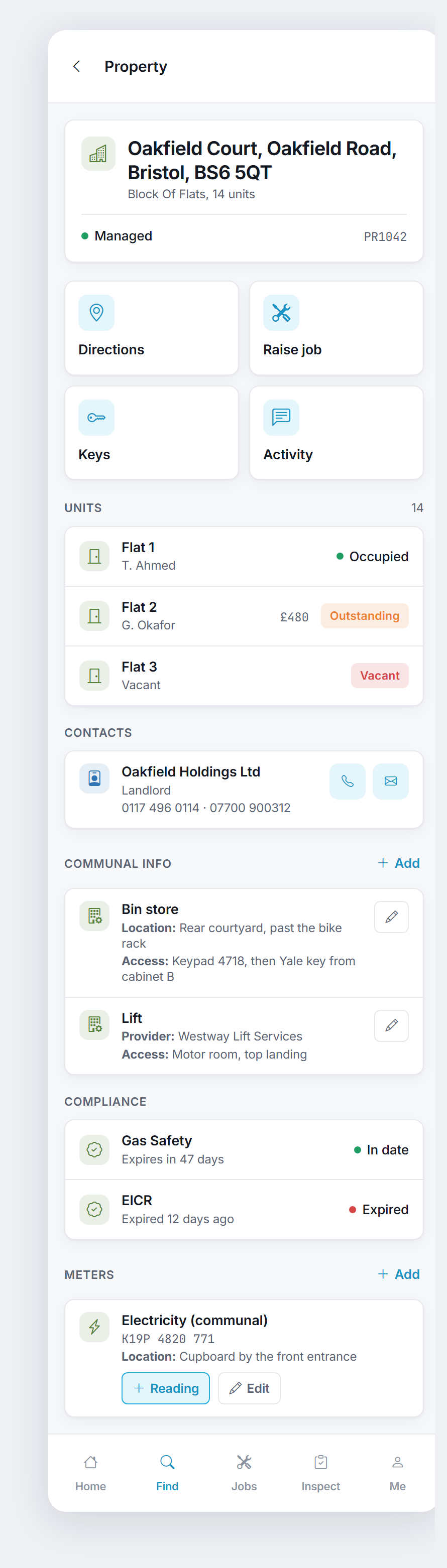
Search for a property in Find, or tap one from a job, and you land on the property card.
It is designed to answer, in one screen, everything you might need while standing outside the building - who to call, how to get in, what is out of date, and whose key is where.
The Four Quick Actions
Under the address you get four buttons:
- Directions - opens the address in whichever maps app your phone uses.
On a desktop it falls back to Google Maps. - Raise Job - starts a new maintenance job with this property already filled in.
- Keys - every key set for this property and who currently holds each one.
- Activity - the notes and communication history for the property (see below).
Units
On a building you get a Units list: every flat, with its tenant, anything outstanding, and whether it is occupied or vacant.
Tap a unit to open its own property card; from a unit, View Main Property takes you back up to the building.
Each unit carries its own type icon, so a garage or a parking space in a block is obviously not a flat.
Contacts
Everyone attached to the property - landlord, tenants, anyone else on file - with their role and every phone number held for them, not just the main one.
Tap the phone icon to call or the envelope to email.
On a doorstep the second number is often the one that answers.
Communal Info And Property Info
This is the section that saves the most time on site: bin stores, lifts, intercoms, gates, alarms, boiler cupboards.
Each entry shows Location, Access (keypad codes, which cabinet the key is in) and the Provider where one is recorded.
You can maintain it from the app as well as read it:
- Tap the pencil on any row to edit it.
- Tap Add in the section header to record a new one - pick the type, then fill in location, access notes and provider.
- To remove an entry that no longer applies, open it with the pencil and tap Remove.
You are asked to confirm first, because it cannot be undone.
On a building this section is called Communal Info; on a single property or a unit it is called Property Info.
It is the same list either way.
Compliance
Every certificate held against the property, each with its status and how long is left - Expires In 47 Days rather than a bare date you have to work out.
An EPC also shows its band.
Two separate buttons, deliberately:
- View - opens the certificate to read on screen.
- Download - saves a copy, for when a contractor or an inspector wants it sent on.
Meters
Each meter shows its type, serial number, provider, where it physically is and how to get to it, plus the last reading so an implausible new one is obvious.
From here you can tap Reading to log one, or Edit to correct the meter's details.
Adding readings is covered in The Manager App: Jobs, Keys And Meter Readings.
The Tenancy Screen
Tap the tenancy on a property card, or find a tenant by name, and you get the tenancy screen.
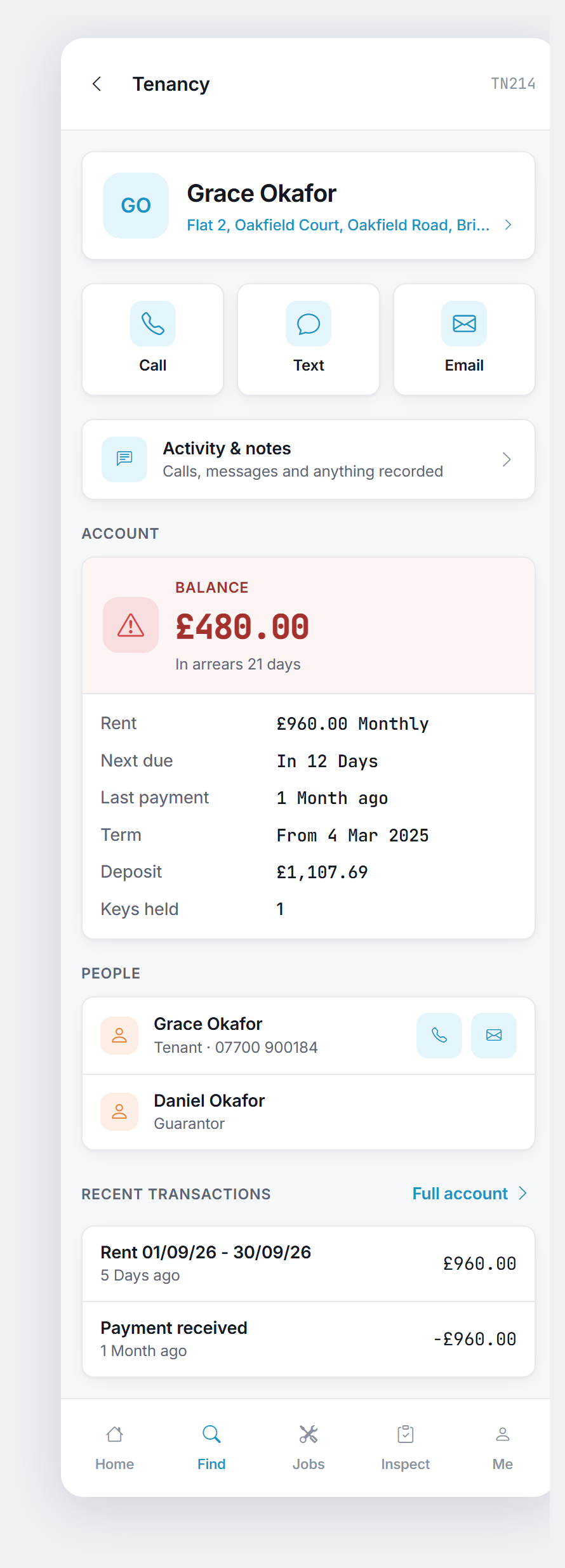
The three big buttons at the top - Call, Text, Email - go straight to the lead tenant, because contacting them is the single most common reason to open this screen.
The Account
You get one of three clear answers, never a figure with a sign you have to interpret:
- Account Up To Date - nothing owed.
- Paid In Advance - they are ahead, and by how much.
- Balance - what is owed, and how many days in arrears.
Below that: the rent and how often it is due, when the next payment is due, when the last one arrived, the term, the deposit, and how many keys the tenancy is holding.
These are the same figures the office system shows - they come from the same place, so the app and the office can never quote different numbers.
People And Transactions
People lists everyone on the tenancy - tenants, guarantors - with their role and their number, each with call and email buttons.
Recent Transactions shows the last few rent charges and payments.
Tap Full Account for the complete statement.
Activity And Notes
Property, tenancy and job screens all carry an Activity & Notes button.
It opens the same history you see in the office, and it is the same feed - not a phone-only copy.
What you see there:
- Every note anyone has left against the record.
- The communication history - calls in and out, texts, emails and WhatsApp conversations, each with its own icon so you can tell at a glance what a row is.
- Changes to the record itself, so you can see what was altered and when.
- Each entry shows who did it and how long ago.
To add one, choose what it was - Note, Called, They Called, Emailed, Texted - type what happened, and save.
It appears in the office immediately, against the right record, stamped with your name.
This is the point of doing it from the doorstep rather than from memory at 6pm.
You only see the feed if you have permission to view notes, and you can only add one if you have permission to edit them - exactly as in the office system.