
This article covers the things you do in the SleekTech Manager App rather than just look at: raising and running maintenance jobs, handing keys out and taking them back, and logging meter readings.
If you have not signed in yet, start with The Manager App: Getting Started.
The Jobs Screen
The Jobs tab opens on every open job, with a breakdown across the top so you can see the shape of the workload before you scroll.
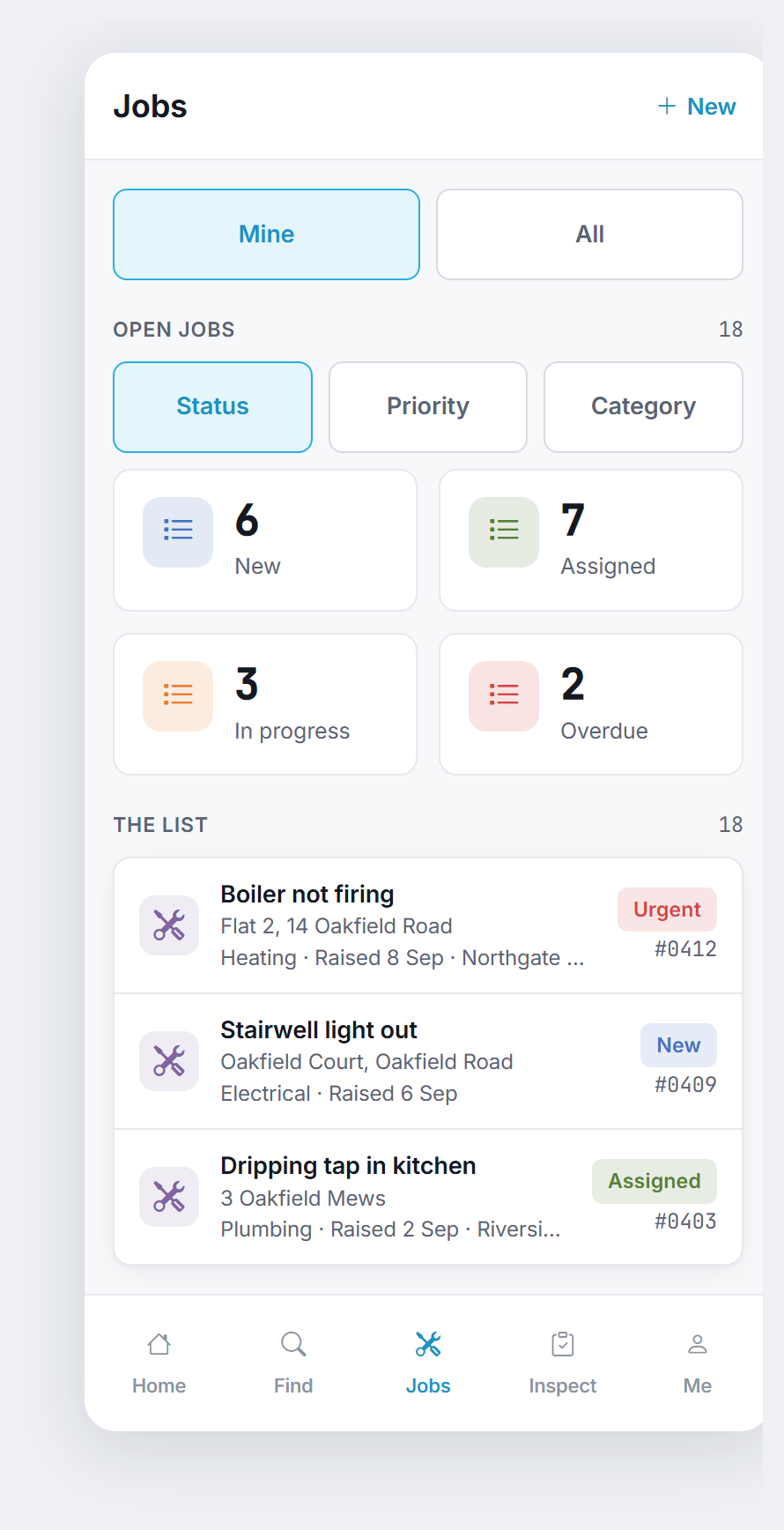
- Mine / All - your own jobs, or everything you have permission to see.
- Status / Priority / Category - switch which breakdown the tiles show.
- Tap a tile to filter the list below it.
Tap the same tile again (or its x) to clear the filter.
The tiles use your own colours - the ones set against each status and priority in your control panel - so the app looks like your system, not a generic one.
Priority tiles also show the description you gave that priority, such as Attend Within 24 Hours.
Each row in the list below shows the job, the property, its category, when it was raised and which contractor has it.
Raising A Job
Tap New on the jobs screen, Raise A Job on Home, or Raise Job on a property card - the last of those fills the property in for you.
- Describe the problem, choose a Priority and a Category, and say where in the property it is.
- Assign a Contractor now, or leave it and assign one later from the office.
- Tap Raise Job.
It is created against your name, so it appears on your own Today list straight away.
The Job Card
Tap any job to open it.
The card tells you the one thing that matters most - what happens next - as a full-width button, rather than making you work it out from a status.
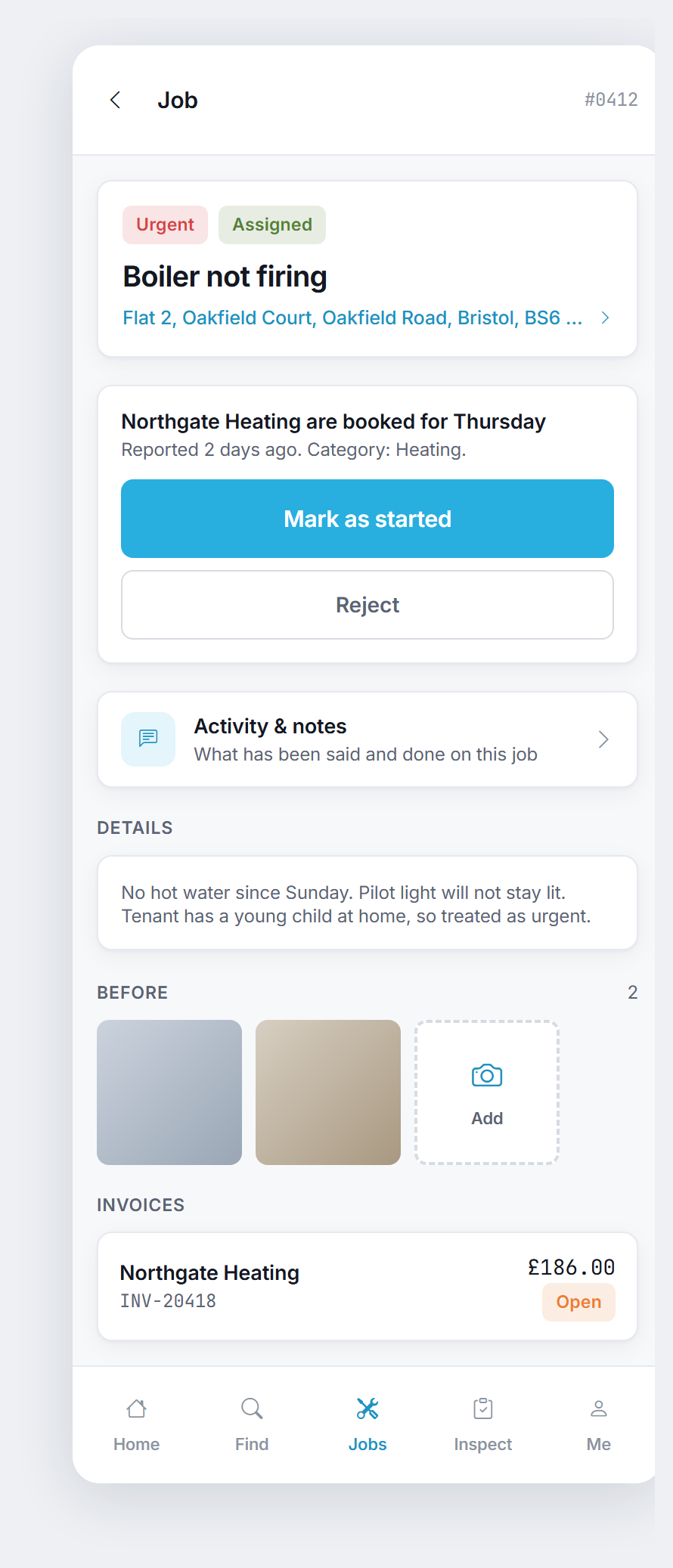
- The next step is the big button - mark it started, mark it complete, and so on.
The app only ever offers a step that is genuinely available on that job right now. - If the real next step is office work the app does not do, there is no big button.
That is correct, not a fault. - Revert takes a job one step back if you moved it on by mistake.
- Edit Details changes the title, description, location, priority, category, contractor and scheduled dates.
Costs, actual dates and invoice splits stay in the office and are left untouched.
The Job's History And Notes
Every job card has an Activity & Notes button.
It opens the full history of that job - what has been said and done, by whom and when: the calls to the tenant, the emails to the contractor, the notes anyone has left, and the changes to the job itself.
You can add to it from the same screen.
Log the call you have just made to the contractor, or leave a note about what you found, and it is in the office against that job before you have got back to the car.
See The Manager App: Properties and Tenancies for the full detail - it is the same feed on a property and a tenancy.
Before And After Photos
Job photos are kept as two separate sets, Before and After.
Tap Add in either strip and your camera opens.
The photo uploads as soon as you take it - there is no second Upload button to remember.
Tap any thumbnail to see it full size.
Invoices On A Job
Where a contractor has invoiced, the job card lists each invoice with the supplier, its reference and the amount.
Anything still owed is marked Open, and there is a total outstanding at the bottom - so you can answer "has this been paid?" on the spot.
Keys
Open Keys from Home, or from a property card to see just that property's sets.
The list can be filtered to Needs Chasing, Out, or All, and each row shows who holds the set now and when it is due back.
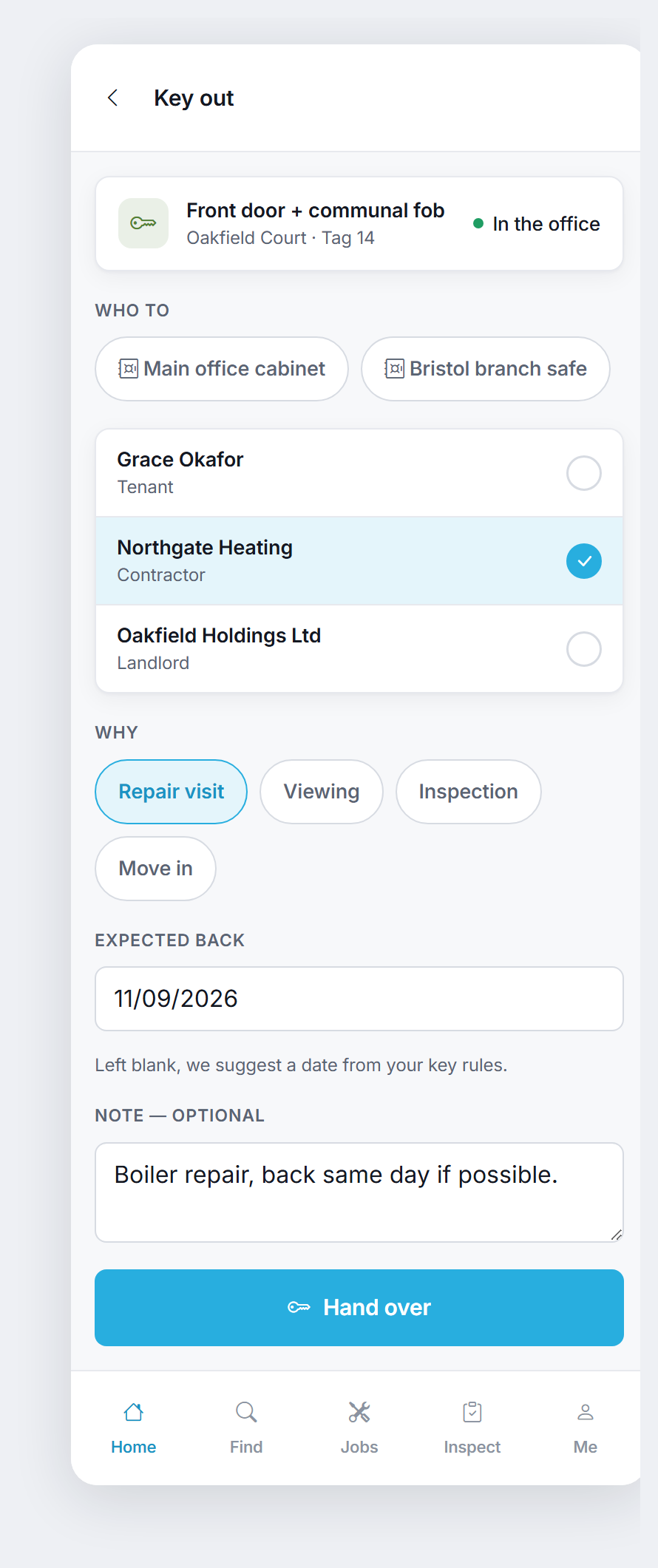
Checking a key out and checking it back in are the same screen.
You are simply saying where the key is going next, and the screen titles itself from where it is now:
- Choose the new holder.
Pick a key store (a cabinet or a safe) and that is a return; pick a person - tenant, landlord, contractor or a member of staff - and that is a hand-over. - Choose a reason: a repair visit, a viewing, an inspection, a move in, and so on.
- Set Expected Back.
Leave it blank and SleekTech fills it in from your own key rules. - Add a note if it is worth recording, then tap Hand Over or Log The Return.
Anything out past its expected date shows as overdue - on the keys list, on the property card and on your Today screen.
Meter Readings
From a property card, tap Reading on any meter.
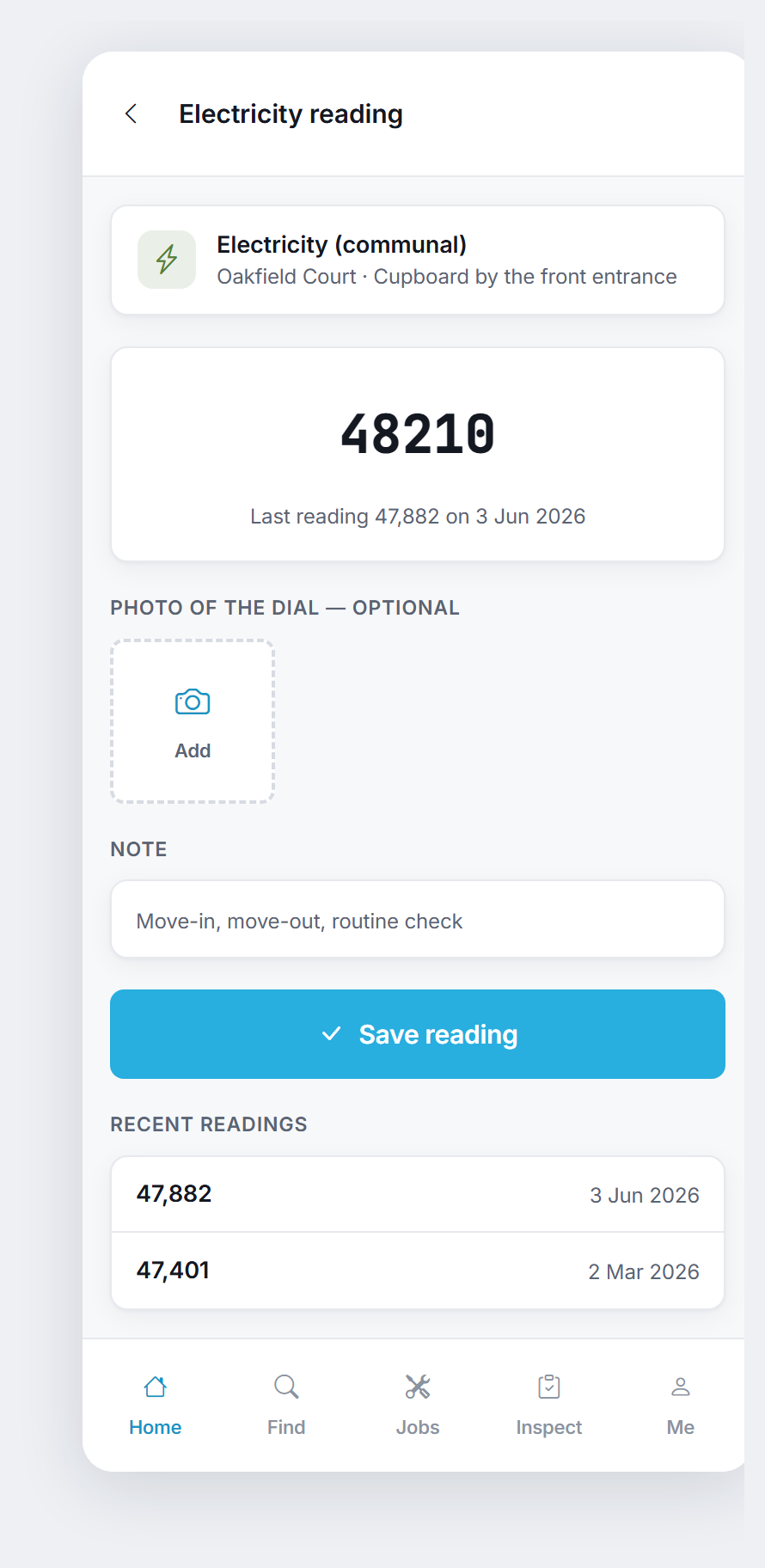
- The number field is deliberately large, and your phone shows a number pad - it is meant to be typed in a dark cupboard.
- Add a photo of the dial if you want the evidence on file.
Optional, and the camera opens straight from the button. - Add a note - move-in, move-out, routine check.
- If your reading is lower than the last one, SleekTech warns you but does not stop you.
Meters really do get replaced, and only you can tell which it is. - Recent readings are listed underneath, so you can sanity-check what you have just typed.
You can also Add a meter that was never recorded, or Edit one whose serial, provider or location is wrong - both from the property card.
Inspections
The Inspect tab is a placeholder for now, and says so.
Room-by-room inspections are being built; when they land you will run them from there, and anything you flag will turn straight into a job.