
SleekTech is moving to a new, modern set of web screens, one page at a time.
Each screen moves only once it is fully built and tested, and it opens right inside the SleekTech desktop app, in the same tabs you already use.
This article explains how to switch the web view on, how to switch it off, and how to open the old desktop screen whenever you need it.
What Is the Web View?
The web view is the new version of a SleekTech screen.
It works exactly where the old screen did: you open a property, a supplier or a job in the usual way, and the new screen opens in its tab.
Some new features, such as the Keys and Floor Plan tabs on a property, only exist on the new screens.
Switching the Web View On
- Click your profile picture (or your initials) in the top-right corner of SleekTech.
- Click Edit Profile.
- In your profile window, open the Preferences tab.
- Under Screen and Layout, set Use Web View Where Available to Web.
- Click Save.
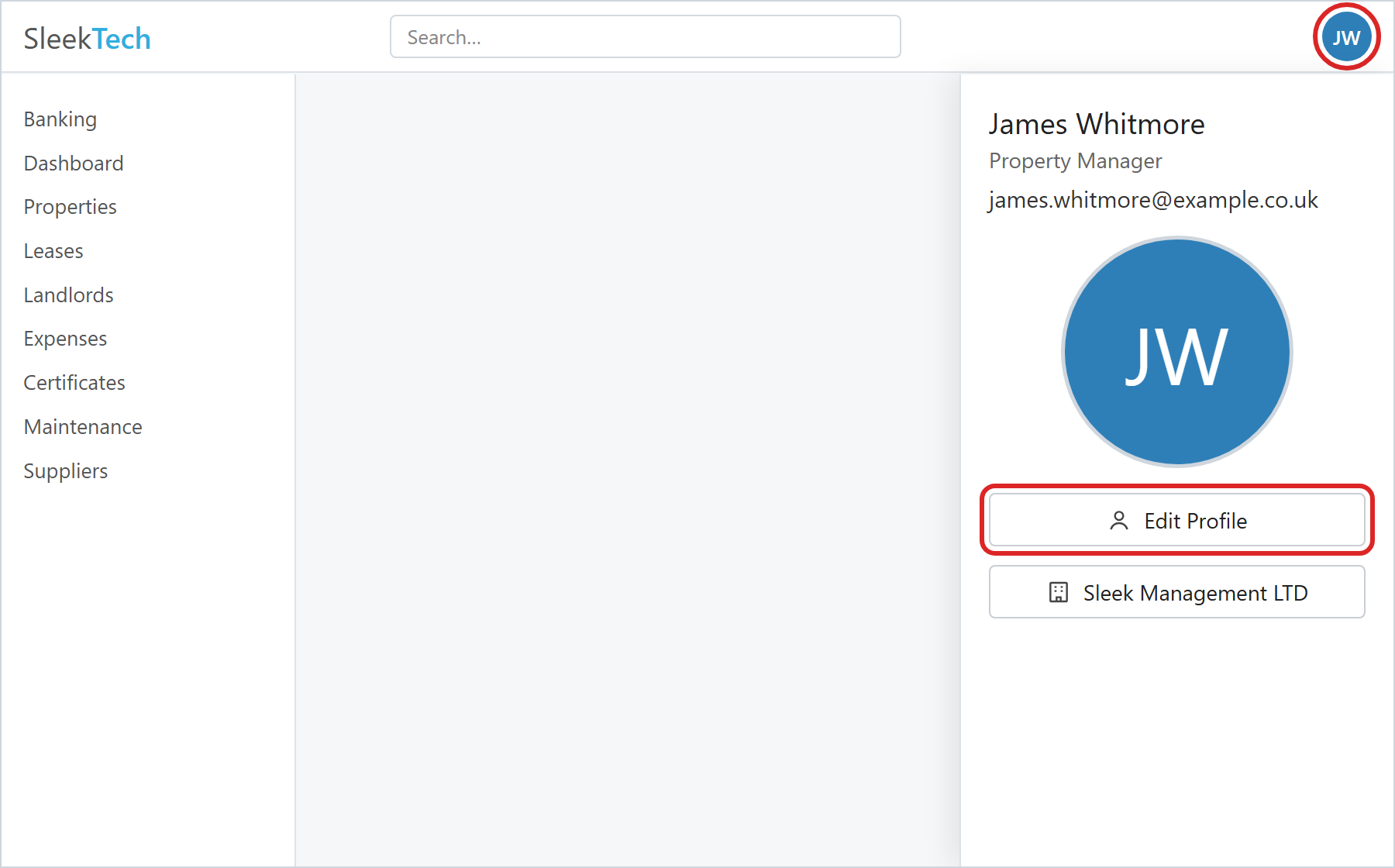
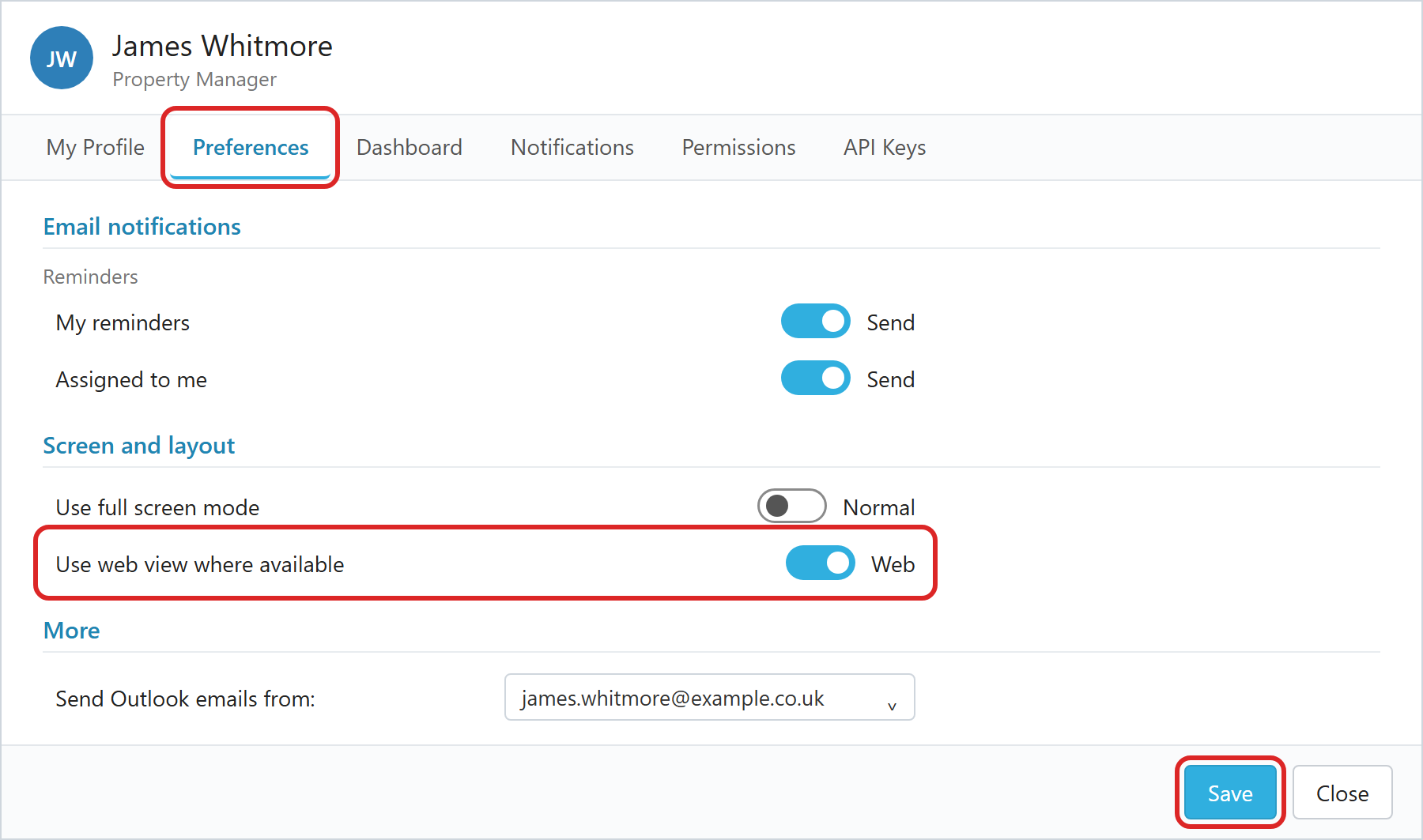
The change applies straight away to every screen you open from then on.
A tab that is already open keeps its current view until you close it and open it again.
Switching the Web View Off
If you are not happy with the new screens, you can always go back.
Follow the same steps and set Use Web View Where Available to Desktop, then click Save.
We would love to hear why, so please let us know what is missing or what does not work for you.
Opening the Old Screen Just Once: Hold Shift
You do not need to change your setting to use the old screen for a moment.
Hold down the Shift key while you open the page, for example while you click a property in the list, and it opens in the old desktop view instead.
It works the other way round too: if your web view is off, holding Shift opens the new web screen.
The next time you open the page without Shift, it opens in your usual view again.
Which Screens Are on the Web So Far?
These open on the web for everyone (hold Shift for the old screen):
- The Suppliers list.
- The Maintenance list.
- The Certificates list.
These open on the web when Use Web View Where Available is set to Web:
- The Properties list and the property page.
- The supplier page and the maintenance job page.
- Notes, Files, Email History and Tenancy Documents.
More screens follow with every update, and each one is announced in our What's New articles.
The tenancy page is next.