
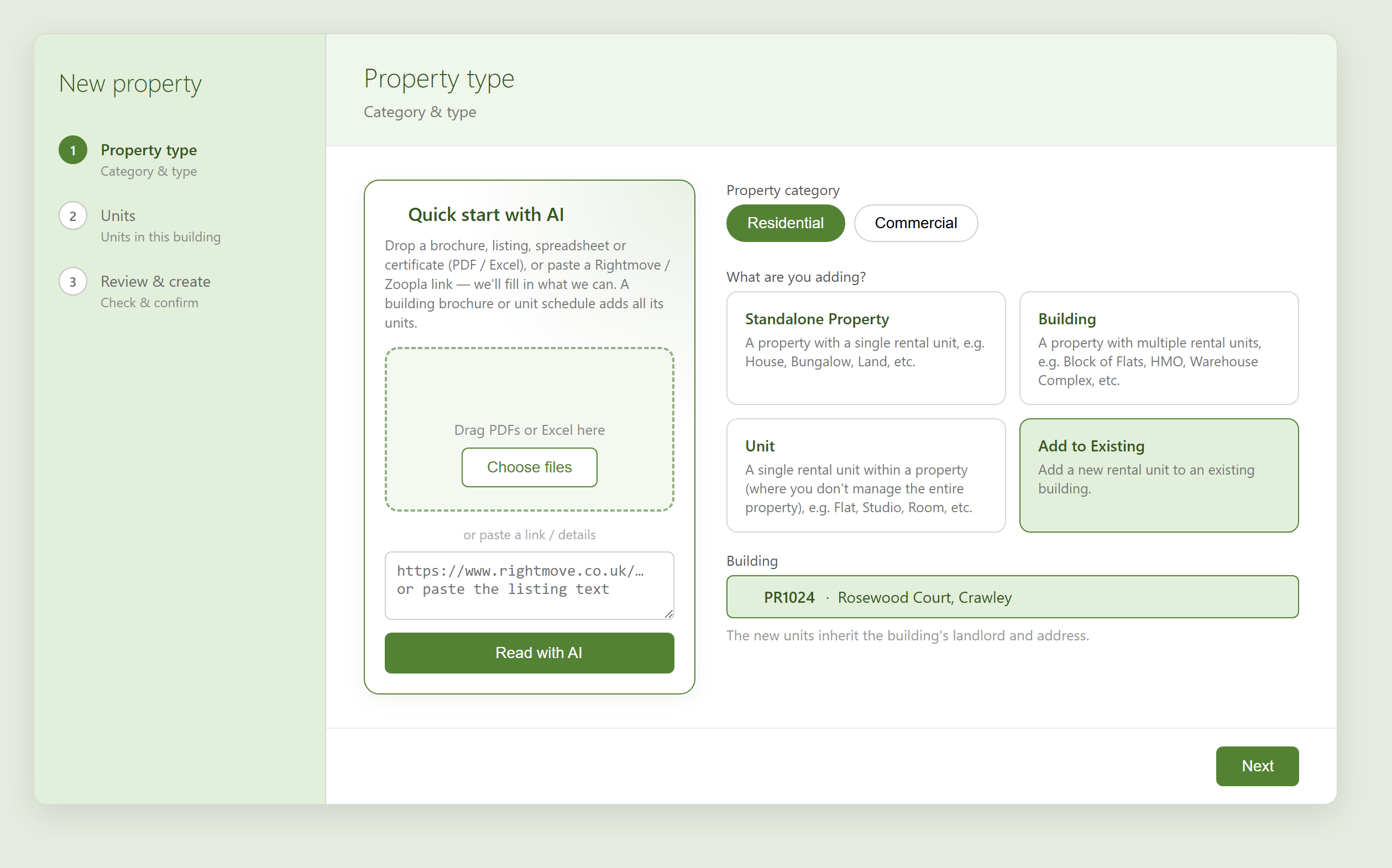
Already have a building in SleekTech and need to add another unit (or several) to it? Use the Add to Existing option in the New Property wizard. The new units automatically inherit the building's landlord and address, so you only enter the units themselves.
Add units to an existing building
- Go to the Properties screen and click New Property.
- On the first step, under What are you adding?, choose Add to Existing.
- In the Building box, search for and select the building you're adding to. (The new units will inherit its landlord and address.)
- Click Next.
Enter the new units
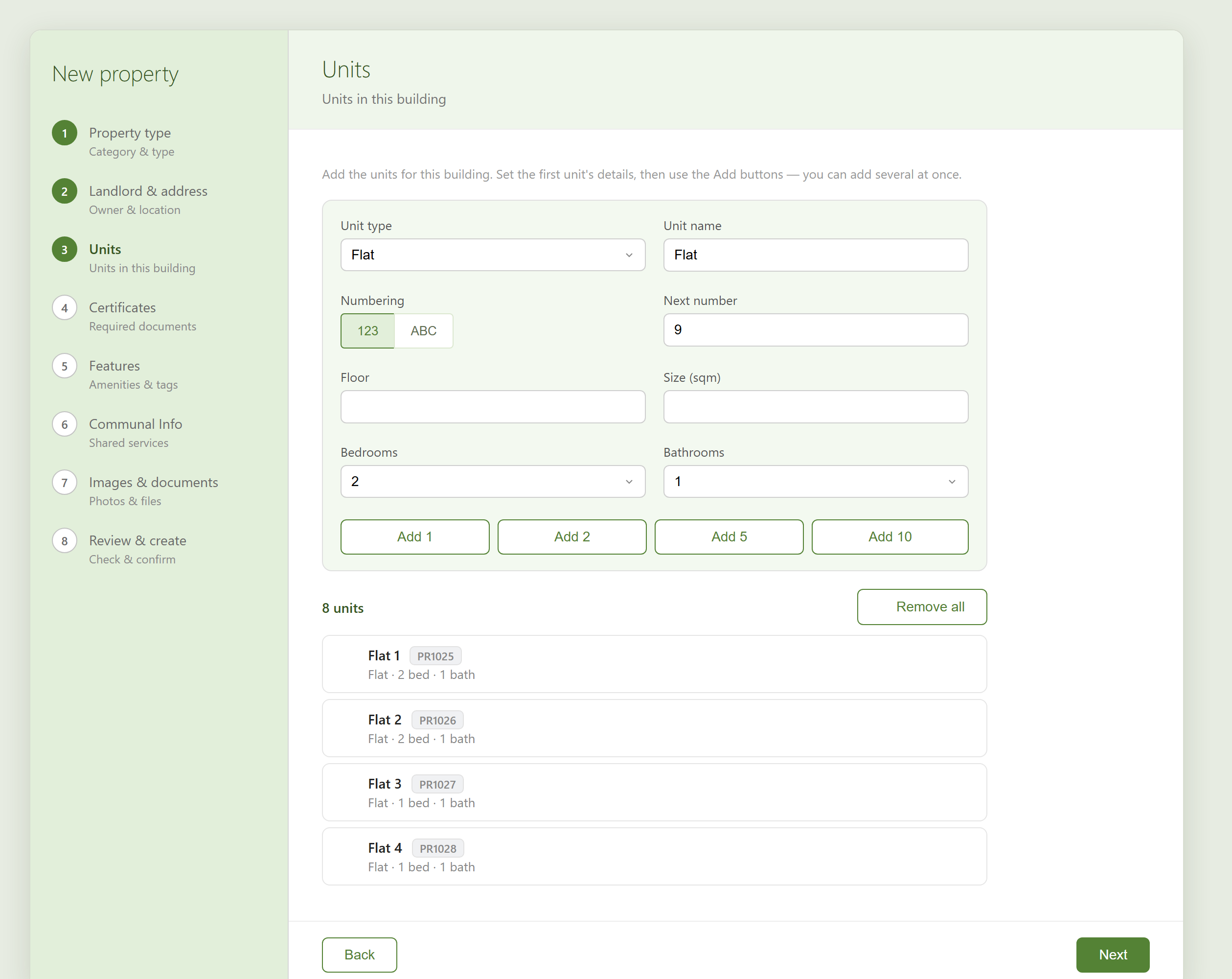
- Set the first unit's details — Unit type, Unit name (e.g. Flat), Numbering (123 or ABC) and the Next number to start from.
- Use Add 1, Add 2, Add 5 or Add 10 to add that many units at once — they're numbered for you and each gets a proposed PR code.
- Click any unit to edit it, or remove any you don't need.
Create the units
- Click Next to reach Review & create, check the list, then click Create property.
- The new units are added under the building straight away.