
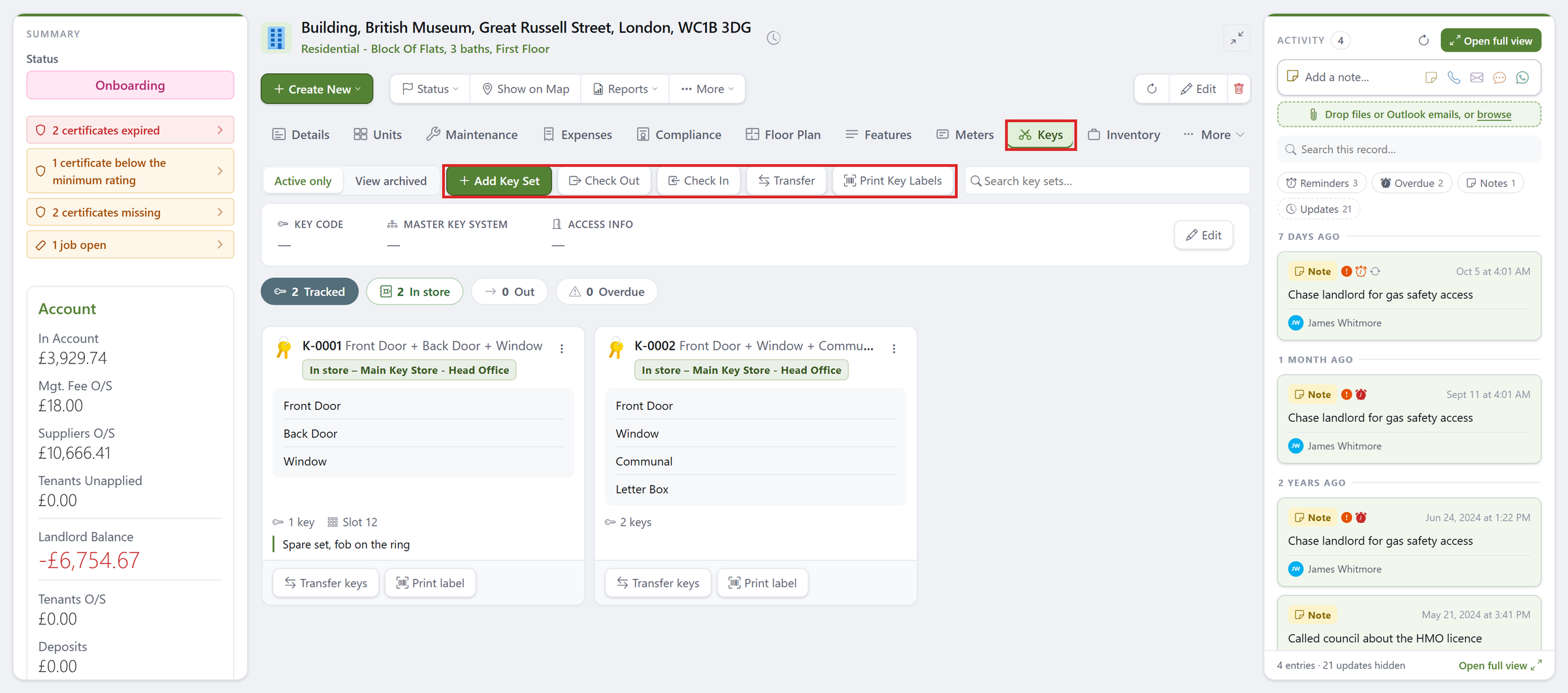
Every property has a Keys tab that shows which keys you hold for it, where each set is right now and who has it.
This article covers adding key sets (to one property or many at once), checking them out and back in, transferring them, and printing labels.
Finding the Keys Tab
- Open the property.
- Click the Keys tab.
On a narrow screen it may sit under More at the end of the tabs.
If the property still opens in the old window, switch on the web view: click your profile picture in the top-right corner, click Edit Profile, open the Preferences tab, set Use Web View Where Available to Web and click Save.
Click here to see how the web view works, and how to switch back
What the Tab Shows
- Key Code, Master Key System and Access Info across the top: how to get into the property.
Click Edit to change them. - The counters: how many sets are Tracked, how many are In Store, how many are Out and how many are Overdue.
- A card for every key set, showing its tag, the doors it opens, how many keys are on the ring, its slot and who has it now.
- View Archived shows sets you no longer use.
Adding a Key Set
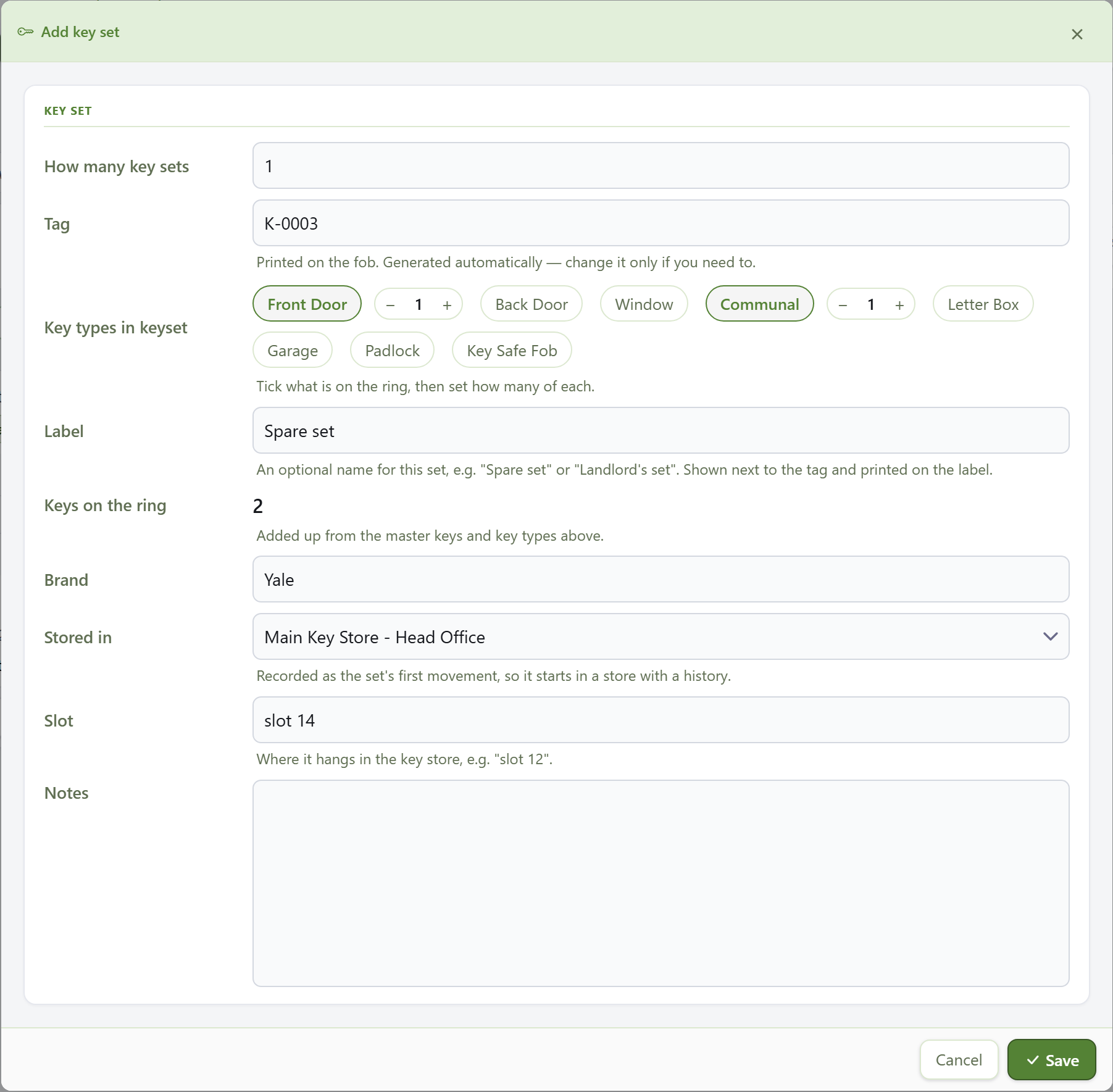
- Click Add Key Set.
- The Tag (for example K-0003) is filled in for you; it is what gets printed on the fob.
- Under Key Types in Keyset, tick what is on the ring (Front Door, Communal, Fob and so on) and set how many of each.
- Add an optional Label, such as "Spare set" or "Landlord's set".
- Choose where it is Stored In and its Slot in the key store.
- Click Save.
To add several identical sets at once, change How Many Key Sets at the top.
Adding Key Sets to Many Properties
Use this to add key sets to lots of properties in one go, for example when you first start using the Keys tab or take on a new building.
- Go to Properties, filter the list and tick the properties.
- Click Add Key Sets at the top.
- Set Key sets per property, for example 1.
- Each property is listed with a suggested tag.
If your keys already have their own codes, type your code over the suggested tag. - Tick the Key Types in Keyset and choose where they are Stored In, as for a single set.
- Click Create.
Every tag must be different.
If two tags are the same, SleekTech shows which ones clash and nothing is saved until you change them.
Checking Keys Out
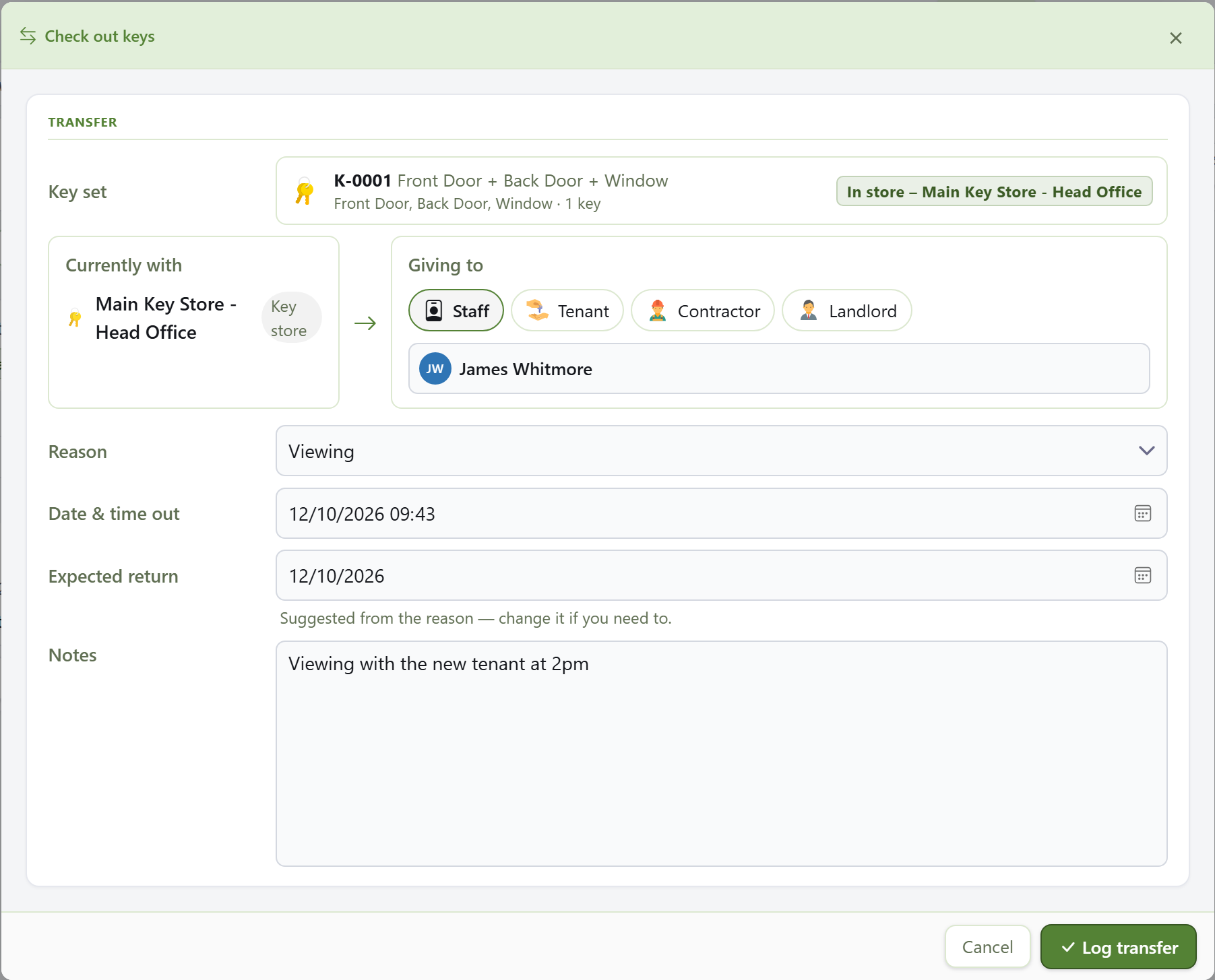
- Click Check Out and tick the key sets you are handing over, then click Continue.
- Under Giving To, choose Staff, Tenant, Contractor or Landlord, then pick the person.
- Pick the Reason, such as a viewing, a repair or a move-in.
- The Expected Return date is suggested from the reason; change it if you need to.
- Add a note if it helps, then click Log Transfer.
Once the expected return date passes, the set is counted as Overdue until it comes back.
Checking Keys Back In
- Click Check In.
- Tick the sets that have come back, then click Continue.
- Check the key store they are going back into, then click Log Transfer.
- The sets show as in store again.
Transferring Keys
When keys pass straight from one person to another, for example from a contractor to a new tenant, use Transfer (or Transfer Keys on the set's own card).
The keys do not need to come back to the office first, and the full history of who held them is kept.
Printing Key Labels
Click Print Key Labels to open the labels for every set on the property in a new tab, ready to print.
To print just one, click Print Label on that set's card.
Setting Up Your Key Stores
Your key stores (an office cabinet, a safe, a lockbox, another branch) and master key systems are set up once for the whole account.
Open Settings - Web under the More group and go to the Keys tab.
There you can also choose the Default Key Store, where new key sets are filed.