
The Floor Plan tab on a property holds its floor plan and a list of every room, with sizes, the total floor area and how many people each bedroom can sleep.
This article covers adding a plan, reading the rooms with AI, adding and editing rooms by hand, and what the occupancy figures mean.
Finding the Floor Plan Tab
- Open the property.
- Click the Floor Plan tab.
On a narrow screen it may sit under More at the end of the tabs.
The tab works on a standalone house, on each unit in a building, and on the building itself.
If the property still opens in the old window, switch on the web view: click your profile picture in the top-right corner, click Edit Profile, open the Preferences tab, set Use Web View Where Available to Web and click Save.
Click here to see how the web view works, and how to switch back
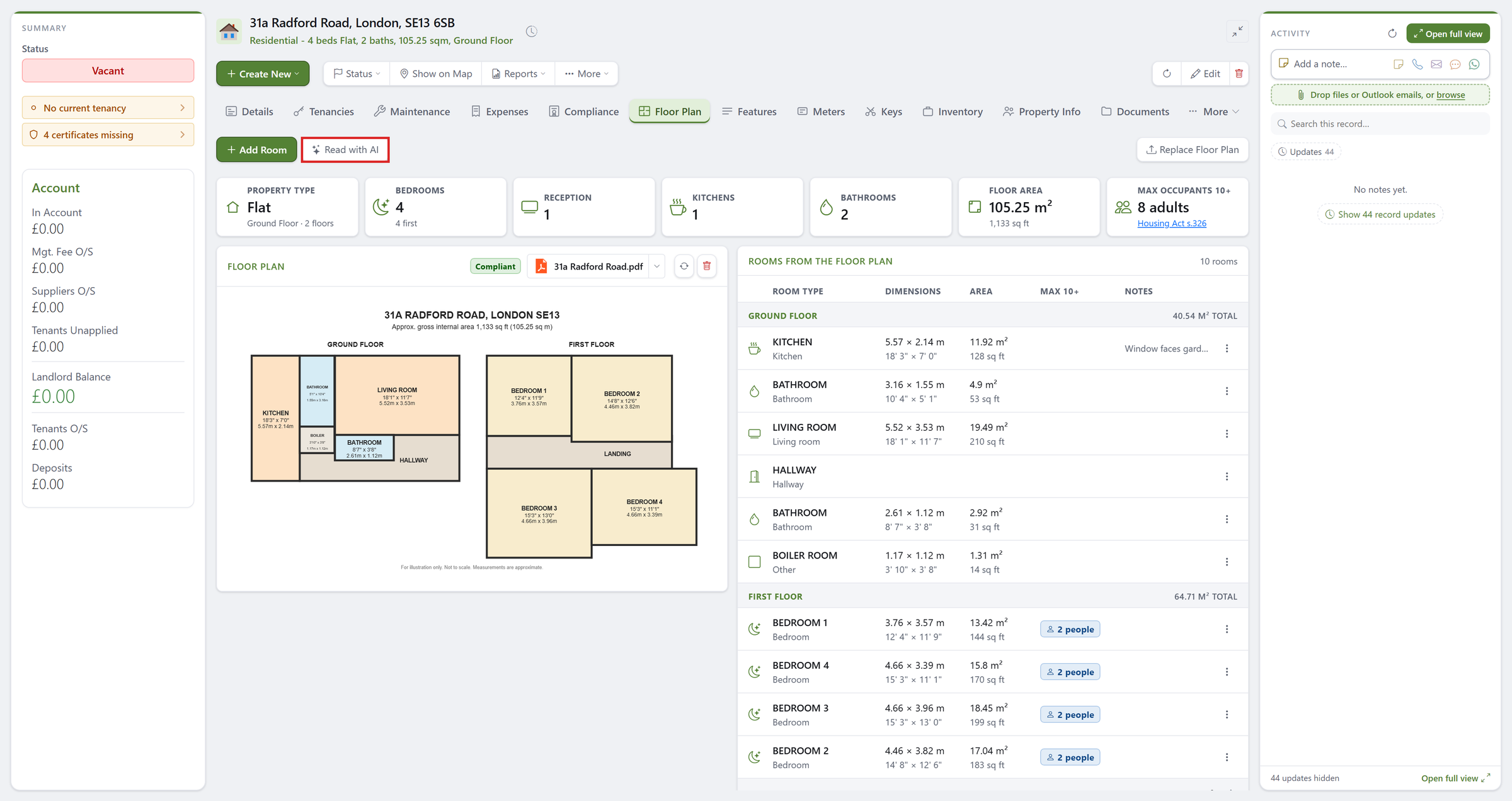
Adding a Floor Plan
- Click Add Floor Plan, or simply drag the file onto the tab.
- A PDF or a picture (JPG or PNG) both work.
- The plan shows on the left of the tab, and is filed on the Compliance tab as the property's Floor Plan certificate.
A floor plan never expires, so it counts as compliant once it is on file.
To swap it for a newer one, click Replace Floor Plan; the old one is archived, not deleted.
Reading the Rooms With AI
- With a plan on file, click Read With AI.
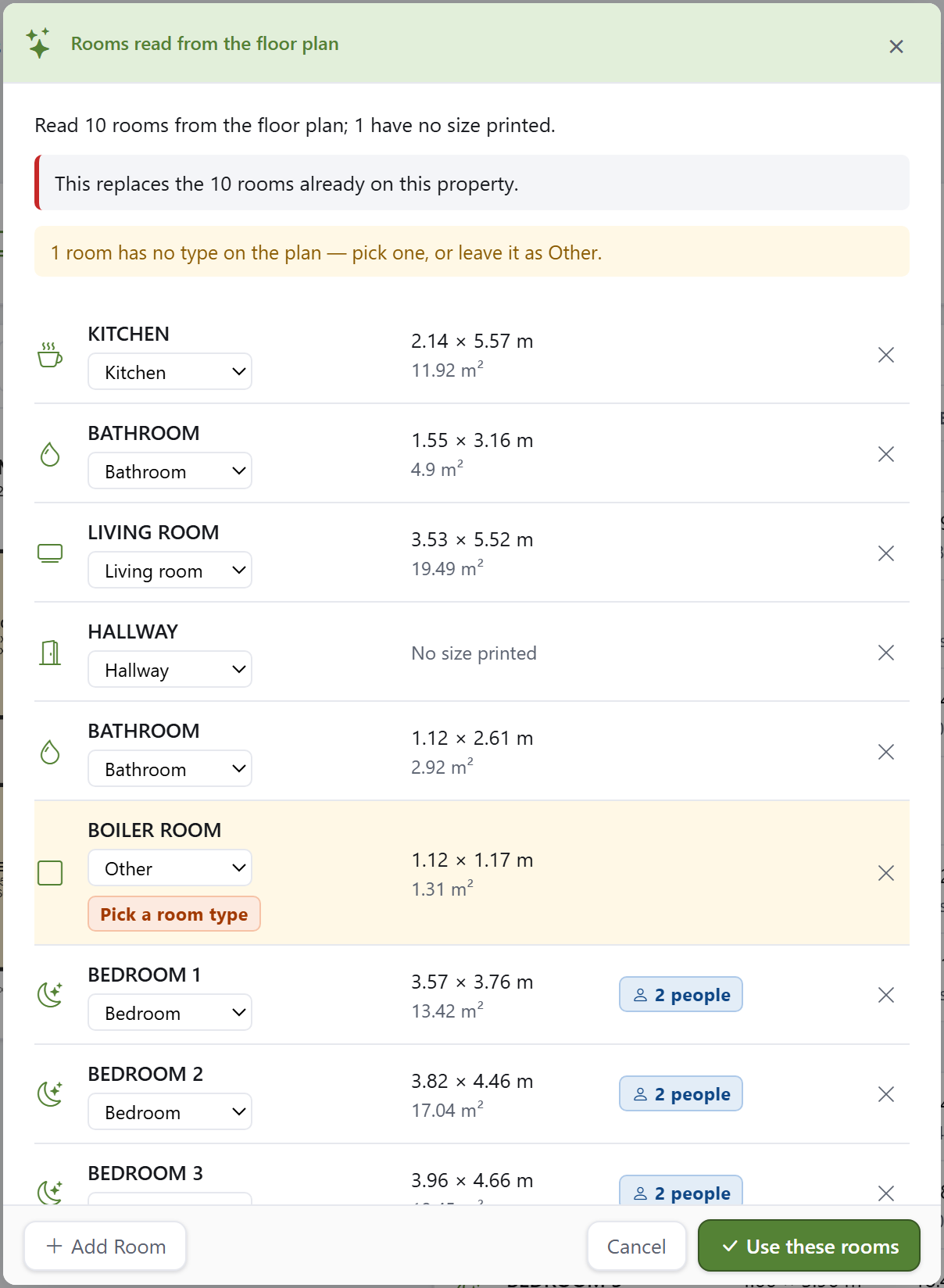
- SleekTech reads every room off the plan: its type, width, length and area, grouped by floor.
- Check the list.
Change any room type with its dropdown, remove a room with the cross, or click Add Room for one the plan missed. - A room highlighted in amber has no type on the plan; pick one, or leave it as Other.
- Click Use These Rooms to save them.
Nothing is saved until you click Use These Rooms, and you can close the window at any time.
Adding or Editing Rooms by Hand
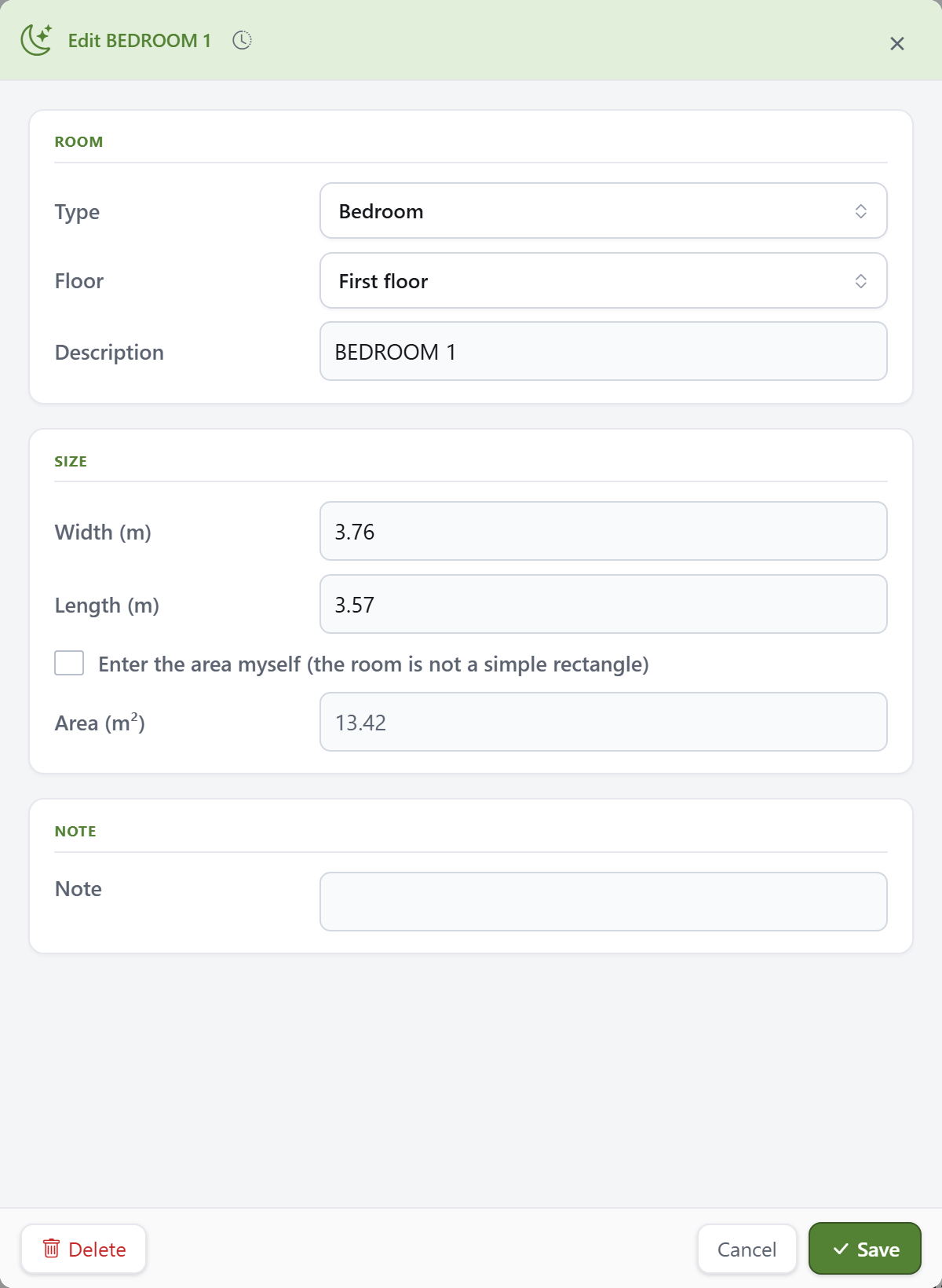
- Click Add Room, or click the three dots on a room and choose Edit.
- Choose the room Type and the Floor it is on.
- Enter the Width and Length in metres, and the area is worked out for you.
- For a room that is not a simple rectangle, tick Enter the Area Myself and type the area in.
- Click Save.
Keeping the Property Record Up to Date
If the rooms do not match the bedrooms, bathrooms or size recorded on the property, a banner offers to Update Property for you.
The property's size is treated as the total floor area.
Hallways, landings and walls are not rooms, so a room total up to a quarter below the property's size still counts as a match.
How Many People a Bedroom Can Sleep
Each bedroom shows the maximum number of people it can sleep, worked out from its floor area using the space standard in section 326 of the Housing Act 1985. The Max Occupants card adds the bedrooms up for the whole property.
- 10.22 m² or more: 2 people.
- 8.36 to 10.21 m²: 1½ people.
- 6.51 to 8.35 m²: 1 person.
- 4.65 to 6.50 m²: ½ (a child under 10 only).
- Under 4.65 m²: not counted.
The figures count people aged 10 or over, and only bedrooms are counted.
The property's current licence, taken from its Compliance tab, is shown at the bottom of the tab so you can compare the two.
Please Note
The occupancy figures are a guide only, to help you spot possible problems early.
They are worked out from the room sizes entered or read from the plan, and they are not legal advice.
They do not replace your own checks, your council's licence conditions, or any local standards that apply to your property.
SleekTech accepts no responsibility for decisions made on the basis of these figures; always confirm the permitted number of occupants with your local council or licence.
On the Details Tab
The property's Details tab shows a Floor Plan card with a preview of the plan, the total floor area, the bedrooms and bathrooms, and the maximum number of occupants.
Click it to open the Floor Plan tab.