
This page shows how to give everyone in your office an AI assistant, such as Claude or ChatGPT, connected to SleekTech.
Each person connects their own assistant and signs in with their own SleekTech work email.
Their assistant then sees and does only what their SleekTech user is allowed to, and everything it does is recorded under their name.
How it works
When someone connects an AI assistant, SleekTech asks them to sign in with their work email and a 6-digit code we email them.
From then on, the assistant uses that person's own SleekTech permissions.
If they can't see something in SleekTech, their assistant can't see it either, and it tells them which permission they are missing.
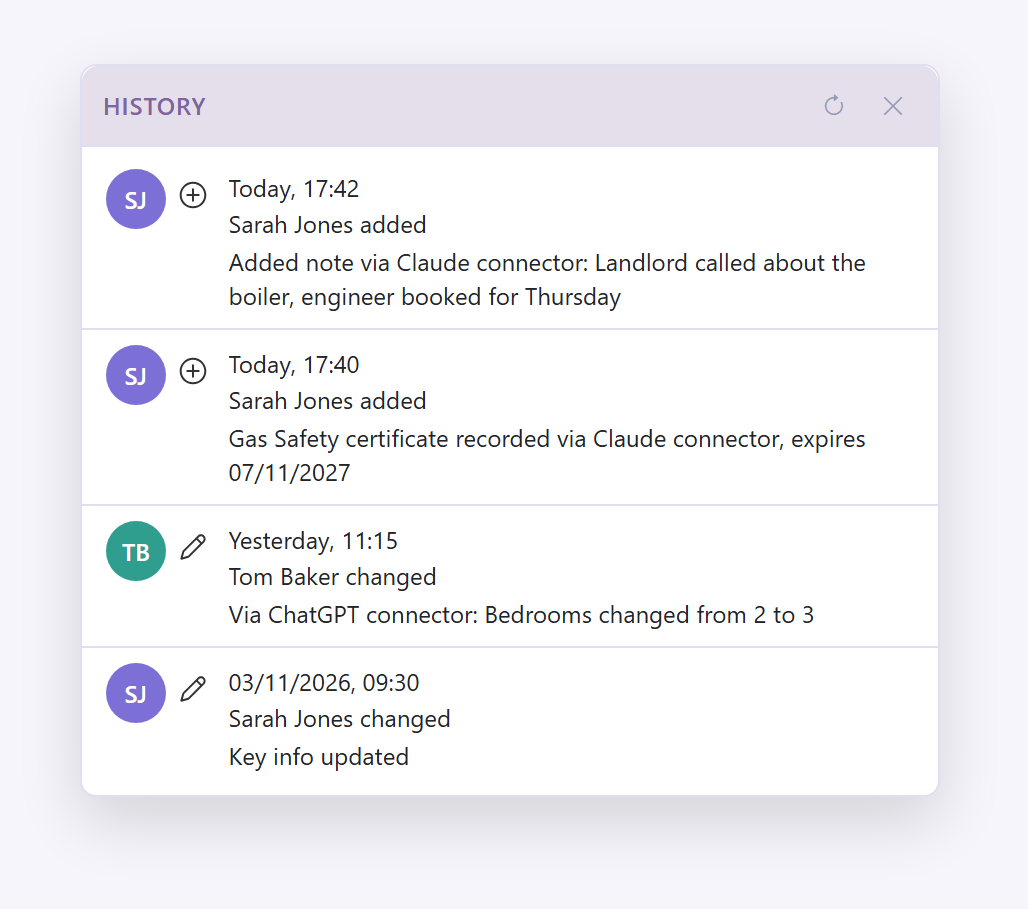
Everything the assistant does, including each question it looks up and anything it adds or changes, is recorded in the activity log under their name.
Before you start
- Each person needs their own SleekTech user with their own work email, because their sign-in code is sent there.
Shared logins give everyone the same access, and the activity log can't tell them apart.
- Each person needs Main Software Login ticked in User Management.
- Each person needs an AI assistant plan that allows connectors.
For Claude and ChatGPT this is usually a paid plan.
- You don't need an API key.
API keys are only for connecting other software to SleekTech.
Step 1 - Switch on AI assistants for your company
An administrator does this once.
- In SleekTech, open Settings - Web (in the More group of the main menu) and click the AI Assistants tab.
- Switch on Allow staff to connect AI assistants.
- You are asked Who should be allowed to connect an AI assistant?
Everyone ticks Connect AI Assistant for every active user straight away.
I'll choose leaves everyone as they are, so you can tick people one by one. - The change is saved straight away.
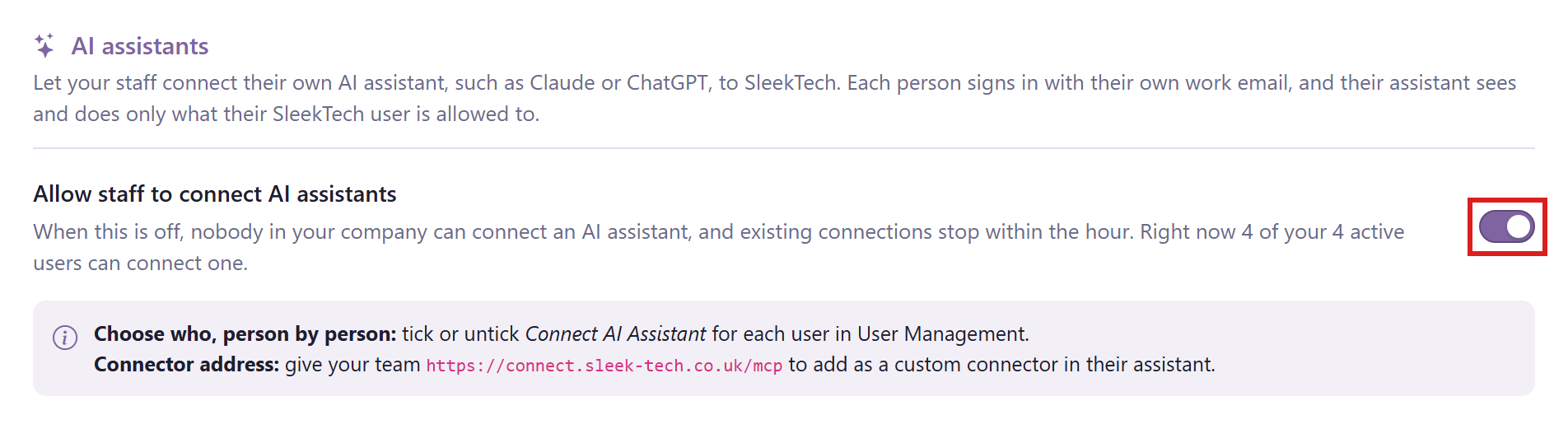
Under the switch, SleekTech shows how many of your active users can connect an AI assistant right now.
The tab also shows the connector address to give your team: https://connect.sleek-tech.co.uk/mcp.
To switch AI assistants off, click the switch again and confirm with Switch off.
Every AI connection in your company then stops within the hour.
Step 2 - Choose who can connect
Connect AI Assistant is a permission like any other.
- Go to Control Panel > User Management.
- Click the person in the list on the left.
- Check their Email is their own work address.
- At the bottom of the window, check their permissions.
Their AI assistant will follow exactly these permissions. - Tick Connect AI Assistant for each person who should use AI with SleekTech, and untick it for anyone who shouldn't.
- Click Save.
New users have Connect AI Assistant ticked when you create them.
Administrators have every permission, so they can always connect once AI assistants are switched on.
Step 3 - Each person connects their assistant
Send your team these steps.
- In your AI assistant, add a new custom connector.
In Claude this is Customise > Connectors > + > Custom Connector. - Enter SleekTech as the name and https://connect.sleek-tech.co.uk/mcp as the address, then click Add.
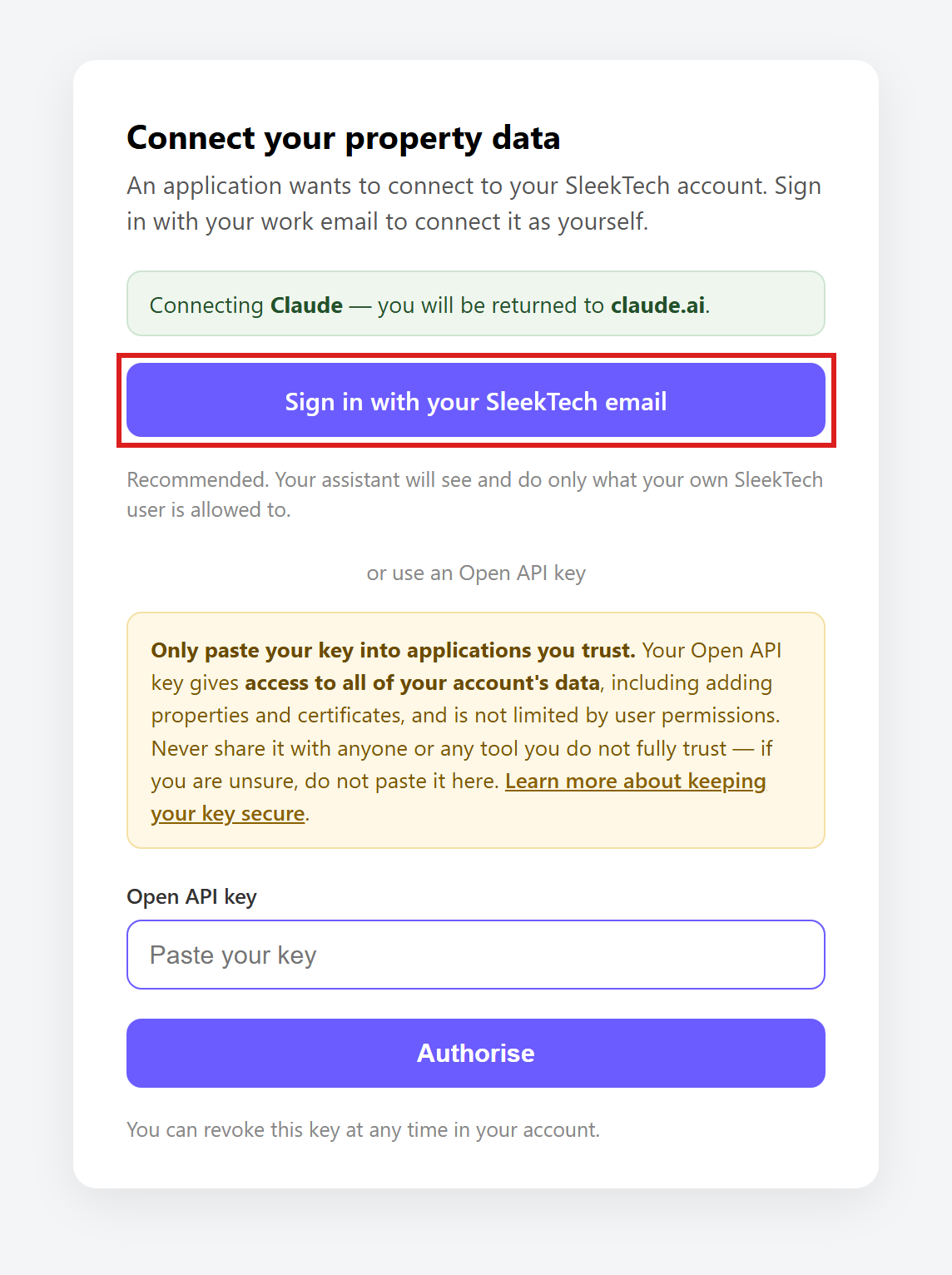
- The SleekTech connect page opens.
Click Sign in with your SleekTech email.
- Enter your work email and click Continue.
- Enter the 6-digit code from your email and click Sign in.
- If you are asked Which company?, choose the company you want the assistant to work in.
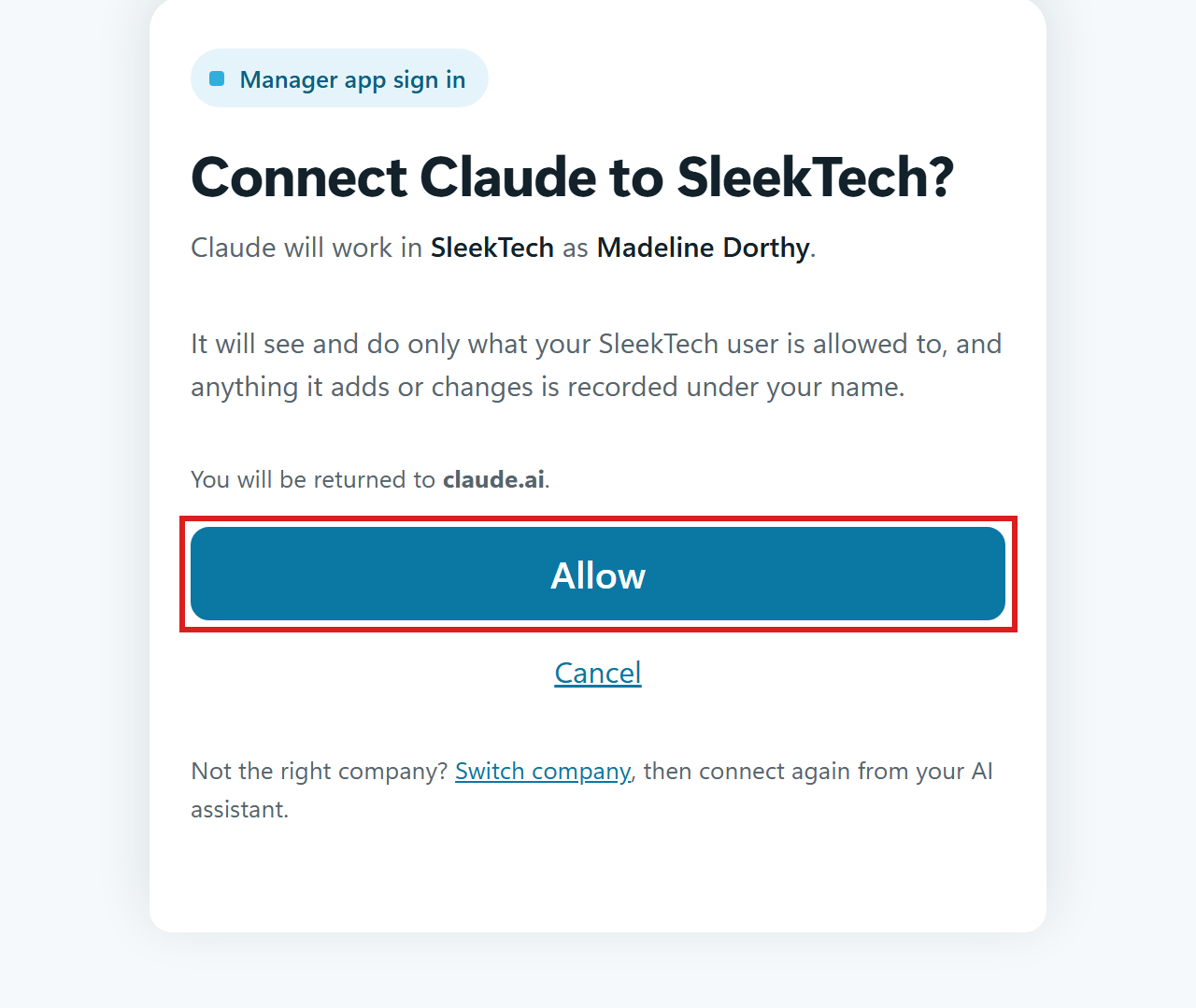
- Check the page shows your name and company, then click Allow.
- In a new chat, make sure the SleekTech connector is switched on, then start asking questions.
If your company uses a shared workspace, such as Claude Team or ChatGPT Business, the workspace owner can add the SleekTech connector once for everyone.
Each person still signs in as themselves the first time they use it.
Anyone can ask their assistant "Who am I connected to SleekTech as?".
It replies with their name, the company and the permissions ticked for them.
What each person's assistant can see and do
| What the assistant can do | Permission it needs |
|---|---|
| Find properties and read their details, including certificates | View Properties |
| Change details of an existing property | Edit Properties |
| Add a new property | Edit Properties, plus Edit Landlords if it also adds a new landlord |
| Read tenancy details and tenant contacts | View Leases |
| Read tenant invoices and payments, and supplier invoices and payments | View Payments |
| Read landlord statements | View Landlords and View Payments |
| Find maintenance jobs | View Maintenance Jobs |
| Record a certificate | Edit Certificates |
| Read notes on a record | The permission to view that kind of record, for example View Properties for notes on a property |
| Read notes written by or assigned to other people | View All Notes as well |
| Add or change a note | The permission to edit that kind of record, for example Edit Properties for a note on a property |
| See the list of staff, search the SleekTech help articles, and say who you are connected as | Anyone who can connect |
Before it saves anything, the assistant shows the person what it is about to save and waits for them to say yes.
It cannot delete anything in SleekTech.
If someone asks for something their permissions don't allow, the assistant doesn't do it.
It tells them which permission is missing, for example:
Your SleekTech user doesn't have the "Edit Properties" permission… An administrator can tick it for you in User Management.
Some examples to try:
- "Which of my properties have a gas safety certificate expiring next month?"
- "How many maintenance jobs are still open, and which have been waiting the longest?"
- "Which tenants fell behind on rent this year, and by how much?"
- "Add a note to 12 High Street that the landlord called about the boiler."
How quickly changes apply
| You change | It applies |
|---|---|
| Any permission except Connect AI Assistant | From the person's next question |
| Untick Connect AI Assistant | Their connection stops within the hour |
| Deactivate the user | Their connection stops within the hour |
| Switch off AI assistants for the company | Every connection stops within the hour |
When someone leaves, deactivate their SleekTech user as usual.
You don't need to do anything in their AI assistant.
Working in a different company
If you work for more than one company, your assistant works in the company you chose when you connected.
To switch, disconnect the SleekTech connector in your assistant, connect it again, and choose the other company.
Your company's responsibility
Your company decides who may use AI with SleekTech, and is responsible for how each person connects and uses it.
- Ask your team to connect from a company AI account, such as Claude Team or ChatGPT Business, not a personal account.
- Information the assistant reads from SleekTech is sent to that AI provider, under your company's agreement with them.
SleekTech is not responsible for the AI provider, or for how a person's AI account is used.
- Make sure using AI with your tenants' and landlords' personal data fits your company's data protection policy.
- AI assistants can sometimes misunderstand a question or give a wrong answer.
Check anything important in SleekTech before relying on it.
Building your own integration?
Keep using an API key for software that connects to SleekTech, such as your own systems or a partner's.
API keys have full access to your company's data and are not limited by user permissions.
Don't use the AI connector for integrations: it is made for people, each signing in as themselves.
If you connected with an API key before
AI connections made with an API key keep working until 22 December 2026.
Before then, disconnect the SleekTech connector in your assistant, connect it again, and choose Sign in with your SleekTech email.
Once nobody uses the key for AI, you can revoke it on the API Keys tab in Settings - Web, unless other software uses it.