

As the evenings draw in and winter arrives, all of us at SleekTech want to wish you and your teams a warm, safe and happy season ahead.
Thank you for another year of working with us, and for all the feedback that shaped what you are about to read.
This update is a big one: a completely rebuilt property page with two brand-new tabs, and plenty more besides.
Your Property Page, Rebuilt From the Ground Up
The property page is the screen you open more than any other, so we have redesigned it from scratch.
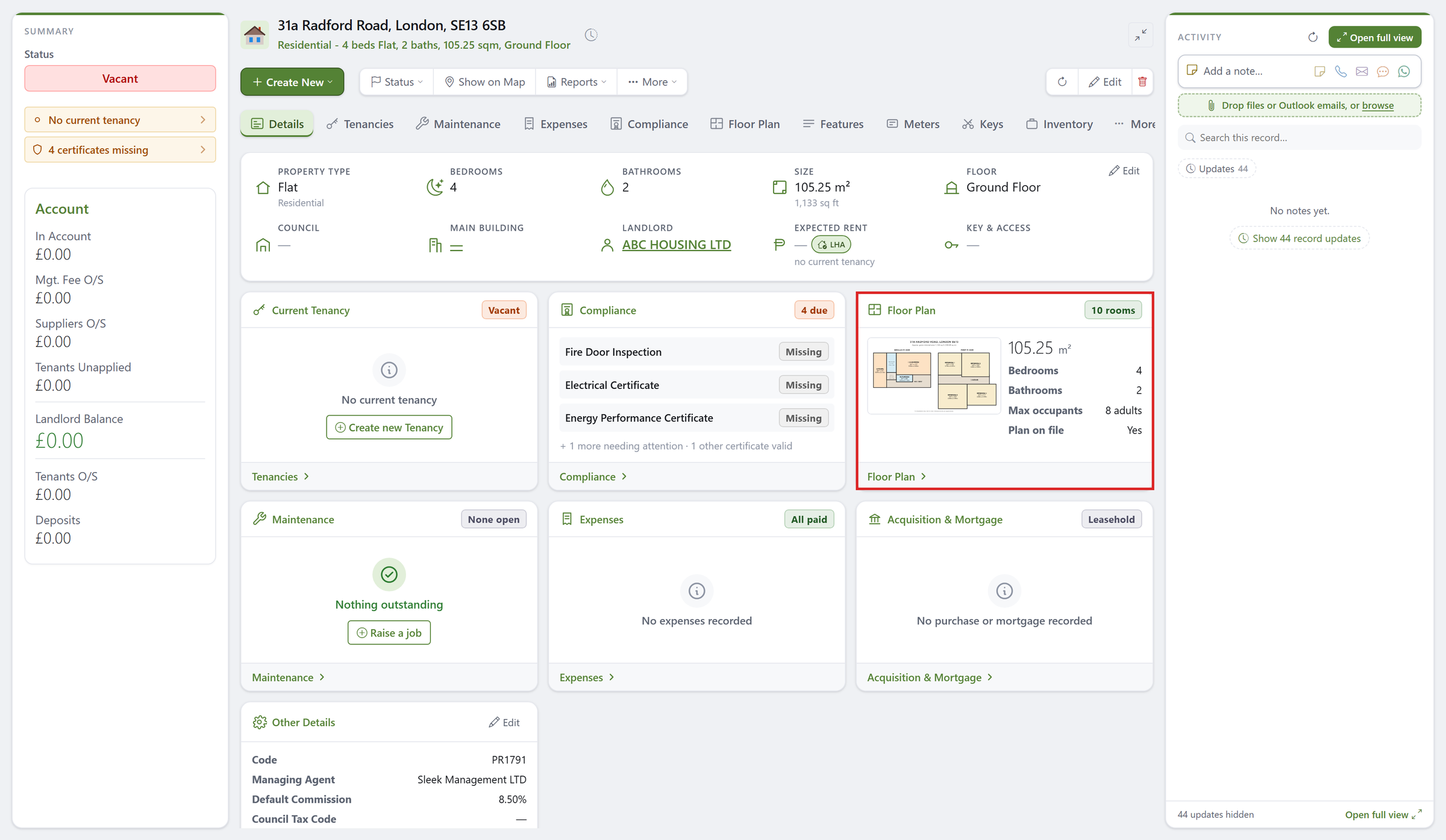
Open any property and the new Details tab now shows you the whole picture at a glance, with no clicking from tab to tab to piece it together.
Everything at a Glance
- Key facts across the top: type, bedrooms, bathrooms, size, floor, council, landlord, rent and how to get in, with the property's features underneath.
- Alerts on the left: expired or missing certificates, a certificate below the minimum rating, open jobs and no current tenancy, each one click away from the detail.
- A live card for every area: the current tenancy (or every unit in a building), compliance, floor plan, maintenance, expenses and acquisition and mortgage, each opening its own tab.
- Activity on the right: notes, calls, reminders and record changes, with a box to add a note or drop in files and Outlook emails.
Don't See the New Page?
The new property page opens for everyone who uses the web screens.
If your properties still open in the old window, switch on the web view.
- Click your profile picture in the top-right corner of SleekTech and click Edit Profile.
- Open the Preferences tab.
- Set Use Web View Where Available to Web and click Save.
You can still open the old window at any time by holding Shift as you open a property.
Click here to see how the web view works, and how to switch back
New: The Keys Tab
Every property now has its own Keys tab, so you always know which keys you hold, where they are and who has them.
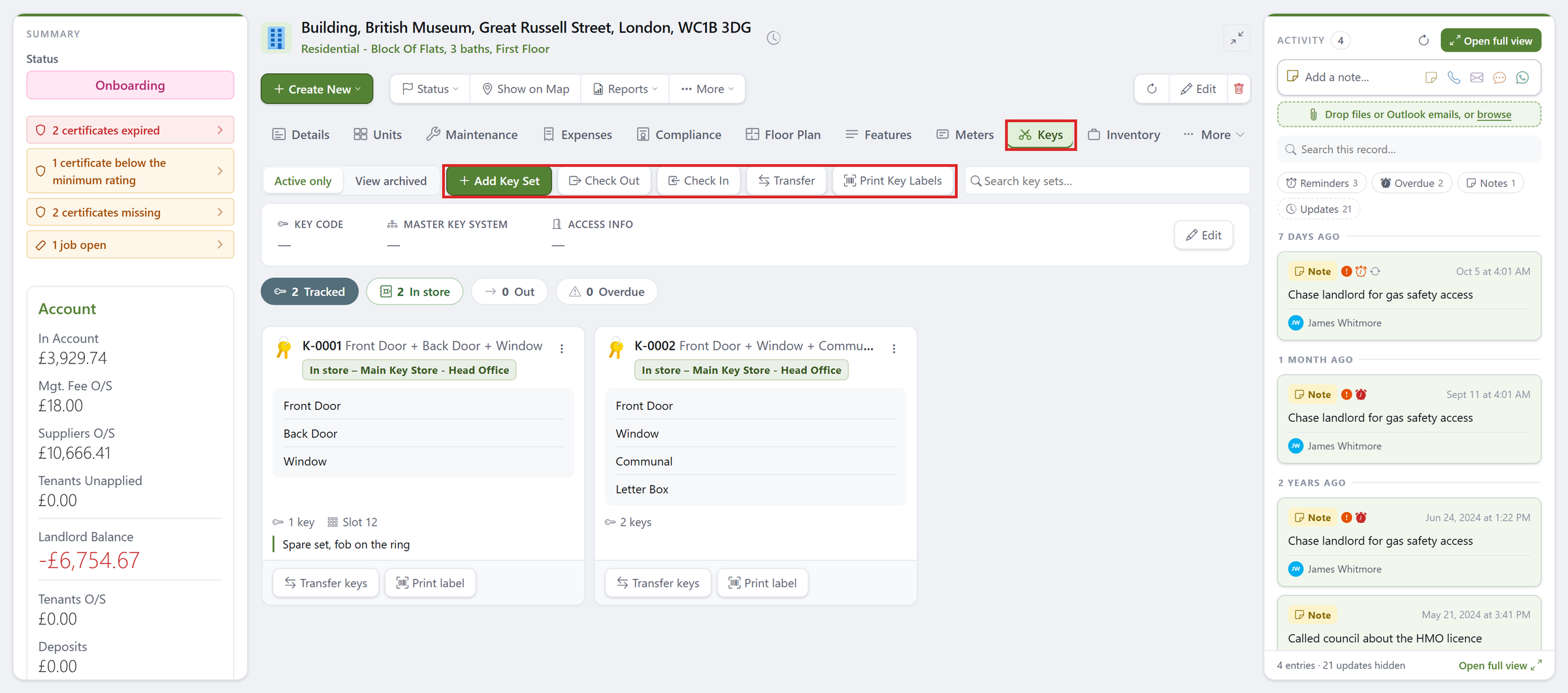
- Add Key Set: record each set with the doors it opens, how many keys are on it and its slot in your key store.
- Check Out and Check In: hand a set to a member of staff, a tenant, a contractor or the landlord, with a due-back date, and see it come back.
- Transfer: move a set straight from one person to another without it coming back to the office first.
- Print Key Labels: print a tag for every set so nothing ends up in the wrong place.
- The counters at the top show at a glance how many sets are in store, how many are out and how many are Overdue.
- The key code, access notes and master key system sit at the top of the tab, so the way in is always one look away.
Want to know more?
Click here to see how to use the Keys tab
New: The Floor Plan Tab
Councils are clamping down on overcrowding.
Licensing schemes set minimum room sizes and a maximum number of occupants, and getting it wrong can mean a fine or a rent repayment order.
The new Floor Plan tab gives you a clear overview of every room in a property and how many people it can take.
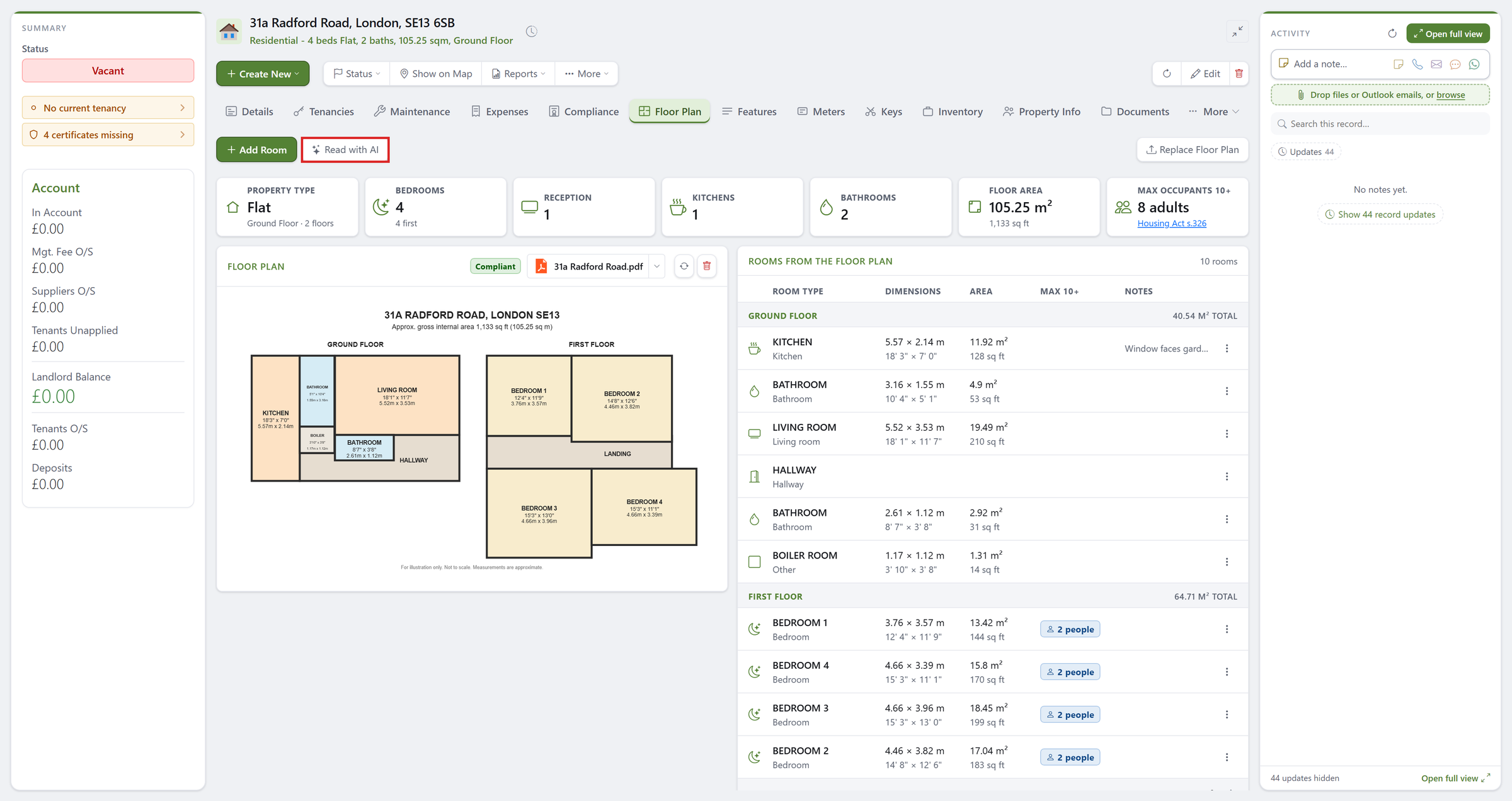
- Drop in any floor plan, a PDF or a picture, and it shows right there on the tab, filed under Compliance as the property's floor plan.
- Read With AI reads every room off the plan for you: the room type, its width and length and its area, grouped by floor.
- Each bedroom shows the maximum number of people it can sleep, worked out from its size under the Housing Act 1985 space standard, and the tab adds them up to a maximum for the whole property.
- Measurements are shown in metres and in feet, with the total floor area at the bottom.
- If the rooms do not match what is recorded on the property (bedrooms, bathrooms or size), SleekTech offers to update the property for you.
- The property's current licence is shown on the same tab, so you can check the rooms against it.
Please note: the maximum occupants figures are a guide only, worked out from the room sizes entered or read from the plan.
They are not legal advice and do not replace your own checks or your council's licence conditions.
SleekTech accepts no responsibility for decisions made on the basis of these figures; always confirm the permitted number of occupants with your local council or licence.
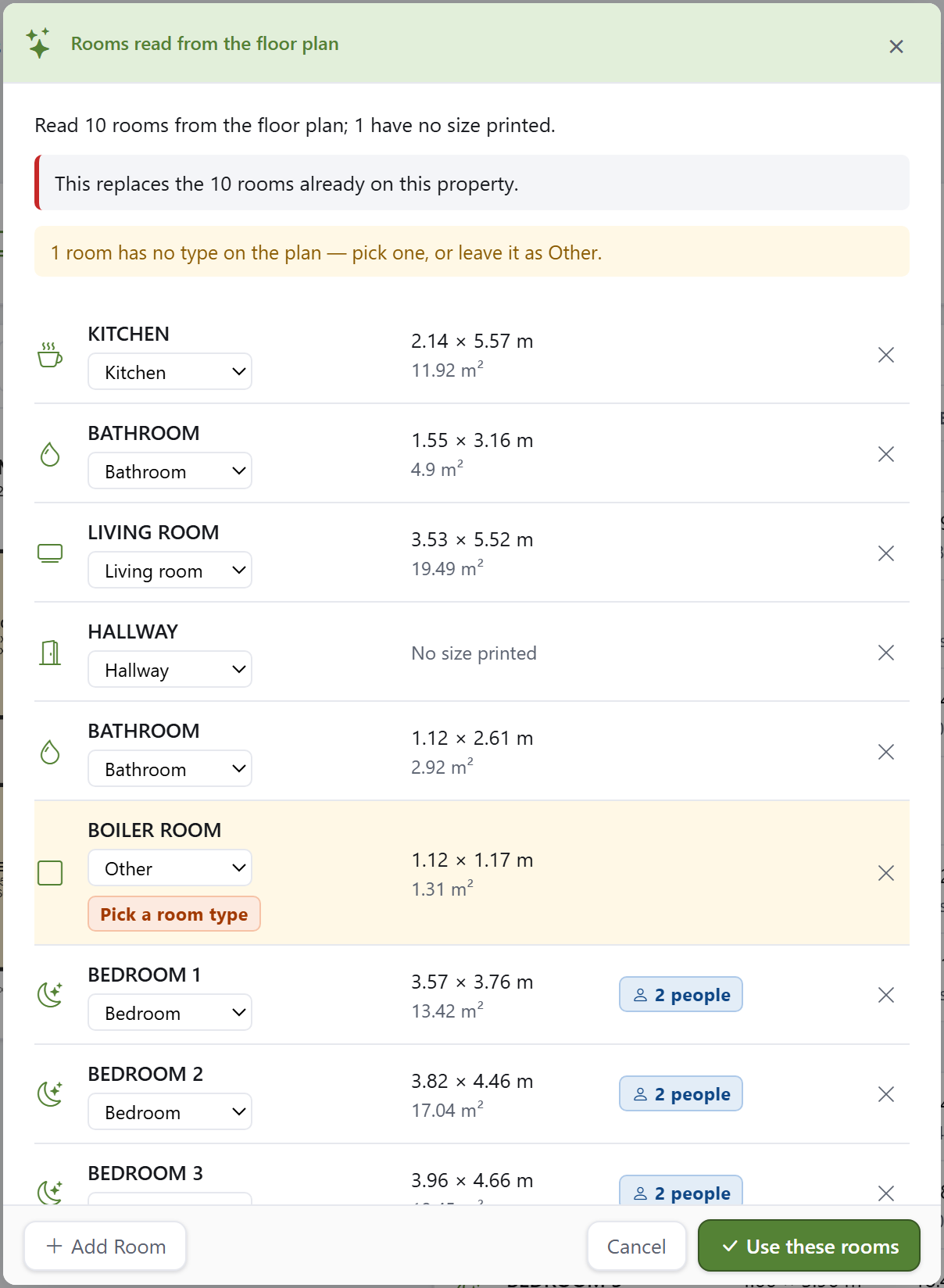
Nothing is saved until you say so.
The AI shows you what it read, you can change any room type, add a room or remove one, and only Use These Rooms saves it.
Want to know more?
Click here to see how to use the Floor Plan tab
More Screens Now Open on the Web
The property page is not the only screen to move.
The Suppliers, Maintenance and Certificates lists now open on the new web screens for everyone.
If you use the web screens, Notes, Files, Email History and Tenancy Documents now open there too.
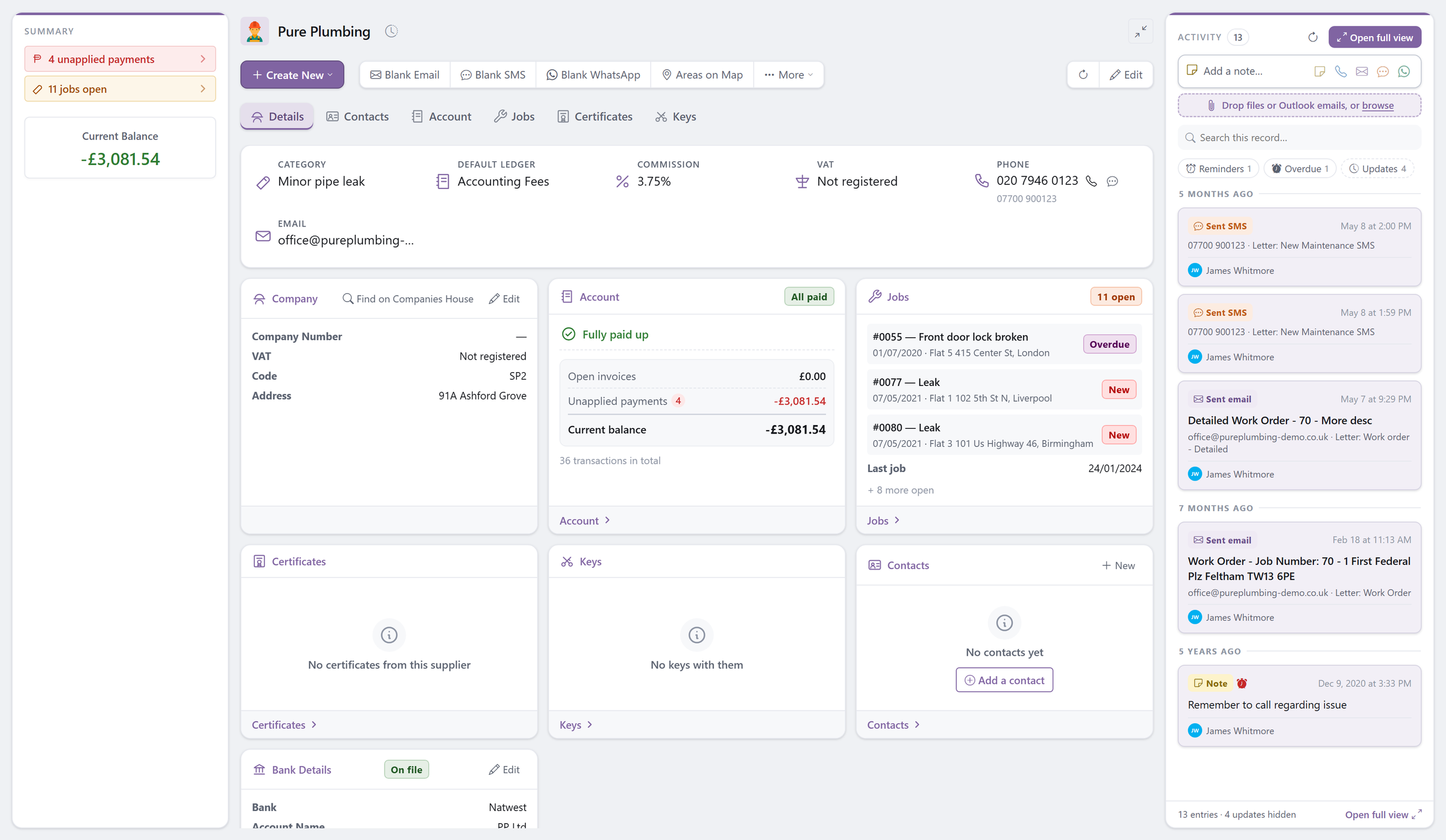
The supplier page shows everything about a supplier on one screen: their details, their account and balance, their open jobs, their certificates, any keys they are holding and their contacts, with the postcodes they cover on a map.
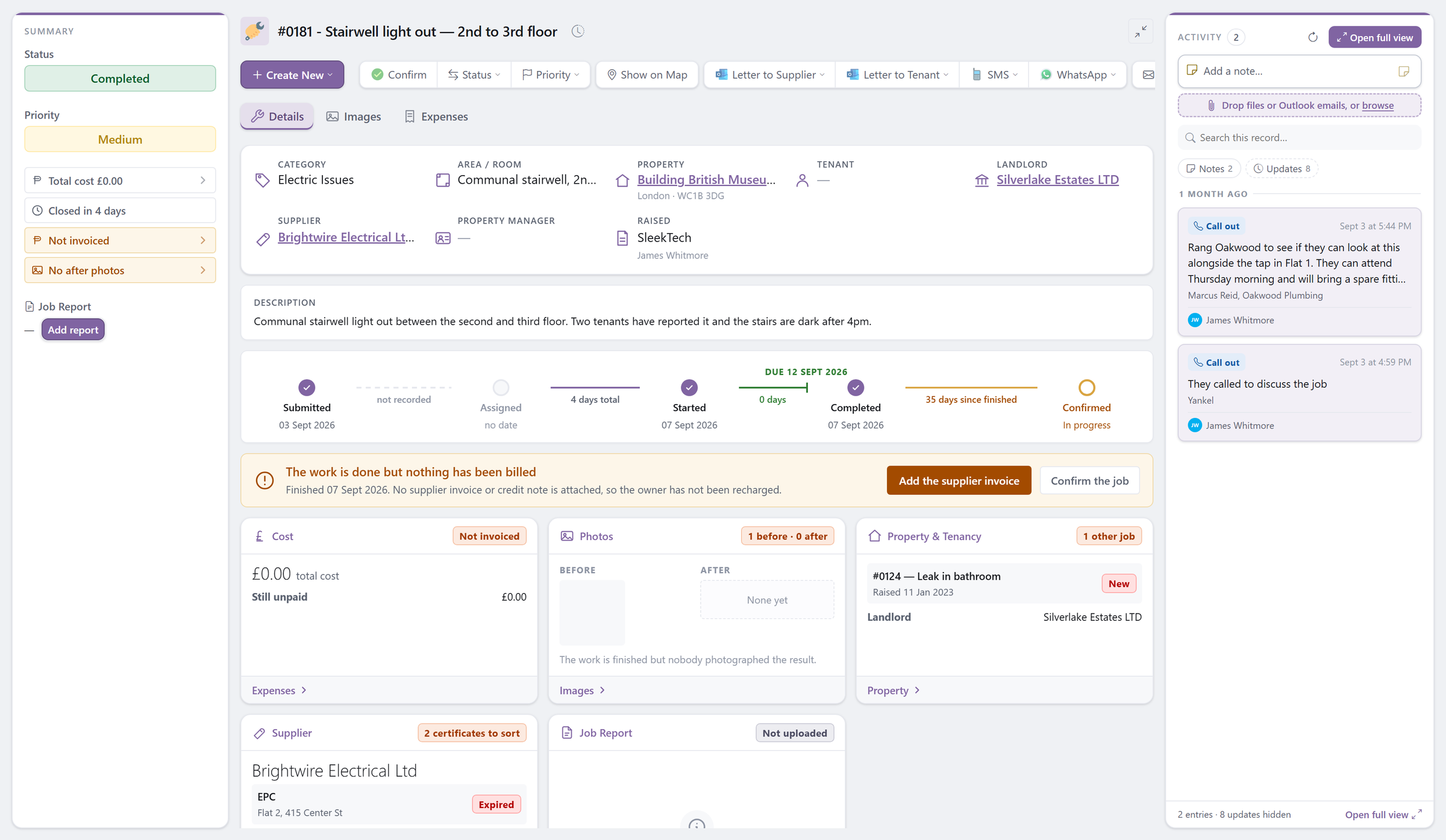
The job page has been redesigned around a progress timeline that shows where each job is and how long each step took.
A banner tells you what the job is waiting for next, such as the supplier invoice, with a button to do it there and then.
Coming Next: The Tenancy Page
We are now rebuilding the tenancy page in the same way, so a tenancy's rent, account, people, documents and history are all in one place.
Step by step, every screen in SleekTech is moving to the new web screens, until the whole system runs on the web.
Each screen moves only once it is ready, and we will tell you about each one here.
A Brand-New Way to Add Properties
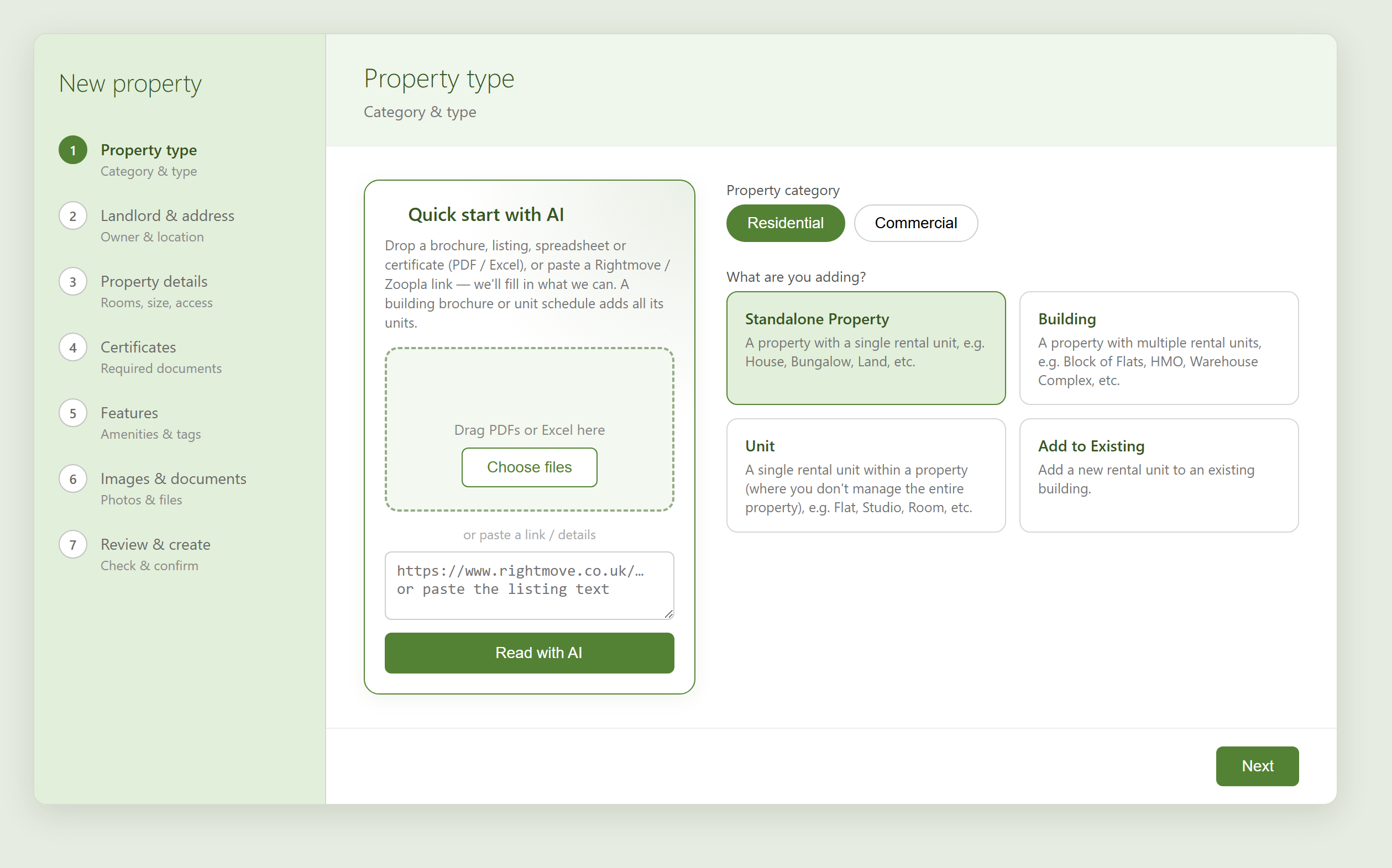
Adding a property is one of the first things you ever do in SleekTech — so we've rebuilt it from the ground up into a clean, guided New Property wizard on the web.
One simple flow now handles everything: a single house, a whole building with all its units, an individual unit, or adding new units to a building you already manage.
Just open the Properties screen and click New Property.
A progress rail guides you step by step, and nothing is saved until you're happy and click Create property at the end.
Let AI Do the Typing
The biggest time-saver of all: Quick start with AI.
Drop in a brochure, listing, spreadsheet or certificate (PDF or Excel), or paste a Rightmove or Zoopla link, and SleekTech fills in what it can for you.
- Type, address, bedrooms, size, features — even photos — are pulled in automatically.
- A building brochure or unit schedule adds all of its units in one go.
- Drop a certificate PDF and it's filed under the right type, with the dates, rating, number and issuer read for you.
- Everything is only a suggestion — you review it before anything is saved.
Buildings and Units, the Easy Way
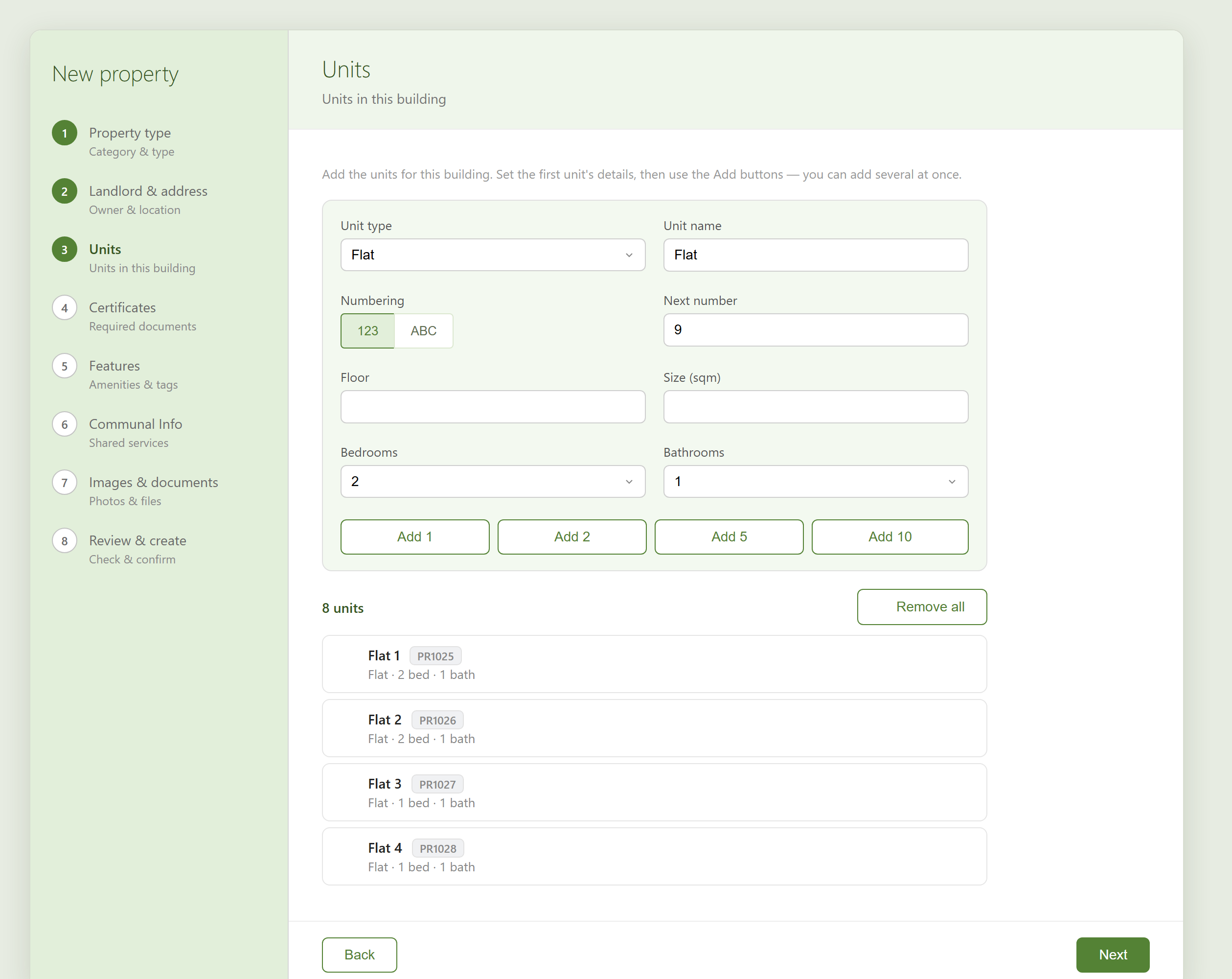
Setting up a block used to be a chore.
Now you set the first unit's details and click Add 1, Add 2, Add 5 or Add 10 — SleekTech creates and numbers them all for you, each with a proposed reference code.
Edit or remove any before you finish.
Everything in One Place
As you go, the wizard also helps you capture the things that used to be separate jobs — the landlord (with a built-in Companies House search), the address on a map, the certificates usually required, features, communal services for buildings, and photos and documents.
A final Review & create step shows it all before you confirm.
Want the Full Walkthrough?
Click here to see how to create new properties and buildings
Streamline Your Licensing Compliance — Kamma Is Live
Licensing is the compliance job that never sits still.
Selective, additional and HMO schemes change council by council, and missing one can cost a landlord a rent repayment order.
Our Kamma integration is now complete and available to every account — and it turns that whole job into something that looks after itself.
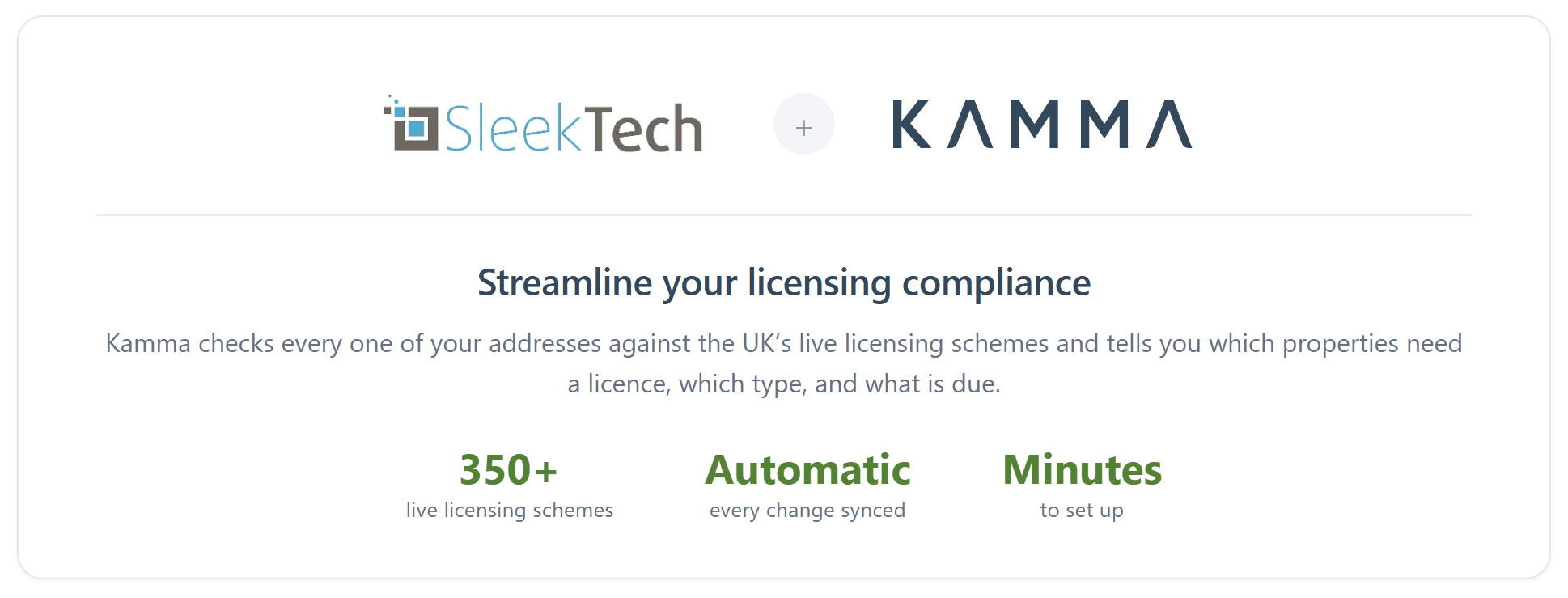
Kamma checks every one of your addresses against 350+ live UK licensing schemes and tells you which properties need a licence, which type, and what is due.
Connect it once and your properties, tenancies and property compliance certificates flow through automatically — usually within a minute of you changing them — so your licensing picture is always current without anyone re-keying a thing.
Setting it up takes minutes.
An account Admin opens Settings - Web under the More group, goes to the Integrations tab, and clicks Connect on the Kamma card.
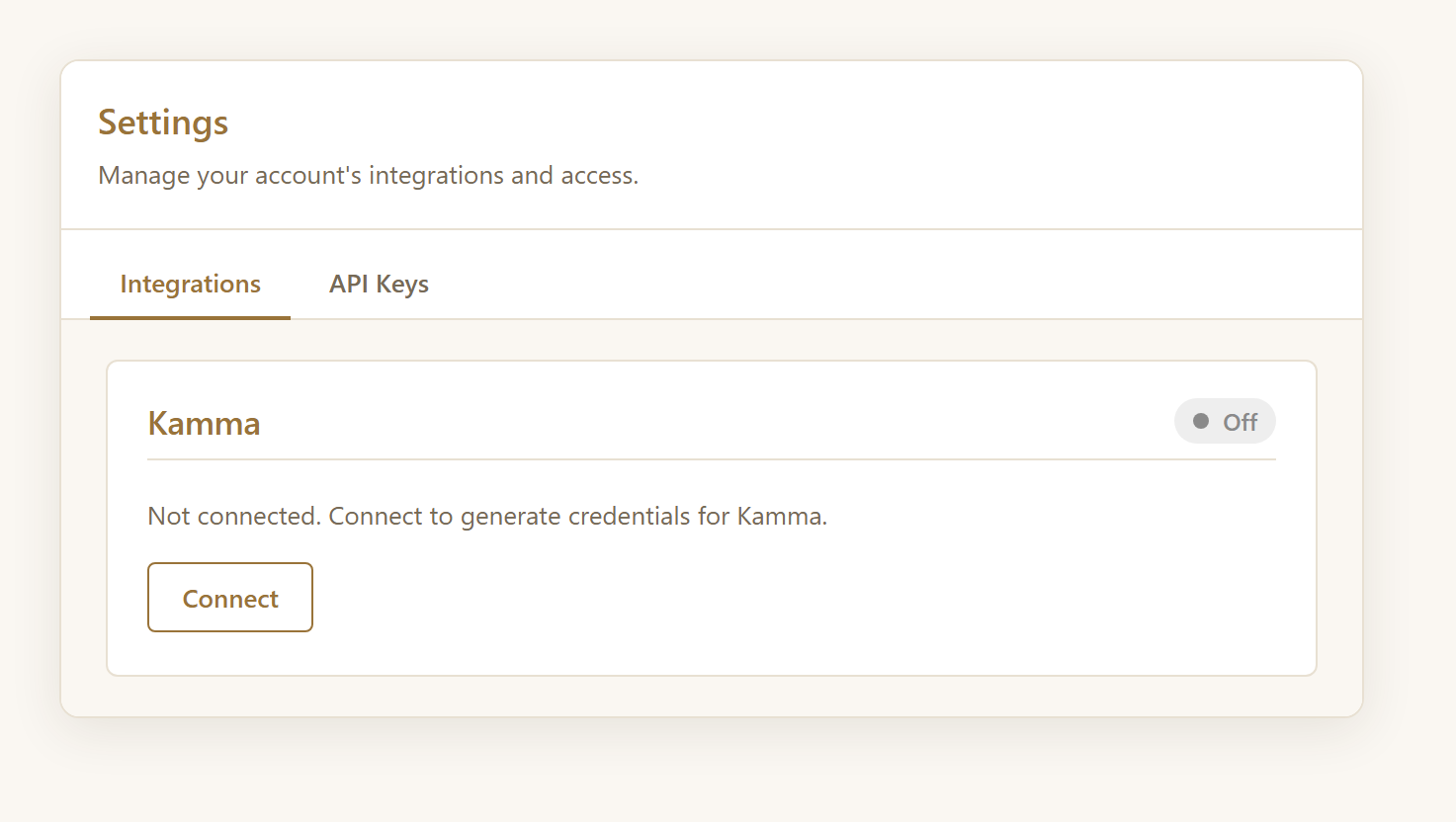
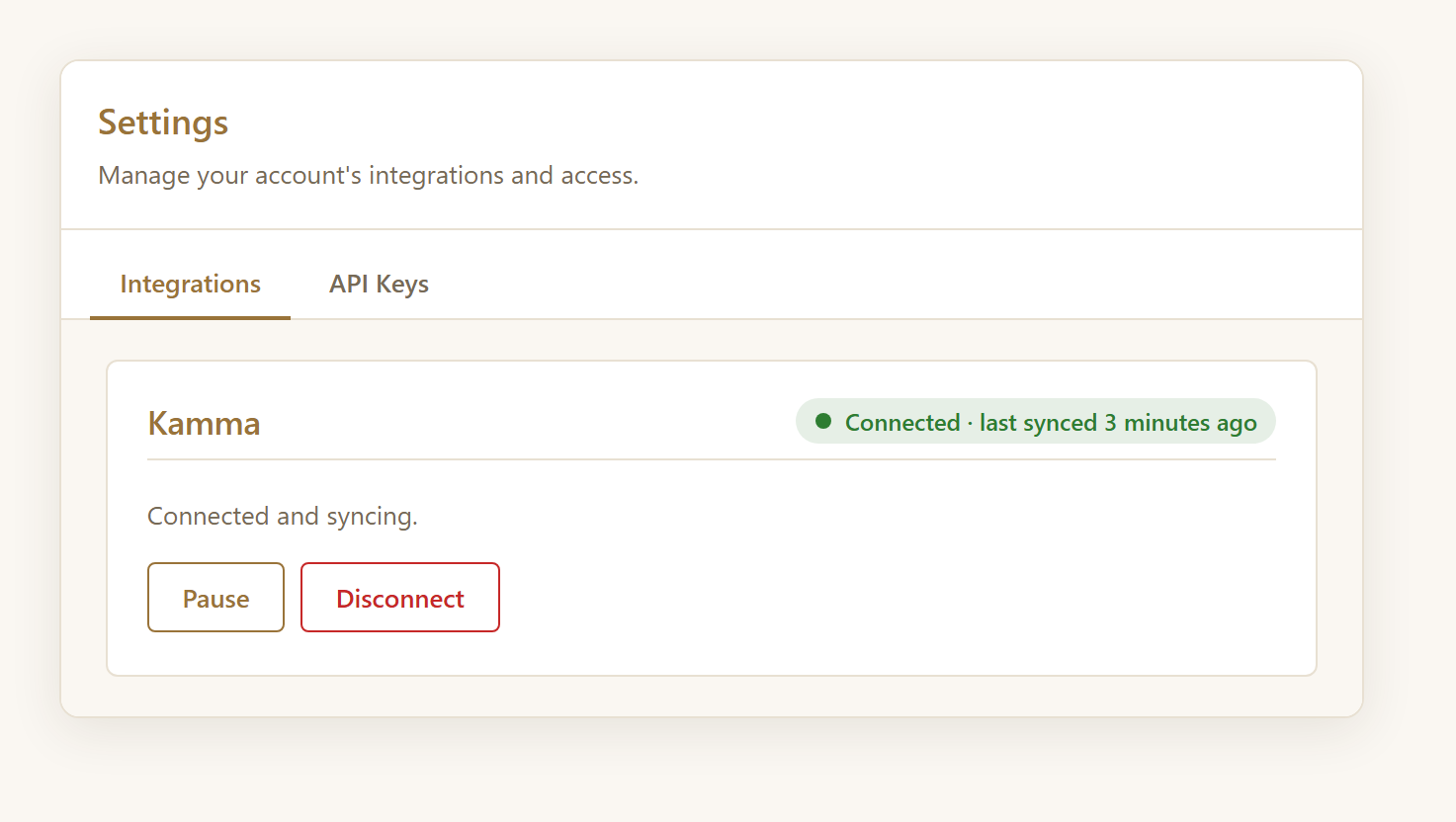
Once Kamma has loaded your existing records, turn on Enable Live Sync and the card shows you it is connected, along with the time of the last sync.
You can pause or disconnect it whenever you like.
Kamma have written up the integration from their side too, including what their dashboard shows you once the data is flowing: Kamma + SleekTech integration.
And because you are a SleekTech customer, Kamma have put together an offer just for you: 40p per property +VAT per month — a 33% saving — a £80 +VAT minimum monthly fee instead of £120, and your first month free.
It applies to the Kamma Plus and Pro plans.

Claim your SleekTech offer with Kamma
Click here for the full guide to setting up the Kamma integration
Upload a Whole Folder of Certificates at Once
A batch of certificates lands in your inbox — an EPC for every flat in a block, a year of gas safety records, a folder from your contractor.
Until now that meant adding them one at a time.
Now there is a Bulk Upload button on the Certificates screen, and on every property's Compliance tab.
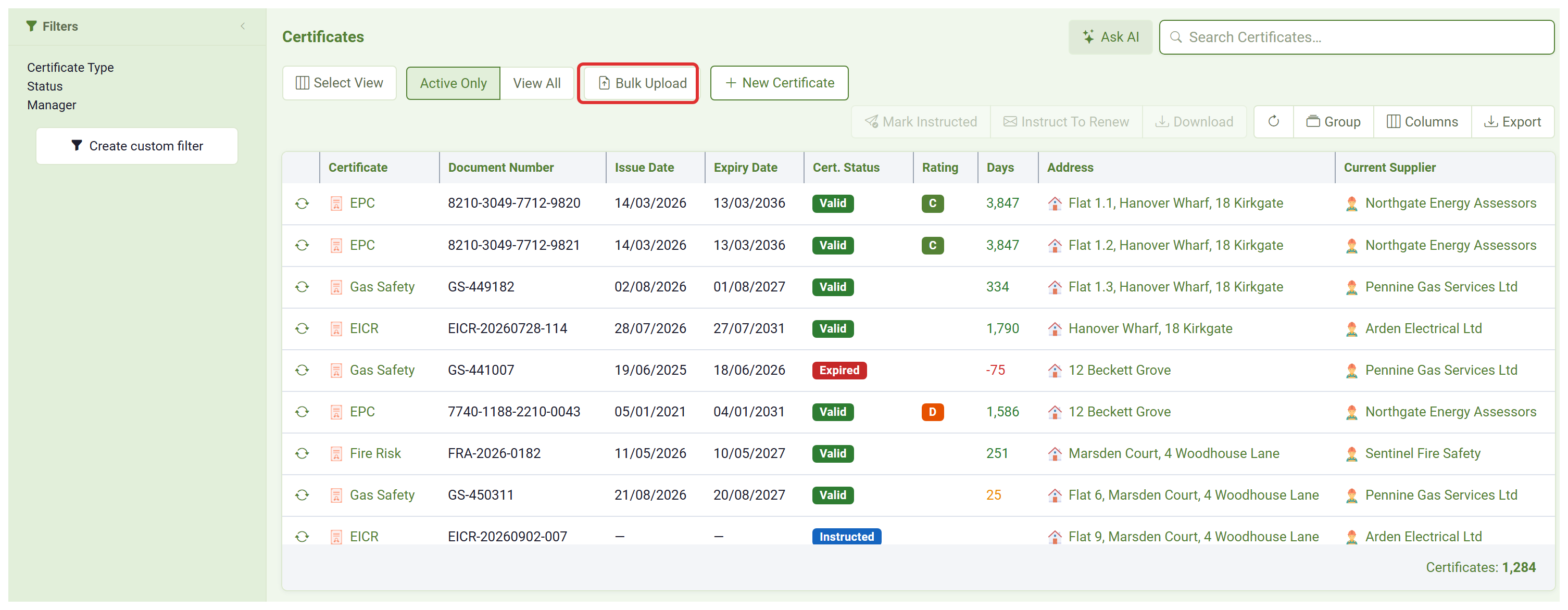
Drop in up to 50 documents at a time and SleekTech reads every one of them as they arrive:
- The certificate type, issue and expiry dates, certificate number and rating are all read for you.
- Who issued it is matched against your suppliers.
- Each document is matched to the right property — and to the right unit, so Flat 1.10 is never mistaken for Flat 1.1.
You can start reviewing straight away — the documents still being read are marked Reading and fill themselves in as they finish.
You then work down the list checking each one against its own page, side by side.
A label on every row tells you where it stands — Ready, Check if something needs your eye, or Confirm where the property already has a certificate like it, so nothing is ever quietly replaced.
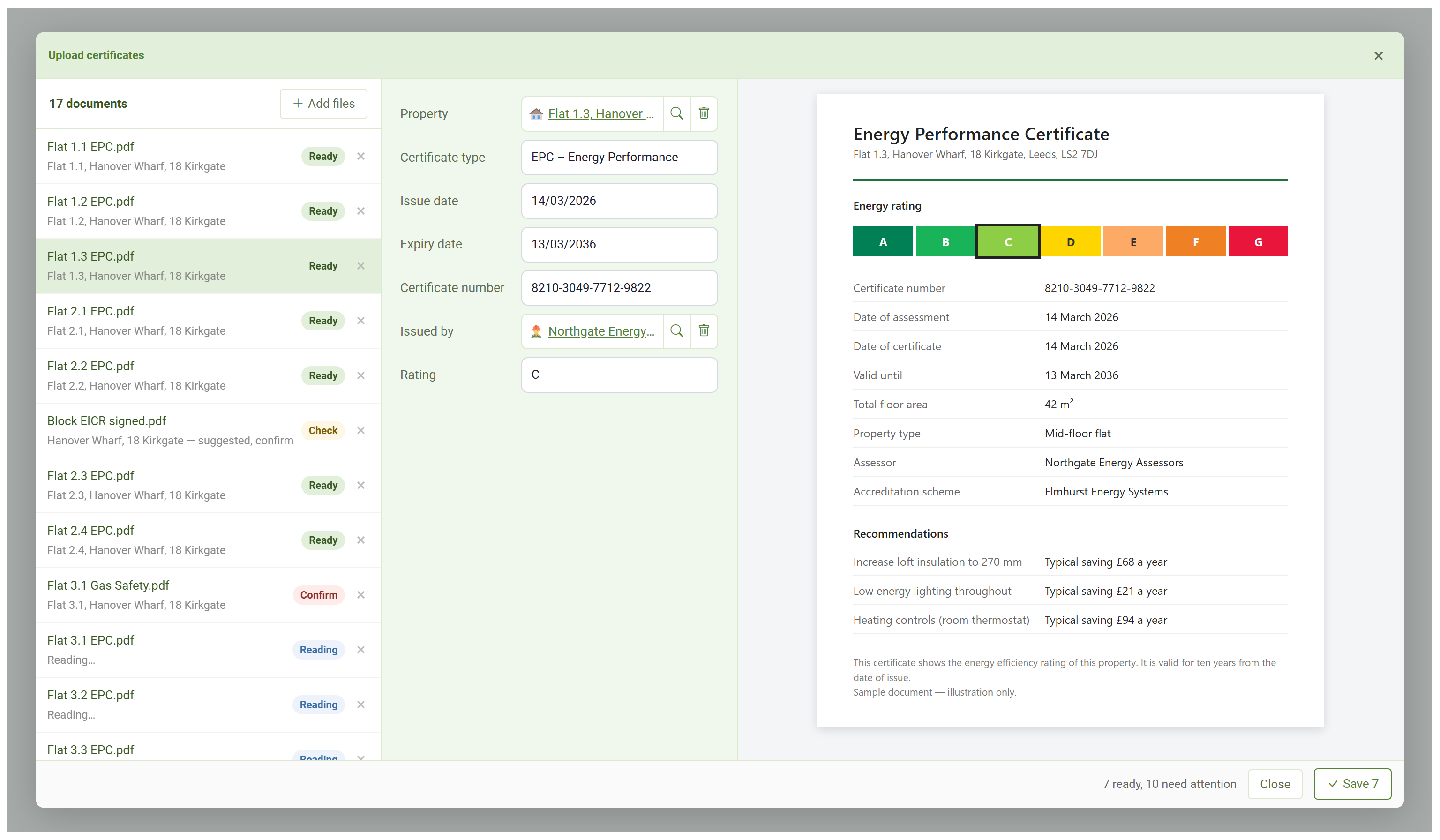
When you are happy, one click on Save files the whole batch.
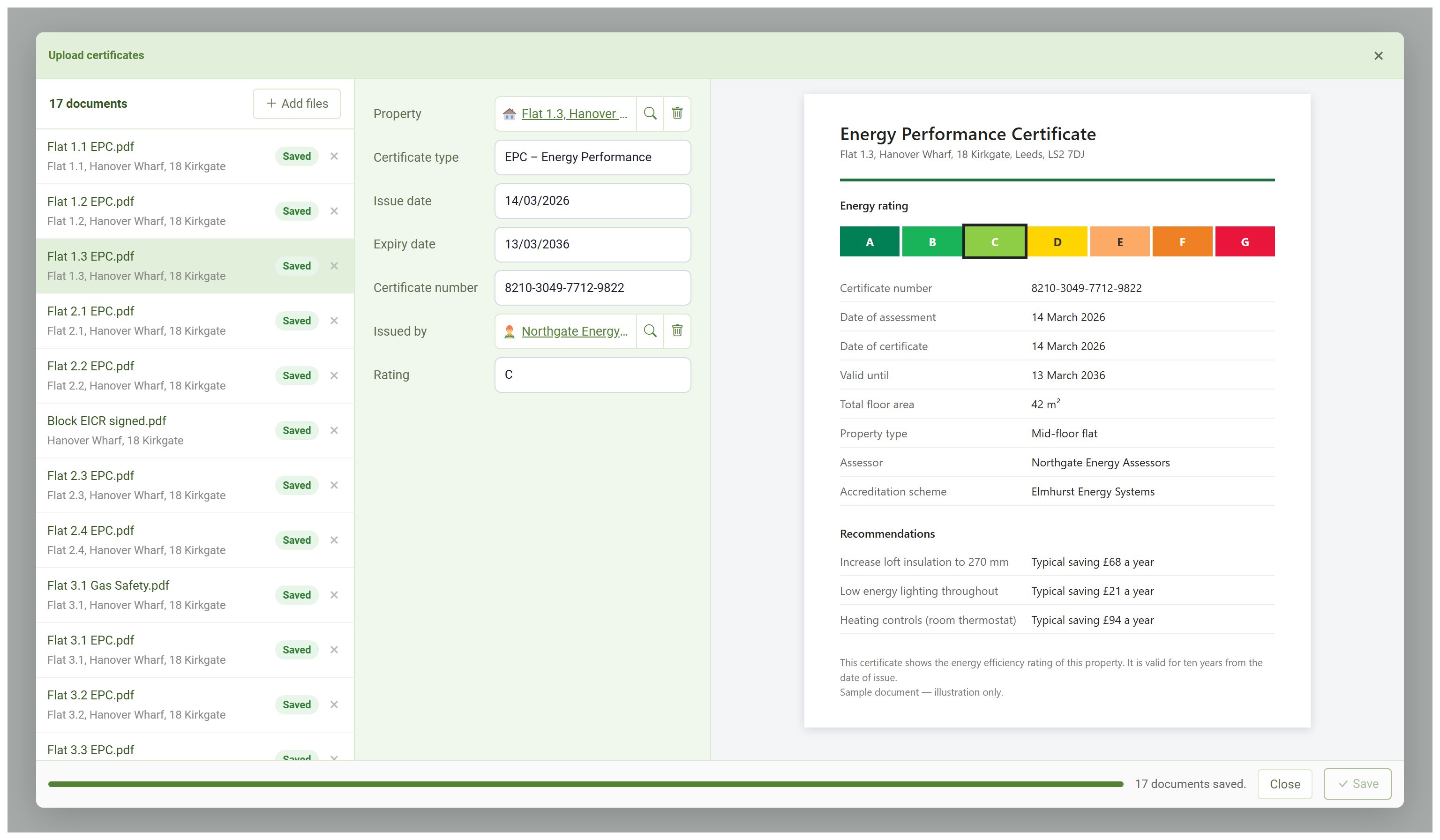
Click here to see how to upload multiple certificates at once
Create a Property Just by Describing It
You can now connect SleekTech to Claude, ChatGPT or any other AI assistant that supports connectors — and simply tell it what to add.
No screens, no forms.
Describe the building in your own words and it does the typing.
Here is a real example.
One sentence describing a block, and SleekTech works out that it means 17 units, proposes a reference code, and shows you exactly what it is about to create.
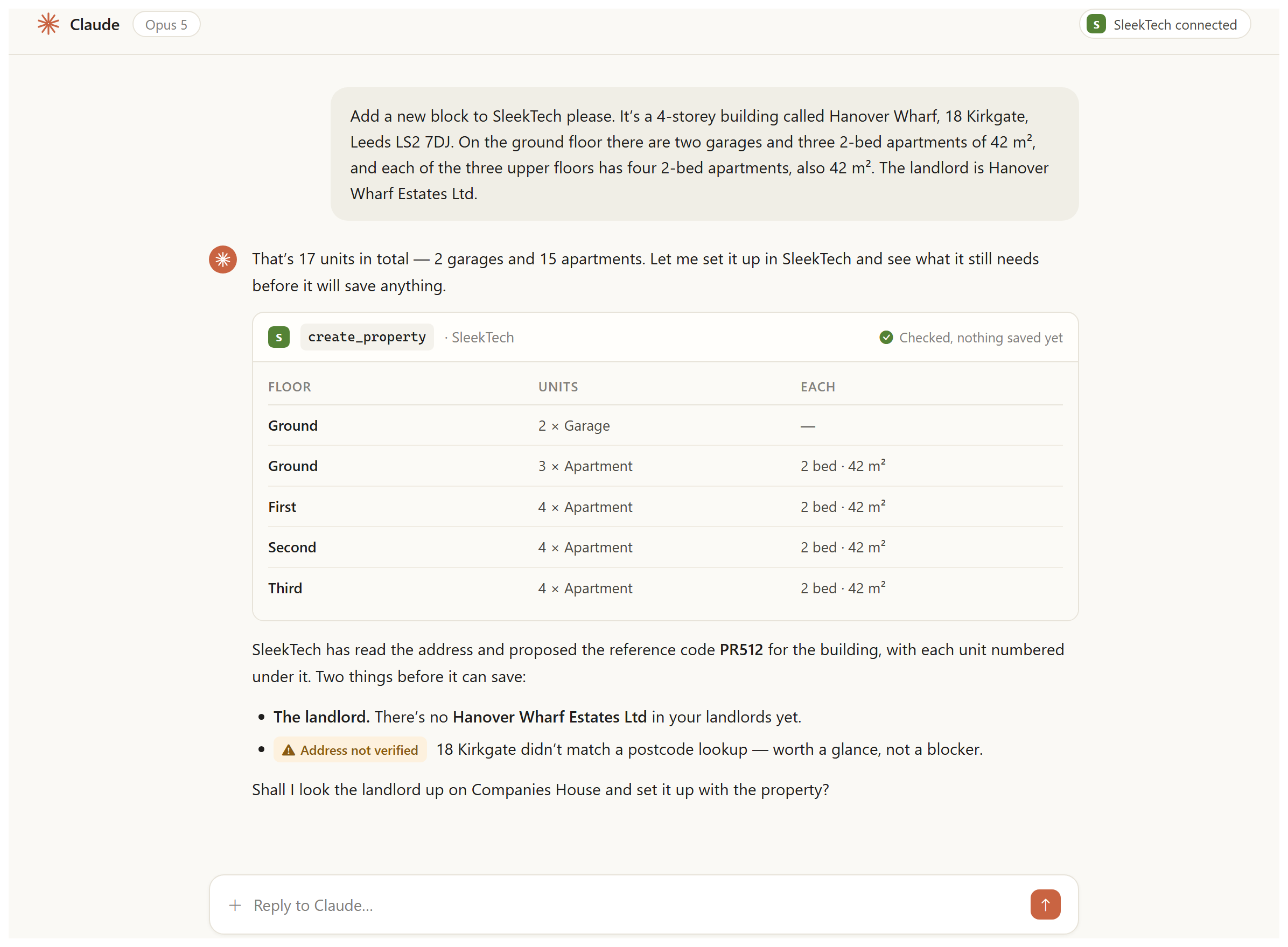
Notice what it does with the landlord.
There is no Hanover Wharf Estates Ltd in this account yet, so the assistant looks the company up on Companies House, brings back the company number and registered address, and shows you before creating anything.
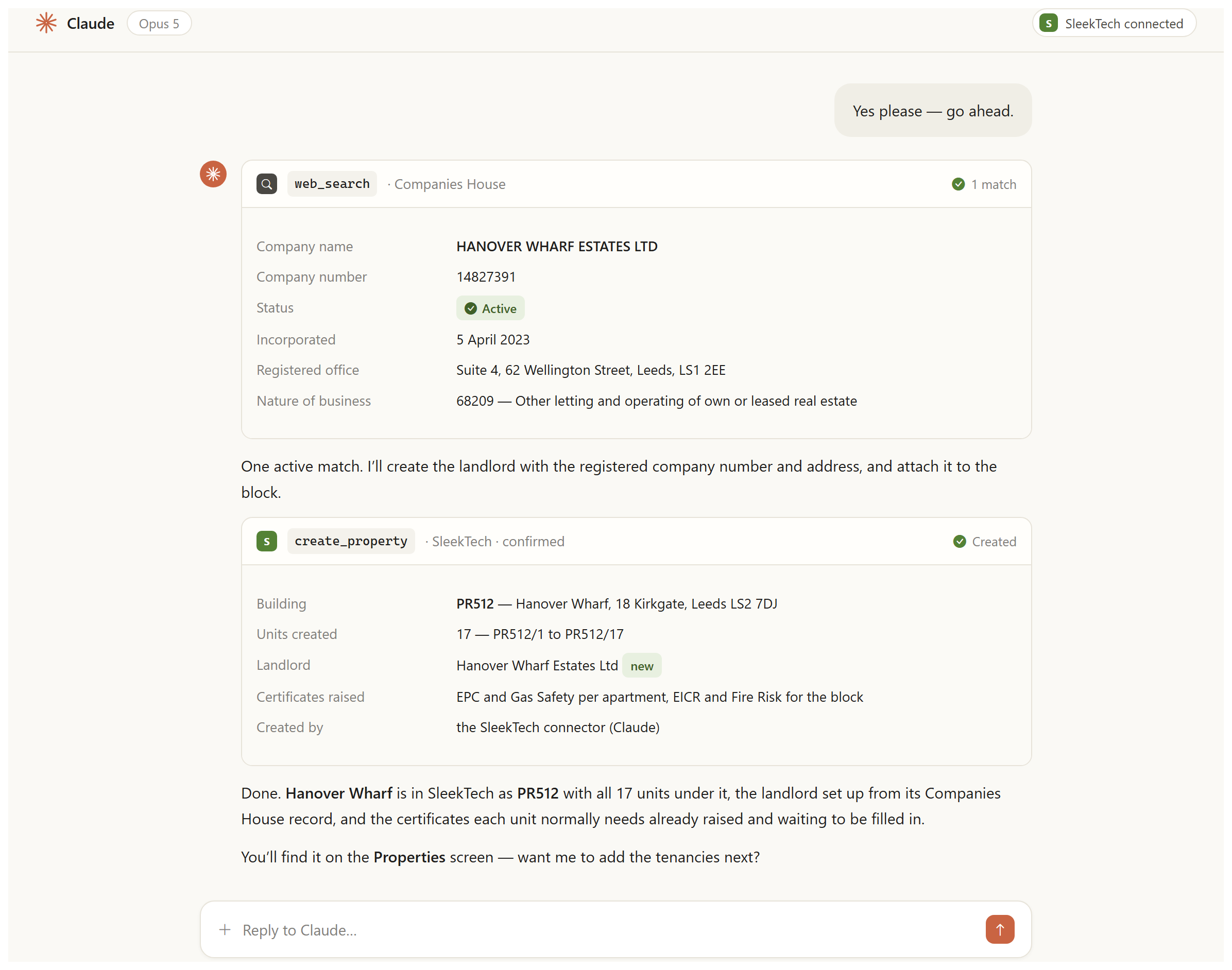
A few seconds later the block is in SleekTech — the building, all 17 units numbered underneath it, the landlord set up from its Companies House record, and the certificates each unit normally needs already raised.
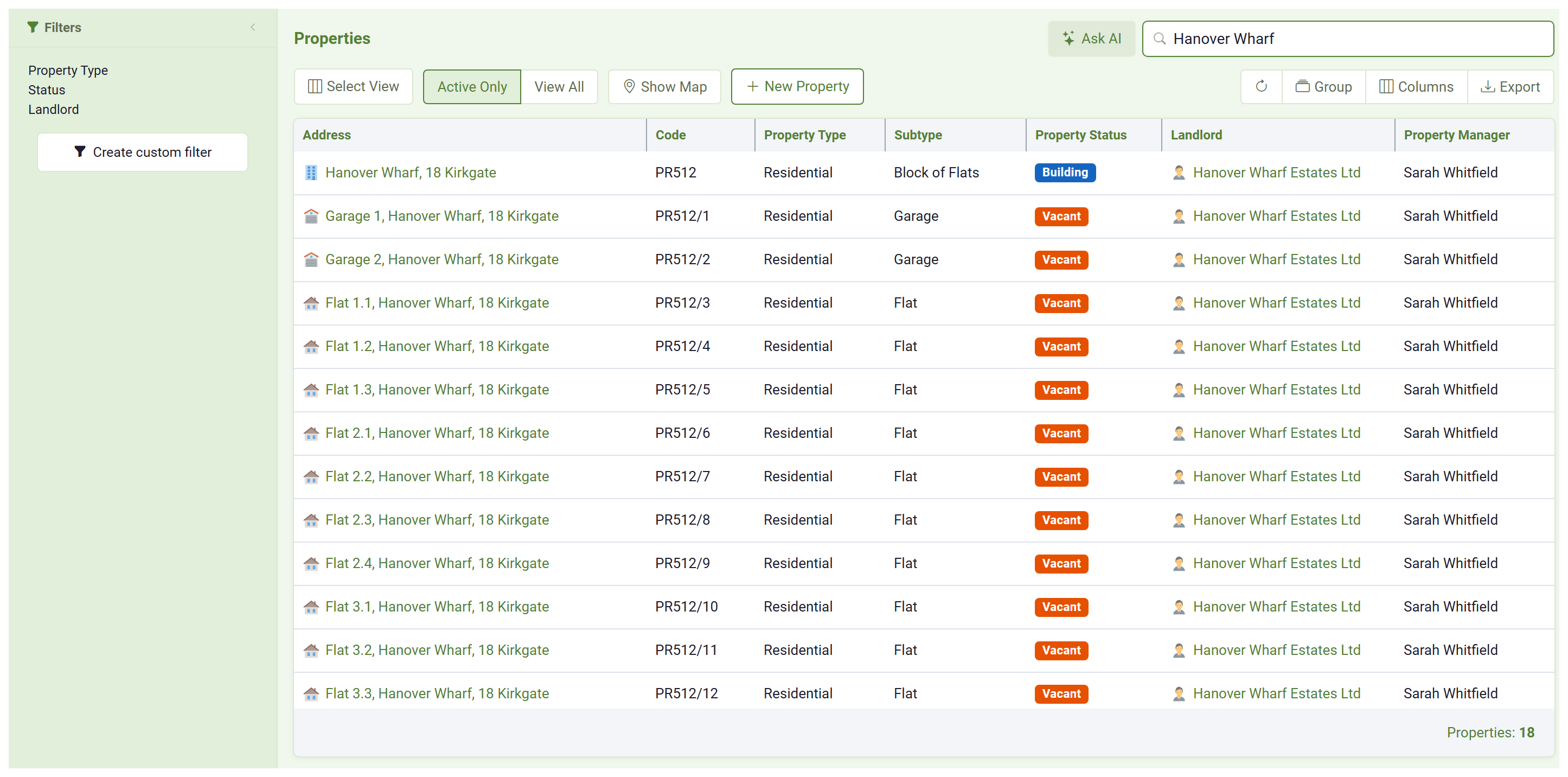
You stay in control throughout.
The assistant asks you for anything it genuinely needs, tells you about anything worth a second look — a possible duplicate address, a landlord it is not certain about — and nothing is ever saved until you say yes.
It can answer questions about your maintenance too.
The same connection now sees your maintenance jobs - what is open, what has been completed and signed off, who did the work and what it cost.
Just ask in plain English:
- "How many jobs are still open, and which have been waiting the longest?"
- "What did we spend on maintenance for each landlord this year?"
- "Which supplier did the most jobs for us last quarter, and at what total cost?"
A job's cost is the total of the supplier invoices linked to it, so the answers match what you see on each job in SleekTech.
Click here to see how to connect SleekTech to your AI assistant
Click here to see everything you can ask it to do
As always, so much of this came straight from your feedback — please keep it coming.
Thank you for being part of the journey.