
In This Update
Click a box to jump straight to it.


Meet the New SleekTech Manager App
Your whole portfolio, in your pocket.
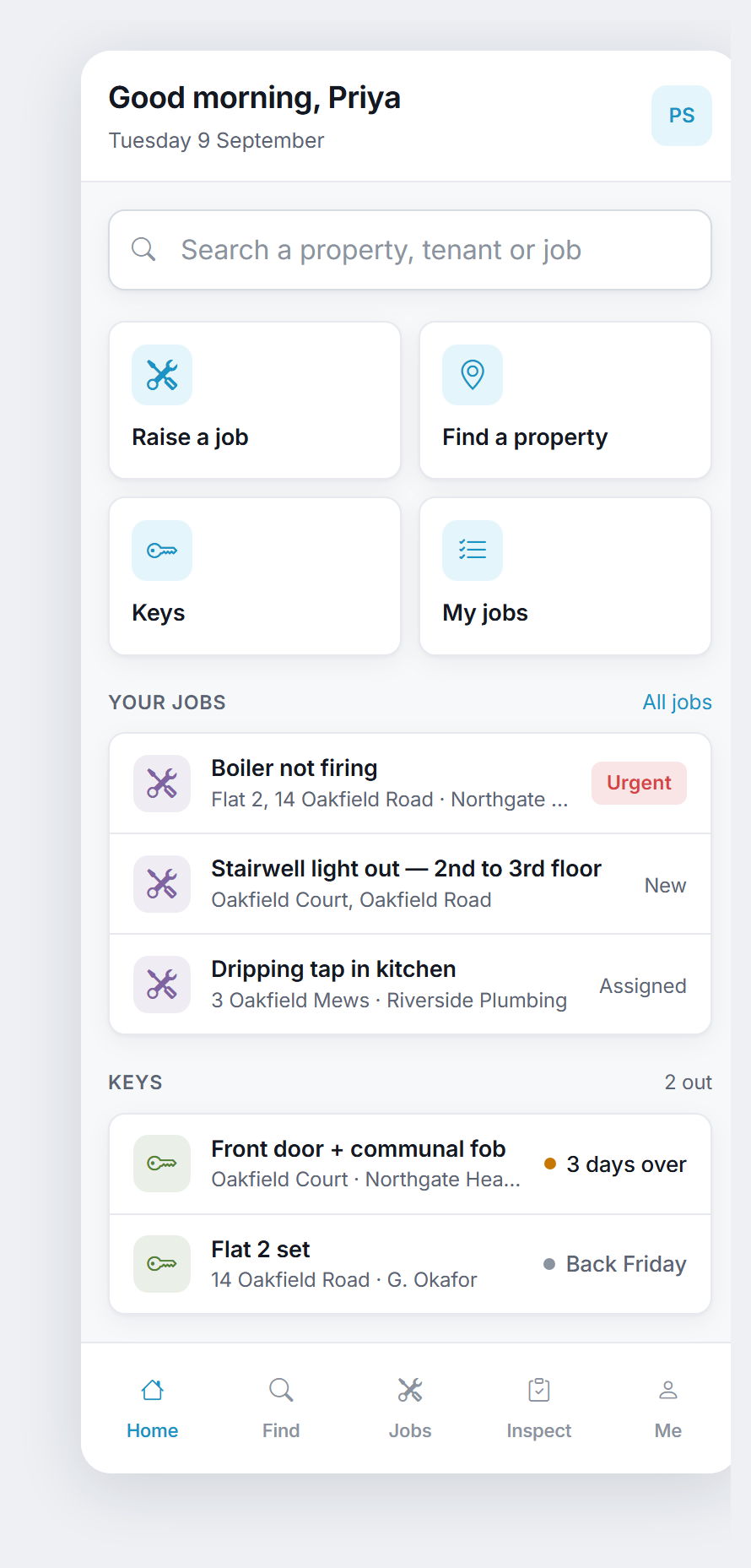
Everyone has now moved over to the brand-new SleekTech Manager App - built from the ground up for property managers who spend their day outside front doors, in the car between viewings and halfway up a stairwell.
It installs on your phone like a real app, it is fast, and everything on it is live from your SleekTech system.
Open manager.sleek-tech.co.uk and sign in with your usual details - that is all it takes.
This Is Just the Beginning
Behind the scenes we are moving the whole of SleekTech onto the web, screen by screen.
In the office you are already seeing it, with more of the desktop system opening as new web screens with every update.
The Manager App is the part of that work you can take out on the street, today - and it is built on the same new foundations, so every improvement we make to the system can reach your phone too.
We will keep adding to it, release after release.
The Tenant's Full Account, On the Doorstep
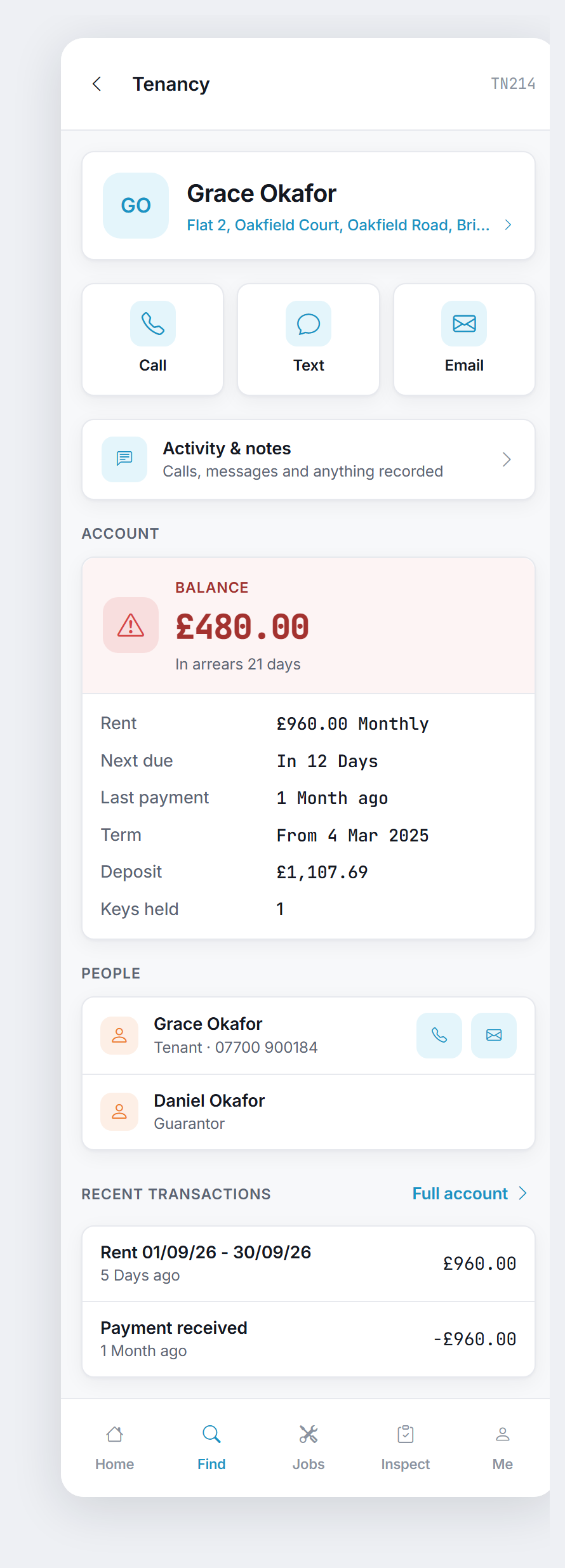
The question you get asked most on site - "are they up to date?" - now has an instant answer.
Open any tenancy and you see whether the rent is paid, how much is owed and for how many days, when the last payment landed, the rent, the term and the deposit.
Tap Full Account for the complete statement.
These are exactly the figures the office sees, from the same place, so the two can never disagree.
Everything About a Property, In One Screen
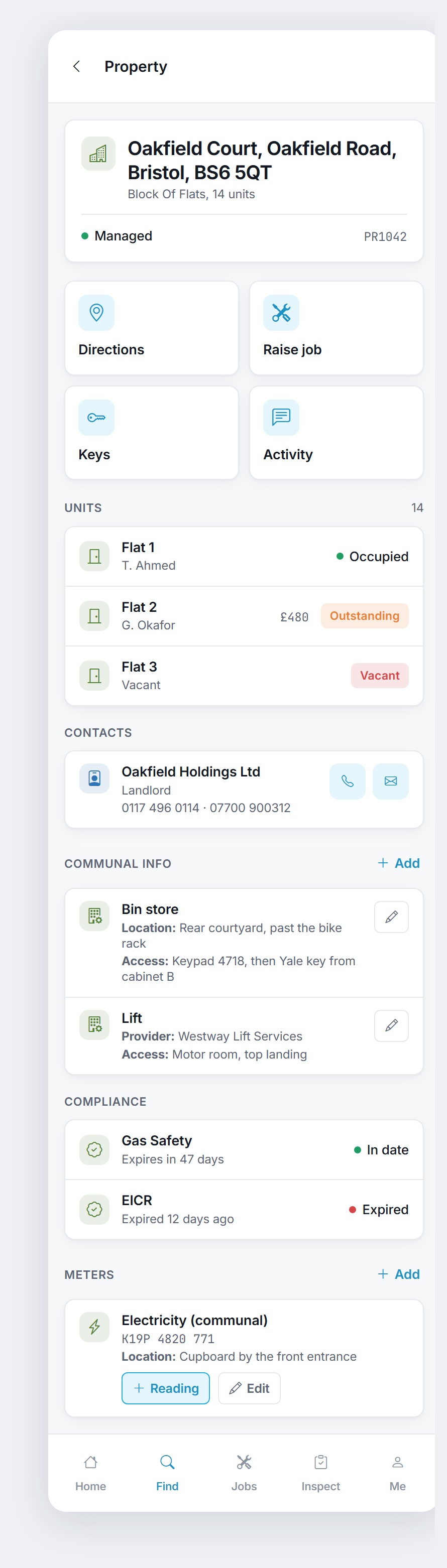
The property card answers everything you need while standing outside the building.
- Who to call - every contact with every phone number on file, one tap to call, text or email.
- How to get in - communal access notes, door codes, bin stores and lifts, which you can now add to and correct from your phone.
- What is out of date - every certificate with a countdown to expiry, ready to view or download.
- Whose key is where - every set and who holds it.
- Directions - straight into whichever maps app your phone uses.
Run Your Jobs From Anywhere
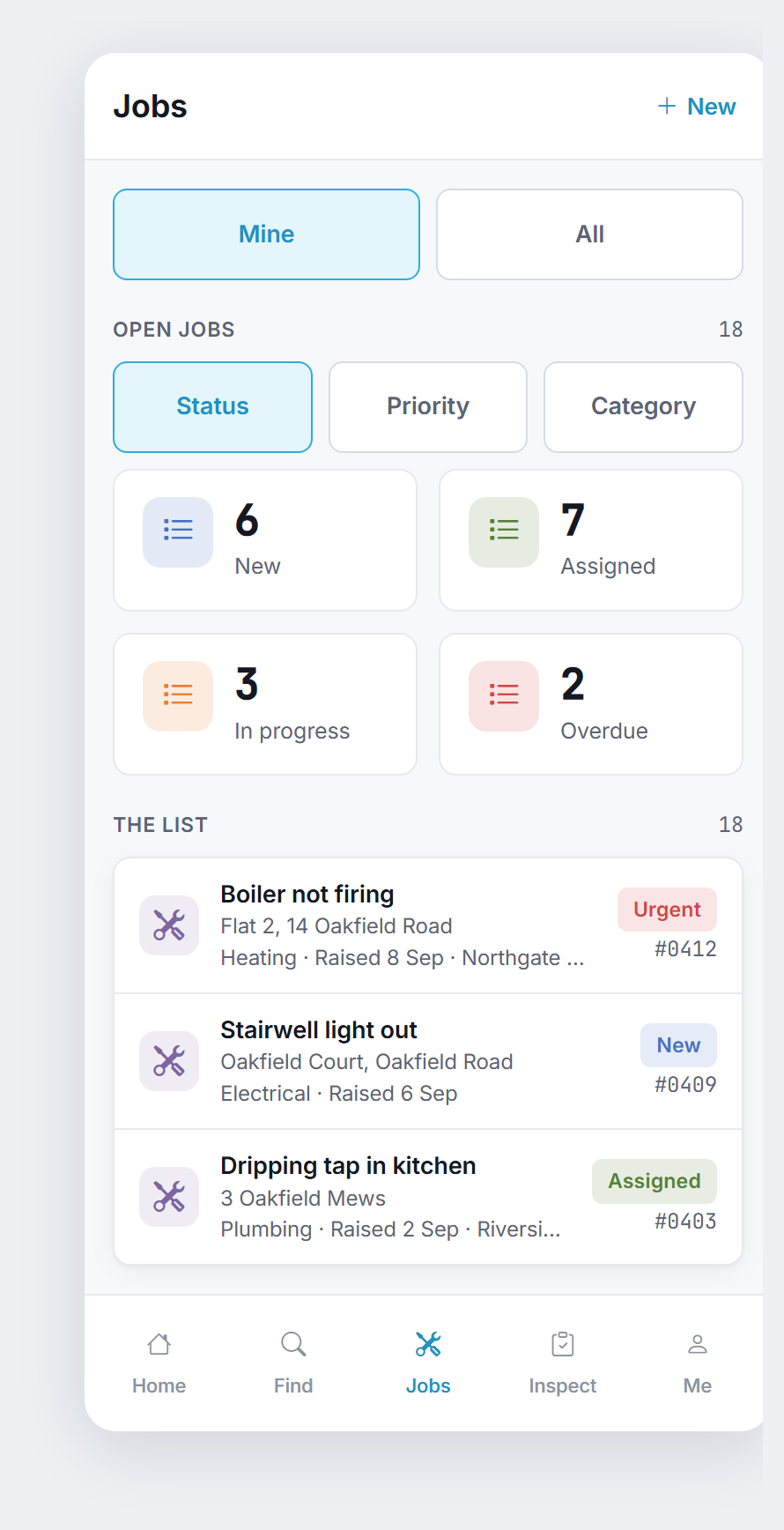
See your workload at a glance, in your own status and priority colours, and tap a tile to filter the list.
Raise a job on the doorstep in seconds, and it is in the office before you are back in the car.
Every job shows its next step as one big button, takes before and after photos straight from your camera, and lists the contractor's invoices with what is still owed.
Keys, Meters and Notes in a Few Taps
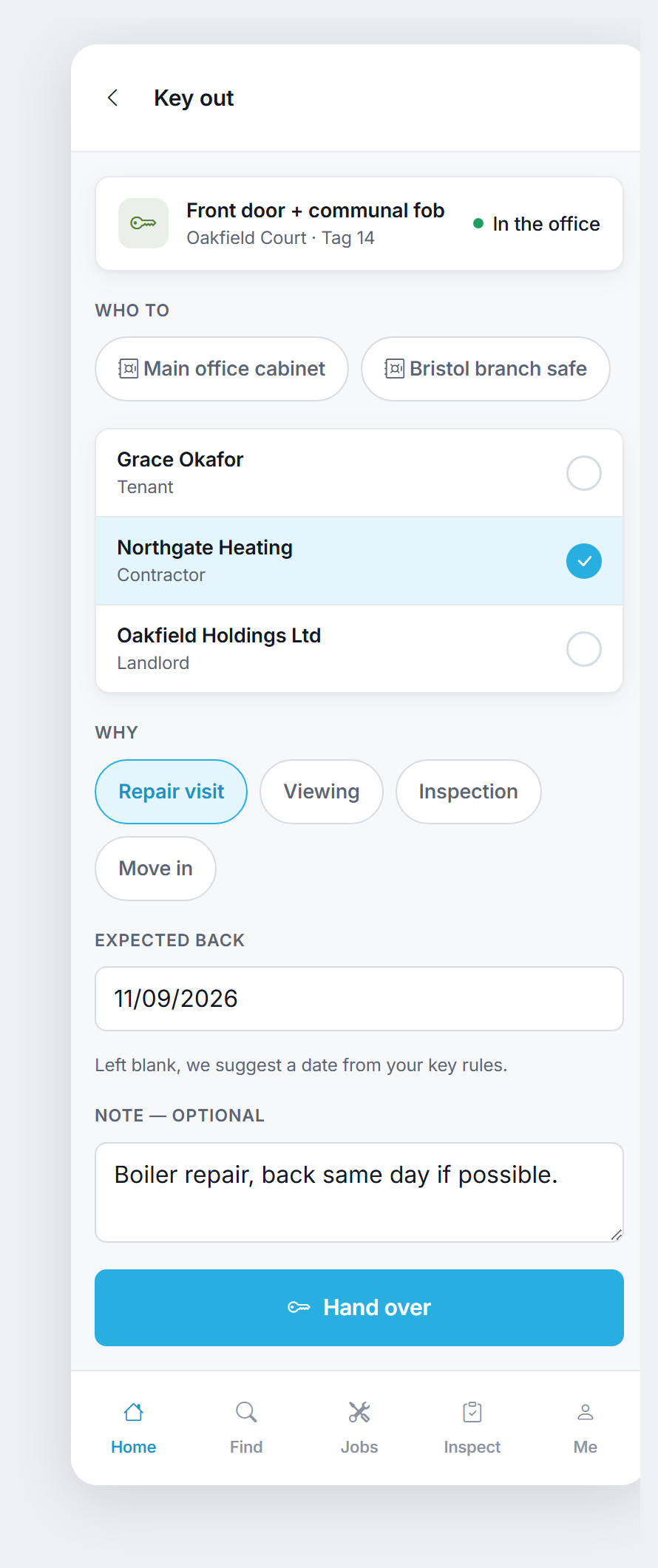
- Keys - hand a set over or log it back in, with the return date filled in from your own key rules.
Anything overdue is flagged on your Today screen. - Meter readings - a big number pad made for a dark cupboard, with an optional photo of the dial.
- Activity & Notes - the full history of calls, emails, texts and notes on any property, tenancy or job.
Log the call you have just made while it is still fresh, and the office sees it straight away.
Put It On Your Home Screen
There is nothing to download from an app store.
- iPhone: open manager.sleek-tech.co.uk in Safari, tap Share, then Add To Home Screen.
- Android: open it in Chrome, tap the menu (three dots), then Install App.
It then opens full screen with its own icon, and you stay signed in.
On a tablet it works just as well, with the navigation down the side.
Good to Know
- Sign in once on each device with the same email and password as before.
- Bookmarks from the old manager portal still work and open the matching screen in the new app.
- The app follows your existing permissions exactly, so everyone sees what they are allowed to see.
- The old manager portal has now been retired, and its address takes you straight to the new app.
Coming Next
Room-by-room inspections are being built for the Inspect tab, so that anything you flag on a visit turns straight into a job.
Landlords and suppliers are coming to Find, so their numbers are one search away on the road.
Tell us what you would like to see next - so much of this app came straight from your feedback.
Learn How to Use the Manager App
- Getting started - signing in, installing it and finding your way around
- Properties and tenancies - the property card, the tenant account, notes and history
- Jobs, keys and meter readings - everything you can do from the doorstep
- The new web screens in the office system - how to switch them on
Also New: Your AI Assistant Can Now Write Your Notes
Until now, your AI assistant could read your SleekTech notes but not add to them.
From this update it can add notes, set reminders and tasks for your team, and update or complete them, all from a plain-English request.
Paste in an email, describe a phone call you have just finished, or ask what is still outstanding on a property, and the assistant does the typing.
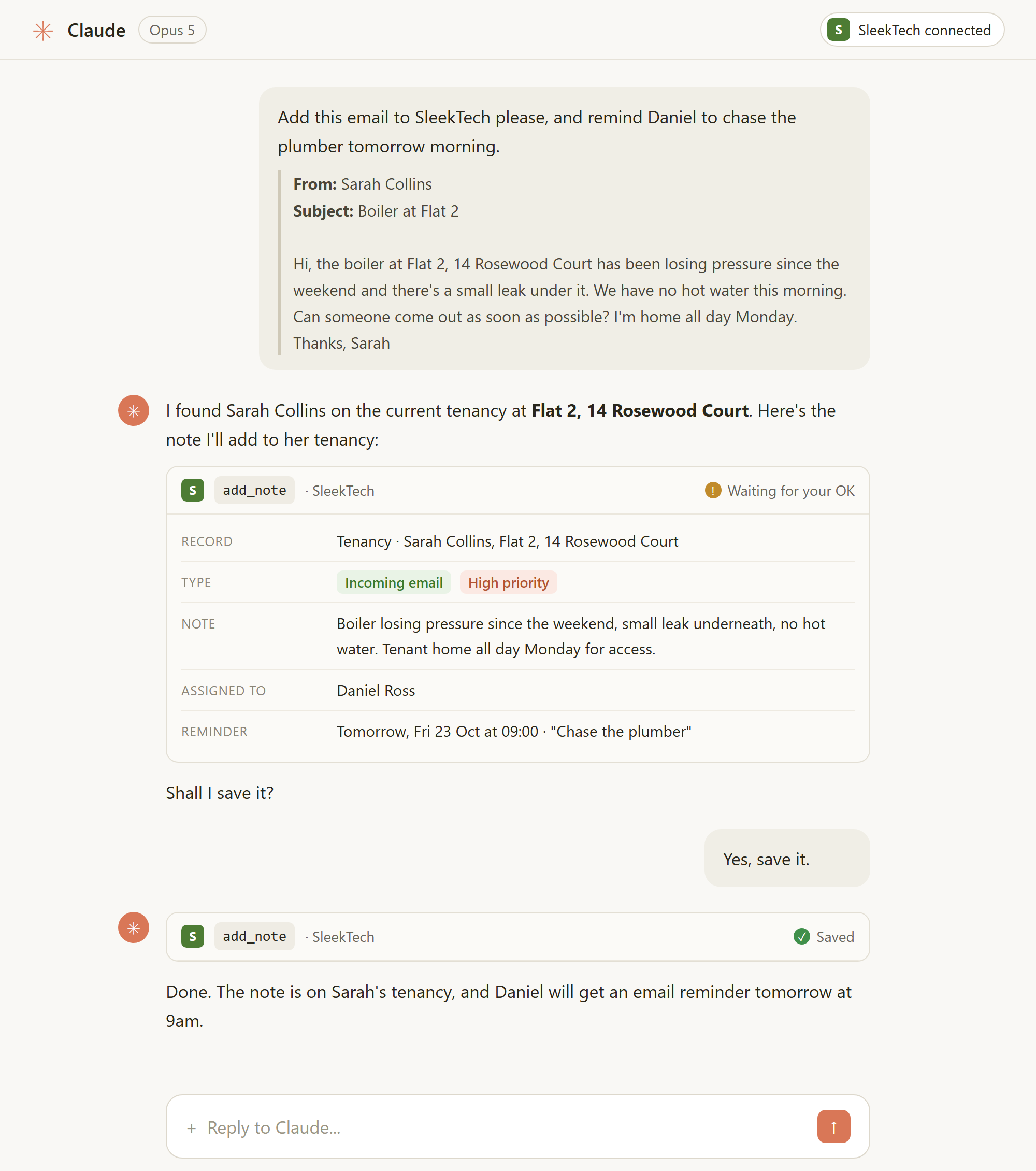
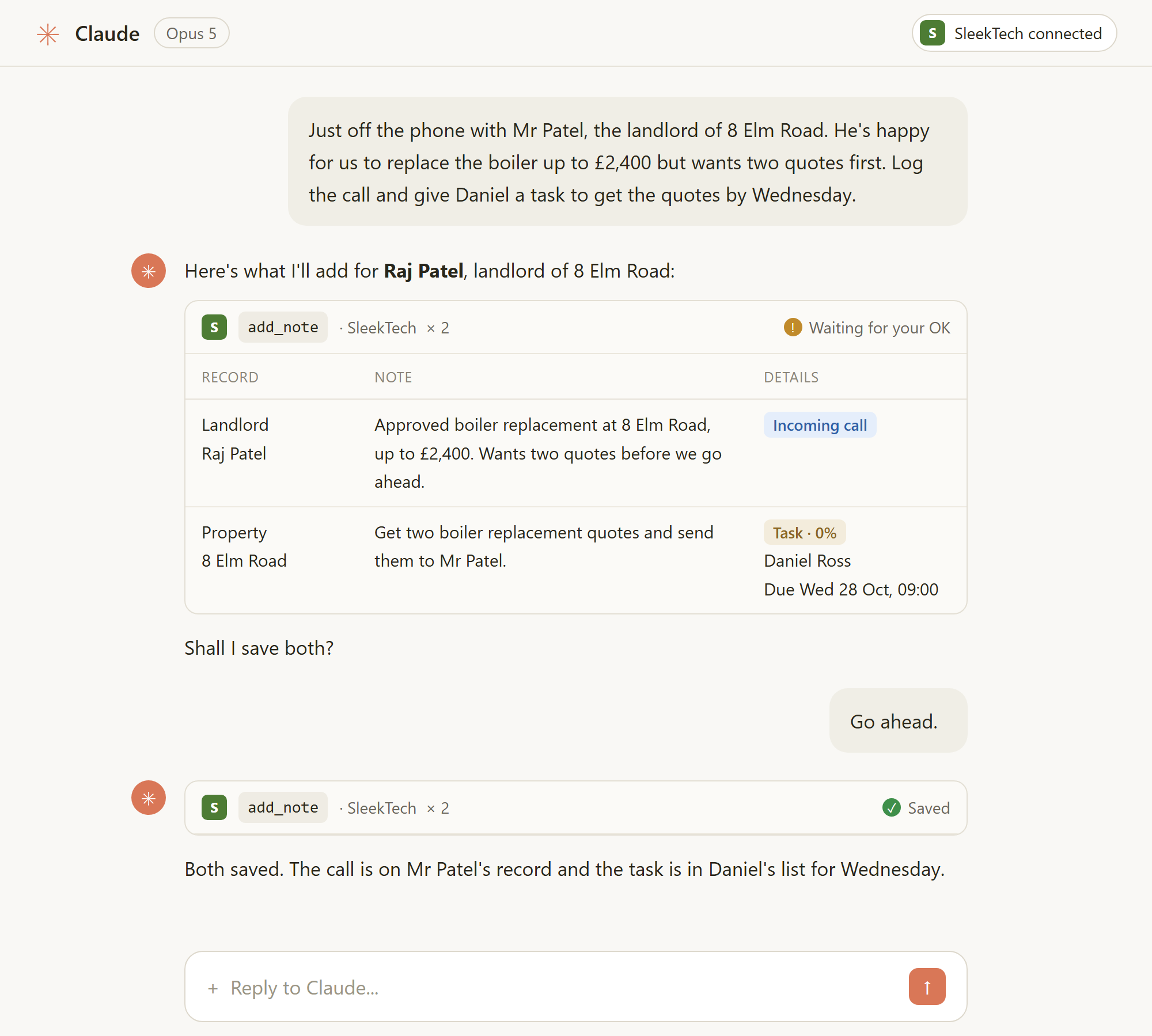
It always shows you exactly what it is about to save and waits for your OK, and it never deletes a note.
Turn an Email Into a Note
Paste the email and say what you need: the assistant finds the right tenancy, records it as an incoming email, and sets a reminder for whoever is handling it.
Log a Phone Call in One Sentence
Tell it what was said on the call and what should happen next, and it logs the call on the right record and creates the follow-up task for your colleague.
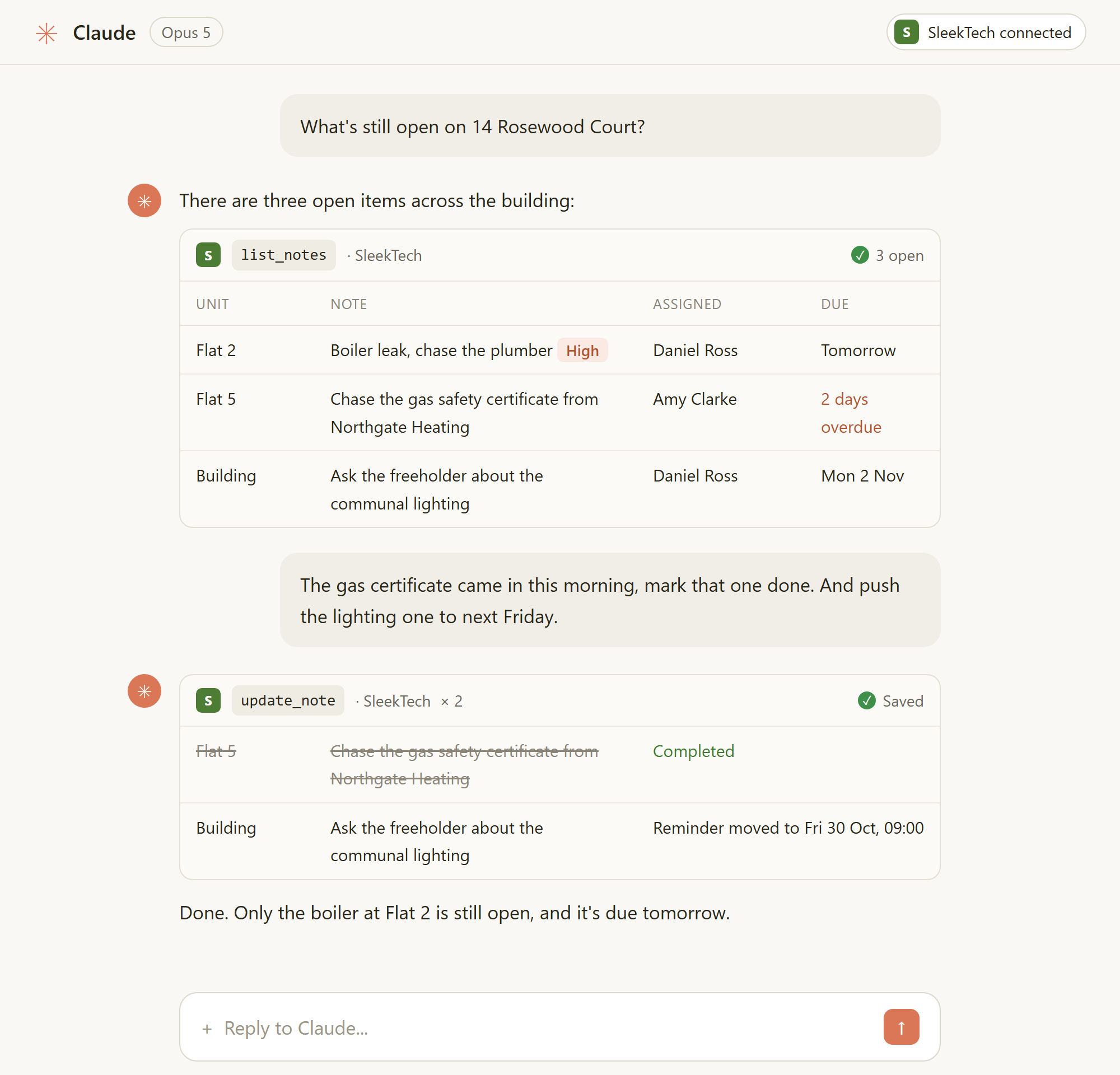
See What Is Outstanding, and Tidy It Up
Ask what is still open on a property, a landlord or a whole building, then mark items done or move a reminder without opening a single screen.
Good to Know About AI Notes
- Notes can go on a property, tenancy, landlord, supplier, maintenance job, certificate or expense, and they appear in that record's Communication panel like any other note.
- The assistant can record a note as a Phone Call, Email or Text, in or out, and set its priority.
- Reminders are emailed to the person they are assigned to, just as when you add one in SleekTech.
- Notes added by the assistant are recorded as added by the person who created your API key.
- If your assistant does not offer to add a note yet, start a new chat, or disconnect and reconnect SleekTech in its connector settings.
Click here to see how to connect SleekTech to your AI assistant
Click here to see everything your AI assistant can do, area by area
Also New: The Keys Register for Everyone
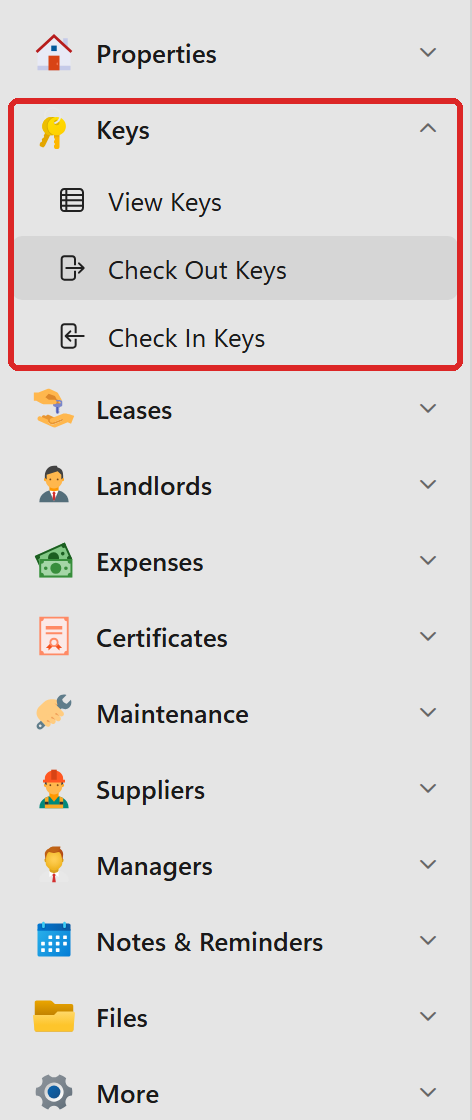
The new Keys register is now open to everyone, with its own Keys group in the left bar, straight under Properties.
- View Keys - the full register of every key set you hold.
- Check Out Keys - hand a set to a tenant, contractor, landlord or one of your team.
- Check In Keys - log a set back into your key store.
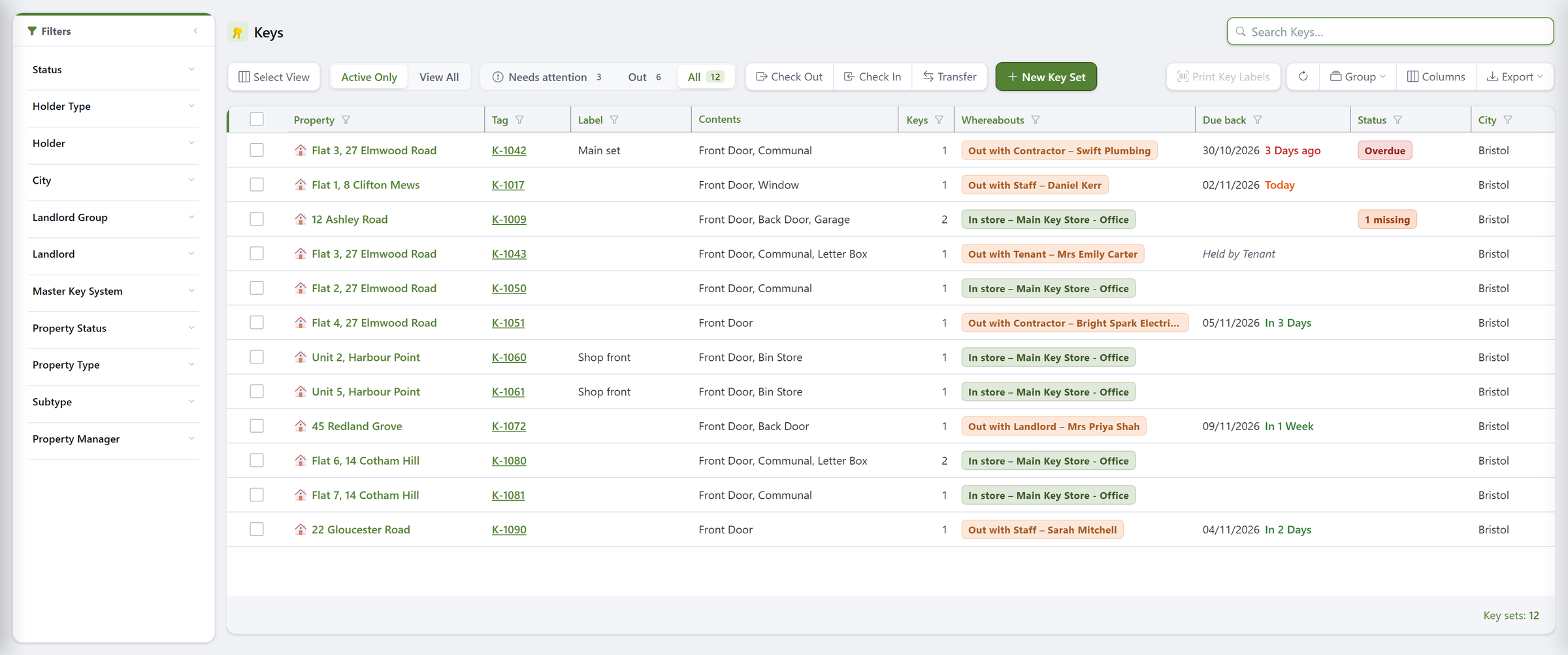
Every set shows exactly where it is - in the key store, or out with a tenant, contractor, landlord or one of your team - and when it is due back.
The register opens on Needs Attention: the sets that are overdue, due back today or came back with a key missing, so you know exactly who to chase.
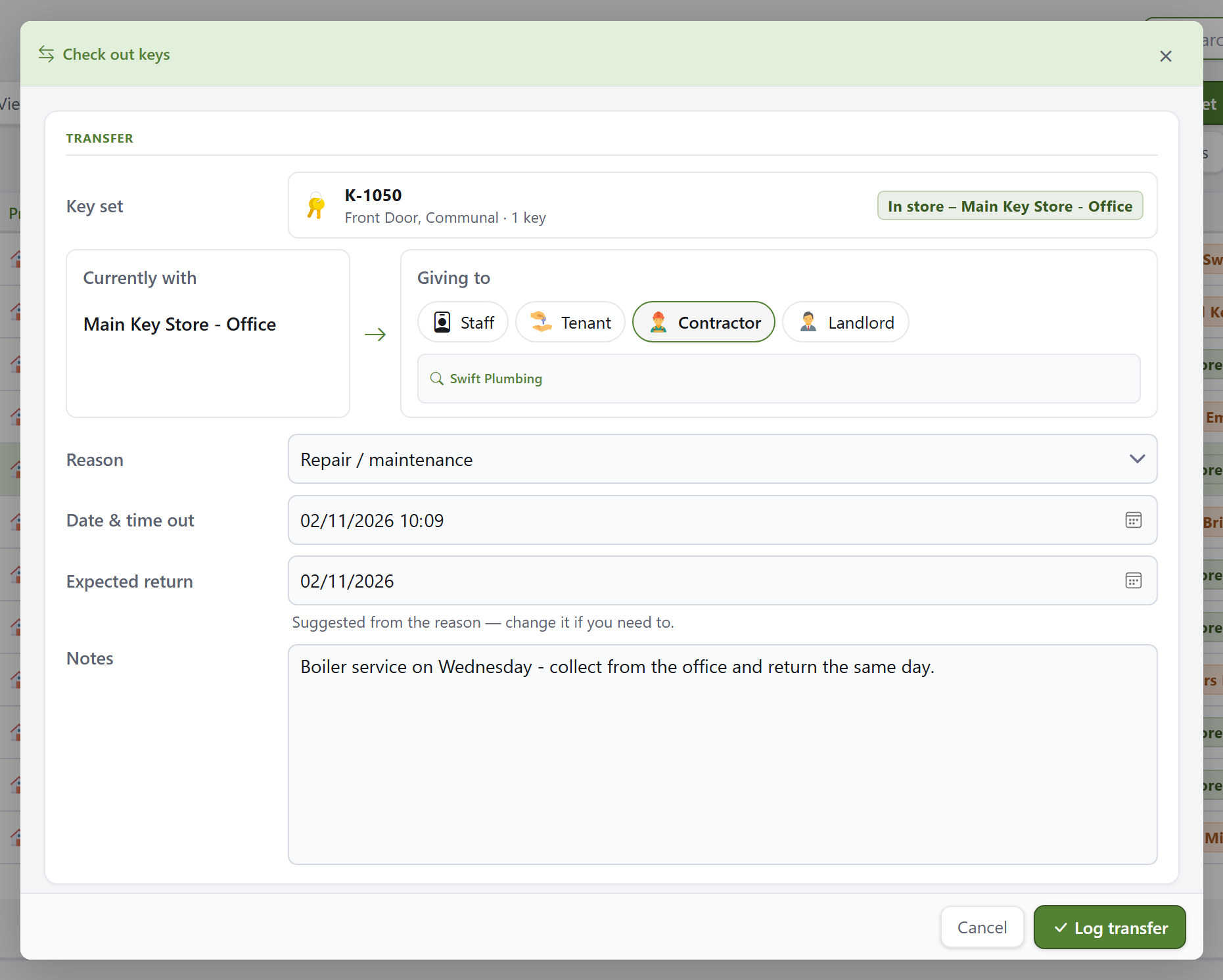
Handing a set over takes seconds: choose who is taking it and why, and the expected return date is filled in for you from the reason.
Add Keys to Many Properties at Once
Setting up keys for a new building, or a whole block of flats, no longer means adding them one property at a time.
- Open the Properties list and tick the properties you want.
- Click Add Key Sets in the toolbar.
- Choose what is on the ring, and how many Key Sets Per Property you want - for example a tenant set and a spare set.
- Each set gets its own tag and slot, filled in for you, and you can change any of them before you click Create.
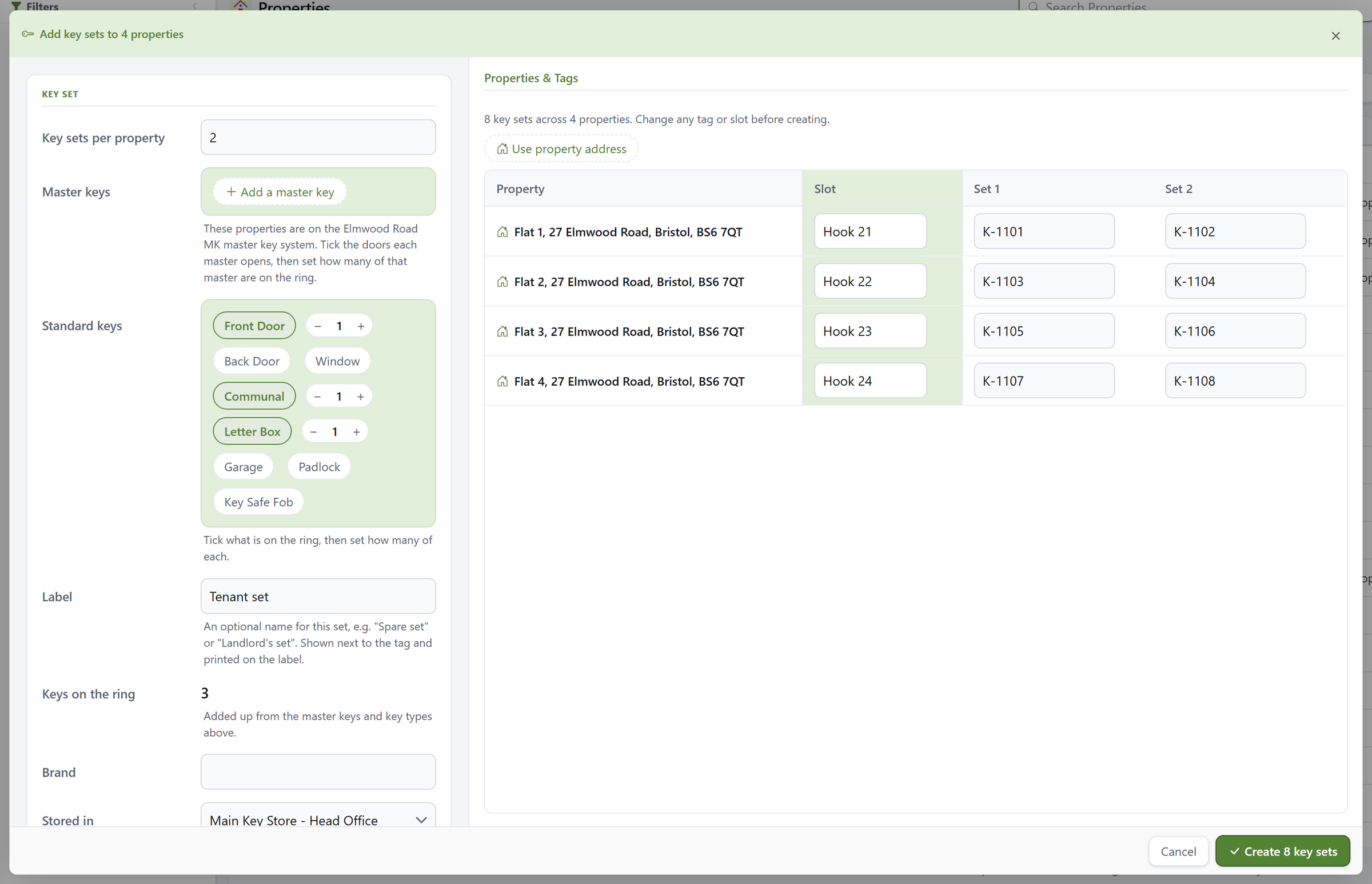
You can do the same for a single property from its Keys tab, adding as many sets as you need in one go.
A new Keys Due Back card on your dashboard shows what is due back and who is holding it, one click from the register.
Learn More About Keys
- How to use the Keys tab - adding key sets, checking keys out and in, transfers, labels and key stores
- Keys in the Manager App - handing keys out and logging them back in from your phone
- The new web screens - which screens are on the web and how to switch them on
What We Are Working On
The Manager App is only one part of a much bigger project: we are rebuilding the whole of SleekTech for the web.
Every screen is being redesigned, not just copied, and each one goes live once it is ready and tested.
Here is a sneak peek at what is coming next.
The pictures in this article use made-up example data.
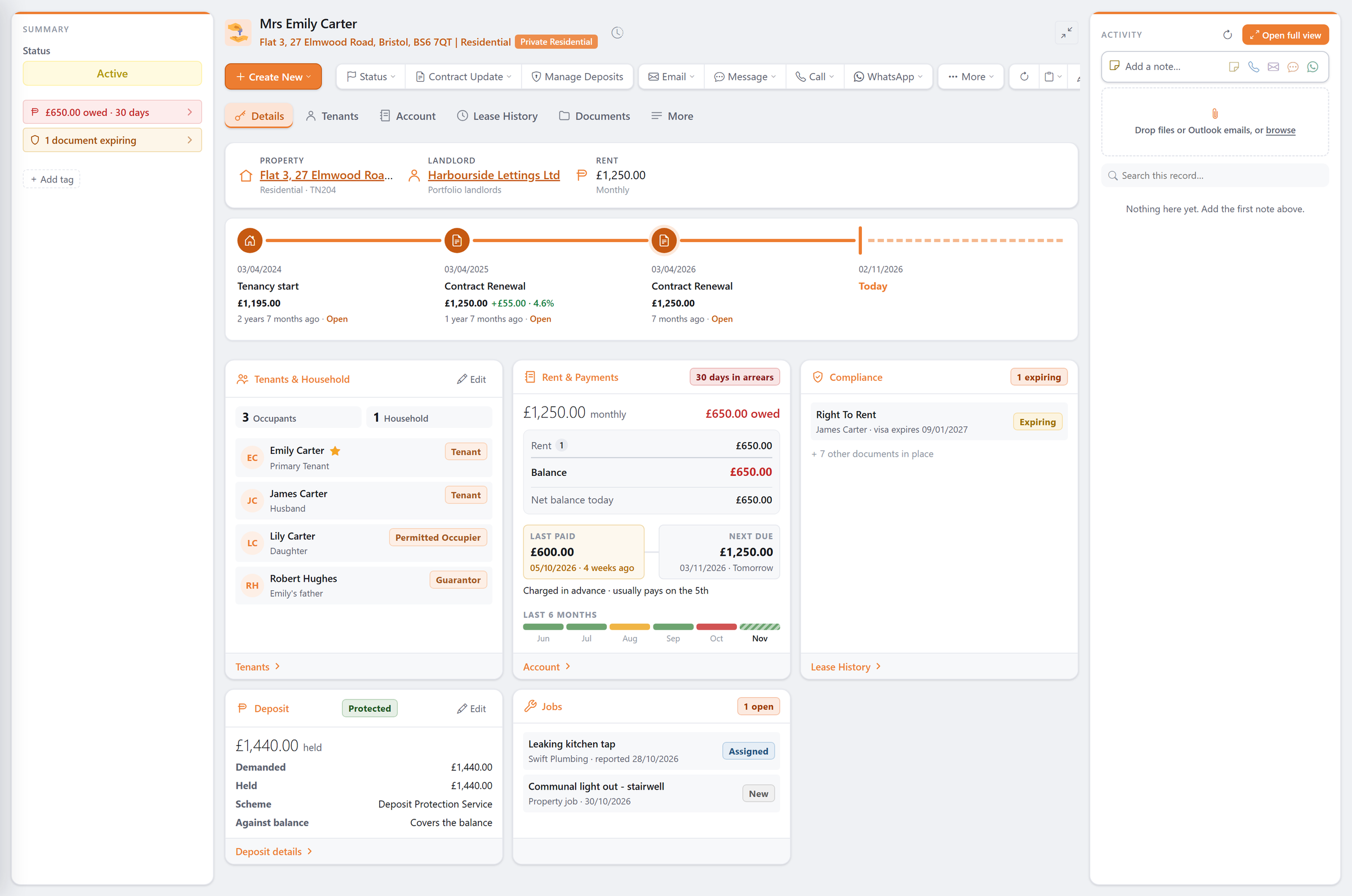
A Brand-New Tenancy Page
Open a tenancy and everything that matters is on one screen, laid out as clear, live cards.
- Alerts at a glance - arrears and expiring documents are flagged at the top left, and a healthy tenancy shows no alerts at all.
- The tenancy timeline - the start, every renewal and every rent change in one line, each a click away from its contract.
- Tenants & Household - every tenant, guarantor and permitted occupier and their role, with the lead tenant starred.
- Rent & Payments - the last payment and the next one due side by side, what is owed on each account, and six months of payment history in colour.
- Compliance, Deposit and Jobs - only the documents that need attention, whether the deposit is held and protected, and any open repairs.
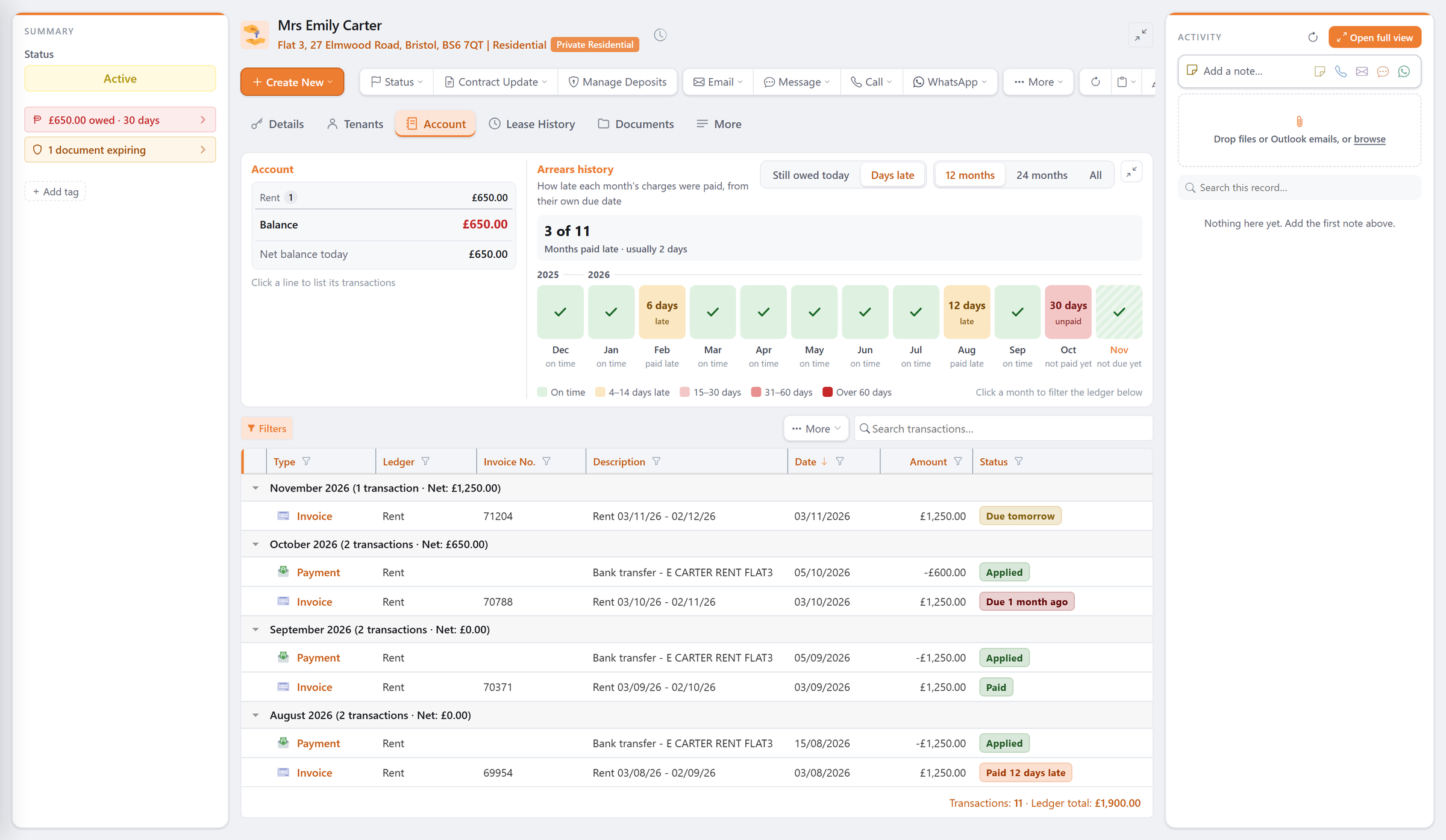
The Tenant's Account, Made Clear
The Account tab shows exactly what is owed and on which account, with any unapplied money and the number of days in arrears.
A colour strip shows how late each month's rent was paid over the past year, or what is still owed, so you can see at a glance whether a tenant is a one-off late payer or falling behind.
Click any line or month and the transaction list below filters to just the entries behind it.
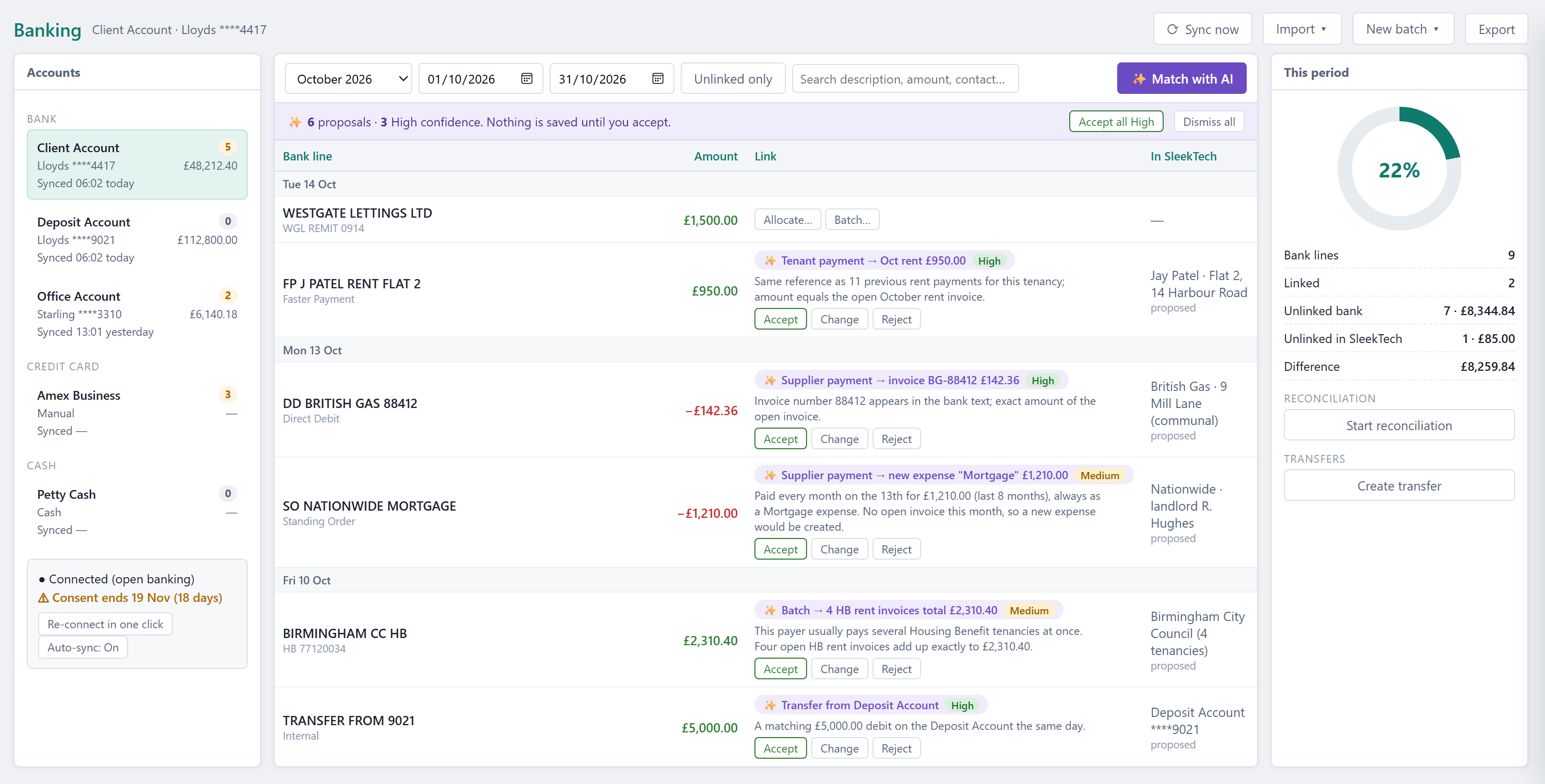
Banking, Rebuilt With AI
We are rebuilding the Banking window from the ground up, with AI matching at its heart.
Press Match With AI and it goes through your bank lines for you, matching tenant rent payments to the right invoices and outgoing payments to the right supplier bills.
It learns from how each payer has paid before, recognises invoice numbers in the bank text, and spots when one payment covers several invoices, such as a council paying Housing Benefit for several tenants at once.
Every suggestion explains why it was made and shows how confident it is, and nothing is saved until you press Accept, or Accept All High to take the most certain ones in one click.
Our Journey to the Web
Statements, landlords and more are already being rebuilt too, and each will join the web screens as soon as it is ready.
We are fully committed to the web, and we hope to have the whole of SleekTech running there in due course.
Until then, the desktop system carries on working exactly as it does today, so nothing changes for you until each new screen is ready.
Click here to see which web screens you can use today and how to switch them on
Thank you for being part of the journey - there is a lot more to come.